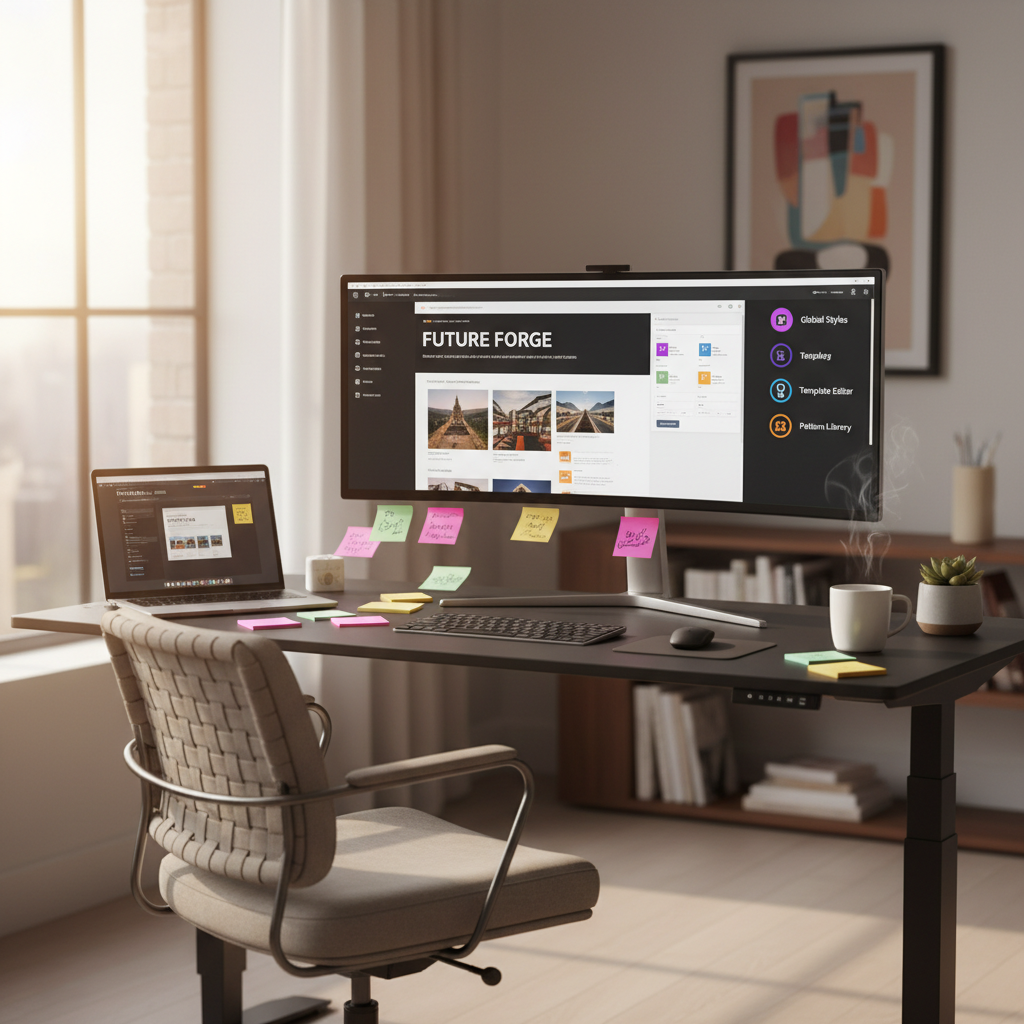
Mastering the New WordPress Site Editor Interface | WP Site Deck
Mastering the New WordPress Site Editor Interface: A Comprehensive Guide
Let’s be real for a second. We’ve all stared at a blank screen during a late-night WordPress project, wondering how on earth we ended up with the infamous “White Screen of Death.” I’ve had my fair share of sleepless nights troubleshooting issues that pop up when you least expect them. But with the latest update, WordPress 6.3, things are looking a lot brighter. It’s not just a refresh; it’s genuinely changing how we work with our sites.
WordPress has evolved immensely over the years, but it’s this new Site Editor that’s making waves. Why does this matter? Well, we’re entering a new era where editing feels more intuitive, and frankly, a lot less stressful. In this guide, I’ll walk you through the new interface changes and how to leverage them for a smoother experience.
Understanding the Revamped Site Editor in WordPress 6.3
Talking Points:
- What’s new in the Site Editor.
- Key features that enhance usability.
- Overview of the available tools and options.
If you haven’t jumped into WordPress 6.3 yet, you’re missing some golden improvements. This update introduces a user-friendly interface that keeps everything exactly where you need it. From the layout to the functionalities, they’ve really listened to user feedback about what makes editing both more productive and enjoyable.
The new Site Editor isn’t just about aesthetics; it’s packed with features that help create a seamless workflow. You might find the template editing area much easier to navigate now, allowing you to manage layouts without feeling overwhelmed. It puts everything at your fingertips, whether you’re working on global styles or individual template nuances.
Enhanced Navigation: Streamlining Your Editing Workflow
Talking Points:
- Changes to navigation menus.
- How navigation affects usability.
- Quick-action features to speed things up.
One of the standout features is undoubtedly the updated navigation. No more confusion over where to find the tools you need! It allows for quick jumps between various editing sections—perfect when you’re rushing to get your site updated before that impending deadline.
Better yet, navigation menus are more intuitive. You can locate your sections without digging through endless options, making your editing experience less frustrating. It feels like WordPress is finally taking user experience to heart. Changes that felt tedious before now glide by smoothly, leaving you more time to focus on your creative ideas rather than where to find them.
Introducing the Command Palette: Your Shortcut to Efficiency
Talking Points:
- What the Command Palette does.
- Benefits of using shortcuts.
- Real-life tips on effectively utilizing this feature.
Let’s talk about that shiny new Command Palette. Imagine having a powerful search tool that dives deep into WordPress commands and features without getting lost in menus. Trust me, this is a game changer.
With just a few keystrokes, you can access any function you need. It’s like your secret weapon. Searching for a specific setting? Just type it in! This feature speeds up workflow significantly. For those late nights where you feel like you’re clambering through menus, this tool feels like a breath of fresh air.
Exploring Block Themes: A New Era of Site Design
Talking Points:
- What block themes are.
- Advantages of using them over traditional themes.
- How block themes enable creativity.
In WordPress 6.3, block themes are making their grand entrance, and they are nothing short of revolutionary.
These themes are designed to be fully customizable with blocks, making it easy to build stunning pages without diving into coding. You can mix and match components, giving you the freedom to express yourself like never before. If you’re like me and enjoy playing around with aesthetics, this is your playground!
The beauty of block themes is the ability to sync patterns directly into your site from the Site Editor. This feature ensures that your designs remain consistent across the board, leaving you to focus on refining your site’s message rather than worrying about visual discrepancies.
Distraction-Free Mode: Focusing on What Matters
Talking Points:
- Importance of focus during editing sessions.
- How to activate Distraction-Free Mode.
- Personal stories about staying focused during content creation.
We’ve all been there, right? Getting sidetracked by too many options on the screen! Well, good news: WordPress now offers a Distraction-Free Mode. This feature allows you to strip down the editing environment, letting you zero in on what truly matters—your content.
Activating this mode is simple. With the click of a button, you can hide all those tempting distractions and really focus on crafting your piece. Personally, I’ve found this invaluable during those late-night content pushes when every minute counts. It helps me channel my inner writer without getting lost in the ocean of options.
Openverse Integration: Accessing a Vast Library of Media
Talking Points:
- What is Openverse and its goals?
- How to use Openverse within your WordPress site.
- Tips for utilizing media effectively.
Here’s something fresh: Openverse integration! Now, you can access a massive library of free media without leaving your WordPress dashboard. All those gorgeous photos and sound files you’ve been searching for? They’re just a few clicks away. This feature makes media management easier and enriches the content you’re producing.
With Openverse, you can find images that align perfectly with your content message. The time you save from not having to scour the internet for the right visual is priceless. Just remember to check the licensing of the media, so you stay on the right side of copyright.
Style Revisions: Keeping Your Design Consistent and Reversible
Talking Points:
- What style revisions can do.
- The importance of consistent design.
- Real-world examples of style changes impacting site integrity.
Another gem in WordPress 6.3 is the ability to make style revisions that are easy to track and revert. This means you can experiment with your designs while having safety nets in place. If something goes wrong or doesn’t feel right, you can quickly backtrack.
This feature comes in handy when you’re testing new layouts or color schemes. I’ve often found myself playing around with elements, only to realize they disrupt the overall design. Thanks to this tool, reverting isn’t a massive headache anymore.
Updated Block Inserter: Simplifying Content Addition
Talking Points:
- Overview of the new Block Inserter.
- Advantages of the updated interface.
- Tips on effectively using block inserters.
The Block Inserter has received a makeover in WordPress 6.3, leading to a more straightforward interface that’s much easier to navigate. You can add blocks quickly and efficiently, reducing the time it takes to pull together a page.
This improvement means less fuss when adding new content. Simply drag and drop—easy peasy. The whole content addition feels smoother, allowing you to create and iterate much faster. I mean, who wouldn’t want an interface that enhances their creative flow? With the new Block Inserter, it’s as if WordPress is helping you translate your ideas into content seamlessly.
Managing Navigation Menus: Organizing Your Site’s Structure
Talking Points:
- Recent updates to navigation menu management.
- Strategies for effective navigation setup.
- Possible pitfalls when designing menus and how to avoid them.
Organization is critical when it comes to managing your site’s navigation menus. With recent updates, WordPress has made this process much more straightforward. An intuitive drag-and-drop feature allows you to rearrange your menus without the hassle.
A well-structured menu leads to happy visitors. It directs them where they want to go and keeps them from bouncing off your site confused. I’ve learned the hard way that cluttered menus can ruin the user experience, leading to drop-offs. Therefore, it’s vital to keep it clean and organized.
Template Editing: Customizing Your Site’s Layout
Talking Points:
- Enhancements in template editing.
- Importance of customizing your layout.
- Recommendations for efficient template editing.
The ability to edit templates in a more user-friendly manner can’t be overstated. It allows you to build out custom layouts that reflect your unique brand without needing to wrestle with complicated code.
By mastering template editing, you can effectively tailor your site’s look and feel. The drag-and-drop features and customizable options ensure that creating a unique site can be achieved simply and quickly. Just remember how those little details can go a long way in making a strong first impression on your visitors.
Global Styles: Applying Uniform Design Across Your Site
Talking Points:
- Benefits of using global styles.
- How to apply global styles effectively.
- Examples of when to use global styles.
And finally, let’s talk about global styles. They let you apply uniform design settings across your entire site. With this functionality, branding becomes easier than ever. You can alter fonts, colors, and spacing all at once, ensuring a cohesive look without needing to tweak each element individually.
This feature is particularly useful for maintaining brand consistency. I remember a time when I would spend hours applying changes to every single page, only to find I had overlooked one. With global styles, those days are behind us.
Conclusion: Embracing the Future of WordPress Site Editing
What an exciting time for WordPress users! The changes introduced in WordPress 6.3 pave the way for a more streamlined, enjoyable editing experience that caters to both creativity and efficiency. Whether you’re an experienced developer or just starting with your first site, these changes empower you to create compelling web experiences effortlessly.
I’m eager for you to try out these features and customize them to fit your unique needs. Have you had a chance to explore WordPress 6.3 yet? I’d love to hear about your experiences, tips, or even challenges you’ve faced in the comments below!
Frequently Asked Questions
Q1: What are some key features of WordPress 6.3?
A1: Key features include enhanced navigation, the Command Palette for faster access to commands, integrated Openverse for media, and improved block inserters for easier content addition.
Q2: How does the Command Palette improve user experience?
A2: The Command Palette allows users to quickly search for and access functions without navigating deep into menus, saving time and reducing frustration.
Q3: Can I still use traditional themes with WordPress 6.3?
A3: Yes, while block themes are emphasized, traditional themes remain compatible with WordPress 6.3.
Q4: How can I maximize the advantages of global styles?
A4: Use global styles to ensure consistent design across your site, saving time and ensuring brand alignment by applying changes universally.
Q5: Is Distraction-Free Mode beneficial for content creators?
A5: Absolutely! It removes unnecessary interface elements, allowing a more focused and productive writing environment, ideal for content creation without interruptions.