WordPress Speed Optimization | Fast Site Tips
WordPress Speed Optimization: Your Ultimate Guide to a Faster Site
Picture this: it’s 2 AM, and you’re staring at the dreaded white screen of death. Frustrating, right? Now imagine—your website loads in a heartbeat instead. Sounds too good to be true? It’s not! Keeping your WordPress site nimble can dramatically enhance user experience, boost conversions, and even save you from a headache. Let’s break down why optimizing your site’s speed matters now, and how you can do it.
Common Causes of Slow WordPress Sites
Talking Points:
- Impact of slow loading times
- Common culprits behind slowness
- Importance of regular monitoring
Have you ever wondered why your buddy’s website zips along while yours crawls? Research says every moment your site takes to load can drop conversions by a whopping 7%. Not ideal if you’re running an online store!
Slow WordPress performance can often stem from a few trouble spots, such as:
1. Bad Hosting Environment: An unreliable host can turn your speedy site into a sluggish one faster than you can say “WordPress.”
2. Poorly Optimized Images: Heavy images don’t just add time; they burden your server.
3. Too Many Plugins: Sure, plugins are handy, but after a certain number, they can become your site’s enemy. If you’re running over 30, you might as well be trying to swim with a backpack full of rocks.
Let’s discuss how to get your WordPress speed back on track!
1. Choose the Right Hosting Environment
Talking Points:
- Types of hosting solutions (shared, VPS, dedicated)
- Evaluating hosting performance
- Importance of customer support
Choosing the ideal hosting environment feels like dating; you want someone supportive but strong when it counts. Shared hosting can be affordable, but it’s like having a roommate who never cleans up. You’ll likely be sharing server resources with a bunch of other sites.
Consider upgrading to a VPS or dedicated hosting solution if your site’s getting significant traffic. A top-notch host will also provide support when you’re tangled in issues—because who wants to handle crises alone?
2. Implement Effective Caching Strategies
Talking Points:
- Types of caching (page, browser, object)
- How caching speeds up your site
- Recommended caching plugins
Caching is like keeping your favorite snacks on your desk—quick access means less waiting around. When visitors come to your site, caching allows them to view a stored version instead of generating a new one every time.
You don’t need to dive deep into code, either. Plugins like W3 Total Cache or WP Super Cache can help get the job done without making you feel like a tech wizard. Just set it up, and voilà!
3. Optimize Images for Faster Loading
Talking Points:
- Importance of image compression
- Recommended tools for image optimization
- Choosing the right image formats
Do you remember that time you forgot to compress images before hitting publish? Your site was like an overloaded dumpster truck—slow and clunky. To prevent this from happening again, optimize those images!
Using tools like TinyPNG or ImageOptim will help trim that fat. JPEGs for photos, PNGs for graphics—knowing your formats can save you loads of loading time. Plus, it keeps your site visually appealing!
4. Minify and Combine CSS and JavaScript Files
Talking Points:
- Effect of file size on loading time
- Tools for minifying files
- Combining files to reduce requests
Every time a visitor hits your website, their browser has to load multiple files. Each additional request slows everything down. By minifying CSS and JavaScript files, you’re essentially trimming the fat—removing unnecessary spaces and characters.
Tools like Autoptimize can be lifesavers, doing the heavy lifting for you.
5. Clean and Optimize Your WordPress Database
Talking Points:
- Why a clean database is essential
- Regular database maintenance strategies
- Recommended plugins for database optimization
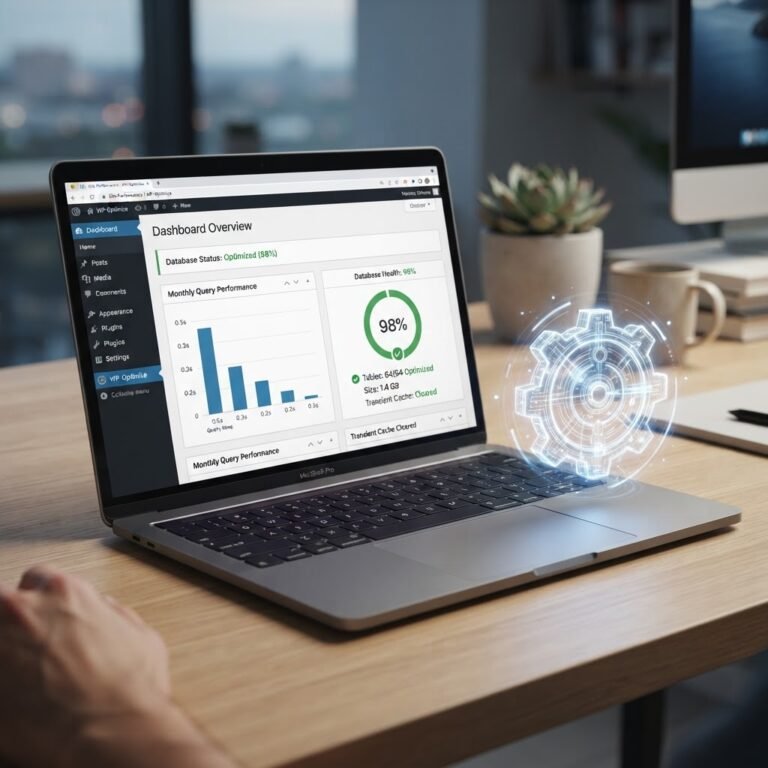
Picture your WordPress database like that closet you’ve been avoiding. Over time, it collects clutter: post revisions, spam comments, and expired transients that weigh it down. Regular cleanup can drastically improve your site’s performance, so don’t neglect it!
Plugins like WP-Optimize do a stellar job at untangling the mess.
6. Limit and Manage Plugins
Talking Points:
- The impact of too many plugins
- Best practices for plugin management
- Alternatives to certain plugins
Let’s face it, plugins are phenomenal. They give your site functionality and flair. But like seasoning your favorite dish, too much can spoil it. Once your site exceeds 20 plugins, performance tends to nosedive.
Think critically about each plugin’s purpose. If there’s overlap in functionality, consider removing the redundant ones. You’ll be amazed at how a little management can go a long way!
7. Utilize a Content Delivery Network (CDN)
Talking Points:
- Why a CDN improves speed
- Popular CDN options
- CDN configuration basics
Have you heard about CDNs? They’re like pizza delivery, but for your website! With a CDN, copies of your site are stored on various servers worldwide, ensuring content reaches visitors quickly, no matter where they are.
Set up is straightforward—Cloudflare and StackPath are excellent starting points for many.
8. Optimize Your WordPress Theme
Talking Points:
- Influence of themes on speed
- Features to look for in a fast theme
- Testing your theme’s performance
Think about your WordPress theme like choosing a car. Do you want a clunky SUV that guzzles gas, or a sleek little hybrid that zips past the traffic? A theme built for speed can significantly enhance your site’s performance.
Check for simplicity in design and limited use of heavy scripts. You can evaluate speed through tools like GTMetrix.
9. Implement Lazy Loading for Images and Videos
Talking Points:
- How lazy loading works
- Benefits of lazy loading
- Recommended plugins for implementation
Lazy loading is like not taking that first slice of cake until everyone’s served—no need to consume resources before they’re needed. By only loading images and videos when they’re in view, you can significantly improve your initial loading time.
Plugins like a3 Lazy Load are easy to set up and can make your site seem zippier from the get-go.
10. Regularly Monitor and Test Your Site’s Performance
Talking Points:
- Importance of performance monitoring
- Tools for testing speeds
- When and how to test your site
Keeping an eye on your site’s performance is not just for the paranoid. Tools like Google PageSpeed Insights and Pingdom provide valuable data on how your site is doing. Regular checks can highlight areas needing attention before they become serious problems. Trust me; you’ll thank yourself later!
Conclusion: Taking Control of Your WordPress Site’s Speed
Improving your WordPress speed might seem overwhelming, but baby steps go a long way. Start with one or two of these tips! Your hard work will pay off in a fast, responsive site that keeps your visitors happy and engaged.
So, what tweaks are you planning to make? Share your experiences or any additional tips to optimize WordPress speed in the comments below!
Frequently Asked Questions
Q1: How can I check my website’s speed?
A1: Use tools like Google PageSpeed Insights or GTMetrix to get a detailed report on your site’s speed and suggestions for improvement.
Q2: What’s the most effective way to optimize images?
A2: Using tools like TinyPNG to compress images before uploading and choosing the right format (JPEG for photos, PNG for graphics) helps optimize them effectively.
Q3: Can a CDN really speed up my site?
A3: Absolutely! A CDN stores cached versions of your site on servers worldwide, reducing loading times by serving content from the closest location to the visitor.
Q4: How many plugins are too many?
A4: It’s generally best to keep your plugin count under 20. Exceeding this can significantly slow down your site as you start to burden your database and server.
Q5: What hosting environments are best for WordPress?
A5: For optimal speed, consider VPS or dedicated hosting. Shared hosting is more affordable but may lead to performance issues, especially with traffic spikes.