WordPress Maintenance Checklist for Beginners | WP Site Deck
The Ultimate WordPress Maintenance Checklist for Beginners: Keep Your Site Fast & Secure
Talking Points:
- The critical nature of maintenance for any WordPress site.
- Frustrations common to WordPress users.
- The importance of staying proactive in site management.
The night was quiet, save for the echoing beeps of my computer. It was 2 AM, and I was jolted awake by the dreadful “White Screen of Death.” I mean, who hasn’t been there, right? That frustrating moment when your WordPress site seems to vanish into thin air can feel like a digital nightmare. With WordPress powering over 43% of all websites on the internet, it’s no surprise that many of us face similar issues. But what if I told you that consistent maintenance can drastically reduce these headaches? Maintaining your WordPress site isn’t just a chore; it’s your secret weapon against slow loading times and security vulnerabilities. Let’s get into it!
The 2 AM Wake-Up Call: Understanding Common WordPress Frustrations
Talking Points:
- Identifying typical problems WordPress users face.
- Understanding the implications of neglecting maintenance.
- The emotional weight of WordPress issues.
We’ve all felt that anxiety when our site goes down or something doesn’t work as expected. Slow loading pages, broken links, or malware attacks—these issues can keep anyone up at night! Neglecting essential updates and maintenance makes your site a playground for hackers. Did you know that approximately 13,000 WordPress sites are hacked per day? That’s about 4.7 million annually! Taking care of your site doesn’t just protect your online presence; it’s crucial for your peace of mind.
The Foundation: Why Regular Backups Are Your Best Friend
Talking Points:
- Discussing the importance of regular backups.
- Different methods for backing up your site.
- How to restore backups effectively.
You might think, “Oh, that won’t happen to me.” But when it does, what’s your next move? Regular backups are your safety net! Whether through plugins like UpdraftPlus or your hosting provider’s tools, keeping updated backups ensures that you’re never more than a few clicks away from recovery. After a crash, having a backup can save you time, stress, and even money down the line. Just remember, without regular backups, your hard work could be gone in an instant!
Weekly Checklist: Staying on Top of Core, Plugin, and Theme Updates
Talking Points:
- The significance of keeping your WordPress updated.
- How to effectively manage plugin and theme updates.
- The risk of outdated software.
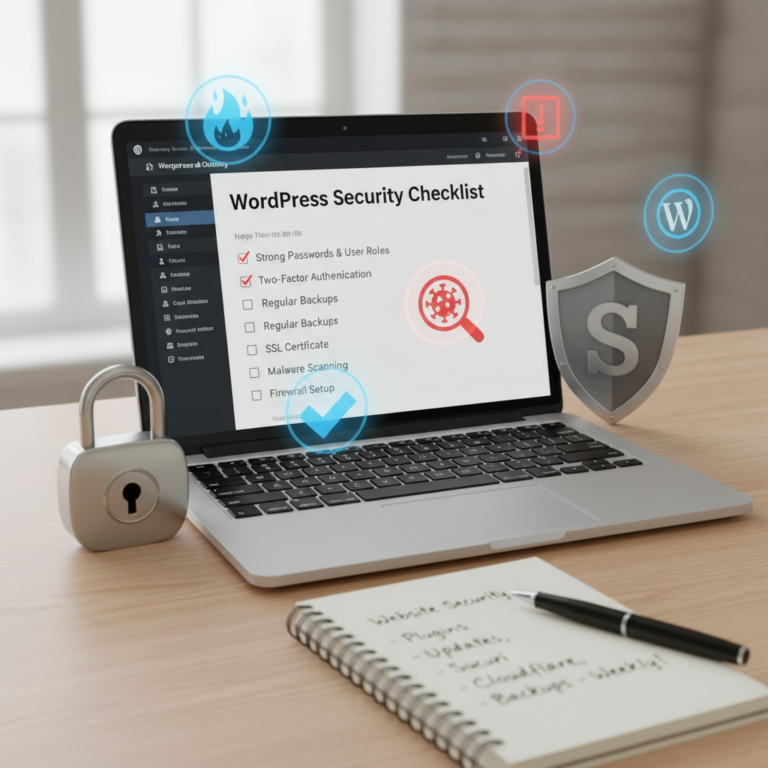
Every week, set aside some time to check for updates. The core WordPress software, themes, and plugins need attention too! Plugins, which are responsible for much of WordPress’s functionality, are often the source of vulnerabilities. In fact, 91% of WordPress vulnerabilities originate from plugins! So, stay on top of your updates to fortify your defenses against hacks and issues.
Monthly Checklist: Cleaning Up Your Database and Managing User Roles
Talking Points:
- Explaining a healthy database and its importance.
- Tips for user access management.
- How to regularly audit and clean your database.
Once a month, roll up your sleeves and dig into your database. Over time, databases can become cluttered with unnecessary data, slowing your site down. Plugins like WP-Optimize can help you clean things up in a jiffy! Plus, review user roles to make sure only trusted individuals have access to your site. Managing user access isn’t just smart; it’s critical for your site’s security.
Quarterly Checklist: Security Deep-Dives and Performance Audits
Talking Points:
- How to conduct an effective security audit.
- The importance of performance optimization.
- Tools that simplify this process.
Every three months, consider performing a deep dive into your site’s security and performance. Use tools like Wordfence for security scanning to check for vulnerabilities and malware. A performance audit can be eye-opening! Tools like GTmetrix will show you exactly where you can optimize. Remember, a fast site keeps visitors engaged!
Annual Tasks: Renewing Licenses and Reviewing Your Hosting Plan
Talking Points:
- What licenses need renewal?
- Evaluating your hosting plan’s effectiveness.
- Why annual reviews are essential.
Once a year, take time to renew licenses for your themes and plugins. Staying up-to-date can prevent vulnerabilities due to expired software. It’s also a good time to review your hosting plan. Is it still the best fit for your traffic and needs? You don’t want to wait until you’re drowning in visitors only to realize your server can’t handle it.
The ‘Don’t Panic’ Guide: Troubleshooting Common Site Errors
Talking Points:
- Common WordPress errors explained.
- Quick fixes for users.
- Maintaining composure during crises.
In those hair-pulling moments when things go awry, don’t panic. Take a moment to breathe. Most common issues, like the infamous “White Screen of Death” or 404 errors, have straightforward solutions! Start by clearing your cache or disabling plugins to see if that helps. Remember, you’re not alone; every WordPress user has been through this at least once!
Best Tools to Automate Your WordPress Maintenance Workflow
Talking Points:
- Top plugins and tools for automation.
- Balancing manual oversight with automation.
- Pros and cons of relying on tools.
Automating parts of the maintenance process can save you a ton of time! Plugins like ManageWP simplify backups, updates, and performance checks. However, it’s crucial to stay involved so that you don’t miss out on essential manual interventions. While these tools can simplify countless tasks, your active oversight remains irreplaceable.
When to Call in the Experts: Knowing Your Limits
Talking Points:
- Understanding when to seek professional help.
- Common situations warranting external assistance.
- Finding trustworthy service providers.
While it’s great to tackle most tasks yourself, knowing when to ask for help is essential. If you find yourself facing repetitive issues, or worse, a serious security breach, don’t hesitate to call in the experts. Researching reliable WordPress maintenance services can give you peace of mind.
Conclusion: Your Command Center for Long-Term WordPress Mastery
Taking care of your WordPress site isn’t a one-and-done situation; it’s a marathon, not a sprint. By following these maintenance guidelines, you can keep your site healthy, fast, and secure. And that’s the goal! Remember, WordPress can be your best friend, but only if you treat it right. Now it’s your turn! What maintenance tips and tricks have worked for you? Share your ideas in the comments below,
Frequently Asked Questions
What should I do if my site goes down?
Check if your hosting service is experiencing downtime. If not, try disabling plugins or switching to the default theme as a first step to troubleshoot.
How often should I back up my WordPress site?
Backing up weekly is ideal. But if you publish frequently or run an e-commerce site, daily backups may be best.
Can I update my plugins automatically?
Yes, but always keep an eye on them afterward. Automated updates can occasionally cause compatibility issues.
What are the signs of a hacked WordPress site?
Common signs include unusual activity, slow performance, or unexplained changes to content. If you notice any of these, investigate immediately.
Is it possible to recover a deleted WordPress site?
If you have backups, restoring is usually straightforward. If not, you may need professional help to attempt recovery.