WordPress Multisite Tutorial: Master Network Management (2026)
WordPress Multisite Tutorial: Master Your Network Management (2026 Guide)
I still remember the 2am phone call. A client had ten different WordPress dashboards and one was compromised. It took hours just to log into every single site to check for damage. That night was the push I needed to simplify everything. WordPress now runs 41.9% of all websites globally, and with that popularity comes the headache of managing multiple installations. You don’t have to live in dashboard chaos. A better way exists.
What is WordPress Multisite? (The Apartment Building Analogy)
Talking Points:
- How shared resources work.
- The distinction between single and multi-installations.
- Why centralization matters for your workflow.
Think of a standard WordPress installation as a single-family house. It has its own foundation, roof, and plumbing. A WordPress Multisite network, by contrast, is an apartment building. You share the plumbing and the electrical grid. Each tenant lives in their own private unit, yet the landlord manages the entire structure from one lobby. This setup allows you to run dozens of sites from one dashboard. You share one set of core files, one database, and one set of themes. It is efficient when you manage multiple brands that share the same design style. You stop updating ten different versions of the same plugin. Everything happens once in your network admin dashboard.
The Pros and Cons: Is Multisite Right for Your Project?
Talking Points:
- Avoiding common project traps.
- Comparing management styles.
- When to stick to single sites.
Many users ask me if they should switch everything over. Not so fast. If you run one massive e-commerce site and one local blog, keep them separate. Multisite works best for related sites. Think about a university with department sites or a corporation with regional blogs. You save time on maintenance. However, a single security breach in a shared theme can hit every site in your network. That is a heavy risk. If one site needs a wildly different setup or custom server tweaks, you will hit a wall. Always weigh the ease of management against the loss of individual autonomy.
Before You Begin: Essential Pre-Setup Checklist
Talking Points:
- Verifying your server capacity.
- Clearing out existing conflicts.
- Preparing for the installation phase.
Don’t just click buttons yet. You need a clean slate. Disable every plugin before you change your core settings. It stops those nasty “White Screen of Death” errors before they start. Make sure your server can handle the traffic. Multisite adds load to your database. Check your wp-config.php file permissions. You will need to write to it. If you have a staging environment, run this there first. Never test these changes on your live site. It is a rookie mistake I learned the hard way.
Step-by-Step: Enabling Multisite via wp-config.php
Talking Points:
- Finding the right config file.
- Activating the network feature.
- Finalizing the code insertion.
Open your wp-config.php file. Look for the line that says “That’s all, stop editing!” Add the command to enable the feature just above that line. Save the file. Refresh your WordPress dashboard. A new menu option will appear. This is where the magic happens. You are telling WordPress to open up the network doors. It feels like a big step because it is. Keep a backup copy of your site before you hit save. You never know when you might need to revert.
Configuring Your Network: Subdomains vs. Subdirectories
Talking Points:
- Choosing your URL structure.
- Impact on SEO and site growth.
- Why you cannot easily swap later.
Do you want site1.example.com or example.com/site1? This is your most important choice. Subdomains require wildcard DNS configuration. They feel cleaner for separate brands. Subdirectories are easier to set up for smaller projects. Pick one and stick with it. Switching later is a technical nightmare. I have seen developers spend days fixing broken permalinks because they changed their mind. Do the research once. Decide based on your project goals.
The Network Admin: Navigating Your New Command Center
Talking Points:
- Accessing the global settings.
- Managing your network of sites.
- Updates and global configurations.
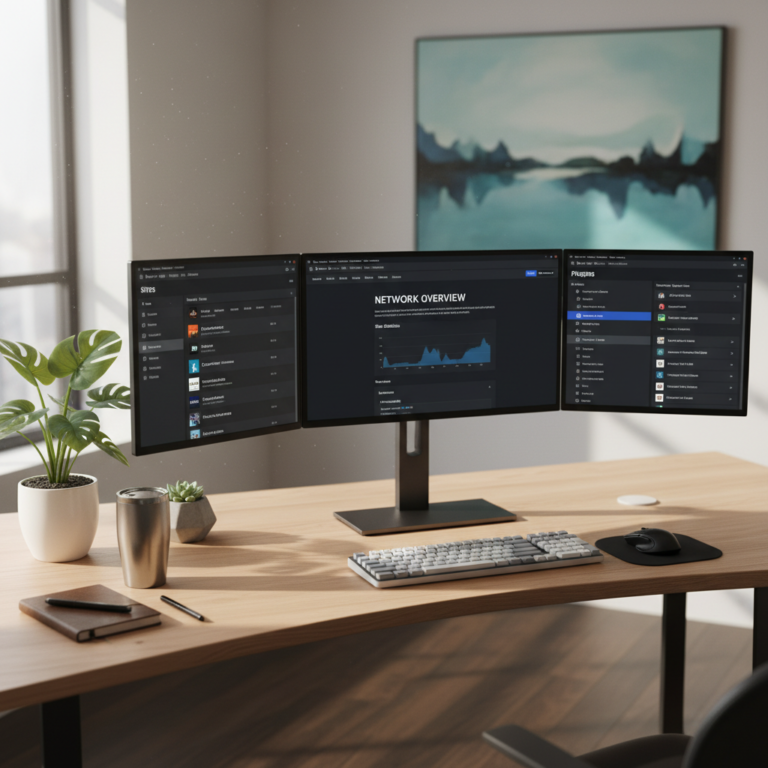
Welcome to your new HQ. The network admin dashboard is where you rule the roost. You can create new sites in seconds. You can force theme updates across the board. If a plugin is causing issues, you can disable it everywhere at once. It feels powerful. Just be careful with that power. One bad setting here impacts everyone. Stay disciplined with your changes. Only allow the sites you actually need.
Managing Plugins and Themes at Scale
Talking Points:
- Handling global plugin compatibility.
- Pushing updates to the network.
- Avoiding plugin conflicts.
Managing plugins for ten sites is a chore. In Multisite, you install them once. You either network-activate them for everyone or let individual site admins choose. I prefer keeping a tight list of approved plugins. This prevents users from installing junk. Watch for plugin compatibility issues. Some plugins do not play nice with the shared database tables. Test every new tool on one site first. Do not push it live to all fifty sites instantly.
User Management: Understanding Super Admins vs. Site Admins
Talking Points:
- Defining the top-tier roles.
- Controlling user access permissions.
- Preventing unauthorized changes.
As the Super Admin, you are the god of the network. You can change everything. You can delete sites or add users. Site Admins are limited to their own domain. They cannot install new plugins. They cannot touch your global settings. This is exactly how it should be. It protects your network from accidental breakage. Always limit the number of Super Admins. One is usually enough. Trust me, you do not want three people changing the core configuration.
Common Pitfalls and How to Fix Them (The 2am SOS)
Talking Points:
- Solving common login loops.
- Fixing broken image paths.
- What to do when things fail.
I have fixed thousands of WordPress sites. Errors happen. If your users cannot log in, check your cookies. Sometimes the network doesn’t map them correctly. If images are missing, check your .htaccess rules. A simple configuration change can fix most issues. Stay calm. The fix is usually buried in a settings file. Never panic and delete your database. Most problems have a solution that takes less than ten minutes to apply.
Performance and Security Best Practices for Networks
Talking Points:
- Protecting your shared environment.
- Monitoring server resource allocation.
- Preventing network-wide attacks.
Security is a constant battle. WordPress sites face a security attack every 32 minutes on average. In a network, one vulnerability is a catastrophe. Use a security plugin that tracks everything. Block bad bots at the server level. Keep your themes and plugins updated every single day. If one site needs more power, consider moving it to its own hosting. Do not let one hungry site starve the others of resources. Keep your logs clean and your eyes open.
Conclusion: Streamlining Your WordPress Future
Managing a network of sites does not have to be a nightmare. When you use the right tools, you gain back your time. Start small. Learn the settings. Keep your security tight. You are now the captain of your own digital ship. Use this guide to organize your sites and reclaim your peace of mind. Have you set up a network before? Tell me about your experience or share a question below.