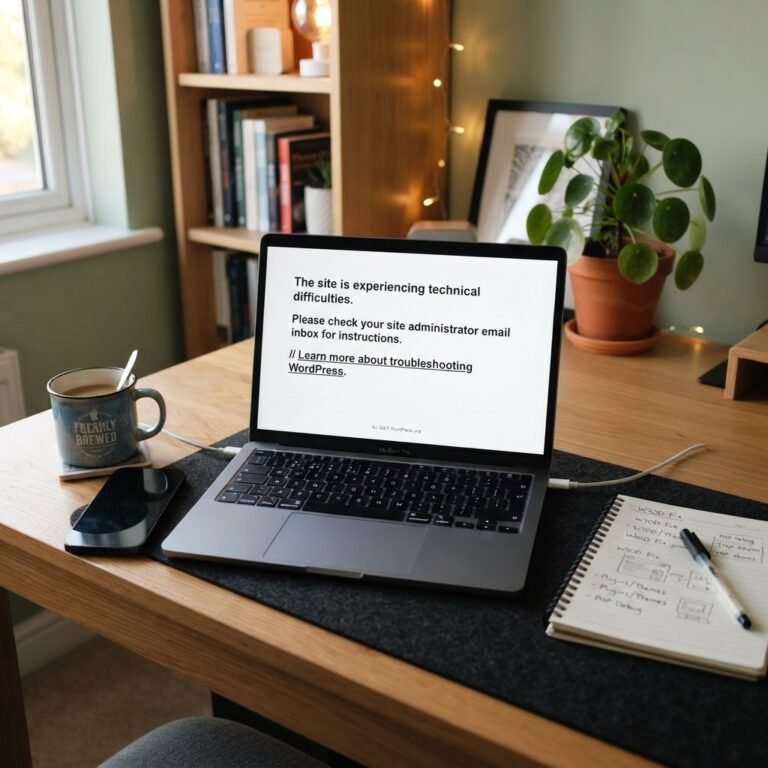
How to Fix WordPress 404 Error: Ultimate Troubleshooting Guide
How to Fix WordPress 404 Error: The Ultimate Troubleshooting Guide
The Silent Killer of Traffic
Talking Points:
* The financial impact of site downtime.
* Why a 404 error makes users bounce fast.
* The difference between a broken link and a server configuration issue.
Imagine staring at your monitor at 2 a.m. because your site is throwing errors everywhere. It is a sinking feeling. You realize that 96% of IT decision-makers faced unplanned outages recently. That is not just a glitch. It is money walking out the door. When visitors hit a 404 page, they do not hang around. They leave within seconds.
I have seen this happen to seasoned business owners who thought their site was invincible. One minute the shop is open, and the next, every internal link is dead. It is not always a code disaster. Sometimes it is just a simple setting that got bumped. We are going to get your site back to peak performance without the panic.
Why the WordPress 404 Error Happens
Talking Points:
* The role of the web server in finding files.
* How pretty permalinks work behind the scenes.
* Why the home page works but subpages fail.
Most of the time, the server just lost its map. When you click a post, the browser tells the server exactly where to go. If the server does not have a physical folder for that URL, it sends back an error. It expects you to provide a rewrite rule. This rule acts like a bridge, pointing requests to the main index file.
When the homepage loads perfectly but inner pages throw an error, your content is safe in the database. The issue is only with the URL routing system. It is like having a perfectly stocked store but the front door sign points to a wall. You just need to fix the sign. We do that by telling WordPress to regenerate its instructions.
Step 1: Resaving Your Permalinks
Talking Points:
* The quickest way to flush rewrite rules.
* Why this works for most sitewide errors.
* Keeping your current structure intact.
I always start with this because it works nine times out of ten. Log into your dashboard and head straight to Settings. From there, click on Permalinks. Do not change anything. Just scroll to the bottom and hit that save button. This one click forces WordPress to refresh its rewrite rules.
It clears out the old, broken map and writes a fresh one. If your WordPress 404 error on posts was just a minor glitch, this usually clears it up instantly. It is elegant in its simplicity. I have saved hundreds of sites using just this one trick.
Step 2: Repairing Your .htaccess File
Talking Points:
* What the .htaccess file actually does.
* How to safely regenerate the file.
* What happens if the file is missing or corrupted.
If resaving permalinks did not work, the .htaccess file might be the culprit. This file is the boss of your Apache server configuration. It tells the server how to handle every single request. If it gets deleted or corrupted, your subpages will stop working.
You can find this file in your root folder via FTP. Sometimes you need to rename it to something like .htaccess_old to see if the site works without it. If it does, just go back to your permalink settings and save again. WordPress will create a fresh, clean version for you. Just make sure you do not delete it permanently unless you have a backup.
Step 3: Checking Mod_Rewrite Support
Talking Points:
* Why Apache needs this specific module.
* How to check if your host has it enabled.
* Troubleshooting server-level configuration blocks.
Sometimes the server itself is not set up to rewrite URLs. Apache needs the mod_rewrite module enabled to interpret those pretty links. If your host turned this off, no amount of tweaking in the dashboard will help. You need to verify if the server is actually listening.
Reach out to your hosting support if you suspect this. Ask them point-blank if mod_rewrite is active. If they say no, ask them to turn it on. It is a standard setting, and any reputable host should have this running by default.
Step 4: Troubleshooting Nginx Server Configs
Talking Points:
* The key differences between Apache and Nginx.
* Why .htaccess files mean nothing to Nginx.
* Using the try_files directive to fix navigation.
Nginx is different. It does not look at .htaccess files at all. It is faster, but it is also stricter about its rules. If you moved your site to an Nginx server, you might run into trouble. You need to update the server configuration block directly.
Look for the ‘try_files’ directive in your config. It needs to tell the server to route requests to index.php if the file does not exist. It is more technical than Apache, but it is reliable. If you are not comfortable with server configs, ask your host to check the rewrite rules for you.
Step 5: Identifying Plugin Conflicts
Talking Points:
* Why some plugins mess with URL structures.
* The safest way to test for conflicts.
* How to restore access if you are locked out.
Plugins are great, but some are poorly coded. They might try to create their own rewrite rules that clash with yours. If you just installed a new tool and the site broke, you found your culprit. Disable the suspect plugin and see if the pages return.
If you cannot even log in, use FTP to rename your plugins folder. This forces WordPress to disable everything. Once you are back in, rename the folder back. Then, reactivate your plugins one by one. You will spot the troublemaker quickly.
Step 6: The Cache Flushing Routine
Talking Points:
* Why your browser might show a ghost error.
* How server-side caching keeps old data alive.
* The importance of clearing all cache layers.
Sometimes you fix the problem, but the error persists. That is your browser holding onto a bad version of the page. It thinks the site is still broken. Clear your local browser cache to see the truth.
Also, check your site cache. Many plugins store a static version of your pages to keep things fast. If you do not clear those, your visitors will still hit a brick wall. Always empty the cache after you make changes. It saves you hours of chasing a ghost.
When to Call Your Hosting Provider
Talking Points:
* Knowing when the issue is beyond your control.
* How to communicate effectively with support teams.
* Avoiding wasted time on internal server issues.
If you have tried all these steps and still see errors, stop. There is a chance it is a server-wide issue. Your host might be performing maintenance or dealing with a hardware failure. Provide them with specific details. Tell them exactly what you tried.
Mention that you have already flushed your permalinks and checked your rewrite rules. This shows them you know your stuff. It cuts down on the back-and-forth chatter. Let the experts handle the heavy lifting if the error persists.
Proactive Steps for Future Stability
Talking Points:
* Keeping your plugins and themes updated.
* Why regular backups are your safety net.
* Testing changes in a staging environment first.
I never make a change without a backup. I have learned that the hard way after losing a full afternoon to a simple tweak. Keep your site updated. Old code is a magnet for conflict. If you want to change your permalinks, do it on a staging site first.
Small, consistent maintenance tasks keep your site healthy. A well-tended site rarely breaks. You are the captain of your ship, so keep the engine room clean. You will sleep much better knowing your site is solid.
Conclusion: Getting Back to Growth
Fixing a broken site is just part of the game. It happens to the best of us. Do not let it discourage you from building. Use the tools you have, keep your cool, and go one step at a time. Your visitors will appreciate the effort. Now, have you ever dealt with a stubborn 404 error that stumped you for hours? Share your experience or a clever tip in the comments below! Let us keep the community strong.