WordPress Speed Optimization Checklist: Stop The Lag Today
The Ultimate WordPress Speed Optimization Checklist: Stop The Lag Today
I remember staring at my monitor at 2 AM, watching a loading spinner dance for what felt like an eternity. My client was losing sales, I was losing sleep, and my site was essentially dead in the water. We have all been there. You click a link, wait, and wait again. If your site takes longer than three seconds to load, over half your mobile visitors just leave. That is a massive chunk of your business walking out the door. Speed is not just a technical metric. It is the lifeblood of your operation.
Phase 1: Measuring Your Baseline Performance
Talking Points:
* Why you need real-world data from Google tools.
* Understanding the difference between lab and field data.
* Interpreting metrics like Largest Contentful Paint and INP.
You cannot fix what you do not measure. I started using Google PageSpeed Insights years ago, and it changed how I approach every site audit. It gives you both lab data, which mimics a controlled environment, and field data, which shows what your actual visitors experience. You want to look at those Core Web Vitals carefully. The metrics like Largest Contentful Paint tell you how fast the main content appears, while Interaction to Next Paint shows how snappy the site feels when someone clicks a button. Forget chasing a perfect 100/100 score. Focus on real user experience instead. Those thresholds exist for a reason; hitting them means a 24% drop in people just giving up and leaving.
Phase 2: Hosting and Server-Side Optimizations
Talking Points:
* The impact of server response time on your overall speed.
* Benefits of upgrading your PHP version.
* When to consider a managed WordPress host.
I once moved a site from a bargain-bin shared host to a decent managed provider and saw load times drop by two seconds instantly. Your server is the foundation of your site. If the foundation is weak, you can stack all the optimization plugins you want on top, but the structure will still wobble. Check your PHP version in your control panel. Updating from an old version to a modern one provides an immediate performance boost for free. Your server response time is the first thing that happens when someone types your URL. Make sure it stays low by picking a host that knows WordPress inside and out.
Phase 3: Image Optimization and Media Management
Talking Points:
* Why large images are the biggest culprit for slow pages.
* How lazy loading saves your initial page weight.
* The importance of serving next-gen image formats.
Images usually gobble up half your page file size. I once uploaded a raw camera file to a blog post, and I wondered why that page took ten seconds to load. Never make that mistake. Use image compression to strip away hidden data you do not need. Lazy loading is another non-negotiable step. It ensures browsers only fetch images when they are about to appear on the screen, not when the page first loads. This saves massive amounts of data for your users. If you can serve your media in formats like WebP, do it. It keeps quality high while shrinking the file size significantly.
Phase 4: Caching and File Minification Strategies
Talking Points:
* How a caching mechanism stores static versions of your pages.
* Reducing HTTP requests through minification of CSS and JS.
* Clearing out unused render-blocking resources.
Every time a visitor lands on your site, WordPress usually runs a bunch of PHP scripts to build the page from scratch. That wastes precious time. A solid caching mechanism tells your server to save a copy of the finished page instead. The next person just gets the saved version, which is lightning fast. I also look at minification for my site files. It strips out all the extra spaces and comments in your code that humans find easy to read but computers do not need. Dealing with render-blocking resources is also big. You want the browser to show the page content before it worries about the fancy styling scripts.
Phase 5: Cleaning Up Your WordPress Database
Talking Points:
* Removing post revisions and auto-drafts that bloat your storage.
* Deleting transient data that serves no long-term purpose.
* Regular maintenance tasks to keep query speeds fast.
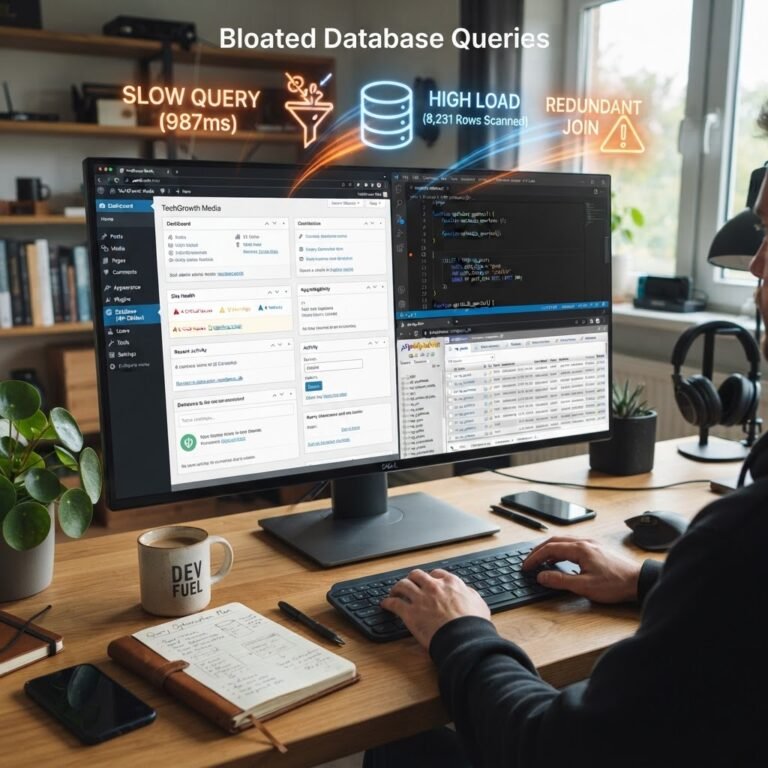
I opened a client database once and found ten years of post revisions. It was a mess. Roughly 80% of the sites I audit have database bloat just sitting there, dragging down query speeds. You should clear out those old revisions and auto-drafts regularly. Transients, which are temporary bits of data that sometimes get stuck, also need a sweep. A clean database means your site finds information faster. Think of it like cleaning out your junk drawer; everything works better when you can actually find the tools you need.
Phase 6: Managing Plugins and External Scripts
Talking Points:
* Why plugin choice matters more than plugin count.
* How external scripts from third-party tools kill loading speed.
* When to say goodbye to heavy, unnecessary code.
People love to say that more plugins mean a slower site. That is not the whole story. I use plenty of plugins, but they are all lightweight and serve a clear purpose. The problem starts when you keep plugins that do things you never actually use. Even worse are those external scripts like tracking pixels or social media feeds that pull data from other servers. Each one creates another delay. If a plugin provides a feature that you could do with a simple snippet of code, go with the code. Keep your installation lean and mean.
Advanced Performance Tips for Power Users
Talking Points:
* Implementing a Content Delivery Network for global speed.
* Fine-tuning your server configurations and object caching.
* Utilizing browser caching headers for returning visitors.
Once you have the basics sorted, a Content Delivery Network is your next best friend. It stores copies of your site across servers all over the globe, so someone in London gets your site from a London server rather than one in Tokyo. It makes a world of difference for your latency. Object caching is another level-up step. It stores the results of complex database queries in memory. It makes your site feel snappy for logged-in users and admins too. Just be careful with these settings; keep a backup before you flip any switches.
Common Pitfalls That Kill Your Loading Speed
Talking Points:
* Over-relying on heavy page builders for simple content.
* Ignoring mobile performance in a mobile-first world.
* Failing to audit third-party ads or heavy tracking scripts.
I see so many sites dragged down by massive page builder bloat. If you only need a simple paragraph and a photo, you do not need a twenty-megabyte framework to display it. Be honest about what your site actually needs. Another mistake is forgetting that most of your traffic is on phones. A desktop-fast site can still be mobile-garbage if you do not check your touch targets or layout shifts. Test your site on a real 4G connection. That tells the real story of what your visitor is feeling.
When to Hire a Professional: Knowing Your Limits
Talking Points:
* Recognizing when a technical issue is beyond your comfort zone.
* Protecting your data during major performance overhauls.
* The value of an expert eye for complex bottleneck diagnosis.
There is no shame in asking for help. Sometimes, you encounter a weird server configuration issue that would take you a week to debug. A pro can spot it in five minutes. If you are handling a high-traffic store, one wrong move in your configuration files could take the whole site down. Keep your ego in check. If you find yourself spending more time fixing code than writing content, you might want to call in someone to do the heavy lifting for you.
Conclusion: Keeping Your Site Fast
Speed is a constant process, not a one-time project. You have to keep an eye on your performance as you add new content and features. My favorite habit is running a quick check once a month just to see if anything slipped. Use the tools I mentioned, keep your database clean, and prioritize your visitors over fancy design elements. You can absolutely make your WordPress site scream. Share your own speed optimization tips in the comments below, or tell me what made the biggest difference for your own site.
Frequently Asked Questions
1. Does using a free hosting provider affect my site speed?
Yes, absolutely. Free hosting is rarely configured for performance and often shares resources with too many other sites, leading to slow response times.
2. Is it necessary to reach a 100/100 score on speed tests?
No, you do not need a perfect score. Focus on real-world Core Web Vitals and user experience; a site that feels fast to a human is better than one that just chases a perfect lab number.
3. How often should I check my site performance?
I recommend a monthly check-up. It is enough to catch problems before they become big headaches without driving yourself crazy with daily monitoring.
4. Will minifying my CSS and JS files break my site design?
It can if not done carefully. Always use a reliable plugin for this and test your site in an incognito window after you enable minification to make sure your layout looks normal.
5. Does a Content Delivery Network really help if my site is small?
A CDN helps even small sites by offloading image delivery and reducing the distance data travels, which makes your site feel responsive regardless of visitor location.