How to Secure Your WordPress Site: The Complete Security Checklist
In today’s digital landscape, the security of your online presence is paramount. For millions of website owners, WordPress is the platform of choice, offering unparalleled flexibility and power. However, with great power comes great responsibility, especially when it comes to safeguarding your digital assets. A compromised website can lead to data breaches, reputational damage, SEO penalties, and significant financial losses. Imagine waking up to find your site defaced, your customer data stolen, or your search engine rankings plummeting – it’s a nightmare scenario no one wants to experience.
The good news is that securing your WordPress site doesn’t have to be an overwhelming task. While it requires vigilance and a proactive approach, implementing a comprehensive security strategy is entirely achievable, even for beginners. This complete security checklist is designed to guide you through the essential steps, from foundational practices to advanced configurations, ensuring your WordPress installation is a fortress against malicious attacks. By the end of this guide, you’ll have a clear roadmap to better
We’ll break down the common vulnerabilities and provide actionable solutions, empowering you to fortify your website against the ever-evolving threats of the internet. Let’s dive in and transform your WordPress site into a secure and trustworthy online presence.
What Causes WordPress Vulnerabilities and Why This Matters
Before we delve into the “how,” it’s crucial to understand the “why.” WordPress, by its very nature, is a target. Its immense popularity makes it an attractive platform for hackers looking for easy prey. Open-source software means its code is publicly available, which, while promoting transparency and innovation, also means potential vulnerabilities can be discovered and exploited.
The primary culprits behind WordPress security breaches typically fall into a few categories:
- Outdated Software: This is arguably the biggest vulnerability. WordPress core, themes, and plugins are constantly updated to patch security holes. Failing to update leaves these doors open for attackers.
- Weak Credentials: Simple, guessable passwords for admin accounts, databases, and FTP are an open invitation for brute-force attacks.
- Malicious or Poorly Coded Plugins/Themes: Downloads from unverified sources or those with lax coding standards can introduce backdoors, malware, or vulnerabilities that hackers can exploit.
- Lack of Server-Level Security: Even with a perfectly secured WordPress installation, a vulnerable hosting environment can compromise your site. Shared hosting, in particular, can be a risk if other sites on the same server are compromised.
- User Error: Accidental disclosure of sensitive information, clicking on phishing links, or improper file permissions can inadvertently open doors for attackers.
The consequences of a compromised WordPress site are severe and multi-faceted. Beyond the immediate disruption, you face:
- Data Breaches: Customer information (emails, names, payment details) can be stolen, leading to legal liabilities and loss of trust.
- Defacement and Brand Damage: Your website could be replaced with malicious content, severely damaging your brand reputation and credibility.
- SEO Penalties: Search engines like Google actively penalize and blacklist compromised sites, removing them from search results and leading to a drastic drop in traffic.
- Malware Distribution: Your site could be used to host and distribute malware to your visitors, turning your site into a weapon.
- Blacklisting by ISPs: Email providers might blacklist your domain, preventing your legitimate emails from reaching their recipients.
- Financial Costs: Cleaning up a hacked site can be time-consuming and expensive, often requiring professional help.
- Loss of Trust: Regaining the trust of your users and customers after a security incident is an uphill battle.
Understanding these risks underscores the critical importance of a proactive approach to
How to Secure Your WordPress Site: The Complete Security Checklist
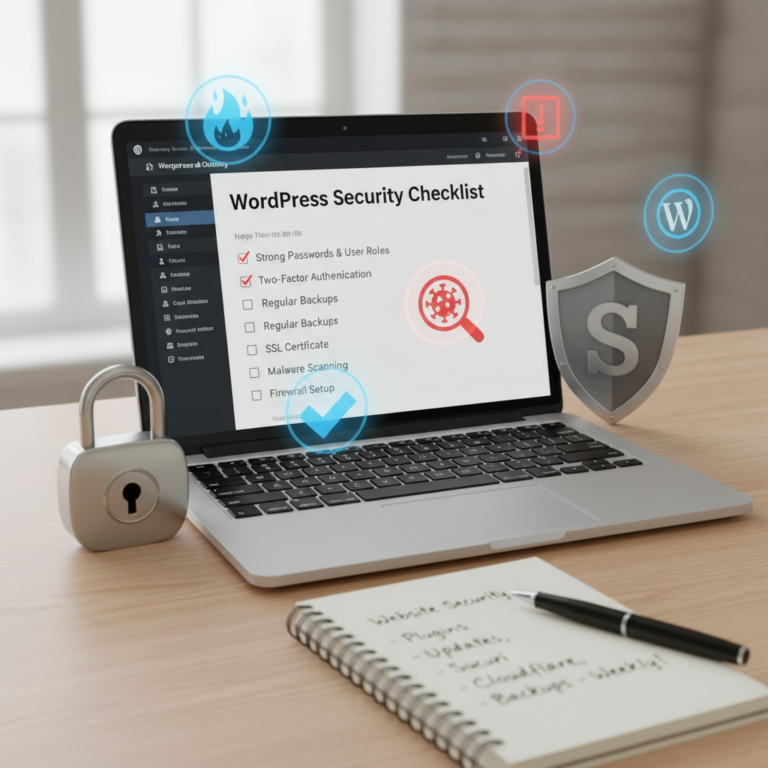
Securing your WordPress site is an ongoing process, not a one-time task. This comprehensive checklist covers essential steps to fortify your website, from basic configurations to advanced security measures.
1. Keep Everything Updated: Core, Themes, and Plugins
This is the most fundamental and often overlooked security step. Updates aren’t just for new features; they frequently include critical security patches for newly discovered vulnerabilities.
- WordPress Core: Always update to the latest stable version of WordPress as soon as it’s released. WordPress often releases minor updates specifically for security fixes. Enable automatic minor updates if you haven’t already (WordPress 3.7+ does this by default).
- Themes: Update all installed themes regularly, especially the active one. If you have inactive themes, it’s best to delete them to reduce potential attack vectors.
- Plugins: Keep all your plugins updated. Prioritize those from reputable developers. Outdated plugins are a leading cause of WordPress hacks.
Recommendation: Before updating, always create a full backup of your site. This allows you to revert if an update causes compatibility issues.
2. Implement Strong Password Policies and User Management
Weak access credentials are a hacker’s easiest entry point.
- Strong Passwords: Insist on strong, unique passwords for all user accounts (admin, editor, author, subscriber), database users, and FTP/SFTP accounts. Use a combination of uppercase and lowercase letters, numbers, and symbols, at least 12-16 characters long. Use a password manager like LastPass or 1Password.
- Avoid “admin” Username: Never use “admin” or “administrator” as your primary administrator username. If your site still uses it, create a new administrator account with a strong, unique username and password, then delete the old “admin” account (make sure to reassign all content to the new user).
- Limit Administrator Accounts: Only grant administrator access to individuals who absolutely need it. Use roles like Editor or Author for content creators.
- Regular User Audits: Periodically review your site’s user accounts and remove those that are no longer needed.
- Force Password Changes: For critical users, consider implementing a policy to force password changes every few months.
3. Use Two-Factor Authentication (2FA)
2FA adds an extra layer of security by requiring a second verification method (like a code from your phone) in addition to your password.
- Plugin Recommendation: Use a plugin like Google Authenticator – Two Factor Authentication (2FA) or WP 2FA – Two-factor authentication for WordPress.
- Configuration: Install and activate the plugin, then follow its instructions to link your account with an authenticator app (e.g., Google Authenticator, Authy) on your smartphone.
4. Install a Reputable WordPress Security Plugin
A good security plugin acts as a comprehensive shield, offering firewall protection, malware scanning, and various hardening features.
- Plugin Recommendations: Consider industry-leading plugins like Wordfence Security or Sucuri Security.
- Key Features to Look For:
- Web Application Firewall (WAF): Filters malicious traffic before it reaches your site.
- Malware Scanner: Scans your files for malicious code and vulnerabilities.
- Login Hardening: Limits login attempts, detects brute-force attacks.
- File Integrity Monitoring: Alerts you to unauthorized changes in core WordPress files.
- Security Auditing: Logs security-related events.
- Configuration: Install, activate, and configure the chosen plugin. Enable its firewall, schedule regular scans, and review its hardening features.
5. Implement Regular Backups
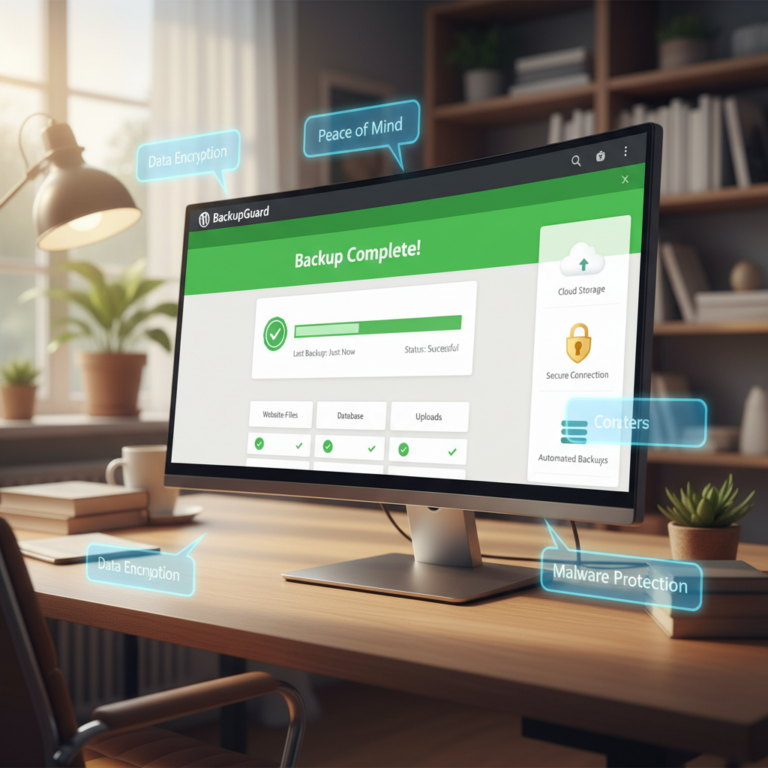
Backups are your ultimate safety net. In the event of a hack, server crash, or critical error, a recent backup can save your site.
- Backup Strategy:
- Automated Backups: Use a plugin like UpdraftPlus or Duplicator to schedule daily or weekly full backups (database and files).
- Off-site Storage: Store your backups in an off-site location like Google Drive, Dropbox, Amazon S3, or another cloud service. Do not rely solely on backups stored on the same server as your website.
- Test Backups: Periodically test your backups by restoring them to a staging environment to ensure they are functional.
6. Harden Your WordPress Login Page
Your login page is a primary target for hackers.
- Limit Login Attempts: This prevents brute-force attacks where hackers try countless password combinations. Many security plugins (Wordfence, Sucuri) offer this feature. Alternatively, use a dedicated plugin like Limit Login Attempts Reloaded.
- Change Login URL: The default
/wp-admin/and/wp-login.phpURLs are widely known. Changing them makes it harder for automated bots to find your login page. Use a plugin like WPS Hide Login. - Add reCAPTCHA: Protect your login, registration, and comment forms from spam and bots with reCAPTCHA. Many security or form plugins offer integration.
7. Secure Your wp-config.php File
The wp-config.php file contains sensitive information like database credentials. It’s a prime target.
- Move wp-config.php: For advanced users, you can move the
wp-config.phpfile one directory above your WordPress root installation. This makes it inaccessible via the web.Example: If WordPress is in
/public_html/, movewp-config.phpto/(the parent directory). - WordPress Security Keys: Ensure your
wp-config.phphas unique WordPress security keys and salts. These encrypt cookie information, making your site more secure. You can generate new keys at https://api.wordpress.org/secret-key/1.1/salt/. - File Permissions: Set appropriate file permissions for
wp-config.phpto440or400. This makes it read-only for the server, preventing unauthorized modifications.
8. Disable File Editing from the WordPress Dashboard
By default, WordPress allows theme and plugin file editing directly from the admin dashboard. If a hacker gains access, they can inject malicious code easily.
- Disable Editor: Add the following line to your
wp-config.phpfile:define( 'DISALLOW_FILE_EDIT', true );This will remove the “Theme Editor” and “Plugin Editor” from the Appearance and Plugins menus, respectively.
9. Protect Your .htaccess File
The .htaccess file is a powerful configuration file for Apache servers that can be used to add significant security measures.
- Disable Directory Browsing: Prevent visitors from browsing the contents of your directories when there’s no index file present. Add this to your
.htaccess:Options -Indexes - Block IP Addresses: If you identify malicious IP addresses, you can block them.
<Limit GET POST> Order Allow,Deny Allow from all Deny from XXX.XXX.XXX.XXX (Replace with malicious IP) </Limit> - Protect wp-config.php and .htaccess: Prevent direct access to these critical files.
<FilesMatch "^.*(wp-config.php|.htaccess)$">
    Order Allow,Deny
    Deny from all
</FilesMatch>
10. Use a Secure Hosting Provider
Your web host is the foundation of your website’s security. A cheap or unreliable host can undermine all your efforts to
- Look for:
- Managed WordPress Hosting: Many providers specialize in WordPress and offer optimized, secure environments.
- Server-Level Firewalls: Protection at the server level.
- Regular Scans and Monitoring: Proactive security measures.
- SSL Certificates: Many hosts offer free SSL certificates (Let’s Encrypt).
- Isolation: Good hosting prevents one compromised site from affecting others on the same server.
- DDoS Protection: Defends against distributed denial-of-service attacks.
- SFTP Access: Always use SFTP (Secure File Transfer Protocol) instead of traditional FTP for secure file transfers.
11. Implement an SSL Certificate (HTTPS)
An SSL certificate encrypts the data transferred between your website and your visitors, protecting sensitive information like login credentials and payment details.
- Necessary for SEO: Google considers HTTPS a ranking factor.
- How to Install:
- Most hosting providers offer free SSL certificates (e.g., Let’s Encrypt) or allow you to purchase one.
- Once installed on your server, you’ll need to force WordPress to use HTTPS.
- Go to
Settings > Generalin your WordPress dashboard. - Change both the “WordPress Address (URL)” and “Site Address (URL)” to use
https://instead ofhttp://. - Use a plugin like Really Simple SSL to ensure all assets (images, scripts) are loaded over HTTPS and to handle redirects.
- Go to
12. Disable XML-RPC functionality (If Not Needed)
The XML-RPC API was originally designed to allow WordPress to communicate with external applications. While legitimate uses exist, it’s also a common target for brute-force and DDoS attacks.
- How to Disable: If you don’t use remote publishing tools or plugins that rely on XML-RPC (e.g., Jetpack, Pingbacks), it’s safer to disable it.
- Add the following to your
.htaccessfile:<Files xmlrpc.php> Order Deny,Allow Deny from all </Files> - Alternatively, many security plugins offer an option to disable XML-RPC.
- Add the following to your
13. Clean Up Your WordPress Installation
Clutter can create security risks.
- Delete Unused Themes and Plugins: Every active or inactive plugin/theme is a potential vulnerability. Remove anything you don’t use.
- Remove Default Content: Delete the “Hello World!” post, the “Sample Page,” and the “Mr. WordPress” comment from new installations.
- Clean Your Database: Over time, your database can accumulate old revisions, spam comments, and transients. Use a plugin like WP-Optimize to regularly clean it.
14. Monitor Your Site for Changes and Malware
Proactive monitoring helps you detect issues before they escalate.
- Security Plugin Scans: As mentioned, security plugins like Wordfence and Sucuri offer regular malware scanning. Ensure these are scheduled and you receive alerts.
- Google Search Console: Verify your site with Google Search Console. Google will notify you if your site is detected with malware or security issues.
- Uptime Monitoring: Use a service like UptimeRobot to notify you if your site goes down unexpectedly, which can sometimes be a sign of a security incident.
💡 Pro Tips
- Use a Professional Email Address: Avoid using generic email addresses associated with your admin account. Create a dedicated email for your website administration.
- Understand File Permissions: Correct file permissions are crucial. Generally, directories should be 755 and files 644.
wp-config.phpcan be 440 or 400. Incorrect permissions can allow attackers to modify or delete files. - Regularly Review Security Logs: Your security plugin logs (and server logs) can provide valuable insights into attempted attacks and potential vulnerabilities. Make it a habit to check them.
- Stay Informed: Follow reputable WordPress security blogs (e.g., Wordfence, Sucuri, WPBeginner) to stay updated on the latest threats and solutions to
secure your WordPress site . - Consider a Staging Environment: Before rolling out major updates or changes, test them on a staging site. This prevents breaking your live site and allows you to catch potential security conflicts.
Frequently Asked Questions About How to Secure Your WordPress Site
How often should I update my WordPress site to maintain security?
You should aim to update your WordPress core, themes, and plugins as soon as new versions are released. Minor WordPress core updates (e.g., 6.1.1 to 6.1.2) often contain critical security patches and typically update automatically. Major updates (e.g., 6.0 to 6.1) should be done manually after backing up your site. For themes and plugins, always update promptly, especially if the update details mention security fixes. Regular and timely updates are key to reliably
Is a free security plugin enough to secure my WordPress site?
Free security plugins like the basic versions of Wordfence or Sucuri offer a good foundational layer of protection, including malware scanning, limited firewall features, and login hardening. For many small websites, this can be sufficient. However, premium versions often include more advanced real-time threat intelligence, more robust firewalls, comprehensive malware removal services, and deeper security hardening. Evaluate your specific needs and the value of advanced features vs. the cost to decide if a premium solution is necessary to fully
What’s the best way to back up my WordPress site for security purposes?
The best way to back up your WordPress site involves two main components: automation and off-site storage. Use a reputable backup plugin like UpdraftPlus or Duplicator to schedule daily or weekly full backups (database and files). Crucially, configure these backups to be stored in an off-site location such as Google Drive, Dropbox, Amazon S3, or another secure cloud storage service. Never rely solely on backups stored on the same server as your website, as a server compromise could render them useless. Always test your backups periodically to ensure they are restorable.
Can my hosting provider secure my WordPress site for me?
While your hosting provider plays a critical role in your website’s security by securing the server environment, they are not solely responsible for securing your WordPress installation. Good hosts provide server-level firewalls, DDoS protection, regular scans, and may offer managed WordPress hosting with additional platform-specific security. However, you are responsible for keeping your WordPress core, themes, and plugins updated, using strong passwords, configuring security plugins within your site, and managing user roles. It’s a shared responsibility to effectively
What steps should I take if my WordPress site gets hacked?
If your WordPress site is hacked, act quickly:
- Change All Passwords: Immediately change passwords for all WordPress users, your database, FTP/SFTP, and your hosting control panel.
- Restore from a Clean Backup: If you have a recent, clean backup, restore your site to a point before the hack occurred.
- Scan for Malware: Use a robust security plugin (like Wordfence or Sucuri) to perform a full scan. If a free scan isn’t enough, consider a professional malware removal service.
- Clean Manually (Advanced): If no clean backup is available, you may need to manually inspect core files, themes, and plugins for malicious code.
- Re-harden Security: Once clean, re-implement all the security measures from this checklist.
- Inform Google: Check Google Search Console for security warnings. Submit a review request once the site is clean.
- Notify Users (If Data Compromised): If user data was affected, you have a legal and ethical obligation to inform your users.
The best offense is a good defense – proactive steps to
Conclusion
Congratulations! You’ve just walked through a comprehensive checklist designed to significantly enhance the security posture of your WordPress site. The digital world is constantly evolving, and so too are the threats to your online presence. By understanding the common vulnerabilities and diligently applying these security measures, you’re not just protecting your website; you’re safeguarding your brand, your data, and your peace of mind.
Remember, securing your WordPress site is not a one-time task but an ongoing commitment. Make a habit of regular updates, backups, monitoring, and staying informed about the latest security practices. While no system can ever be 100% impervious to attack, by implementing this complete security checklist, you dramatically reduce your risk and make your site a much harder target for malicious actors.
Take charge of your website’s security today. Start by tackling one or two items from this list, and gradually work your way through all of them. Your efforts to