WordPress Plugin Conflict Troubleshooting: The Ultimate Fix-It Guide
WordPress Plugin Conflict Troubleshooting: The Ultimate Fix-It Guide
It was 2 AM when my client called. Her entire site had vanished, replaced by a terrifying White Screen of Death. I sat there in my pajamas, coffee cold on the desk, staring at a blank monitor. WordPress plugin conflict troubleshooting is a rite of passage for every site owner. That night, I learned that a single rogue update can take down a business in seconds.
The 2 AM Panic
Talking Points:
* Why plugin updates cause site crashes.
* Recognizing the symptoms of a broken site.
* The emotional toll of unexpected downtime.
That sinking feeling in your gut is real. You wake up, check your stats, and see nothing but white space. It happens because two pieces of code are fighting for control, leaving the server confused. This isn’t just about bad luck; it is a technical reality of using thousands of different software developers on one platform. I have been there plenty of times. The site loads, then freezes, then hits a wall.
Recognizing the Symptoms
Talking Points:
* Identifying White Screen of Death signs.
* Detecting subtle performance drops.
* Tracking down plugin compatibility issues.
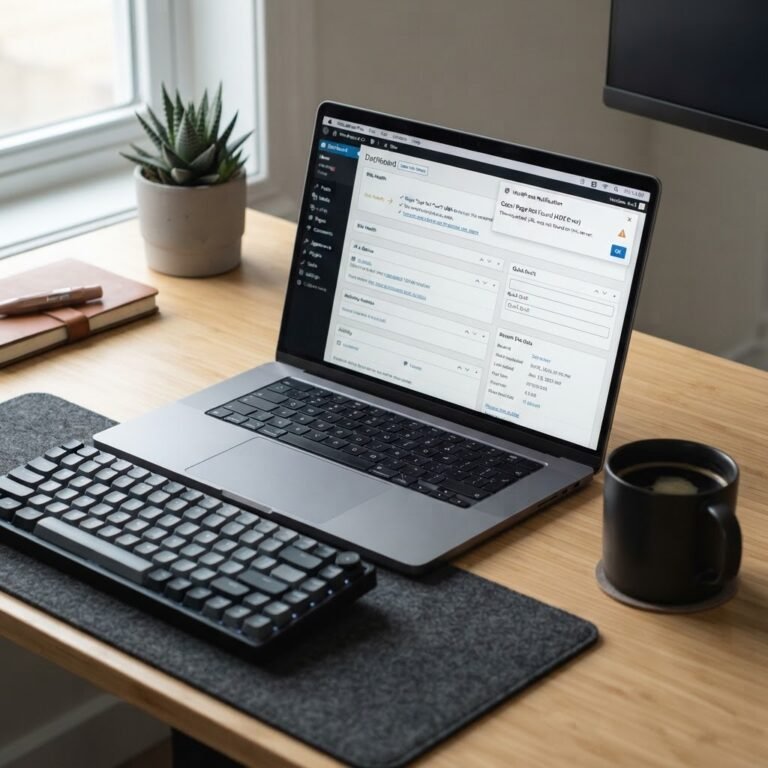
Sometimes the site does not die completely. Instead, it gets sluggish. You click a button and wait ten seconds. That is often a signal that your resources are being hogged by a hidden conflict. Check your site health dashboard to see if the system is flagging issues. PHP fatal errors often pop up there like red flags.
The Golden Rule: Back Up Before You Begin
Talking Points:
* Why you never skip the backup.
* Tools for quick site restoration.
* Saving your database from accidental corruption.
Never touch a broken site without a safety net. If you try to fix things and make them worse, a backup saves your hide. I once skipped this step and lost three days of blog posts. Do not be like me. Use your host’s automated tools or a simple migration plugin to clone your current state.
The Quickest Path: Using the Health Check Plugin
Talking Points:
* How the Health Check plugin works.
* Entering the safe troubleshooting mode.
* Isolating issues without affecting visitors.
There is a smart way to find conflicting WordPress plugins without breaking the site for visitors. The Health Check & Troubleshooting plugin is my favorite tool. It lets you enter a special mode that only you can see. It deactivates everything for your session. If the site works, you turn things back on one by one. Finding the culprit takes minutes, not hours.
Manual Troubleshooting: The Step-by-Step Process
Talking Points:
* How to deactivate plugins manually.
* Renaming folders via FTP or file manager.
* Using the dashboard if you still have access.
When you cannot get into the dashboard, you go to the server. You need access to your file manager or an FTP client. Find your wp-content folder and look for the plugins folder. Rename it to something like ‘plugins-old’. This forces WordPress to deactivate everything instantly. If your site comes back, you know it was one of your tools.
Advanced Diagnosis: Reading Error Logs
Talking Points:
* Enabling debug mode in wp-config.
* Interpreting server-side logs.
* Spotting JavaScript console errors.
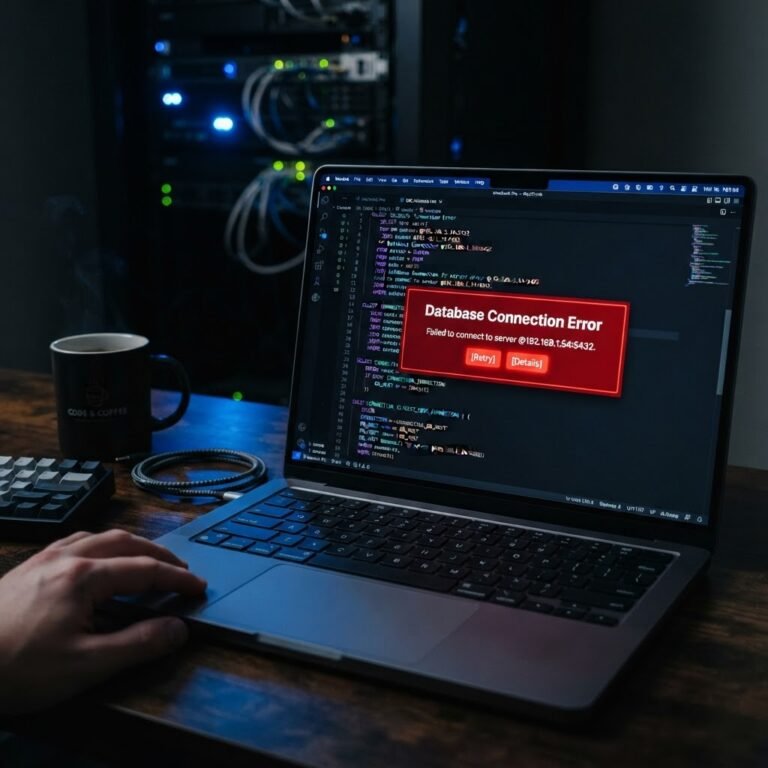
Sometimes you need to see what is happening under the hood. You can turn on debug mode in your config file. It shows the exact line of code that triggered the crash. If you see a PHP fatal error, search for the plugin name mentioned. It is usually pointing you straight to the bad apple.
The Power of Staging
Talking Points:
* Why testing on a staging site is safer.
* Cloning your live environment.
* Preventing future conflicts during updates.
A staging site is a clone of your home. You break the staging site, not your business. Most quality hosts provide this with a single click. Always update your plugins there first. If the staging site stays upright, you can safely push those updates to the public.
When to Call in the Pros
Talking Points:
* Identifying when a conflict is too deep.
* Knowing the limits of your own skills.
* Finding help for database optimization.
Sometimes the code is a mess beyond a simple fix. If you see deep server resource usage issues, it might be the host or a heavy theme incompatibility. Do not feel bad about asking for help. Professionals have seen every error under the sun. They can solve in an hour what might take you all week.
Preventative Maintenance
Talking Points:
* Clearing browser caches after updates.
* Keeping versions current for security.
* Removing unused plugins to stay lean.
Stay lean. If you are not using a plugin, delete it. Every bit of extra code is a chance for a new problem. Keep your browser cache clear so you are seeing the actual site, not a saved version. Regular maintenance keeps the machine running smooth and keeps your blood pressure down.
Your Command Center for Mastery
Fixing a site takes patience. You started with a vision for your content, and these tools are just parts of that machine. Take a deep breath when the screen goes blank. You have the skills now to find the error and bring things back to life. Keep your backups ready and your plugins updated. If you hit a wall, jump into the comments below and tell me what you are seeing. I want to hear how you handled your last big site glitch.