9 Proven Fixes for WordPress Login Issues
Cannot Login to WordPress? 9 Proven Fixes to Regain Access Fast
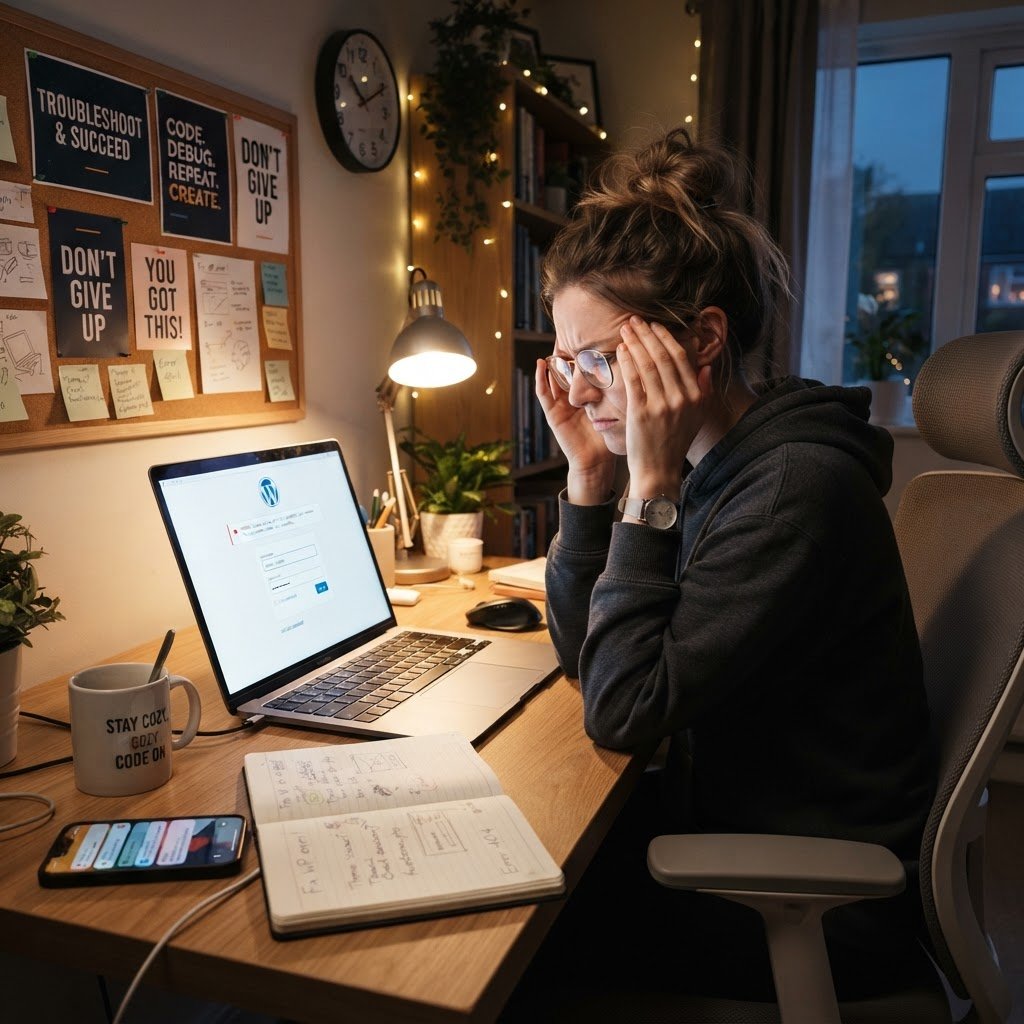
We’ve all been there—staring at our computer screens at 2 a.m., faced with the dreaded WordPress login page that just won’t budge. As a content strategist with years of experience, I’ve seen thousands of panicky users fall into a login trap. It’s draining and frustrating, often feeling like there’s no way out. But don’t lose hope! There’s always a way to regain access to your treasured site without tearing your hair out.
A quick fun fact: WordPress powers around 41.9% of all websites out there. That’s a huge number, right? So, it’s no surprise that login issues are common. Remember, you’re not alone in this!
Initial Triage: Clearing Browser Cache and Cookies
Talking Points:
- Overview of the impact of browser cache.
- Steps to clear cache and cookies.
- How this might resolve your login issue.
Before we jump into the more technical fixes, let’s start with the simplest potential culprit. Sometimes, your browser cache can act like a clingy ex—holding onto past versions of your site. This could be why the WordPress login page isn’t working as it should. So, clear out those cache and cookies!
To clear your browser cache:
1. Open your browser settings.
2. Find the option for clearing browsing data.
3. Check both cookies and cached images and files.
4. Click clear!
After doing this, give the login page another go. For many users, this simple step resolves the issue.
Testing for Plugin Conflicts: The Rename Plugins Folder Trick
Talking Points:
- Identifying potential plugin issues.
- Steps to rename the plugins folder.
- The importance of testing after renaming.
If clearing the cache didn’t work, it’s time to dig deeper. WordPress plugins can potentially cause a ruckus, especially if they conflict with each other or if one went rogue. A proven quick fix? Renaming the plugins folder!
Here’s how to do it:
1. Connect to your site using an FTP client or your web hosting file manager.
2. Navigate to the `wp-content` directory.
3. Locate the `plugins` folder and rename it to something like `plugins_old`.
4. Try logging in again.
What this does is deactivate all plugins at once. If you can log in, you know a plugin is to blame. You can then rename the folder back to `plugins` and reactivate each plugin one at a time. It’s time-consuming, but it’s worth it!
Switching to a Default Theme to Rule Out Theme-Based Errors
Talking Points:
- Explaining theme conflicts.
- Steps to switch to a default theme.
- Benefits of this troubleshooting step.
Still no luck? Alright, it could be your theme throwing a tantrum. Switching to a default WordPress theme like Twenty Twenty-One can help clarify if the theme is the issue.
To switch the theme:
1. Access your site via FTP or the hosting file manager again.
2. Navigate to the `wp-content/themes` directory.
3. Rename your current theme’s folder (e.g., `mytheme_old`).
4. WordPress will default back to one of the standard themes.
5. Log in and check if that resolved the problem!
Fixing the .htaccess File to Resolve Permalink Issues
Talking Points:
- Description of the .htaccess file role.
- Renaming the file and regenerating it.
- Importance of permalink settings.
Sometimes the issue lies within the .htaccess file, which is essentially your website’s traffic cop. If it became corrupted, it could be blocking you from logging in. Here’s what you need to do:
1. Again, access your site via FTP.
2. Locate the `.htaccess` file in your root directory.
3. Rename it to `.htaccess_old`.
4. Try logging in again!.
5. Once logged in, head to Settings > Permalinks in your Admin dashboard and click “Save Changes” to regenerate a new .htaccess file.
Password Recovery: Using the Lost Password Link vs Email Issues
Talking Points:
- Importance of the password reset link.
- Common issues with email notifications.
- Alternative recovery methods.
In a moment of panic, you might think, “Did I forget my password?” It happens to the best of us! If you can’t access your dashboard, don’t sweat it. Click on the “Lost your password?” link on the login page. However, be aware of potential email issues.
If you don’t receive the reset email:
1. Check your Spam folder.
2. Ensure that your email is spelled correctly.
3. Consider if your hosting provider has had recent email issues!
Still can’t access your account? There are other recovery methods—just hang tight!
Advanced Recovery: Resetting Your WordPress Password via phpMyAdmin
Talking Points:
- Steps to access phpMyAdmin.
- Instructions to reset password.
- Importance of MD5 hashing the password.
If you’re savvy enough to use phpMyAdmin, we can get this taken care of! This option is super useful if your email recovery just isn’t working. Here’s how to reset your password directly:
1. Access your hosting control panel and open phpMyAdmin.
2. Find the `wp_users` table.
3. Locate your username and click “Edit.”
4. In the `user_pass` field, select MD5 from the dropdown for function and enter your new password.
5. Click “Go” to save changes.
Now you should be able to log in with your new password. Simple and effective!
Troubleshooting Corrupted Core Files by Re-uploading
Talking Points:
- Understanding core file issues.
- How to re-upload core files using FTP.
- Importance of maintaining updates.
If you still can’t get in, you might need to consider that core files have been corrupted or messed up in some way. A good trick is to re-upload the WordPress core files.
To do this:
1. Download the latest version of WordPress from WordPress.org.
2. Extract the files and upload everything except `wp-content` and `wp-config.php` via FTP.
3. This won’t delete your content but can fix broken core files.
Checking Server-Side Issues: PHP Memory Limits and Server Status
Talking Points:
- Importance of server performance.
- How to check PHP memory limits.
- When to contact your host.
At this point, if you’re still locked out, we may be looking at server issues. Your PHP memory limit might be too low or your hosting provider might be experiencing downtime. It’s worth checking in with your hosting support.
To check your PHP memory:
1. Create a `phpinfo.php` file on your server.
2. Access it via your browser.
3. Look for memory limits to see if adjustments need to be made.
If you suspect server troubles, reach out to your hosting provider for assistance.
When to Contact Your Hosting Provider for Help
Talking Points:
- Indicators that support is needed.
- Common issues support can fix.
- How to effectively communicate with your provider.
While we all want to be DIY warriors, there are times when reaching out to your hosting provider is essential. If you’ve tried all the above steps and still can’t log in, it might be time to call in the pros. They can supercharge the troubleshooting process.
What should you tell them?
- Clearly explain the issue and what steps you’ve attempted.
- Ask if they are aware of any ongoing issues.
- Provide them with any error messages received.
Proactive Tips: How to Secure Your Login for the Future
Talking Points:
- Importance of two-factor authentication.
- Regular backups and updates.
- Best practices for password management.
Once you finally regain access, it’s the perfect time to bolster your login security! Here are a few essential tips:
- Use strong, unique passwords and consider a password manager.
- Implement two-factor authentication (2FA) for an extra layer of security.
- Regularly back up your website to avoid data loss.
Be proactive, and this will save you headaches down the road!
Conclusion
So, whether you’re wrestling with plugin issues or a pesky theme, there’s always a solution to log back into your WordPress site. You’ve learned several practical steps to troubleshoot your login issues. Take these tips, apply them to your situation, and you’ll be back in your command center in no time. Have you faced a login issue? What worked for you? Share your experiences in the comments below!
Frequently Asked Questions
1. Why am I seeing a white screen when trying to log in?
Often referred to as the “White Screen of Death,” this can be due to a plugin or theme conflict. Try renaming the plugins folder, as mentioned above.
2. What if the password reset link isn’t working?
Make sure you’re checking the right email and the spam folder. If all else fails, using phpMyAdmin to reset the password manually is a reliable option.
3. How can I prevent login issues in the future?
Implement strong passwords, set up two-factor authentication, and keep your site backed up and updated regularly.
4. Is it safe to use free plugins?
Many are safe, but they can be more prone to vulnerabilities. Always do your research and only use reputable sources.
5. When should I contact my hosting provider?
If you’ve exhausted all troubleshooting steps and still can’t access your site, reach out to your hosting provider for assistance. They can often check server-side issues and provide insights.