How to Fix WordPress Database Connection Error: Step-by-Step
How to Fix the WordPress Database Connection Error (The Ultimate Guide)
I remember waking up at 3:00 AM to a panicked text from a client. Their site was down. Just a white screen staring back at us. That sinking feeling is something every site owner knows. You see those five words: Error Establishing a Database Connection. Your heart drops.
It feels like your business just evaporated into thin air. I have seen this happen to thousands of sites over the last two decades. It is terrifying. But let’s take a breath. You can handle this.
The Before You Begin Checklist
Talking Points:
- Back up your site files first.
- Document your current settings.
- Use a staging environment if possible.
Before you start messing with your site files, stop. Take a step back. I once saw a guy delete his entire database because he was rushing. Don’t be that guy. Back up your site right now.
If you have a host that does automated backups, check if they are working. Download a copy of your files to your local computer. If you have any access to your site at all, grab that SQL file.
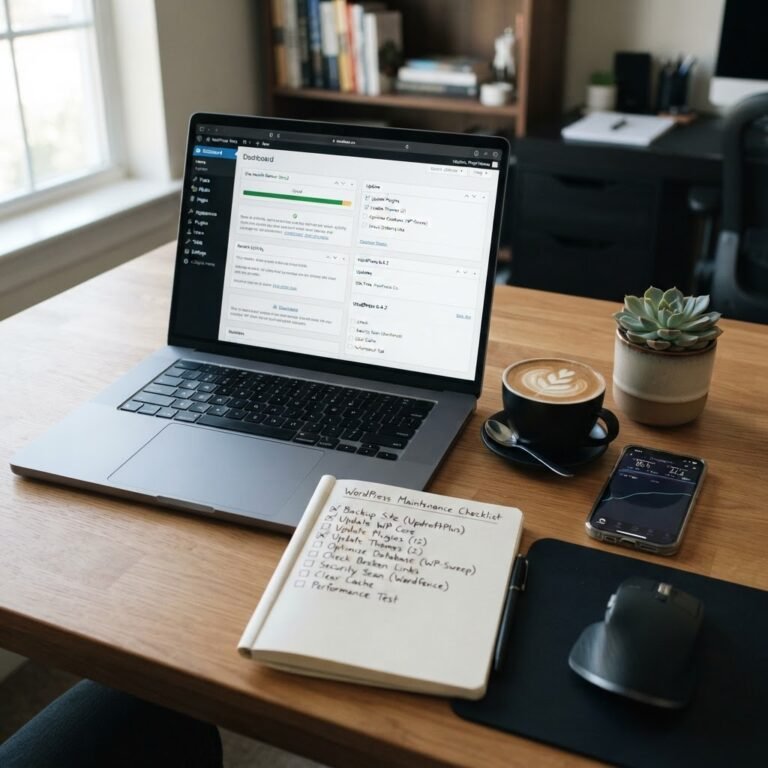
Keep a notepad open on your screen. You will want to write down what you find. If you change a setting, you need to know exactly how to change it back. Keep things tidy.
Step 1: Check Your wp-config.php File
Talking Points:
- Locating the main config file.
- Verifying the four core credentials.
- Handling accidental character errors.
This file is the brain of your site. It tells WordPress exactly where to look for your data. When that WordPress database connection error pops up, this is usually where the secret lies.
Connect to your site via FTP or your file manager. Find the root directory. Look for wp-config.php. It is sitting right there, waiting for you to fix it.
Open it up. You are looking for four specific lines. They define your database name, your username, your password, and your hostname. I have seen typos break sites more times than I can count. Check each character carefully.
Step 2: Check Your Database Host
Talking Points:
- Avoiding the localhost trap.
- Identifying remote database strings.
- Contacting hosts for correct details.
Most people assume the host is just localhost. That works for a lot of sites. But it is not a hard rule. Some hosting environments use a specific IP address or a long string of numbers.
Check your hosting dashboard. They might have a specific URL for your MySQL server. If you put localhost in there and your host wants an IP, the connection will fail every single time.
Don’t guess. Look at your hosting control panel. It will have the server address listed under your database settings. Copy that string directly into your wp-config.php file.
Step 3: Test Your Database Connection via Script
Talking Points:
- Creating a temporary testing file.
- Verifying credentials outside of WordPress.
- Cleaning up testing files immediately.
Sometimes WordPress is the one acting cranky. You need to know if the database itself is actually responding. Create a small file named testdb.php in your root folder.
Add a tiny piece of code that tries to log into the database using your current credentials. Load that page in your browser. If it works, your database is fine.
If the script fails to connect, your credentials are definitely wrong. Or your server has a massive issue. Delete that file when you are done. Leaving it there is a security risk.
Step 4: Repairing a Corrupted Database
Talking Points:
- Enabling the repair mode.
- Accessing the maintenance URL.
- Disabling repair mode after finishing.
Data can get messy. Tables can become corrupted. WordPress has a hidden tool for this exact scenario. It is a lifesaver when things get weird.
Open your wp-config.php file again. Add a single line of code at the bottom: define(‘WP_ALLOW_REPAIR’, true);. Save the file and upload it.
Now, head to your site URL with /wp-admin/maint/repair.php at the end. Click the button to repair your database. Once it finishes, go back and remove that line of code from your config file. Never leave it active.
Step 5: Check for Database Server Failure
Talking Points:
- Identifying outages with your host.
- Checking server load limits.
- Handling simultaneous connection limits.
Sometimes the problem is not your fault. Your hosting provider might have a server that is down for maintenance. Or maybe their MySQL server just crashed.
Check your hosting status page. Use Twitter or a search engine to see if others are having issues with your host. If the server is offline, there is nothing you can do but wait.
Sometimes your site gets too popular. If you hit your max number of connections, the server will deny you. Your host might need to bump up your account limits. Call them and ask.
Step 6: When to Restore from Backup
Talking Points:
- Knowing when to give up.
- Using host-level recovery tools.
- Verifying the integrity of backups.
We all want to fix things ourselves. But sometimes, it is too far gone. If your tables are destroyed, stop trying to patch them.
Use your host’s one-click restore feature. This usually rolls back your entire site to a point before the crash. It is the fastest way to get back to business.
Check that the backup is actually good. Sometimes we store backups that were already broken. A fresh restore is better than a broken one. Be patient.
Prevention: Keeping Your Database Healthy
Talking Points:
- Running regular maintenance tasks.
- Limiting post revisions and logs.
- Using plugins for optimization.
An ounce of prevention is worth a pound of cure. I hate cleaning up messes. Keep your database lean and mean. Delete old revisions.
Clear out your transients. Use a plugin that does this for you automatically. A clean database runs faster and breaks less often. It is just good hygiene.
Keep your WordPress core, themes, and plugins updated. Old software is a magnet for trouble. Stay current and stay safe.
Getting Your Site Back Online
Fixing your site can feel like a heavy lift. Most times, it is just a small typo in your configuration. You have the tools now. Take it one step at a time.
Did you find a bad character in your config file? Or was it the server acting up? Tell me about your fix in the comments below. We are all learning here.