Fix WordPress Core Web Vitals: Boost Site Speed & SEO
# How to Fix WordPress Core Web Vitals: A Comprehensive Guide
If you’re looking to fix WordPress Core Web Vitals, you’re taking an essential step toward improving your website’s performance and search rankings. Core Web Vitals have become critical indicators of user experience, directly influencing how visitors interact with your site and how search engines evaluate your content. This comprehensive guide will walk you through practical strategies to diagnose and resolve common performance issues that affect these vital metrics.
## Understanding Core Web Vitals: The Foundation of Digital Experience
Core Web Vitals represent Google’s effort to quantify the quality of user experience on the web. These metrics measure three fundamental aspects of how users perceive your website’s performance: loading speed, interactivity, and visual stability. Understanding these metrics is the first step toward creating a faster, more responsive WordPress site.
The three Core Web Vitals are Largest Contentful Paint (LCP), First Input Delay (FID), and Cumulative Layout Shift (CLS). LCP measures loading performance and should occur within 2.5 seconds of when the page first starts loading. FID quantifies interactivity and should be less than 100 milliseconds, while CLS measures visual stability and should maintain a score of less than 0.1.
For WordPress site owners, these metrics matter more than ever. Google officially incorporated Core Web Vitals into its ranking algorithm as part of the page experience update. Sites that provide better user experiences through optimized Core Web Vitals can gain a competitive advantage in search results.
Beyond SEO benefits, improving these metrics directly impacts your bottom line. Research shows that users abandon sites that load slowly or feel unresponsive. When your WordPress site meets Core Web Vitals thresholds, visitors stay longer, engage more deeply, and convert at higher rates.
The good news is that WordPress, despite its complexity, offers numerous tools and strategies to optimize these metrics. Whether you’re running a blog, e-commerce store, or business website, the principles remain consistent. By addressing the specific factors that influence each metric, you can systematically improve your site’s performance and provide a better experience for every visitor.
## Diagnosing Your WordPress Core Web Vitals Issues
Before you can fix WordPress Core Web Vitals, you need to understand your current performance baseline. Several free tools provide detailed insights into how your site performs across these critical metrics. Each tool offers unique perspectives that help identify specific issues affecting your WordPress installation.
Google PageSpeed Insights stands as the most accessible starting point for analysis. Simply enter your URL, and the tool generates a comprehensive report showing your Core Web Vitals scores for both mobile and desktop versions. The tool categorizes each metric as “Good,” “Needs Improvement,” or “Poor” based on real user data from the Chrome User Experience Report.
Google Search Console offers another valuable perspective through its dedicated Core Web Vitals report. This tool aggregates data across your entire site, grouping similar pages together to identify systemic issues. You’ll see which URLs need attention and whether problems affect specific sections of your site more than others.
Lighthouse, integrated into Chrome DevTools, provides the most technical analysis. It runs synthetic tests in a controlled environment, offering detailed recommendations for improvement. While PageSpeed Insights shows real-world user data, Lighthouse helps you understand the technical factors contributing to performance issues.
When interpreting results, focus on field data first. Field data represents actual user experiences and carries more weight for SEO purposes. Lab data from synthetic tests helps diagnose specific technical issues but may not reflect real-world conditions exactly.
Pay attention to the specific elements causing problems. PageSpeed Insights highlights which images, scripts, or resources contribute most to poor scores. These diagnostics guide your optimization efforts, helping you prioritize changes that deliver the greatest impact. Understanding the root causes of performance issues ensures you address problems systematically rather than applying random fixes.
## Optimizing Largest Contentful Paint (LCP) for Faster Loading
Largest Contentful Paint measures how quickly the main content of your page becomes visible to users. For WordPress sites, LCP issues typically stem from oversized images, slow server response times, or render-blocking resources. Addressing these factors can dramatically improve loading performance.
The LCP element is usually your hero image, featured image, or the first major content block users see. Identifying this element through PageSpeed Insights helps you focus optimization efforts where they matter most. Once identified, you can apply targeted strategies to ensure this content loads as quickly as possible.
Server response time forms the foundation of LCP performance. If your server takes too long to respond to requests, everything else suffers. Choosing quality hosting specifically optimized for WordPress makes an immediate difference. Managed WordPress hosts often provide server-level caching and optimizations that generic shared hosting cannot match.
### Image Optimization: The Visual Cornerstone
Images represent the most common culprit behind poor LCP scores on WordPress sites. Large, unoptimized images force browsers to download massive files before displaying content. Compression reduces file sizes without noticeably affecting visual quality, dramatically improving loading times.
Modern image formats like WebP offer superior compression compared to traditional JPEG and PNG formats. WebP images can be 25-35% smaller than their JPEG equivalents while maintaining the same visual quality. Most WordPress image optimization plugins now automatically convert images to WebP and serve them to compatible browsers.
Lazy loading prevents images below the fold from loading until users scroll toward them. However, never apply lazy loading to your LCP element, as this delays the very content you want to load fastest. WordPress 5.5 and later includes native lazy loading, but you’ll need to ensure your LCP image loads eagerly.
Proper image dimensions prevent browsers from downloading unnecessarily large files. If your design displays an image at 800 pixels wide, serving a 3000-pixel version wastes bandwidth and slows loading. WordPress’s responsive images feature helps, but manually creating appropriately sized versions ensures optimal performance.
### Enhancing Server Response Time: The Foundation of Speed
Your hosting environment directly impacts how quickly your server processes requests and delivers content. Shared hosting environments, while economical, often struggle under traffic loads because resources are distributed among many sites. Upgrading to VPS, dedicated, or managed WordPress hosting provides dedicated resources that respond faster.
Content Delivery Networks (CDNs) distribute your static assets across global server networks. When users request your site, the CDN serves files from the geographically closest location, reducing latency. Popular CDN services like Cloudflare, BunnyCDN, and StackPath integrate easily with WordPress through plugins or simple DNS changes.
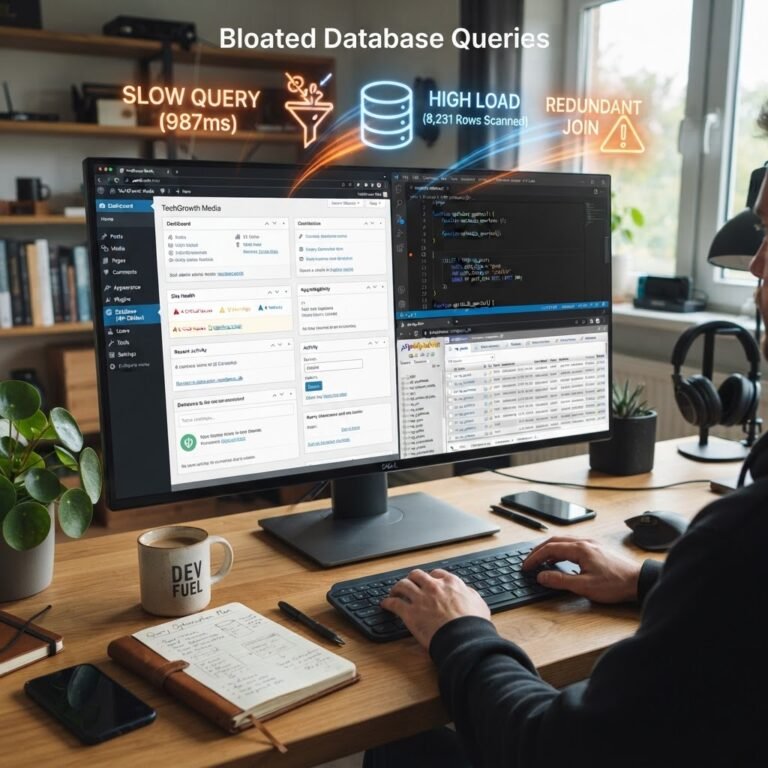
Database optimization also affects server response time. WordPress databases accumulate revisions, transients, and expired data over time. Regular cleanup using plugins like WP-Optimize or Advanced Database Cleaner keeps queries fast. Enabling object caching through Redis or Memcached further reduces database load for dynamic content.
Preloading critical resources tells browsers to fetch important files before they’re explicitly requested. Adding preload directives for your LCP image, critical fonts, or essential CSS files gives browsers a head start. Many caching plugins offer preloading features, or you can add preload tags manually to your theme’s header.
## Improving First Input Delay (FID) for Seamless Interactivity
First Input Delay measures the time between when a user first interacts with your site and when the browser can actually respond to that interaction. Poor FID scores indicate that JavaScript execution is blocking the main thread, preventing the browser from processing user inputs. WordPress sites often suffer from FID issues due to heavy JavaScript usage in themes and plugins.
The main thread handles JavaScript execution, style calculations, layout, and painting. When long-running JavaScript tasks monopolize this thread, the browser cannot respond to user clicks, taps, or keyboard inputs. Breaking up long tasks and optimizing JavaScript execution ensures the browser remains responsive to user interactions.
Third-party scripts represent a major source of FID problems. Analytics tools, advertising networks, social media widgets, and chat applications all add JavaScript that competes for main thread resources. Each additional script increases the likelihood of delayed interactivity, especially on mobile devices with limited processing power.
### Taming JavaScript: The Key to Responsiveness
Deferring non-critical JavaScript prevents scripts from blocking page rendering. The defer attribute tells browsers to download scripts in parallel while continuing to parse HTML, executing them only after the document is fully parsed. This approach maintains functionality while improving perceived performance.
Minifying JavaScript removes unnecessary characters, comments, and whitespace, reducing file sizes. Smaller files download faster and parse more quickly. Combining multiple JavaScript files reduces the number of HTTP requests, though HTTP/2’s multiplexing capabilities make this less critical than it once was.
Code splitting breaks large JavaScript bundles into smaller chunks that load only when needed. Rather than downloading your entire JavaScript codebase upfront, code splitting delivers only the scripts required for the current page. Modern JavaScript frameworks support code splitting natively, and WordPress’s block editor increasingly adopts this approach.
Removing unused JavaScript eliminates code that serves no purpose on specific pages. Many plugins load scripts site-wide even when their functionality is needed only on certain pages. Tools like Asset CleanUp or Perfmatters let you selectively disable scripts on pages where they’re unnecessary.
### Managing Third-Party Scripts: External Influence
Auditing third-party scripts reveals which external resources impact your performance most significantly. Use your browser’s developer tools to identify all third-party requests and measure their impact on loading time. Question whether each script provides sufficient value to justify its performance cost.
Loading scripts asynchronously with the async attribute allows browsers to download and execute them without blocking HTML parsing. Unlike defer, async scripts execute immediately upon download, which works well for independent scripts that don’t depend on other code. Use async for analytics scripts and other non-critical functionality.
Facade techniques replace heavy embeds with lightweight placeholders until users interact with them. Instead of loading a full YouTube video player on page load, display a thumbnail image that loads the actual player only when clicked. This approach dramatically reduces initial JavaScript execution while maintaining functionality.
## Stabilizing Cumulative Layout Shift (CLS) for Visual Consistency
Cumulative Layout Shift quantifies how much content moves around unexpectedly as a page loads. Nothing frustrates users more than clicking a button only to have it shift at the last moment, causing them to tap something else entirely. WordPress sites commonly experience CLS issues from images without dimensions, web fonts, and dynamically injected content.
Layout shifts occur when visible elements change position after initial rendering. Common causes include images loading without reserved space, fonts swapping from fallback to custom fonts, and advertisements or embeds inserting themselves into the page. Each shift contributes to your cumulative score, with larger movements and those affecting more of the viewport scoring worse.
Preventing layout shifts requires reserving space for dynamic content before it loads. When browsers know an element’s dimensions in advance, they can allocate the appropriate space during initial layout. This prevents content from jumping when the element finally loads and renders.
### Dimensioning Elements: Preventing Jumps
Specifying width and height attributes for images and videos is the single most effective way to prevent layout shifts. Modern browsers use these dimensions to calculate aspect ratios and reserve the correct amount of space automatically. WordPress automatically includes these attributes for images uploaded through the media library, but verify they’re present in your theme templates.
The CSS aspect-ratio property provides an alternative method for reserving space. Setting `aspect-ratio: 16/9` on a container ensures it maintains the correct proportions regardless of its width. This approach works particularly well for responsive designs where exact pixel dimensions vary across screen sizes.
Avoid inserting content above existing content whenever possible. Dynamically loaded elements like notification banners, cookie notices, or promotional messages should appear in reserved spaces or slide in from the edges rather than pushing content down. If you must insert content, reserve space for it in your initial layout.
Ads and embeds pose particular challenges because their dimensions may not be known until they load. Reserve space based on typical ad sizes or embed dimensions. Use min-height CSS properties to prevent containers from collapsing, even if content loads slowly or fails to load at all.
### Font Loading Strategies: A Smooth Transition
Web fonts cause layout shifts when browsers initially render text in a fallback font, then swap to the custom font once it loads. This Flash of Unstyled Text (FOUT) or Flash of Invisible Text (FOIT) can cause significant content reflow as different fonts have different metrics.
Preloading critical fonts tells browsers to fetch them as early as possible. Add preload link tags to your header for fonts used in above-the-fold content. This gives fonts a head start, increasing the likelihood they’ll be available before the browser needs to render text.
The font-display CSS property controls how browsers handle font loading. Setting `font-display: swap` tells browsers to immediately render text in a fallback font, swapping to the custom font when available. While this creates a brief flash, it prevents invisible text and minimizes layout shift compared to other strategies.
Choosing fallback fonts with similar metrics to your custom fonts reduces the magnitude of layout shifts when swapping occurs. Tools like Font Style Matcher help you adjust fallback font properties to closely match your custom fonts’ dimensions, minimizing visible changes during the swap.
## Essential WordPress Plugins and Best Practices for Core Web Vitals
While manual optimization techniques work, WordPress plugins simplify the process of implementing performance improvements. The right combination of tools can automate many optimization tasks, making it easier to maintain good Core Web Vitals scores as your site evolves. However, plugin selection matters because poorly coded plugins can actually harm performance.
Caching plugins form the foundation of WordPress performance optimization. They generate static HTML versions of your dynamic pages, eliminating the need to process PHP and query databases for every request. This dramatically reduces server response times and improves LCP scores.
Image optimization happens automatically with the right plugins, ensuring every uploaded image is compressed and converted to modern formats. These tools process images in the background, so you don’t need to remember manual optimization steps. Some even optimize images already in your media library retroactively.
### Leveraging Performance Plugins: Your Digital Toolkit
WP Rocket stands out as a premium caching solution that implements numerous performance optimizations with minimal configuration. It handles page caching, cache preloading, GZIP compression, browser caching, and database optimization. The plugin also includes features specifically designed to improve Core Web Vitals, like critical CSS generation and JavaScript deferral.
LiteSpeed Cache offers comparable features for sites hosted on LiteSpeed servers, with the advantage of server-level caching integration. It includes image optimization, lazy loading, CSS and JavaScript minification, and database cleanup. The plugin’s crawler feature automatically generates cached versions of your pages, ensuring fast loading for all visitors.
Imageify, Smush, and ShortPixel excel at image optimization, offering both lossy and lossless compression options. These plugins automatically process images during upload and can bulk optimize existing media libraries. They convert images to WebP format and serve appropriate versions based on browser support.
Autoptimize focuses specifically on code optimization, minifying and combining CSS and JavaScript files. It can inline critical CSS, defer non-critical CSS, and optimize Google Fonts loading. The plugin’s granular controls let you fine-tune optimizations without breaking site functionality.
### WordPress Best Practices: Ongoing Maintenance
Choosing a performance-optimized theme prevents many Core Web Vitals issues from the start. Lightweight themes like GeneratePress, Astra, or Kadence prioritize speed and clean code. Avoid themes bloated with unnecessary features, page builders, and bundled plugins that you’ll never use.
Regular database optimization prevents performance degradation over time. Schedule weekly cleanups to remove post revisions, spam comments, transients, and orphaned metadata. Most caching plugins include database optimization features, or use dedicated tools like WP-Optimize.
Keeping WordPress core, themes, and plugins updated ensures you benefit from performance improvements and security patches. Developers increasingly focus on Core Web Vitals in updates, implementing optimizations that improve scores. Enable automatic updates for minor releases while testing major updates on staging sites first.
Limit the number of active plugins to reduce code overhead. Each plugin adds queries, scripts, and processing time. Regularly audit your plugins and remove those you no longer use. When possible, choose plugins that combine multiple features over installing separate plugins for each function.
Monitor your Core Web Vitals scores regularly to catch regressions before they impact rankings. Set up alerts in Google Search Console to notify you when significant numbers of pages fall into the “Poor” category. Regular monitoring helps you identify which changes improve or harm performance.
## Frequently Asked Questions
**What are Core Web Vitals?**
Core Web Vitals are a set of specific factors that Google considers important in a webpage’s overall user experience. They include Largest Contentful Paint (LCP), First Input Delay (FID), and Cumulative Layout Shift (CLS). These metrics measure loading performance, interactivity, and visual stability respectively, providing quantifiable indicators of how users experience your website.
**How do I check my WordPress site’s Core Web Vitals?**
You can check your WordPress site’s Core Web Vitals using tools like Google PageSpeed Insights, Google Search Console (under the ‘Core Web Vitals’ report), and Lighthouse (built into Chrome DevTools). PageSpeed Insights provides the quickest overview, while Search Console shows trends across your entire site. Each tool offers unique insights that help identify specific performance issues.
**Will fixing Core Web Vitals improve my SEO?**
Yes, Google has confirmed that Core Web Vitals are a ranking factor as part of the page experience update. Improving these metrics can contribute to better search engine visibility and a more positive user experience, which indirectly benefits SEO through increased engagement and reduced bounce rates. However, content quality and relevance remain the primary ranking factors.
**Is it possible to achieve perfect Core Web Vitals scores?**
While aiming for perfect scores is ideal, real-world websites often have complexities (third-party scripts, dynamic content) that make it challenging. The goal is to be in the ‘Good’ category for all three metrics rather than achieving perfect 100 scores. Focus on consistent performance across your site rather than obsessing over perfect scores on individual pages.