How to Change Your WordPress Login URL: A Simple Guide
How to Change Your WordPress Login URL (And Why You Must)
The 2am Wakeup Call: Why Your Default Login Page is a Security Liability
Talking Points:
* The constant threat of automated bot traffic.
* The vulnerability of standard WordPress admin paths.
* Why 2am is the peak time for login attempts.
I remember staring at my screen at 2am, coffee cold, watching my logs spike with thousands of failed login attempts. It was a classic brute-force attack. My site was being hammered by bots trying to guess my password, and all they had to do was point their scripts at the default `/wp-admin` or `/wp-login.php` path. It is a massive security liability. Most site owners don’t realize that standard paths are essentially a giant welcome sign for hackers. You leave the front door unlocked, and eventually, someone tries the handle.
Understanding the Risks: Brute Force Attacks and Why They Happen
Talking Points:
* The scale of automated WordPress attacks in 2024 and beyond.
* How bots systematically scan for site weaknesses.
* The difference between targeted attacks and opportunistic bot traffic.
Statistics show that Wordfence blocked 55 billion password attack attempts last year alone. That is not a typo. WordPress sites face an attack roughly every 28 minutes, and 97% of this chaos is purely automated bot activity. These bots do not care who you are. They simply scan the web for the default WordPress administrative dashboard and start throwing password combinations at it until something sticks. When you use the default URL, you make it incredibly easy for these scripts to find your front door.
The Quick Fix: Why We Recommend Plugins Over Manual Code Edits
Talking Points:
* Risks of modifying core WordPress files.
* Why plugin-based redirection is safer for beginners.
* Maintaining site stability during updates.
Years ago, I used to hard-code changes into my functions file to mask my admin area. That was a mistake. One bad syntax error and the whole site goes down. Using a reputable plugin to handle this is the smarter path. These tools manage the server redirection for you without you ever touching core files that could break after a WordPress update. It keeps things clean, manageable, and significantly less likely to cause a dreaded site crash.
Step-by-Step: Changing Your URL with WPS Hide Login
Talking Points:
* Installing and activating the WPS Hide Login plugin.
* Configuring the new login slug.
* Verifying the redirect functionality.
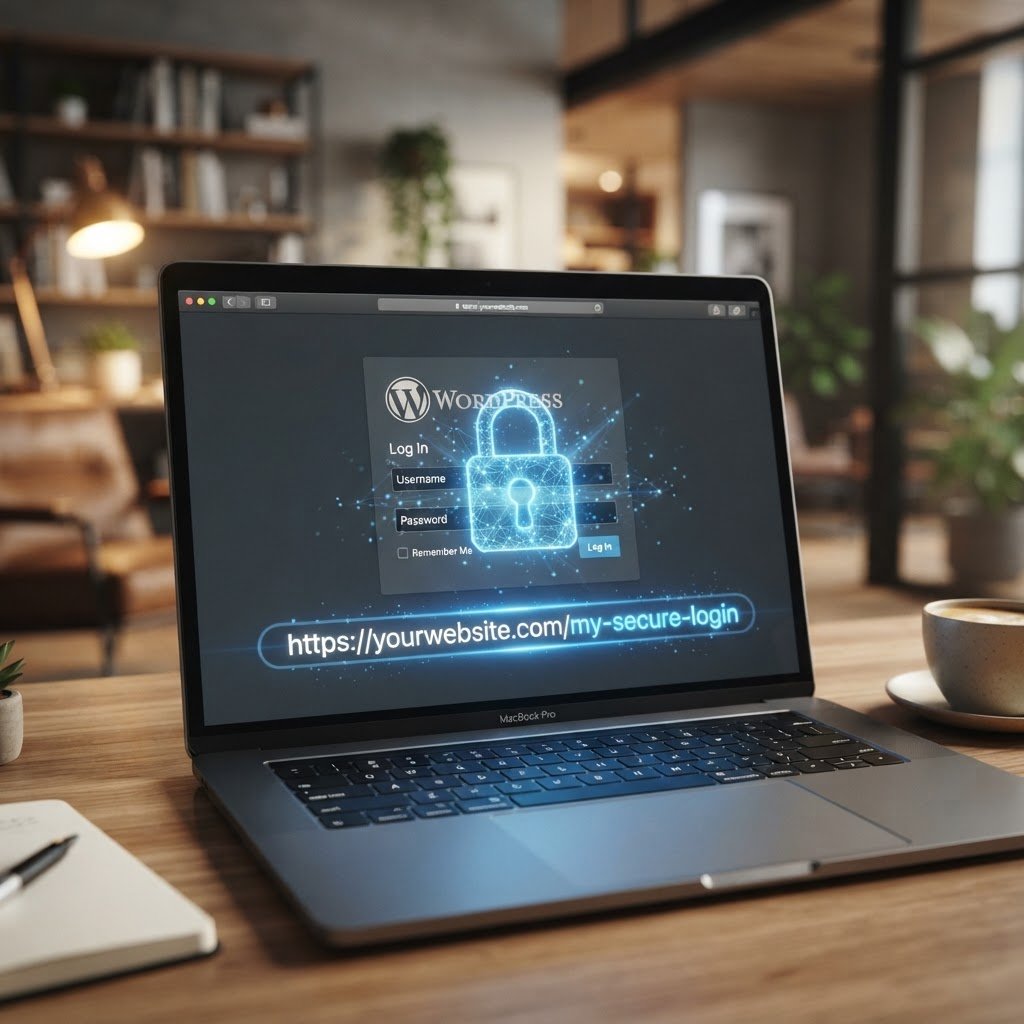
First, head to your plugins directory and search for WPS Hide Login. Install and activate it. Once active, go to your settings menu and find the plugin configuration area. You just need to type in your new, custom path, like “my-secret-door,” and save the changes. Test it by trying to visit the old page; it should redirect to a 404 error page while your new URL opens the familiar login screen. Simple and effective.
Pro-Tip: Choosing a ‘Secret’ URL That You Won’t Forget
Talking Points:
* The balance between complexity and memory.
* Avoiding common paths that bots might guess.
* Why you should bookmark your new login page.
Don’t make your URL something so obscure that you lock yourself out of your own site. Use something easy for you to remember but impossible for a dictionary-based bot to guess. Think of a phrase or a code only you would know. Once you set it, update your browser bookmarks immediately. You do not want to be stuck guessing your own URL when you have a post to publish.
What To Do If You Get Locked Out: Accessing Your Site via FTP/File Manager
Talking Points:
* Locating the plugin folder via FTP.
* Renaming the folder to disable the plugin.
* Regaining access to the dashboard.
We have all been there. You forget the new URL or a conflict occurs, and you are locked out. Do not panic. Grab your FTP client or log into your host’s file manager. Find the folder for the hide login plugin inside `wp-content/plugins` and rename it. This forces WordPress to disable the plugin, restoring your original login URL instantly. You can then log in, fix the issue, and rename the folder back.
Beyond the URL: Essential Security Layers Every Site Needs
Talking Points:
* Mandatory implementation of two-factor authentication.
* The importance of choosing strong, unique passwords.
* Keeping themes and plugins updated.
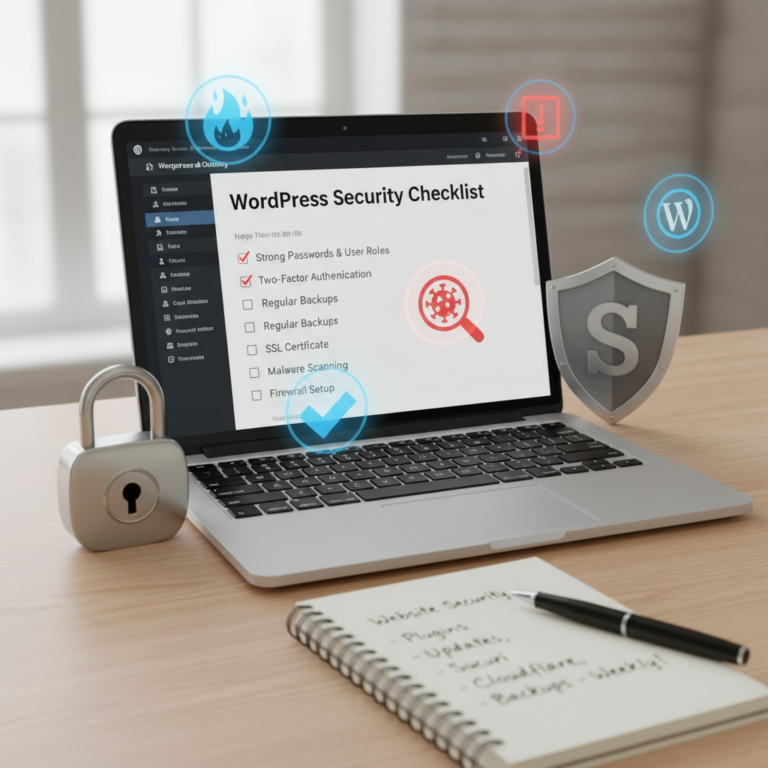
Obfuscation is just one layer of defense. You need more. If you aren’t using two-factor authentication, stop reading and set it up right now. It is the single most effective way to stop an intruder even if they manage to guess your password. Combine this with unique, complex passwords for every user and a strict update schedule for all your software. Security is about stacking layers, not relying on one single fix.
The Myth of ‘Security Through Obscurity’: Why This Is Just One Step
Talking Points:
* Understanding that hiding the URL is not a firewall.
* Why sophisticated bots can still find your login page.
* The reality of public REST API endpoints.
Changing your URL helps avoid simple, low-effort bot attacks. But be realistic. A determined attacker using advanced scanners can eventually find your login page by looking at HTTP headers or REST API endpoints. Never think of this as a total solution. It is a filter for the automated noise, not a lock that makes your site unhackable. Stay vigilant and use other security measures alongside this.
Expert Advice: Coordinating with Your Hosting Provider for Cache Compatibility
Talking Points:
* Potential conflicts with server-side caching.
* Why you should test login redirects across different browsers.
* When to contact your host for support.
Sometimes, your host’s server-side cache can get in the way of your new login URL. If you find the redirect isn’t working as expected, clear your site cache first. If it persists, shoot your hosting support a quick message. They usually have seen this a thousand times and can adjust the cache rules to ensure your custom login path remains accessible to you and invisible to the bots.
Conclusion: Reclaim Your Command Center
Securing your login page is one of the most practical steps you can take to stop the constant barrage of brute-force attempts. By moving the door, you cut out the majority of automated bot traffic that wastes your server resources and keeps you up at night. It is a simple adjustment, but it makes a tangible difference in the safety of your site. Take five minutes today to set this up, and then verify your 2FA settings. Have you ever been locked out of your own site, or do you have a favorite security plugin that you swear by? Drop a comment below and share your experience with the rest of the community.
Frequently Asked Questions
1. Question: Will changing my login URL break my SEO rankings? Answer: No, it will not affect your search engine optimization or site indexing because the login page should not be indexed by Google in the first place.
2. Question: Can a hacker still find my login page if I change it? Answer: Yes, sophisticated attackers may use automated scanners or API tools to identify custom paths, which is why you must also use 2FA and strong passwords.
3. Question: Is it possible to change the URL manually instead of using a plugin? Answer: While technically possible via code, we strongly advise against it because minor errors can lead to site-wide crashes during updates.
4. Question: What should I do if I forget my custom login URL? Answer: Access your site via FTP or your file manager, navigate to your plugins folder, and rename the plugin’s directory to automatically disable it, restoring your default login page.
5. Question: Does changing the URL speed up my website? Answer: It can slightly reduce the load on your server by preventing thousands of malicious login attempts from consuming resources, which may lead to improved responsiveness.