Security Guide for WordPress Site Owners
WordPress security is not one plugin you install and forget.
It is a maintenance rhythm. A secure WordPress site stays updated, uses limited access, protects logins, keeps recoverable backups, and gives you a way to notice when something changes. That does not make the site impossible to compromise. WordPress hardening guidance is clear that security is risk reduction, not risk elimination. The practical goal is to reduce easy entry points and recover quickly if something goes wrong.
That matters for a small-business site because the website is not just a marketing asset. It may collect leads, support appointments, publish content, send customers to checkout, or prove that the business is active. A security problem can interrupt all of that.
This WordPress security guide gives you a plain system you can actually maintain. It focuses on the habits that lower risk without turning every site owner into a server administrator.
What this WordPress security guide protects against
Most WordPress security problems start with ordinary maintenance gaps.
An old plugin may have a vulnerability that has already been fixed in a newer version. A theme may be inactive but still installed and forgotten. A former contractor may still have an administrator account. A password may be reused across several services. A contact form plugin may be active even though the business no longer uses that form. A backup may exist, but nobody has tested whether it can restore the site.
Those are not dramatic issues. They are everyday site-care issues. That is why WordPress security works best when you treat it as operations.
The main areas to protect are software, accounts, connections, recovery, and monitoring. Software means WordPress core, plugins, themes, PHP, and the hosting environment. Accounts means users, roles, passwords, two-factor authentication, and API credentials. Connections means HTTPS, secure file transfer, and trusted networks. Recovery means backups, restore testing, and a plan for what to do if the site breaks. Monitoring means logs, alerts, malware scans, Site Health checks, and enough routine attention to notice problems early.
No single layer replaces the others. A firewall does not replace updates. A backup does not prevent a login attack. A strong password does not help much if an unused administrator account is still active. Good WordPress security is layered because each layer reduces a different kind of risk.
Keep WordPress, plugins, and themes updated
Updates are the first security habit because WordPress sites depend on many pieces of software.
WordPress core receives maintenance and security releases. Plugins and themes also receive fixes, and many security issues are addressed by updating to a patched version. WordPress.org’s hardening guidance tells site owners to keep WordPress up to date, and its plugin and theme documentation explains how administrators can enable automatic updates per plugin or theme.
For a simple site, automatic updates can be a useful safety net. For a business-critical site, use a little more structure. Before making several updates at once, confirm that backups are current. Run updates during a lower-traffic window. Check the homepage, forms, checkout, menus, and the WordPress admin afterward. If the host provides staging, test major plugin, theme, or WooCommerce changes there before updating the live site.
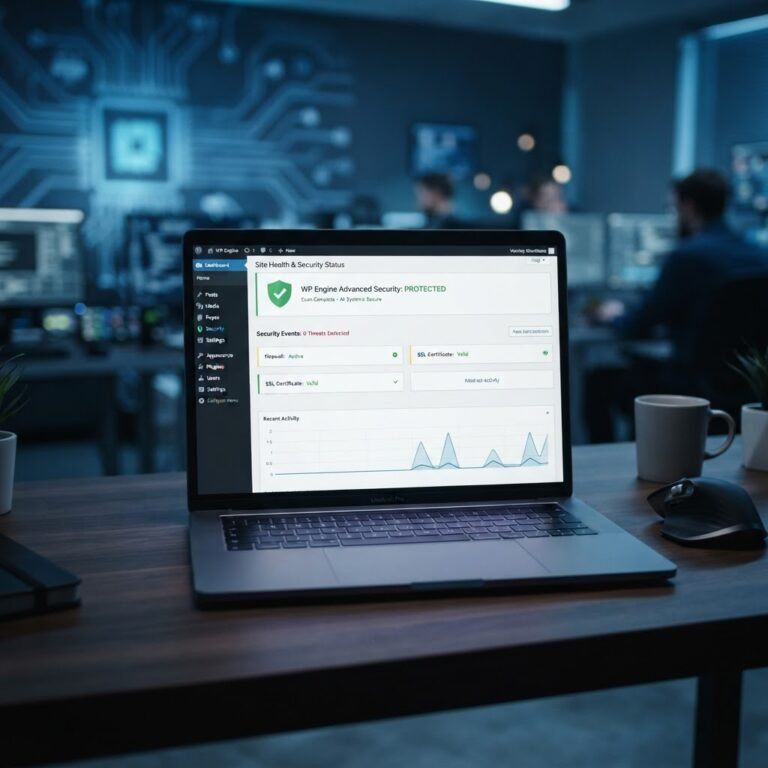
Site Health is a helpful checkpoint. It does not replace a professional security audit, but it can point out update, environment, HTTPS, and background-update issues that deserve attention. Make it part of the monthly maintenance rhythm: open Tools > Site Health, review critical issues, and decide what should be fixed by you, your host, or a developer.
Inactive plugins and themes deserve the same attention as active ones. If you do not need a plugin, delete it instead of letting it sit. If you keep a default theme for troubleshooting, keep it updated. The point is not to make the site bare. The point is to reduce software you are responsible for maintaining.
Use trusted sources for plugins and themes. WordPress hardening guidance recommends getting them from WordPress.org or known companies rather than untrusted download sites. That matters because a free copy of a premium plugin from an unknown source can cost far more than the original license if it contains malicious code or never receives updates.
Lock down accounts and admin access
The admin area deserves a smaller guest list.
Start with user roles. Not everyone needs administrator access. A writer may only need Author or Editor access. A contractor may need temporary access for a project and nothing after that. A marketing tool may need a limited integration account instead of a personal administrator login. Review users regularly and remove accounts that no longer belong.
Passwords should be unique and strong. A password manager makes this easier because the owner does not have to remember every password or reuse one across services. WordPress includes a password strength meter, but the bigger rule is simple: no reused admin passwords, no shared staff passwords, and no passwords based on the business name, domain, or username.
Two-factor authentication is a strong best practice for administrators and other high-access roles. It adds another check beyond the password. WordPress.org encourages 2FA for WordPress.org accounts, and many site owners add 2FA to their own WordPress admin through a security or login plugin. When you enable it, store backup codes somewhere safe so you do not lock yourself out during a phone change.
Application passwords need special care. WordPress application passwords are revocable, per-application credentials for programmatic access, such as an integration or script using the REST API. They are useful because one integration can be revoked without changing the user’s main password. They are also powerful enough to deserve review. If an app, automation, or old integration no longer needs access, revoke its application password.
For higher-risk sites, consider extra admin protection with help from your host or developer. Some sites restrict wp-admin by IP, add server-side protection, limit login attempts, or use a web application firewall. Those controls can help, but they can also break normal workflows when applied carelessly. The right level depends on the site, the team, and the risk.
Use HTTPS, backups, and a tested restore path
Security is not only about blocking problems. It is also about recovery.
HTTPS should be baseline for a modern WordPress site. It protects data in transit between visitors, administrators, browsers, and the site. WordPress documentation recommends moving sites to HTTPS, and WordPress hardening guidance specifically points to encrypted administration traffic as an important layer. If your site still has mixed-content warnings or an expired certificate, treat that as a maintenance issue, not a cosmetic detail.
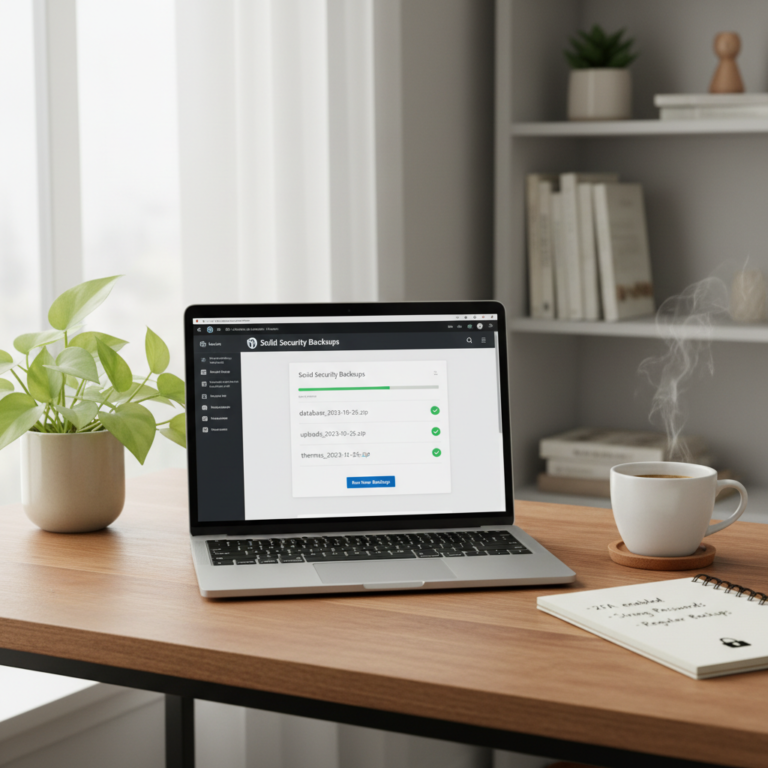
Backups are the second recovery layer. A useful backup includes the database and site files, runs on a clear schedule, and can be restored without guessing. For many businesses, the safest pattern is to keep backups somewhere separate from the live site. If the only backup is stored inside the same WordPress install that has a problem, recovery may be harder when you need it most.
Do not confuse post revisions with full backups. Revisions can help recover content changes inside WordPress. They are not a full copy of the database, uploads, plugins, themes, and configuration. If a plugin update breaks the site or malware changes files, you need a real site backup and a restore process.
Test the restore path before an emergency. That might mean asking the host how restores work, confirming how long backups are retained, or testing a restore on staging. You do not want the first restore attempt to happen during an outage, while forms are down and customers are waiting.
Recovery planning also includes access. Keep registrar, DNS, hosting, WordPress admin, backup storage, and security-plugin credentials organized. If only one person knows where those logins live, the business has an operational risk even if the technical setup is strong.
Related: WordPress backup plugins
Choose security plugins and hosting controls carefully
Security tools help most when each tool has a clear job.
A security plugin might provide login protection, malware scanning, file-change alerts, activity logs, firewall rules, or hardening recommendations. A host may include malware scanning, backups, a web application firewall, account isolation, or support for suspicious activity. A DNS or CDN provider may filter some traffic before it reaches the server.
Those are useful categories, but they are not guarantees. A web application firewall can reduce some malicious traffic, but it does not remove the need to update plugins. Malware scanning can alert you to suspicious files, but it does not replace prevention or backups. Login protection can slow automated guessing, but it does not excuse weak passwords.
Avoid stacking several plugins that do the same thing. Two security plugins may both try to change login behavior, scan files, write firewall rules, or send alerts. That can create duplicate warnings, performance drag, or confusing settings. It is usually better to choose one main security workflow and understand what the host already provides.
For a small-business site, a reasonable security stack often covers five jobs: login protection, update awareness, backups, malware or file-change monitoring, and basic firewall protection. Some of those jobs may be handled by the host. Some may need a plugin. Some may need a developer or maintenance provider.
Related: WordPress plugin stack
Advanced hardening belongs in the right hands. WordPress documentation covers file permissions, database privileges, protecting wp-config.php, disabling dashboard file editing with DISALLOW_FILE_EDIT, and server-level controls. Those can be valuable, but nontechnical owners should not blindly paste server rules from an article. Ask the host or a developer to apply them properly, especially on ecommerce, membership, or lead-generation sites.
Hosting also matters. A host should provide current server software, reliable backup and recovery options, and clear answers about security responsibilities. If you are comparing plans, look beyond the monthly price and ask what happens when the site needs to be restored, scanned, isolated, or supported.
Related: secure WordPress hosting foundation
A simple WordPress security checklist
Use this checklist as a maintenance rhythm, not a one-time project.
Weekly:
- Check available WordPress core, plugin, and theme updates.
- Confirm the site loads correctly on desktop and mobile.
- Check forms, checkout, appointment links, and other revenue-critical paths.
- Review security plugin or host alerts.
- Confirm the latest backup completed.
Monthly:
- Open Site Health and review critical issues.
- Remove inactive plugins and themes you no longer need.
- Review user accounts and remove old staff, contractors, or test accounts.
- Check administrator accounts for strong passwords and two-factor authentication.
- Review application passwords and revoke unused credentials.
- Confirm SSL/HTTPS is working without browser warnings.
- Review backup retention and restore instructions.
After major changes:
- Back up before updating important plugins, themes, or WooCommerce.
- Test updates on staging when the site is business-critical.
- Review forms, checkout, tracking scripts, menus, and search after the change.
- Watch logs or security alerts for unusual behavior.
- Document what changed, who changed it, and when.
Quarterly:
- Ask your host what security features are included in the plan.
- Confirm who owns domain, DNS, hosting, backup, and WordPress admin access.
- Review whether the current plan still fits the site’s risk.
- Decide whether you need a maintenance provider, stronger hosting, or a cleaner plugin stack.
Related: WordPress hosting pricing
Frequently asked questions about WordPress security
Is WordPress secure enough for a business site?
WordPress can be secure enough for many business sites when it is maintained well. The bigger risk is usually neglect: old plugins, weak passwords, unused administrator accounts, missing backups, and no monitoring. Treat the site as business infrastructure and keep a maintenance rhythm.
Do I need a WordPress security plugin?
Many site owners benefit from a security plugin, but the plugin should have a clear job. Look for the security gaps your host does not already cover, such as login protection, malware scanning, file-change alerts, or activity logs. Avoid installing several plugins that overlap.
Are automatic plugin updates safe?
Automatic updates can reduce delay when fixes are released. They can also create risk if an update conflicts with a theme, plugin, or custom code. For simple sites, auto-updates may be reasonable. For business-critical sites, use backups, staging, and a clear review process for major changes.
What is the most important WordPress security habit?
The most important habit is regular maintenance. Keep software updated, limit accounts, use strong login protection, maintain backups, and review alerts. A simple routine beats a complicated setup nobody checks.
What should I do if I think my WordPress site was hacked?
Do not keep clicking around randomly or deleting files by guesswork. Preserve access, contact your host, take the site offline if needed, scan the site, review logs, change passwords, revoke suspicious credentials, and restore from a clean backup if that is the safest path. If the site handles ecommerce, memberships, or sensitive customer data, bring in professional help.
Build a site you can recover
The goal of this WordPress security guide is not fear. It is control.
A healthier WordPress site is updated, limited, monitored, and recoverable. It uses fewer unnecessary plugins, gives fewer people administrator access, protects logins, runs over HTTPS, and keeps backups that can actually restore the site. That is the security rhythm most small-business owners need.
Once that rhythm is in place, review whether your hosting plan, backup setup, performance workflow, and plugin stack support it. Security becomes easier when the whole site is built to survive routine updates, mistakes, and growth.
Sources
- WordPress.org Security: https://wordpress.org/about/security/
- WordPress Advanced Administration Handbook, Hardening WordPress: https://developer.wordpress.org/advanced-administration/security/hardening/
- WordPress.org plugin and theme auto-updates: https://wordpress.org/documentation/article/plugins-themes-auto-updates/
- WordPress.org Site Health screen: https://wordpress.org/documentation/article/site-health-screen/
- WordPress.org HTTPS for WordPress: https://wordpress.org/documentation/article/https-for-wordpress/
- WordPress Developer Resources, Application Passwords: https://developer.wordpress.org/advanced-administration/security/application-passwords/
- WordPress REST API Authentication: https://developer.wordpress.org/rest-api/using-the-rest-api/authentication/
- Make WordPress.org, configuring two-factor authentication: https://make.wordpress.org/meta/handbook/tutorials-guides/configuring-two-factor-authentication/
- OWASP Cheat Sheet Series: https://owasp.org/www-project-cheat-sheets/