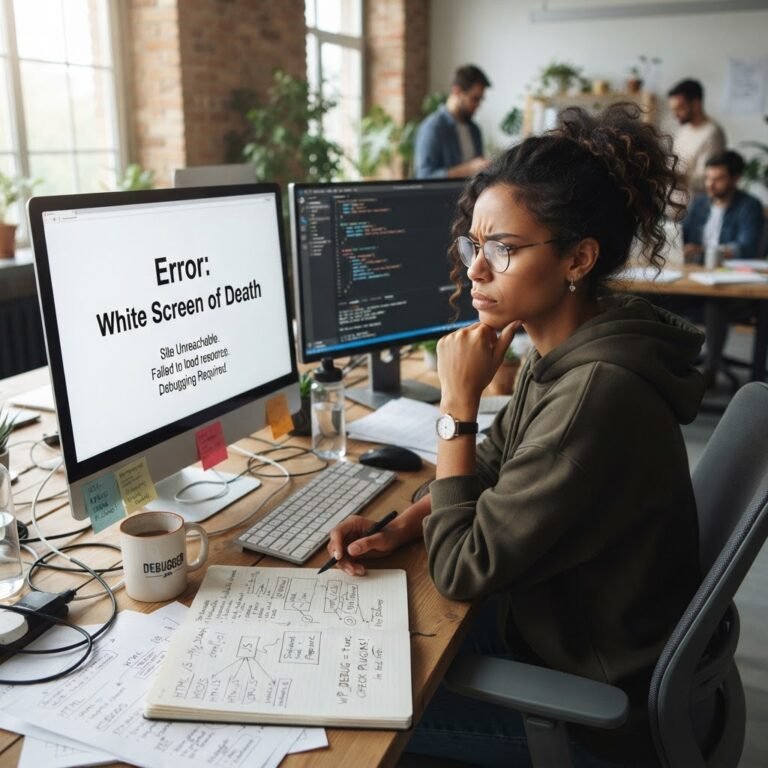
Fix Common WordPress Errors: Your Complete Guide
Comprehensive Guide to Resolving Common WordPress Errors
When I first stepped into the world of WordPress, I thought it would be smooth sailing. Boy, was I wrong! I remember groaning in frustration at 3 AM when the dreaded White Screen of Death plastered my screen, shutting me out of my own website like an unkind bouncer. If you’ve been there, know you’re not alone! Managing a WordPress site can feel like a roller coaster, with ups and downs that can leave your head spinning. In this practical guide, I’ll help you tackle common WordPress errors head-on, empowering you to take control of your site’s performance and user experience.
1. White Screen of Death (WSOD): Causes and Solutions
Talking Points:
- Common causes of WSOD.
- Quick fixes to address the issue.
- How to prevent future occurrences.
The White Screen of Death, or WSOD, seems to strike at the most inopportune times, doesn’t it? It’s like the universe suddenly decided to hit “pause” on your online presence. WSOD can be triggered by several factors, most notably plugin conflicts (which account for a staggering 65% of issues), bad caching mechanisms, or exhausted PHP memory.
To fix it, start by clearing your browser cache and deactivating plugins. If you can access your site’s dashboard, disable the last plugins you installed. If that fails, consider switching to a default WordPress theme to see if the issue lies with your current theme.
And don’t forget about memory! Increasing your PHP memory limit in the `wp-config.php` file can often resolve the problem. Just a few lines can usher your site back to normal!
2. Internal Server Error (500): Diagnosing and Fixing
Talking Points:
- What triggers Internal Server Error 500.
- Steps to identify the source of the error.
- How to implement solutions.
The Internal Server Error (500) can feel like a slap in the face. It doesn’t tell you what’s wrong, just that something went awry. The usual suspects? Corrupted .htaccess files, overloaded servers, or problematic plugins again.
Start by checking your .htaccess file. Rename it to something like `.htaccess_old` and visit your site. If it loads, you found the culprit! Recreate a fresh .htaccess file by going to Settings > Permalinks in your dashboard and saving changes.
If that doesn’t solve it, investigate server resources by checking with your hosting provider. Sometimes, simply upgrading your hosting plan can work wonders, especially during a traffic surge.
3. Error Establishing a Database Connection: Step-by-Step Guide
Talking Points:
- Common reasons for database connection errors.
- How to check your database credentials.
- Fixing connection errors effectively.
Seeing “Error Establishing a Database Connection” is like being told your keys are locked in your car—it’s annoying, and it needs immediate attention! This issue is often due to incorrect database credentials set in your `wp-config.php` file, or difficulties connecting to the database server itself.
Start by double-checking your database name, username, password, and host (usually local). If any details are incorrect, update them to reflect the right information provided by your hosting provider.
Sometimes, it’s not you but the server that’s having a bad day. If this error persists after checking your details, reach out to your hosting support for help!
4. Plugin Conflicts: Identifying and Resolving Issues
Talking Points:
- How plugin conflicts create issues.
- Identifying conflicting plugins.
- Best practices to resolve conflicts and maintain quality.
Let’s talk plugins. They can be your best friends or your worst enemies—especially when they decide to conflict. You might find your site crashing or behaving erratically, and suddenly, there’s that 500 error again!
To find the troublemaker, start by deactivating all plugins and then reactivate them one by one. Reload your site after each activation. It’s tedious, but it’s effective. Identifying the conflicting plugins allows you to choose alternatives that play nicely together.
Always ensure you’re running the latest versions of your plugins. Sometimes, developers release updates to fix bugs—like that infamous conflict—so keeping everything updated is key!
5. Memory Exhausted Error: Causes and How to Increase Memory Limit
Talking Points:
- Recognizing memory exhausted errors.
- Understanding when and why they occur.
- Steps to increase memory limits effectively.
Uh oh—“Allowed memory size exhausted”? Cue the panic! You may be pushing the limits of your current hosting plan or using heavy plugins.
To fix this, you can increase your memory limit. Add this line to your `wp-config.php`:
“`php
define(‘WP_MEMORY_LIMIT’, ‘256M’);
“`
This simple addition usually does the trick. If it doesn’t, it may be time to consider a hosting upgrade, especially if you’re running multiple sites.
6. 404 Not Found Errors: Fixing Broken Links and Permalink Issues
Talking Points:
- How broken links cause frustration for users.
- Fixing permalink structure errors.
- Tools to detect and resolve 404 errors.
404 errors are like a dead end in your web navigation. They pop up when links are broken, leaving visitors searching for a way out. First, try checking your permalink settings. Go to Settings > Permalinks and select your preferred structure, then click “Save Changes” (you don’t even need to make changes). This action refreshes your URLs.
Tools like Google Search Console can help identify any 404 errors your site has, allowing you to systematically take care of broken links—a key part of maintaining site performance and user trust.
7. Maintenance Mode Stuck: Resolving the ‘Briefly Unavailable’ Error
Talking Points:
- Why sites get stuck in maintenance mode.
- How to check the database for ‘maintenance’ settings.
- Steps to recover your site.
It’s frustrating—it feels like your site is on permanent lockdown while all you wanted to do was perform a simple update! Sometimes, site updates don’t clean up after themselves, leaving your site hanging in maintenance mode.
To fix it, access your site files via FTP and check for a file named `.maintenance` in your root directory. If you find it, delete it, and your site should be back online shortly!
8. Image Upload Issues: Troubleshooting and Solutions
Talking Points:
- Common reasons images fail to upload.
- Quick fixes to restore functionality.
- Maintaining optimal performance with images.
Nothing’s more frustrating than trying to upload that perfect image, only to be met with an error. Image upload issues can stem from file size limits, wrong formats, or permission problems.
To troubleshoot, first check your admin settings for upload file size limits. Increasing the size limit can often help clean up this issue.
Also, confirm that your image formats are supported by WordPress. JPEG, PNG, and GIFs should be safe, while other formats may trip you up.
9. Login Page Refreshing/Redirect Loop: Causes and Fixes
Talking Points:
- Identifying the reasons behind login loop errors.
- Solutions to break the cycle.
- Best practices for maintaining secure logins.
If your login page keeps refreshing without letting you in, it’s maddening! Login loops can happen for various reasons, most commonly misconfigured WordPress and site URL settings or session cookies issues.
Start by checking these settings under Settings > General. Make sure your WordPress Address (URL) and Site Address (URL) are identical.
If that doesn’t resolve it, try clearing your browser’s cookies or logging in from another browser altogether—sometimes, the simplest fixes yield the best results!
10. Connection Timed Out Error: Diagnosing and Resolving
Talking Points:
- Understanding why connection timeouts occur.
- Quick fixes to reestablish connections.
- Long-term solutions for performance-related issues.
The dreaded Connection Timed Out error often pops up during peak traffic times or if your server is underpowered to handle your site’s needs.
If you see this message, it’s time to act fast. First, check with your hosting provider; they might offer solutions like server upgrades or resources to optimize your site’s performance.
If your site is running multiple resource-heavy processes, like complex plugins or themes, consider disabling those to help stabilize your site.
11. Syntax Errors: Identifying and Correcting Code Issues
Talking Points:
- Recognizing different types of syntax errors.
- How to locate errors in your theme or plugins.
- Steps to troubleshoot code effectively.
Syntax errors can be a little intimidating, especially when they come with cryptic messages. If you ever see a white screen with a message about a syntax error, it’s usually caused by a misplaced comma, bracket, or typo in custom code.
To fix it, you’ll need access to your theme or plugins via FTP. Navigate to the specified file in your error message and check closely for common errors. Correct any discrepancies and then upload the modified file back to your server.
If you’re not comfortable doing this, reaching out for support or using a staging environment to test changes can save a lot of headaches!
12. SSL Certificate Issues: Ensuring Secure Connections
Talking Points:
- Recognizing SSL-related errors.
- Steps to check SSL certificate installation.
- How to maintain site security effectively.
As the internet evolves, a secure connection is paramount. SSL certificate issues can lead to “Not Secure” warnings on your site, which can scare off visitors.
Always double-check your SSL setup with your hosting provider. They can confirm that it’s installed correctly and guide you through the renewal process if it’s expired.
Keeping your site secure by implementing HTTPS not only boosts user trust but also enhances your overall Google ranking—so it’s worth the effort!
Conclusion
Navigating the world of WordPress errors can feel overwhelming at times, but with the right knowledge and a few proactive measures, it’s entirely manageable. From tackling the notorious White Screen of Death to ensuring your site remains secure and functional, this guide stands as your companion in overcoming challenges.
So, are you ready to apply these tips? I encourage you to customize them to fit your specific needs and share your own experiences or techniques in the comments below! Let’s learn from each other and keep our sites running smoothly.
Frequently Asked Questions
1. What should I do first if my WordPress site goes down?
Start by checking with your hosting provider. They may be experiencing downtime that affects your site. After that, try clearing your browser cache and restarting your browser.
2. How often should I back up my WordPress site?
Ideally, you should back up your site at least once a week or before making significant changes, like updates or plugin installations. Automating backups through plugins can ease this process.
3. Can I resolve WordPress errors myself?
Yes, many common errors can be fixed with basic troubleshooting and knowledge. However, if you’re not comfortable making changes, seeking professional help is a smart choice.
4. How do I prevent plugin conflicts?
Regularly updating your plugins and themes, running only essential plugins, and using reputable sources for downloads can significantly reduce conflicts.
5. Is it necessary to switch hosting providers to fix errors?
Not always. While some errors are due to hosting limitations, many can be resolved with optimizations. However, if issues persist, evaluating other options might be worthwhile!