How to Manage Multiple WordPress Sites: Pro Guide (2024)
How to Manage Multiple WordPress Sites Like a Pro: The Ultimate Guide
The Struggle of Juggling WordPress Sites
Talking Points:
- Why managing many sites leads to burnout
- The hidden cost of manual updates
- Realizing you have too many tabs open
I remember staring at my screen at 3 AM. Sweat dripped down my forehead. My main site was a blank screen of terror. I had five other sites to check. It felt like I was fighting a hydra. Every time I fixed one, another plugin update crashed the next. You know that feeling. It is absolute misery.
WordPress runs 43.5% of the web. That is a massive footprint. With that scale comes a massive target. When you look after ten or twenty sites, the manual grind destroys your productivity. I used to log into every dashboard one by one. It wasted hours every single week. My coffee went cold. My patience ran thin. It was a recipe for disaster.
The 2am Wake-Up Call: Why Centralization is Your Best Friend
Talking Points:
- Avoiding the White Screen of Death
- How to manage multiple wordpress sites from one dashboard
- The peace of mind that comes with automation
That 2 AM crash taught me a hard lesson. I was reactive, not proactive. When you wait for a site to break, you pay the price in lost revenue. Centralized wordpress management saves your sanity. It keeps your entire digital property portfolio healthy. I switched to a single dashboard system and never looked back.
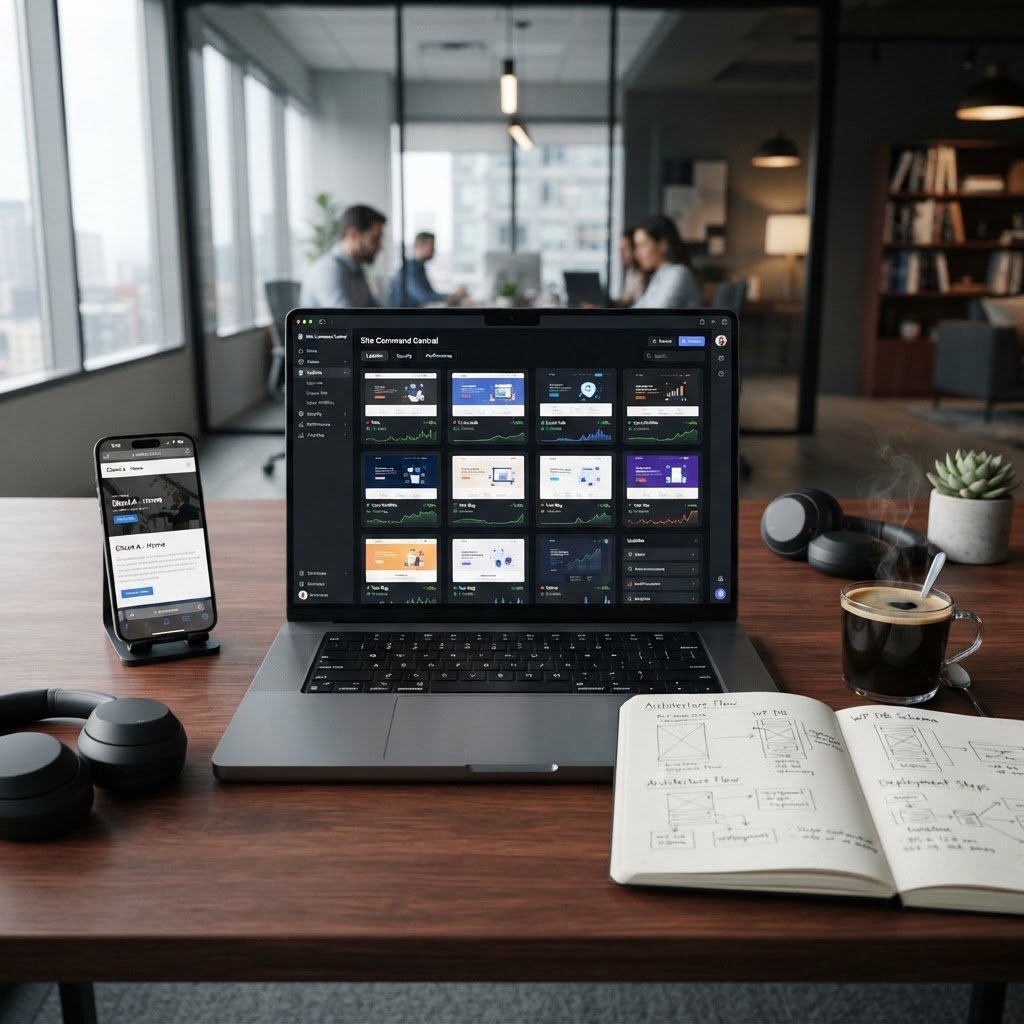
Think of it as your own command center. You see everything at a glance. If a plugin update goes south, you know instantly. No more guessing games. No more frantic logins. You save time and keep your stress levels low. It is the only way to scale without losing your mind.
Choosing Your Command Center: Multisite vs. External Management Tools
Talking Points:
- Understanding the WordPress Multisite architecture
- When to choose an external management tool
- Comparing resource usage for your specific setup
WordPress Multisite lets you run a network from one install. It uses one codebase for many sites. That sounds great for updates. However, it can eat your hosting resources alive. It also adds complexity to your database. One bad plugin can take down every site in the network at once.
External tools like WP Umbrella or ManageWP work differently. They connect to separate installs. You get the benefits of centralized wordpress management without the shared risk. I prefer this method for most clients. It keeps each site isolated. If one fails, the others stay online. It is a smarter way to manage multiple wordpress sites.
Essential Tasks to Automate Across Your Network
Talking Points:
- Automating plugin updates safely
- Setting up regular uptime monitoring
- Why you need automated backups
Automation is your best friend when you have a portfolio. You need to automate wordpress updates for small patches. Always test on a staging site first. Never run updates blindly on live sites. You will regret it when your checkout page disappears.
Uptime monitoring is another non-negotiable. You need to know if a site goes down before your customers do. Automated backups are the final safety net. If things break, you restore in a click. It takes minutes instead of hours. My recovery time dropped from three hours to five minutes. That is a huge win.
Boosting Site Performance Without Checking Each Site Individually
Talking Points:
- Batch processing for performance tuning
- Monitoring site speed across your portfolio
- Database cleanup tasks that keep sites fast
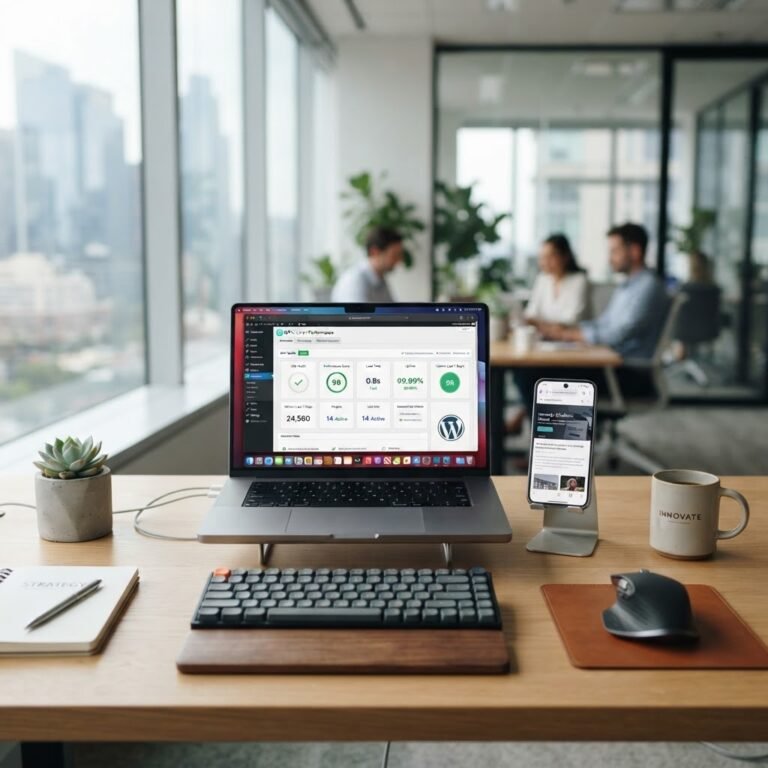
Slow sites kill conversions. I check performance metrics from my dashboard weekly. I look for high load times. If one site lags, I run a batch process to optimize its assets. It keeps everything lean. I don’t have to jump into every backend to fix common speed bottlenecks.
Database bloat is a silent killer. Post revisions and spam comments add up fast. I run a clean-up command across all sites at once. It shaves seconds off load times. A fast site makes your users happy. It also keeps your search rankings steady. Efficiency is the secret to growth.
Bulletproof Security: Hardening Every Site from One Dashboard
Talking Points:
- Managing wordpress security at scale
- Dealing with the 91% plugin vulnerability rate
- Why standard firewalls often fail
11,334 new vulnerabilities hit WordPress in 2025. That is a 42% jump. Hackers love outdated plugins. 91% of holes start in those plugins. You cannot rely on a standard firewall alone. 87.8% of exploits bypass them easily. You need deeper protection.
I harden my sites from my central hub. I block malicious IPs everywhere at once. I enable two-factor authentication for every user. If a vulnerability is found, I patch all sites in seconds. Hackers strike within five hours of a fix going public. You must be faster than them.
Managing Updates: How to Avoid the White Screen of Death
Talking Points:
- The risks of auto-updates
- Using staging environments to protect your work
- Avoiding the common mistakes that break sites
Updates are a double-edged sword. They fix bugs but can also break themes. Never hit “update all” without a safety net. I use staging environments for every major release. My dashboard lets me clone the live site with one click. I test the update there first.
If the staging site breaks, I fix it there. The live site stays safe. Only when I see it works do I push to production. This simple process saved me from dozens of outages. It makes plugin compatibility issues much easier to spot. Always have a plan B.
Streamlining Backups and Recovery for Peace of Mind
Talking Points:
- Off-site storage for backup safety
- Creating a rapid recovery plan
- Why manual backups are a waste of time
Backups are your insurance policy. If a site gets hacked, you need a clean version ready. I store backups in the cloud away from my host. If the server goes down, I still have my data. I check these backups weekly to see if they are actually readable.
I once lost a site because the backup file was corrupt. Never trust the tool blindly. Test your restores periodically. It takes effort but pays off. When you manage multiple wordpress sites, you cannot afford to lose your data. Peace of mind is worth every penny.
Scaling Up: Best Practices for Growing Your Portfolio
Talking Points:
- Preparing for site scalability
- Standardizing your plugin stack
- Outsourcing maintenance services when you get busy
Standardize your stack. Use the same themes and plugins across all sites. It makes troubleshooting a breeze. You learn how each tool behaves. When you add a new site, you clone your proven setup. You spend less time configuring and more time growing.
If you get too busy, hire wordpress maintenance services. Pass off the boring daily tasks. Focus on your business strategy instead. Just keep a close eye on the reports. Even if you outsource, you remain the boss. Stay involved enough to spot red flags.
Troubleshooting Common Multi-Site Sync Issues
Talking Points:
- Fixing failed connection errors
- Dealing with mismatched plugin versions
- When to perform a manual refresh
Sometimes, your dashboard loses touch with a site. It happens. Usually, it is a simple timeout or a firewall block. I check my API keys first. If that fails, I update the management plugin manually. It clears the communication block most of the time.
Keep your versions consistent. If one site runs an old version of a plugin, it might trigger an error. I use a bulk check to find these outliers. Clean it up, sync it, and move on. Technical headaches are part of the game. Stay calm and stay organized.
Reclaim Your Time and Control Your WordPress Empire
Managing multiple WordPress sites does not have to be a nightmare. You have the tools now to stay in control. Whether you manage ten sites or a hundred, the principles remain the same. Use a central dashboard. Automate the boring stuff. Keep your security tight.
Stop the 2 AM wake-up calls. Take charge of your infrastructure today. You deserve to work smarter, not harder. If you have a favorite tool or a tip for site management, share it in the comments. I would love to hear how you keep your sites running smoothly!
Frequently Asked Questions
- Question: Is WordPress Multisite always the best choice for managing multiple sites?
Answer: Not necessarily. While it is great for shared resources, it creates a single point of failure. External management tools often provide more flexibility and better site isolation.
- Question: How can I safely automate updates without crashing my site?
Answer: Always use a staging site to test updates first. Never apply updates to live sites without a verified backup and a quick way to roll back changes.
- Question: What should I look for in a WordPress management tool?
Answer: Look for uptime monitoring, one-click backup restores, security scanning, and bulk update capabilities. A good tool must work reliably across different hosting providers.
- Question: Why do my security plugins fail to stop all hacks?
Answer: Security plugins cannot fix server-level vulnerabilities or bad coding in themes. They are only one layer of your defense. You need a mix of strong passwords, regular updates, and quality hosting.
- Question: How often should I perform database cleanups?
Answer: For most portfolios, a monthly cleanup is sufficient. If you publish content daily, you might want to run it every two weeks to keep your site speed high.