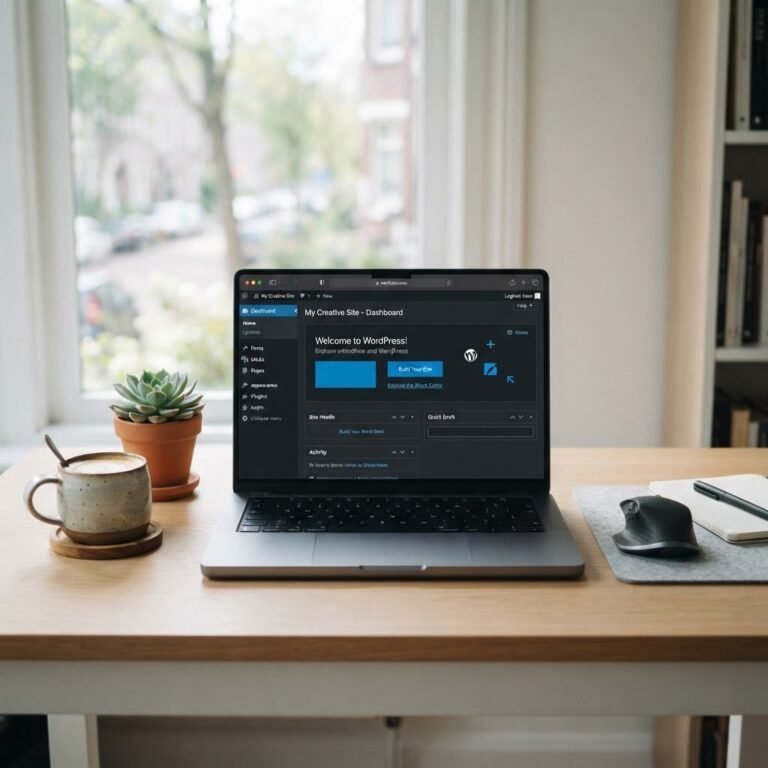
Top WordPress Backup Solutions for Site Security
WordPress Backup Solutions: Your Ultimate Guide to Site Security
When I first started messing around with WordPress, I learned something shocking: the average website goes through more challenges than a cat in a room full of rocking chairs. I didn’t know this back then, of course. I set up my site, thrilled with my new space to share my thoughts and creativity. But then came the dreaded “White Screen of Death” at 2 AM. Heart racing, I panicked. My site was gone! It wasn’t until later that I discovered the importance of WordPress backups, the digital safety net I’d overlooked.
Why You Need WordPress Backups
Let’s face it, your website is your baby. You’ve put in countless hours of effort and maybe even a bit of money. But if something goes wrong — a plugin freaks out, a hack happens, or a simple user error — all of that can vanish in a flash. Think of backups as your website’s insurance policy; just like you wouldn’t drive without car insurance, you shouldn’t run a site without reliable backups.
Regular backups mean that when the unexpected strikes, you can swiftly restore your site to its former glory. Whether it’s a minor hiccup like a plugin conflict or a full-on disaster like a complete database loss, knowing you have a backup can ease that stomach-churning panic.
Common WordPress Issues That Make Backups Essential
WordPress websites are like traffic lights; sometimes they work, and sometimes they don’t. One minute, you’re humming along, and the next, you’re staring at an error message that leaves you scratching your head. A few common issues include:
1. Plugin Conflicts: You might have a set of add-ons that work beautifully together, then one update breaks everything. Oops!
2. Hacks and Malware: WordPress sites are often targets for hackers. Even a slight vulnerability can lead to invasion.
3. Server Failures: Your hosting provider might experience outages, and in some sad cases, you could lose all your site data.
Without a backup, these situations can feel like a mountain you have to climb with a broken leg. Beyond just keeping your website functional, backups safeguard your content — sometimes the only record of your creative genius.
Top WordPress Backup Solutions
With dozens of backup tools out there, finding the right one may feel a bit overwhelming. But don’t worry! Here’s a breakdown of some of my top recommendations:
1. UpdraftPlus: Comprehensive and User-Friendly
For sheer popularity and efficiency, UpdraftPlus takes the crown. With over 3 million active installations, it’s favored by WordPress users everywhere.
- What’s Great: Simple to set up and use, this plugin allows for scheduled backups, so you can set it and forget it. It works with various cloud services like Google Drive and Dropbox, making restoring a breeze.
- Drawbacks: If you’re seeking advanced features, you might find some limitations in the free version.
2. BlogVault: Managed Backups with Advanced Features
If you’re looking for a hands-off solution, BlogVault is worth considering. With trust from over 1.5 million users, this service just gets it.
- What’s Great: It offers both backup and staging, allowing you to try out changes without affecting your live site. Plus, it employs incremental backups, keeping data secure without hogging system resources.
- Drawbacks: This premium service comes at a price, which may not suit every budget.
3. Jetpack Backup: Real-Time Protection for Peace of Mind
Jetpack’s backup solution (formerly known as VaultPress) is all about keeping your site safe in real time.
- What’s Great: It provides automatic daily backups and restores your site in one click! Plus, it comes with additional features like malware scanning.
- Drawbacks: You need the Jetpack plugin installed, which not everyone likes due to its many features and potential slowdowns.
4. BackWPup: Flexible and Cost-Effective
If you’re on a tight budget, BackWPup is a great option providing both flexibility and powerful features.
- What’s Great: It allows you to schedule backups and choose from various storage options, from Amazon S3 to Dropbox. You can even back up your WordPress installation.
- Drawbacks: It’s not the most user-friendly interface, which might pose a challenge for novices.
5. Duplicator Pro: Ideal for Migration and Backup
When it comes to backups that help in migration, Duplicator Pro stands out.
- What’s Great: It offers full site backups, including databases and files, and allows storage on multiple cloud services. It’s a gem if you plan to move your site to a new host.
- Drawbacks: It’s not strictly a backup tool designed for everyday use; more like a Swiss army knife.
How to Choose the Right Backup Solution for Your Site
Choosing a backup solution isn’t just about what’s popular; it’s about what fits you. Start by asking yourself:
- What’s your budget? If money’s tight, look for free or cost-effective options.
- How tech-savvy are you? If you panic at the sight of a settings menu, go for something straightforward.
- Do you need special features? Are you planning to migrate? Focus more on those capabilities.
Take a few moments to think about your site’s requirements. You’ll be glad you did when everything is on autopilot.
Best Practices for Implementing WordPress Backups
Okay, so now you’ve chosen your backup tool. What next? Let’s talk practical tips. Start by setting your backups to run regularly; daily or weekly is ideal based on your site activity. If you make frequent changes or add content daily, aim for daily backups.
After that, testing is essential. I learned this lesson the hard way when I discovered my backup system wasn’t quite capturing everything. So do a few dry runs restoring your site to ensure no nasty surprises down the line. Finally, store backups in various locations: local, cloud, or even an external hard drive. This way, when disaster strikes, you’ve got options!
Conclusion: Safeguarding Your WordPress Site with the Right Backup Solution
At the end of the day, keeping your website secure with reliable WordPress backup solutions is non-negotiable. It’s your peace of mind against the unknown. Whether choosing a user-friendly plugin, a managed service, or a migration tool, the right backup strategy can save countless hours and stress — trust me, I’ve been there.
So, which solution will you choose? I’d love to hear your experiences or any tips you have! Drop a comment below, and let’s keep the conversation going!
Frequently Asked Questions
Q1: How often should I back up my WordPress site?
A1: The frequency depends on your site’s activity. For sites with daily updates, daily backups are ideal. Otherwise, weekly might suffice.
Q2: Can I use multiple backup solutions at once?
A2: Yes, many users opt to have a primary plugin along with additional external backups for extra security. Just ensure they don’t conflict with each other.
Q3: Are free backup solutions reliable?
A3: Many free options offer solid features; however, they may lack support or advanced capabilities found in premium versions. Evaluate your needs before deciding.
Q4: What should I do if my backup fails?
A4: First, check the backup logs for errors. If it continues, consider reaching out to your backup solution’s support for assistance.
Q5: How do I restore my website from a backup?
A5: Each backup solution has its way of restoring. Generally, you’ll find an option in the plugin dashboard to initiate a restore, often following a few simple steps.