The Ultimate WordPress Maintenance Checklist: Secure & Fast
The Ultimate WordPress Maintenance Checklist: Keep Your Site Fast, Secure, and Online
Why Your WordPress Site Needs Regular Maintenance to Avoid the 2am Panic
Talking Points:
* The reality of site crashes happening when you are least prepared.
* The difference between a proactive strategy and reactive chaos.
* Why ignoring your dashboard leads to the White Screen of Death.
I remember waking up at 2am to a notification on my phone. My main site was gone. Just a blank white screen staring back at me. That sinking feeling in your gut is something every site owner knows all too well. You start sweating, clicking buttons randomly, and praying for a miracle. WordPress powers 43.5% of the web, and that popularity makes it a target. If you treat your site like a house you never lock, you are asking for trouble. My goal is to save you from that 2am nightmare.
Understanding the Risks: What Happens When You Neglect Your WordPress Dashboard
Talking Points:
* Statistics on hacking attempts and automated threats.
* How vulnerabilities in plugins become open doors for attackers.
* The speed at which mass exploitation occurs after a bug is public.
Neglect is the silent killer of online projects. In 2025, we saw 11,334 new WordPress vulnerabilities identified. That is a 42% jump from the year before. Most people assume hackers want their specific site, but it is rarely personal. It is automated, mindless, and fast. The median time from a vulnerability being public to mass exploitation is just 5 hours. If you are not logging in to check things, you are leaving your digital front door wide open. You cannot hide behind the idea that your site is too small to matter.
Weekly Maintenance: The Quick Wins for Performance and Security
Talking Points:
* Why staying consistent prevents small issues from becoming catastrophes.
* Essential checks for core software and plugin updates.
* Keeping site uptime monitoring active to catch downtime early.
Set aside one hour every week. Just one. Start by looking at your plugin compatibility. Are there updates waiting? Check your site uptime monitoring logs to see if there were any weird blips during the week. This is how you avoid the big problems. It is about small, incremental adjustments rather than fixing a broken wreck later. If a plugin is acting weird, delete it. Don’t let it sit there gathering dust.
Monthly Deep Dive: Updating Plugins, Themes, and Core Files Safely
Talking Points:
* The danger of bulk updates without a staging environment.
* Why plugins are the primary vector for security breaches.
* Balancing the need for new features with site stability.
Plugins account for 91% of newly reported vulnerabilities. That number is staggering. When you perform monthly updates, do not just click the “update all” button and walk away. That is a recipe for disaster. Create a staging site first. Test the updates there. If the site doesn’t break, move those changes to your live environment. This is how you actually maintain a WordPress site without blowing it up.
Quarterly Audit: Checking for Broken Links, UX Issues, and Form Functionality
Talking Points:
* Hunting down dead links that ruin user trust.
* Testing contact forms to ensure business leads aren’t being lost.
* Reviewing the user experience on mobile devices.
Your site is a machine. Over time, parts break. Links lead to 404 pages. Forms stop sending emails. Use a broken link checker to scan your pages every three months. Manually test your “contact us” form. Nothing hurts a business faster than a potential customer reaching out to a dead end. Check your layout on a phone, too. The web is mobile-first, and if your menu looks broken on a smartphone, you are losing money.
The Security Shield: Managing Backups, SSL, and Malware Protection
Talking Points:
* Why off-site, automated daily backups are non-negotiable.
* The limitations of relying on hosting-provided backup solutions.
* Verifying your SSL certificate status to keep browsers happy.
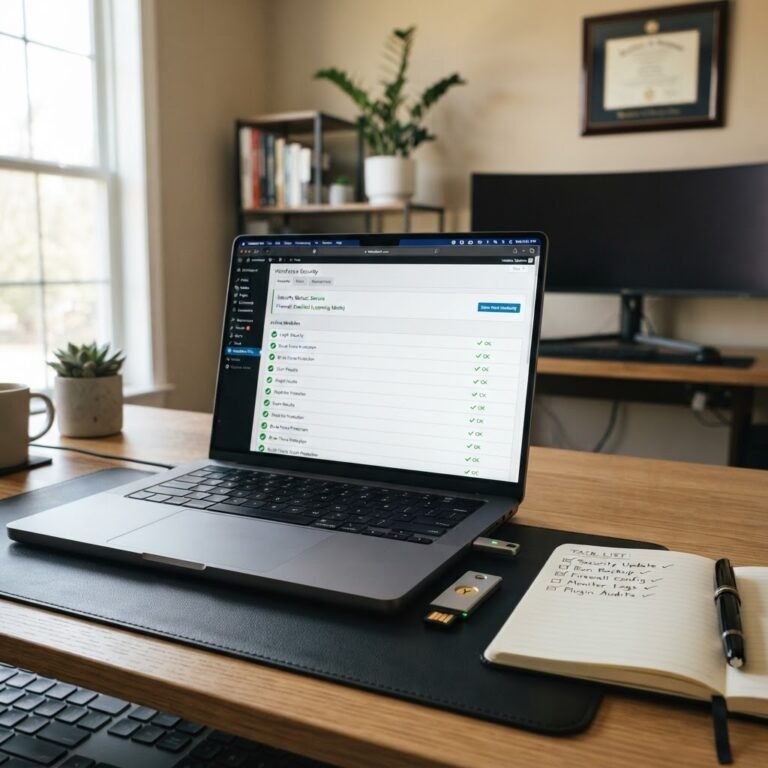
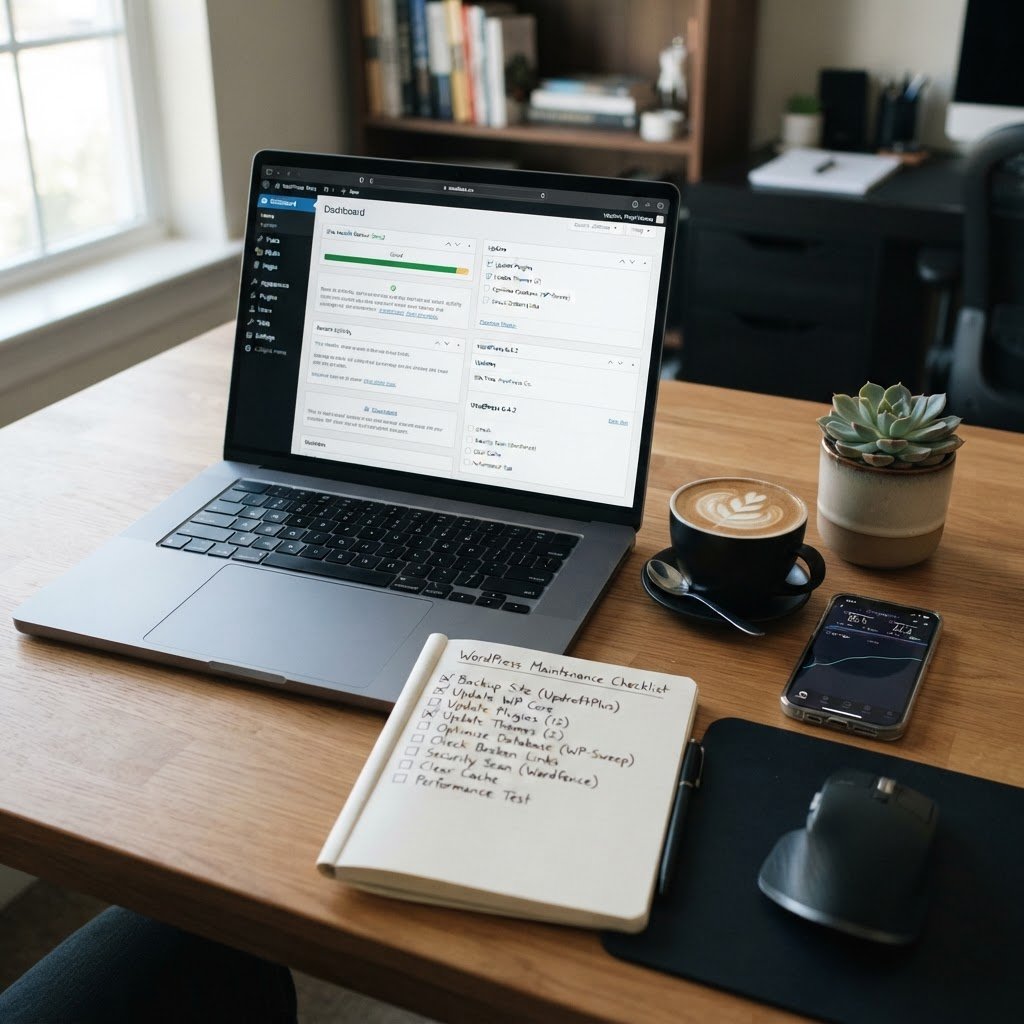
If you aren’t running automated daily backups, stop reading and go set that up. Hosting backups are okay, but they aren’t enough. You need copies stored elsewhere. If your host gets compromised, you need a way to restore your site from a separate location. Perform regular malware scanning to ensure no malicious code is hiding in your files. Check your SSL certificate validation to make sure your connection stays green and safe.
Performance Tuning: Clearing Caches and Optimizing Your Database
Talking Points:
* How database bloat slows down your site over time.
* Implementing and clearing caching configuration settings.
* Identifying and removing unused assets that drag down speed.
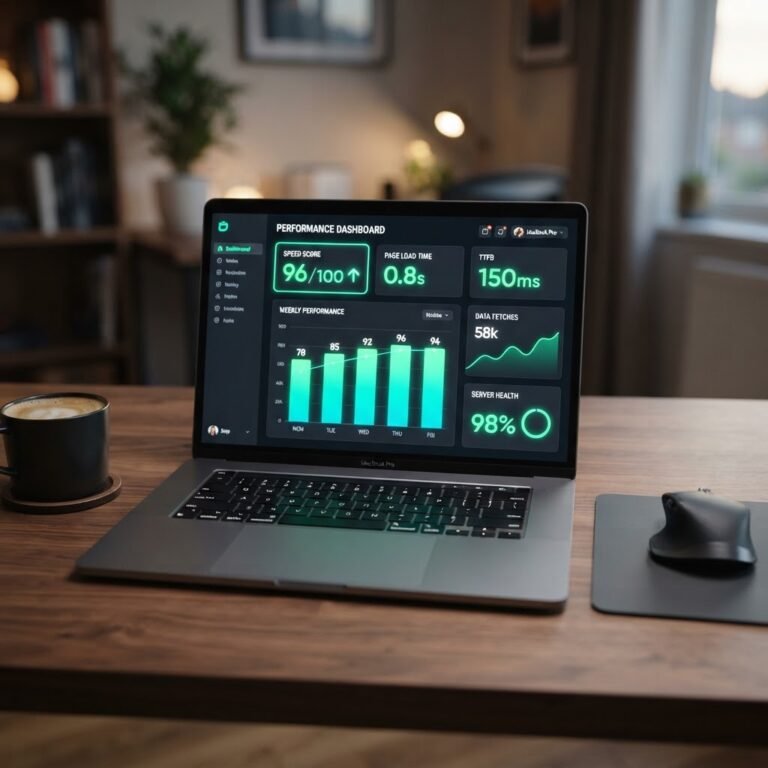
Slow sites lose visitors. It is that simple. Performance degradation usually creeps in like a fog. You don’t notice it until your site crawls. Run database optimization to clear out old revisions and spam comments. Check your caching configuration to ensure your content is serving up fast. If your site feels heavy, it probably is. Trim the fat by removing assets you no longer use.
When Things Go Wrong: Your Emergency Troubleshooting Framework
Talking Points:
* How to isolate conflicts between plugins and themes.
* Using debug modes to identify specific error messages.
* The importance of keeping a clean, tested restore point ready.
Sometimes, things break anyway. Don’t panic. Use a systematic approach to troubleshoot WordPress errors. Deactivate all plugins and switch to a default theme. If the site comes back, turn them on one by one. You will find the culprit. It is slow, but it works. This is much better than guessing and clicking random buttons until the site dies for good.
The ‘Set It and Forget It’ Trap: Why Manual Oversight Still Matters
Talking Points:
* The risks of relying solely on automated update systems.
* How human intuition catches issues that bots miss.
* Why active site management is a business investment.
Automation is great. It saves time. But it is not a babysitter. Automated updates can introduce conflicts that break your site instantly. You need to keep an eye on things. A machine can’t see if your site copy looks weird or if a specific feature is failing to render correctly. Keep your hands on the wheel. It is the only way to stay in control.
Automating Your Workflow: Recommended Tools to Lighten the Load
Talking Points:
* Selecting reliable tools for backups and security.
* Choosing plugins that provide clear performance metrics.
* Using centralized dashboards to manage multiple sites efficiently.
There are some solid tools out there. Look for backup plugins that handle off-site storage automatically. Find security plugins that offer real-time malware scanning. Don’t overload your site with too many tools, though. Each one adds weight. Stick to a few high-quality, lightweight options that handle the heavy lifting for you.
Conclusion
Maintaining your site is not about being a tech wizard. It is about habit. If you put in the work now, you won’t be dealing with a disaster at midnight later. Take the steps to secure your database, test your forms, and keep your backups ready. You are the captain of this ship. Control your environment and you will sleep much better at night. Have you had a site scare that changed how you do things? Drop a comment below and let’s talk about it.
Frequently Asked Questions
1. Question: How often should I perform a full site backup?
Answer: You should have automated daily backups running. If you update your site content frequently, consider hourly backups to ensure zero data loss.
2. Question: Can I rely on my hosting provider for security?
Answer: No. While hosts provide a foundation, 87.8% of exploits can bypass standard hosting firewalls. You need your own security layers, like site-specific firewalls and malware scanners.
3. Question: Why is my site slow even after optimizing images?
Answer: Database bloat and outdated PHP versions are often the culprits. Check your database for orphaned rows and ensure your host is using the latest, most stable PHP version available.
4. Question: What is the biggest risk when updating plugins?
Answer: The main risk is a conflict between the new plugin version and your theme or other plugins, which can break site functionality or cause a white screen.
5. Question: Do I really need to check my site every week?
Answer: Yes. Catching a small issue on Monday is better than finding a crashed site on Friday. A weekly check keeps your site clean and prevents performance drift.