WordPress Troubleshooting: Your Guide to Quick Fixes
WordPress Troubleshooting: Your Ultimate Guide to Quick Fixes
We’ve all been there: it’s 2 AM, and you’re staring at the dreaded White Screen of Death, wondering why you decided to run your business on WordPress. You thought it would be easy, right? Well, let’s face it, WordPress is a fantastic tool, but it has its quirks. In this ultimate guide, I’m diving into the common issues that plague WordPress like pesky bugs that just won’t go away. Let’s tackle them head-on!
Understanding Common WordPress Issues
Talking Points:
- Recognizing frequent WordPress errors.
- The impact of these issues on your site.
- Importance of timely solutions for user experience.
Understanding the pain points of WordPress users is nothing short of essential. Common problems range from a simple hiccup to complete chaos, and addressing these issues keeps your site shiny and functional. From baffling error messages to frustrating performance issues, each problem can feel insurmountable when you’re in the heat of the moment. But guess what? You’re not alone. Let’s dig into the most common culprits behind WordPress chaos.
White Screen of Death (WSOD): Causes and Solutions
Talking Points:
- Common causes of the WSOD.
- Step-by-step troubleshooting methods.
- How to prevent it from recurring.
Ah, the dreaded WSOD! There’s hardly anything more frustrating than loading your website only to see a blank, white screen. Sometimes it feels like a dark void, doesn’t it? More often than not, this occurs due to plugin conflicts, theme issues, or PHP errors.
First things first, if you land here:
1. Turn on debugging in your `wp-config.php` file by adding `define(‘WP_DEBUG’, true);`. This will give you more insight into what’s causing the issue.
2. Disable all plugins by renaming the `plugins` folder in `wp-content`. If it loads after that, re-enable them one by one until you find the culprit.
3. Switch to a default theme. If that works, then your theme likely has problems that need fixing.
To keep the WSOD at bay, regularly update themes and plugins, and make backups before updates. It’s like checking your car’s oil before a long trip—prevention goes a long way.
500 Internal Server Error: Diagnosing and Fixing
Talking Points:
- Common reasons for the 500 error.
- Diagnosing server issues effectively.
- Solutions that can help restore service quickly.
When you see a 500 Internal Server Error, your heart might sink. This vague message leaves us all scratching our heads! It usually hints at issues with `.htaccess` files, exceeding PHP memory limits, or permission conflicts.
Start by checking your error logs for specific messages; they can guide you in diagnosing issues more accurately. You can also try resetting the `.htaccess` file by renaming it. Next, if your site is still in a coma, increase your PHP memory limit—it’s like giving your server a pep talk when it’s running low on energy!
Database Connection Errors: Resolving Access Issues
Talking Points:
- Understanding what leads to database connection errors.
- Methods to fix access problems.
- Importance of regular database maintenance.
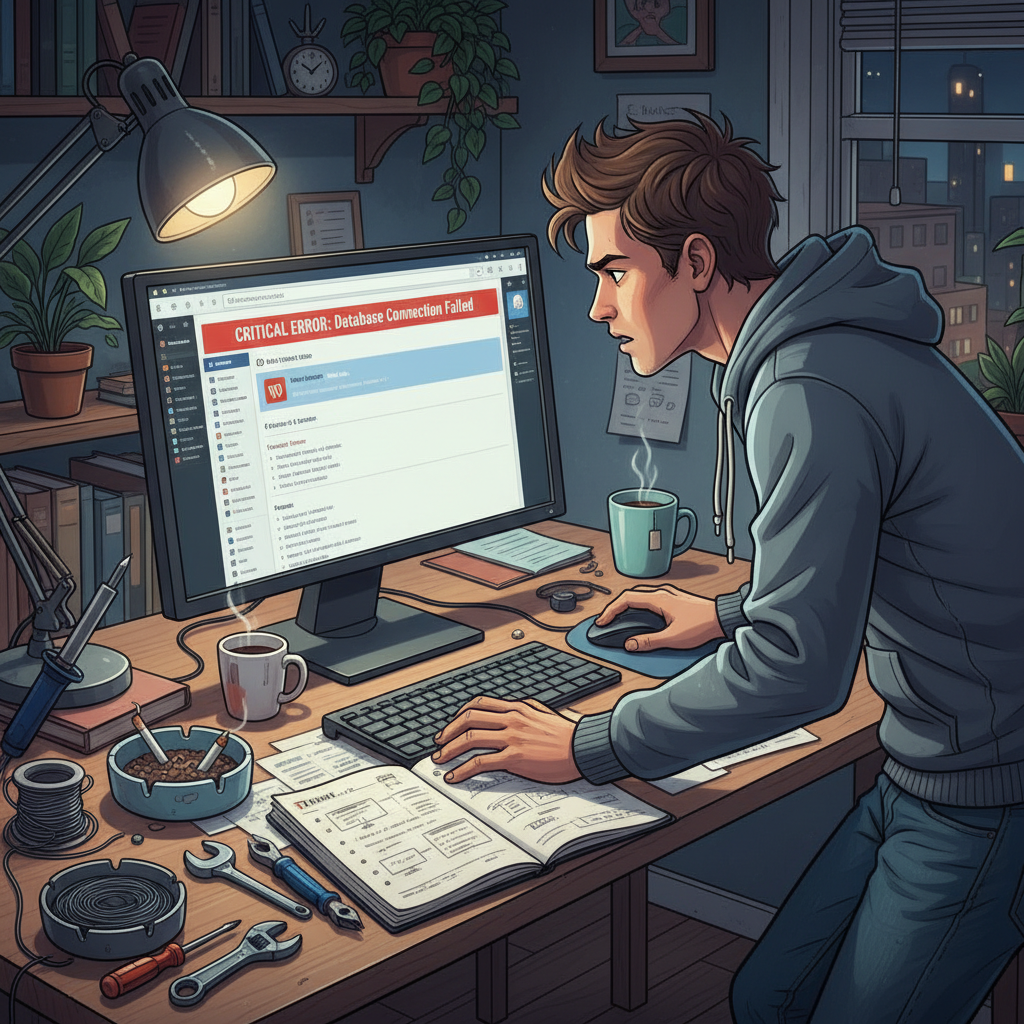
“Error establishing a database connection.” This is one of the most dreaded error messages for a WordPress user. It essentially means your site can’t communicate with the database that holds all your content. Common causes include incorrect database credentials or a server that’s misbehaving.
Check your `wp-config.php` file for the database name, username, password, and host. A small typo can lock you out! If everything looks good, then check your database server status via your hosting provider. Regular maintenance, such as optimizing your database, can prevent these issues too.
Plugin and Theme Conflicts: Identifying and Addressing Problems
Talking Points:
- Signs that indicate plugin or theme conflicts.
- How to isolate conflicting elements.
- Best practices for plugin and theme usage.
You installed a shiny new plugin, only to find your site acting up. Plug-and-play, right? Sometimes, new plugins don’t mesh well with others or with your existing theme. Look for sluggish performance, inconsistent displays, or error messages appearing after a recent installation.
To tackle this, disable all plugins—if the issue resolves, reactivate them one by one. As a general rule, stick to well-reviewed plugins and themes for the best experience.
Performance Issues: Boosting Site Speed and Efficiency
Talking Points:
- Common factors affecting website speed.
- Tools for measuring and improving performance.
- Importance of optimizing images and code.
A slow site is more than a nuisance—it can turn potential customers away. Factors like oversized images, poorly coded plugins, and excessive HTTP requests slow your site to a crawl.
Use tools like Google PageSpeed Insights to get a full performance breakdown. Implementing simple optimizations, like compressing images and using caching plugins, can have a significant impact. Remember, speed is crucial!
Security Vulnerabilities: Protecting Your WordPress Site
Talking Points:
- Common security threats to watch out for.
- Best practices for securing WordPress.
- Importance of regular security updates.
In 2025 alone, over 11,334 vulnerabilities were discovered in WordPress, and 91% were related to plugins! That’s a shocking statistic that underscores why security vigilance is paramount. Regularly updating your themes, plugins, and WordPress core can help protect your site from attackers.
Consider utilizing a security plugin like Wordfence or Sucuri for real-time monitoring and blocking suspicious activity. Trust me; a little security goes a long way!
Update Failures: Ensuring Smooth Updates and Upgrades
Talking Points:
- Reasons updates might fail.
- How to troubleshoot update-related issues.
- Best practices for managing updates.
Updates sometimes go south, leaving your site in a state of distress. Common culprits include server restrictions or insufficient permissions. I remember missing a critical update once because I forgot to check my permissions—lesson learned!
If you get stuck, switching to manual updates is a good option. Always back up your site beforehand so you can roll back if needed.
Login Issues: Regaining Access to Your WordPress Dashboard
Talking Points:
- Common causes of login problems.
- Steps to reset your password effortlessly.
- Importance of two-factor authentication for security.
Forgetting your login credentials feels like locking yourself out of your house. It’s frustrating! Whether it’s a forgotten password or a blocked account, you can regain access. Use the “Lost your password?” link via the login screen; this sends a reset link to your email.
If you still can’t get in, you might need to reset your password via your hosting provider’s control panel. Once inside, consider enabling two-factor authentication. It adds another layer of security to your WordPress fortress!
Server Errors: Troubleshooting Server-Side Problems
Talking Points:
- Common server error messages and what they mean.
- Diagnostic steps for server issues.
- Importance of communicating with your hosting provider.
Server errors can leave you feeling helpless. Whether it’s a 403 Forbidden or a 504 Gateway Timeout, knowing what these messages mean can alleviate some frustration. Start by inspecting your server status—if it’s down, that explains the issue!
Contacting your hosting provider often clears things up faster than you could on your own. They usually have insights into any outages or configurations that could be causing the trouble.
Preventative Measures: Keeping Your WordPress Site Healthy
Talking Points:
- Regular maintenance practices every user should adopt.
- How to set up automated backups and updates.
- Creating a routine to monitor site health.
You know what they say: an ounce of prevention is worth a pound of cure! Regular site maintenance is vital for avoiding the messes we’ve discussed. Set a schedule for updates and backups—automation can help relieve the burden.
Additionally, taking time to monitor performance and security settings can stop issues before they escalate. I can’t stress enough how important regular health checks are!
Conclusion: Empowering You to Manage WordPress Challenges
In our time together, we’ve tackled the major pitfalls that can trip up your WordPress site. Whether it’s the capricious WSOD or the insidious plugin conflict, these problems can feel overwhelming. But remember: you are not alone, and there’s always a solution.
Take what you’ve learned here and implement it. Each tip, every fix, can bring you one step closer to mastering your WordPress challenges. If you’ve faced your own WordPress woes or have successful tips to share, please drop them in the comments. I’d love to hear your experiences!
Frequently Asked Questions
Q1: How can I prevent the White Screen of Death?
A: Keep your plugins updated, back up regularly, and monitor PHP limits to detect issues before they escalate.
Q2: What should I do if I forget my WordPress password?
A: Use the “Lost your password?” feature on the login page, or reset it via your hosting account if necessary.
Q3: Are certain plugins riskier than others?
A: Yes! Always choose plugins with good reviews, regular updates, and avoid those with poor security records.
Q4: How often should I back up my WordPress site?
A: Ideally, back it up at least once a week, or more frequently if you update it often.
Q5: What are some signs of a slow WordPress site?
A: Frequent timeouts, slow loading times, and lag when you make changes could indicate performance issues that need to be addressed.