Manage Multiple WordPress Sites: A Pro Guide to Efficiency
How to Manage Multiple WordPress Sites Without Losing Your Mind
I once spent until 3 AM on a Tuesday fixing the White Screen of Death on six different client websites at once. My coffee was cold. My eyes were burning. I felt like a failure because I had let the updates slide for just one week too long.
That night changed my career. I realized that if I kept doing things the hard way, I would burn out within a year. WordPress powers 41.2% of all websites globally, and that popularity comes with a massive target on its back for maintenance and security needs.
The Reality of Running a WordPress Fleet
Talking Points:
- Why manual updates become impossible at scale.
- The hidden danger of ignoring technical debt.
- How a disorganized workflow kills your productivity.
Managing one site is easy. Trying to handle ten or fifty individual dashboards? That is a recipe for a migraine. Most people start by logging into each site manually, but that habit is a trap that keeps you stuck in the weeds. I learned that the hard way when I missed a critical security patch on a small site because I forgot it existed for a few months.
When you manage multiple WordPress sites, every minute spent on repetitive tasks is a minute stolen from your actual business growth. You need a better way. You need to stop touching every single site dashboard individually.
The Power of Centralized Management
Talking Points:
- Transforming your workflow with a command center.
- Consolidating login processes for security and speed.
- Saving hours every week with bulk actions.
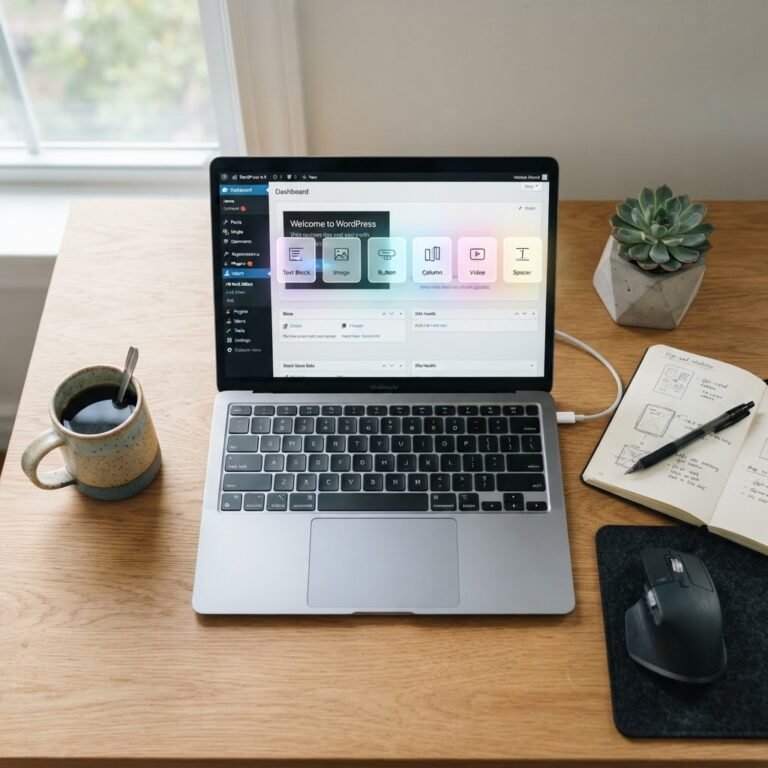
I shifted to using a centralized dashboard. It felt like moving from a bicycle to a jet plane. Now, I see every site health monitoring stat on one screen. If a plugin needs an update, I click once instead of logging into fifty different accounts. It makes WordPress agency management feel like a simple chore rather than a massive production.
Using a single hub lets me track uptime monitoring and performance benchmarking for my whole fleet. I can spot a slow site before a client even notices a lag. That is the kind of peace of mind you cannot put a price tag on.
Security First: Protecting Your Collective
Talking Points:
- Mandatory 2FA and login limiting for every site.
- Identifying vulnerabilities before they become disasters.
- Managing shared risks in network environments.
Security keeps me up at night, but only because I care. I have seen what happens when you skip a simple security vulnerability scanning step. A site gets hacked, and suddenly you have twenty hours of clean-up work on your hands. Never leave your doors unlocked.
Enforcing HTTPS and strong passwords across all your sites is your first line of defense. I also set up automated backups that run daily. If something goes wrong, I can hit undo in five minutes. That safety net is non-negotiable for my sanity.
The Balancing Act of Updates
Talking Points:
- Handling plugin version control without site crashes.
- Staging environments as a testing ground for changes.
- Why you should never push bulk updates blindly.
Updates are tricky. Sometimes a new version breaks your layout or kills a contact form. I learned to run updates on a staging site first. If it works there, I push it to production. It sounds like extra work, but it saves me from emergency calls on a Sunday afternoon.
Plugin version control is the secret weapon for any pro. You can roll back to a previous version if a conflict arises. Always have that parachute ready before you jump into a mass update.
Performance Tuning Across Your Sites
Talking Points:
- Consistent speed optimization for better user experience.
- Standardizing themes and plugins to reduce conflicts.
- Regular clean-ups to remove unused database bloat.
Speed is everything. If a site takes five seconds to load, users disappear. I run a regular check on performance metrics for every site I manage. If the speed drops, I look at the plugin load to see what is slowing things down. WordPress plugins are great, but the 68,000 options available can easily clutter a site if you are not careful.
I keep a core set of trusted plugins for every site I build. This consistency makes troubleshooting a breeze. If something breaks, I know exactly where to look first.
Backups: Your Ultimate Safety Net
Talking Points:
- Offsite storage for your critical site data.
- Testing your restores so you know they work.
- Creating site-specific backup schedules.
Backups are boring until you need them. I keep my files on a separate server, far away from the site host. You never want your backups and your files living in the same house. If the server burns down, you lose everything.
I also run a test restore once a month. I pick a site at random and bring it back to life on a local server. If I cannot restore it, the backup is useless. This ritual keeps me confident and ready for anything.
Choosing the Right Tools for the Job
Talking Points:
- What to look for in a management dashboard.
- Budgeting for efficiency tools that pay for themselves.
- Transitioning from manual methods to automated systems.
There are dozens of tools out there. Look for one that plays nice with your hosting setup and offers good customer support. Don’t go for the cheapest one just to save a buck. Your time is worth way more than the subscription fee.
Look for features like automated reporting to clients. It shows them you are working hard on their behalf. They don’t need to know the magic happening behind the scenes, but they do love a pretty report that shows their site is safe and sound.
Standardizing Your Maintenance Workflow
Talking Points:
- Creating a checklist for every site maintenance cycle.
- Batching tasks to minimize context switching.
- Keeping documentation for every site you handle.
I have a simple spreadsheet where I track every site I handle. It shows the last update date, the theme version, and the hosting renewal date. It is basic, but it prevents surprises. Surprises are just bugs waiting to happen.
Batch your tasks. Spend Tuesday mornings doing updates for all sites. Spend Wednesday mornings checking security logs. By focusing on one type of work at a time, you get way more done. My brain works better when it stays in one gear for a while.
Reclaiming Your Mastery
Talking Points:
- Why managing multiple sites should feel like routine.
- Avoiding the trap of manual site hopping.
- Long-term growth for your WordPress business.
Managing multiple WordPress sites is a skill you sharpen over time. Don’t worry about being perfect on day one. Start by centralizing your logins. Then, get your backups running automatically. Step by step, you turn a chaotic mess into a smooth operation.
I reclaimed my weekends and my sleep schedule. You can do the same. Stop fighting your sites and start leading them.
Building Your Future
It is time to take charge of your fleet. You have the tools and the plan now. Start by assessing which of your sites are currently giving you the most grief. Pick one and apply these steps today. Once that one is under control, the rest will fall into place.
How do you handle your updates? Do you have a favorite trick for keeping your sites fast? Let me know in the comments below!
Frequently Asked Questions
Question: Is WordPress Multisite the best way to handle many sites?
Answer: It depends on your needs. Multisite shares resources and core files, which makes management easier, but it also creates a single point of failure where one issue can hit every site at once.
Question: How often should I check my sites for updates?
Answer: I recommend checking at least once a week. This keeps your site health monitoring active and prevents security gaps from sitting open for too long.
Question: Can I use free tools to manage all my sites?
Answer: Yes, some plugins offer free versions for a limited number of sites. However, as you scale, the premium features like automated backups and advanced reporting become well worth the investment.
Question: What should I do if an update breaks a site?
Answer: Always have a backup ready before you click update. If it breaks, restore from the last clean backup and check your plugin compatibility list to see what caused the crash.
Question: How do I manage client sites without losing control?
Answer: Use clear documentation and professional reports. When you show your clients the work you are doing behind the scenes, they trust you more and stop asking unnecessary questions.