How to Fix WordPress Memory Limit: Ultimate Guide (2024)
How to Fix WordPress Memory Limit: The Ultimate Guide to Ending the White Screen of Death
Talking Points:
* The 2am panic of a blank site.
* Why PHP crashes when memory runs dry.
* Recognizing the error codes.
It is 2am. The house is quiet, but your heart is racing because your website is gone. A stark white screen greets you instead of your homepage. This is the White Screen of Death. I have stared at it enough times to know the immediate sinking feeling in your gut. It usually happens right when you install a fancy new plugin or update a theme.
Your site hit a wall. Most WordPress setups start with a 128MB limit for PHP script execution, which sounds like plenty until a plugin starts hogging RAM allocation. When the code requests more memory than your server allows, the process just quits. The server gives up to protect itself. That silent failure is what you see.
You might see a specific error message if you are lucky, like “Allowed memory size of 134217728 bytes exhausted.” That long string of numbers is just 128MB in bytes. Seeing that text is actually a small win. It tells you exactly what happened. Your server ran out of fuel.
Why Your WordPress Memory Limit Matters
Talking Points:
* Defining PHP memory limits.
* The impact of resource-intensive plugins.
* Server-side caps vs. your settings.
Think of your server like a kitchen. The memory limit is the counter space available for your chefs to prep food. If you try to cook a twelve-course meal on a tiny prep station, you run out of room. The cooking stops. WordPress functions exactly the same way.
Each plugin you activate takes up a slice of that counter. A few lightweight tools are fine. But install a massive e-commerce suite or a bloated page builder, and suddenly you are out of room. The site crashes before the page even finishes loading.
Managed WordPress hosting providers often set these limits to keep things stable. They do not want one bad script slowing down every other site on the same physical server. You are often fighting a preset cap that ignores how much RAM your specific site needs to run smoothly.
The Quickest Route: Contacting Your Host
Talking Points:
* Why support teams know these errors.
* Asking for a professional limit increase.
* Knowing when they will handle it.
Before you touch a single line of code, send a quick message to your host. They deal with this daily. They have the power to lift your memory limit in seconds from their backend. It is the safest way to fix things without risking your files.
I often suggest this first because it saves so much headache. You do not need to hunt for a file or worry about syntax errors. If you pay for managed hosting, make them do the work. They know exactly how to adjust server-side caps without breaking your site health.
If they refuse or say your plan is tapped out, then you know it is time to look at your own settings. But nine times out of ten, a quick support ticket solves the issue. It is a free, painless fix that keeps your site running.
Editing Your wp-config.php File
Talking Points:
* Locating the root folder.
* Adding the memory definition code.
* The safety of using a backup first.
If you prefer the hands-on approach, editing the wp-config.php file is the standard industry move. This file sits in your root directory. It tells WordPress exactly how to behave. You just need to add one line to give it more room to breathe.
First, make a backup. Seriously. If you delete a character by accident, you will trade your White Screen of Death for a different, worse error. Once the backup is done, open the file and look for the line that says “That’s all, stop editing! Happy publishing.”
Paste this code right above that line: define(‘WP_MEMORY_LIMIT’, ‘512M’);. Save it and refresh your site. If it loads, you are back in business. I used 512M because it is a healthy amount for most modern setups. If 256M works, you can stick with that too.
Adjusting the php.ini File for Server Control
Talking Points:
* Where to find the ini file.
* How memory limits differ here.
* Testing the changes properly.
Sometimes your server ignores the wp-config settings because the host forces a strict php.ini configuration. This file controls the PHP environment itself. You might need to add memory_limit = 512M to this file to get the server to listen.
Locating this file is the trickiest part. It depends on your hosting control panel. Look for a file manager or a PHP configuration editor. If you cannot find it, do not force it. Contacting support is cheaper than a broken server configuration.
When you do get to edit it, make sure you save the file correctly. Some servers require a process restart to see the changes. If you do not see an immediate fix, give it a few minutes for the cache to clear. Persistence counts here.
The .htaccess Method
Talking Points:
* Why this is a risky approach.
* Apache server requirements.
* Potential for 500 internal errors.
People love to suggest editing the .htaccess file. I am not a fan. It works on some Apache servers, but it is fragile. If the server does not support the directive, you will crash the entire site with a 500 Internal Server Error.
If you try this, add php_value memory_limit 512M to the top of the file. If your site breaks immediately, delete that line. The server is telling you it does not recognize the command. It is a blunt instrument for a delicate problem.
Only use this as a last resort if you lack access to other files. Most modern hosts run setups that ignore this anyway. Stick to the wp-config.php file whenever you can. It is much more reliable.
Debugging Conflicts Beyond Memory
Talking Points:
* Using WP_DEBUG to find errors.
* Identifying rogue plugins.
* Using recovery mode effectively.
What if you have 1GB of memory and the site still dies? The problem is likely a plugin conflict, not a capacity issue. You need to see the actual error message. Open your wp-config.php file again and turn on debug mode.
Find the line that says define(‘WP_DEBUG’, false); and change it to true. Save the file. Now, reload your white screen. The blank page should show text detailing exactly which file is crashing the site.
Usually, you will see a path pointing to a plugin folder. Log into your dashboard, disable that plugin, and your site should come back. WordPress 5.2 also has a recovery mode that sends you a link to do this automatically. Use it. It is a lifesaver.
Best Practices for Site Memory
Talking Points:
* Why 128M is often too low.
* Balancing speed and resources.
* When to stop tweaking settings.
Do you really need 512M? For a standard site, 256M is plenty. If you run a store with thousands of products, you might need more. Do not just throw 2GB at it for no reason. It does not make your site faster; it just gives it a larger ceiling.
Your site speed depends more on your database and optimized images than your memory limit. If your memory needs keep rising, you have a software problem, not a server problem. Check your plugin list for things you do not use.
Stop tweaking once the site is stable. If you find yourself pushing the limit higher every week, you are ignoring a leak. Find the culprit instead of just patching the drain.
When to Upgrade Your Hosting
Talking Points:
* Signs of shared hosting limitations.
* Moving to managed wordpress hosting.
* The performance benefits of better servers.
Sometimes the limit is not a settings issue but a hardware one. If you are on a cheap shared hosting plan, you are fighting for resources with hundreds of other sites. No amount of configuration will fix a slow, overloaded server.
Look at your site health tool in the dashboard. If it constantly warns you about low resources, listen to it. A managed WordPress host provides a better foundation. They handle the server-side caps so you can focus on building your content.
Upgrading is an investment in your sanity. You will spend less time debugging and more time growing your business. It is the ultimate move for a site that has outgrown its starter home.
Proactive Maintenance
Talking Points:
* Database cleanup routines.
* Keeping plugins updated.
* Why simple is better for speed.
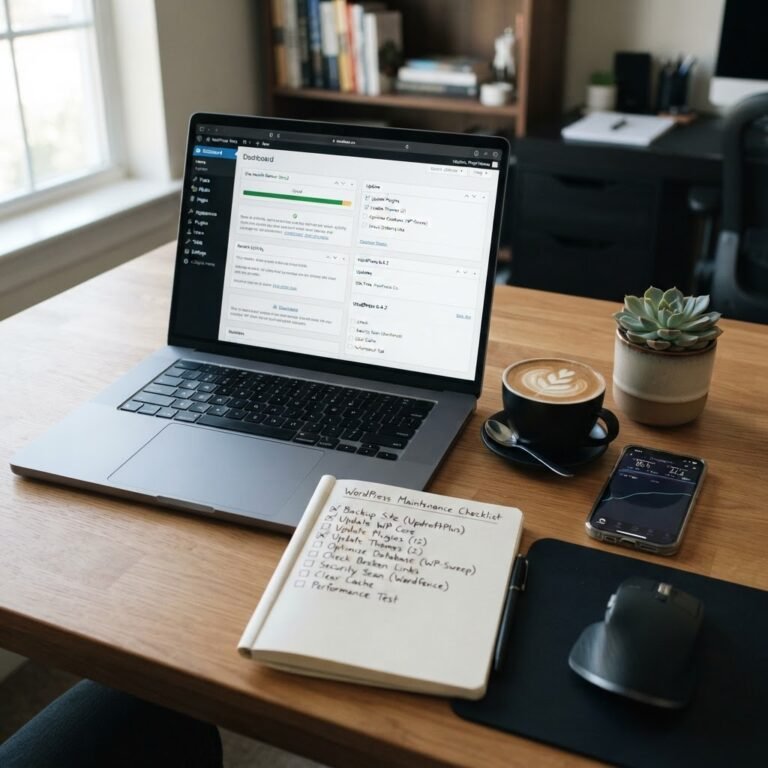
A lean site is a happy site. Delete unused themes and plugins regularly. They clutter your database and can cause hidden resource spikes. I run a quick database cleanup every month to remove post revisions and junk data.
Keep everything updated. Older versions of plugins often have memory leaks that have been patched in newer releases. Being current is one of the easiest ways to prevent crashes.
Treat your site like a house. Keep it tidy, remove the trash, and fix leaks before they flood the room. You will rarely have to deal with the 2am panic if you keep up with the basics.
I hope this guide helps you get back online. It is a common frustration, but it is completely solvable. Tell me in the comments if you ran into a specific error I did not mention—let’s get your site fixed today!