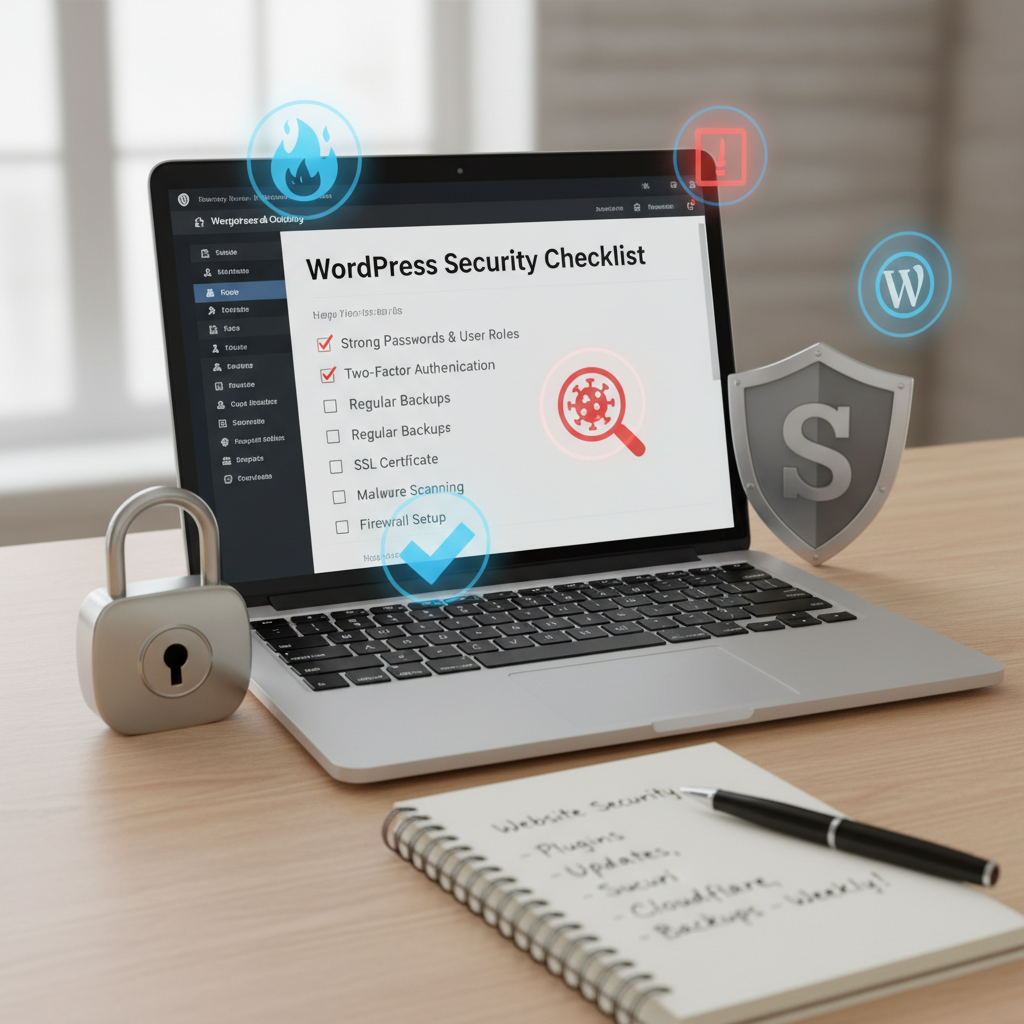
WordPress Security Checklist: Essential Guide
WordPress Security Checklist: Your Ultimate Guide to Safeguard Your Site
When I think about all those frantic midnight moments staring at a blank screen with my website’s fate hanging in the balance, I can’t help but shiver a bit. You know what I’m talking about—the dreaded White Screen of Death! Or, perhaps, your site was just slowing to a crawl at the peak of traffic. It’s hair-pulling stuff! But here’s the kicker: according to recent stats, a staggering 11,334 vulnerabilities were discovered in the WordPress ecosystem in 2025 alone, representing a jaw-dropping 42% increase from the previous year. That’s enough to spark a full-on panic.
Security isn’t just an afterthought; it’s a lifeline for anyone using WordPress. And having a solid checklist can mean the difference between a thriving site and a compromised one. Let’s roll up our sleeves and walk through the WordPress security best practices that can safeguard your digital space!
Understanding Common WordPress Vulnerabilities
Before we get into the nitty-gritty of our checklist, it’s vital to grasp what we’re up against. Most vulnerabilities stem from plugins—91% to be exact! That leaves a mere 6 in the core WordPress itself. Hackers love exploiting unpatched vulnerabilities, and guess what? Almost 46% were still unpatched at the time they were reported! Knowing this helps underscore the immediate need for vigilance.
Every website has weak points, be it an outdated plugin or a poorly secured database. Keeping your ear to the ground and being aware of common types can make all the difference. Think about it—are you using outdated themes? Forgotten plugins? All these tiny slights can create a big security gap!
1. Keep WordPress Core, Themes, and Plugins Updated
First things first, keep everything updated! It’s easy to dismiss updates in the heat of managing a website. But every time a new version of WordPress, a theme, or a plugin rolls out, it often comes with security patches to fix vulnerabilities. Neglecting this can leave you open to attacks.
Consider enabling automatic updates. Yes, some folks sweat at the thought of a broken site after an update, but with proper practice, you can effectively manage this. Always back up your site before proceeding with updates and consider testing updates in a staging environment. It can save you a lot of headaches later!
2. Enforce Strong Passwords and Implement Two-Factor Authentication
It might seem basic, but strong passwords are your first line of defense. A weak password is practically an invitation for hackers! I’ve seen countless accounts compromised due to simple passwords like “123456”. Yikes! Aim for passwords that mix letters, numbers, and symbols. Consider using a password manager to keep track of these complex combinations.
Next up, two-factor authentication (2FA). This isn’t just a bonus; it’s crucial. Think of it as a double lock on your door. Even if someone manages to snag your password, they’ll hit a brick wall without that second authentication step. Use apps like Google Authenticator for seamless access.
3. Install and Configure an SSL Certificate for HTTPS
Let’s talk about SSL. Switching to HTTPS isn’t merely a trendy option—it’s essential. Not only does it encrypt data exchanged between your server and users, but it also builds trust. Many browsers flag non-HTTPS websites as “not secure,” which can tank your credibility.
And a little nugget for you—Google takes SSL certificates into account for their rankings! Getting an SSL certificate isn’t as hard as it sounds. Most hosting providers offer a free SSL, so it’s worth checking out what’s available.
4. Limit Login Attempts and Protect Login Pages
If you’ve ever left your front door wide open in a crowded area, you’ll know how vulnerable that makes you feel! Same goes for your login page. Limiting login attempts is a straightforward but often overlooked tactic to fend off brute-force attacks.
Numerous plugins can help with this. They can lock users out after a certain number of failed login attempts and even send you alerts if there’s suspicious activity. Oh—and don’t forget about changing your login URL from the default. It might seem trivial, but it can deter some bots that target the usual /wp-admin path.
5. Regularly Backup Your WordPress Site
Let’s face it: accidents happen. Maybe I forgot to save a change and lost hours of work, or I mistakenly deleted an essential plugin. It’s gut-wrenching, isn’t it? Regular backups can mean the difference between a complete disaster and a quick recovery.
Implement a reliable backup solution. Depending on your needs, you can choose to back up your site daily, weekly, or bi-weekly. Plenty of plugins out there can help make this seamless. Just ensure your backups aren’t stored on the same server as your site; otherwise, if your server goes down, so do your backups!
6. Set Proper File Permissions and Secure wp-config.php
File permissions sound like one of those boring tasks, but trust me: they’re crucial. They dictate what users can read or write on your website. Setting clear file permissions ensures that sensitive folders can’t be accessed or manipulated by outsiders.
be sure to secure the wp-config.php file—the heart of your WordPress installation. One good practice is to move this file outside of your public_html directory. This can provide a layer of security that versatile hackers might overlook.
7. Disable File Editing in WordPress Dashboard
You’re in the dashboard, feeling like a coding wizard. You think, “Let’s change this file on a whim!” But do you realize the potential fallout? Disabling file editing in the dashboard is one of the simplest securing measures out there!
Navigate to your wp-config.php file and add a single line like this: `define(‘DISALLOW_FILE_EDIT’, true);`. Voila! You’ve locked that door. If a hacker gains access to your dashboard, they won’t also get editing privileges.
8. Implement a Web Application Firewall (WAF)
Want to add an extra layer of defense? Enter the Web Application Firewall (WAF). Think of it as a security guard for your website that monitors and filters traffic. It catches incoming threats before they even reach your site, which is what makes them invaluable.
There are plenty of opportunities out there, both free and paid. Services like Sucuri and Cloudflare offer user-friendly options to get started. What’s better than peace of mind?
9. Monitor Your Site for Malware and Suspicious Activity
Malware can sneak in quietly, like an uninvited stowaway. That’s why routine monitoring is an absolute must. It’s not enough to install a security plugin once and call it a day; that just won’t cut it.
Use tools like Wordfence or Sucuri to help actively scan your site for malware and suspicious activities. If there’s a breach, you want to catch it fast!
10. Harden Your Server and Hosting Environment
Let’s talk about the bedrock of your website: your server. Making sure it’s hardened against potential threats is essential with so many vulnerabilities lurking online. This involves a combination of security measures, such as disabling unnecessary services, ensuring updated software, and enforcing security patches.
Choose a reputable hosting provider that prioritizes security and offers server hardening practices. They can greatly simplify your life by handling the complex aspects for you.
11. Secure Your Database and Change Table Prefixes
Next, let’s focus on your database. Leaving your database unprotected is like leaving a safe wide open. It’s vital that you take steps to secure it. One common practice is changing the default table prefixes from “wp_” to something unique. This adds a layer of complexity that can deter potential hackers.
Consider using database security plugins to help you further safeguard this crucial component of your WordPress site. Regular database security audits can also help ensure everything’s operating smoothly.
12. Disable XML-RPC if Not in Use
Let’s wrap it up with XML-RPC. If you aren’t using it, I highly recommend disabling it. This feature can be a major vulnerability point and is often exploited for brute-force attacks. To disable it, simply add a line to your site’s functions.php file or use a plugin to take care of it.
Conclusion
Taking proactive steps to ensure your WordPress site’s security isn’t just a necessity—it’s a responsibility we owe to our users and ourselves. Incorporating these best practices can make your site a fortress against potential attacks. Remember, no single measure is enough on its own. It’s about layering these strategies to create the strongest defense possible.
So, what steps are you going to take today to bolster your site’s security? Have any tips of your own? Share your thoughts in the comments below! Let’s beat those hackers together!
Frequently Asked Questions
Q1: How often should I update my WordPress site?
A1: You should update your WordPress core, themes, and plugins whenever new updates are released, ideally daily or weekly to stay secure.
Q2: Is using a security plugin enough to protect my site?
A2: While security plugins are helpful, they should not be your only line of defense. Combine them with best practices like strong passwords and routine backups.
Q3: What is the best way to back up my WordPress site?
A3: Use reliable backup plugins like UpdraftPlus or BackupBuddy, and consider scheduling regular backups to both local and cloud storage.
Q4: Should I use two-factor authentication?
A4: Absolutely! Two-factor authentication significantly enhances security by adding an additional verification step.
Q5: What steps should I take if I think my site has been compromised?
A5: First, take your site offline, then notify your hosting provider. Next, conduct a thorough malware scan and restore from your latest backup if necessary.