Fix WordPress White Screen of Death – Complete Guide
How to Fix the WordPress White Screen of Death (The Complete Guide)
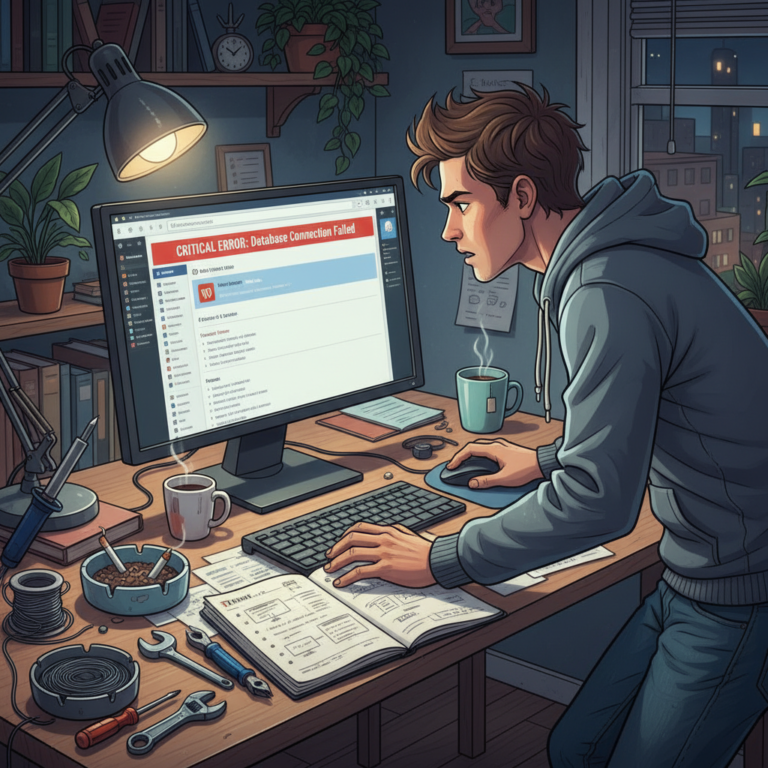
Ever wake up in the middle of the night to find your website down with a White Screen of Death? I have. And let me tell you, there’s nothing quite like the panic of seeing a blank page instead of your carefully crafted content. It feels like your whole world comes crashing down, especially when customers or visitors can’t access your site!
What is the WordPress White Screen of Death and Why It Happens
Talking Points:
- Definition of the White Screen of Death (WSoD)
- Common causes: fatal PHP errors, memory limit issues, etc.
- How it impacts your site and business.
The WordPress White Screen of Death (WSoD) is exactly what it sounds like — a blank, lifeless page where your beautiful site once thrived. The reasons for this pesky issue can be numerous; it’s like a dark cloud hovering over your WordPress installation. Often, it’s due to a fatal PHP error, which might stem from exhausted memory limits, plugin conflicts, or theme-related syntax issues. Imagine spending weeks building your site, only to be met with an unsettling void. Ugh! If you’ve felt that sinking feeling, you’re not alone.
Step 1: Check Your Site on Another Device or Browser
Talking Points:
- Why cache might skew your view
- Testing different devices and tools
- Don’t forget to clear your browser cache
Before jumping to conclusions, grab another device or switch browsers. Sometimes, the problem might not be your site at all — it could just be your caching. By doing this simple check, you can observe how others see your site. If the white screen persists across devices, then we know we’re in trouble. Don’t forget to clear your browser cache, too, just in case. It might save you from unnecessary stress!
Step 2: Using FTP or File Manager to Rename Your Plugins Folder
Talking Points:
- How to connect via FTP or File Manager
- Renaming the plugins folder
- Why this helps troubleshoot
If you’re still staring at that uninviting screen, it’s time to roll up your sleeves and access your site via FTP or File Manager through your hosting provider. Here’s a straightforward fix: rename your `plugins` folder. Sounds simple, right? It’s a nifty trick to deactivate all your plugins at once, making it much easier to spot the culprit if one of them is causing your site to crash. Just rename it to something like `plugins_old`, and see if you can access your site again!
Step 3: Switching to a Default Theme
Talking Points:
- How theme issues can lead to WSoD
- Process to switch themes
- Confirming theme conflict
Next up, let’s check your theme. It might be the unsuspecting villain behind the WSoD. To rule out this possibility, switch to a default WordPress theme (like Twenty Twenty-One). You can do this from the WordPress dashboard or directly via FTP. Changing themes might just breathe new life into your site. If it works, you may have a compatibility issue that needs addressing. Wasn’t that easier than you thought?
Step 4: Enabling WP_DEBUG Mode
Talking Points:
- What is WP_DEBUG?
- How to enable it in `wp-config.php`
- Understanding error messages
Still stuck? Let’s put on our detective hats! Enabling `WP_DEBUG` in your `wp-config.php` file will allow you to see PHP error messages directly on your screen. Just add `define(‘WP_DEBUG’, true);` to this file. This little setting can reveal the exact problem, complete with the file and line number that’s causing the trouble. It takes a bit of tech savvy, but don’t sweat it — you can always reach out to a more experienced friend or professional if it gets too technical!
Step 5: Increasing Your PHP Memory Limit
Talking Points:
- Memory limits causing your site crash
- How to increase your memory limit
- See if it resolves the issue
One common issue that leads to the White Screen of Death is exhausted PHP memory limits. You can fix this by editing your `wp-config.php` file and adding `define(‘WP_MEMORY_LIMIT’, ‘256M’);`. Increasing this limit can give your site enough breathing room to load properly. If this resolves the issue, you might want to investigate any resource-heavy plugins that could be hogging memory.
Step 6: Checking for Recent Failed Updates or Corrupt Core Files
Talking Points:
- How updates can affect your site
- Finding and fixing corrupt files
- Rollback methods in case of problems
On occasion, WordPress automatically updates its core, plugins, and themes, but sometimes, these updates can fail or corrupt your files. If you suspect this, consider reverting to the previous version of WordPress or re-uploading fresh core files. This can help ensure everything is functioning like it should. Use the File Manager or FTP to handle this, and your site could be back on track before you know it!
Step 7: Identifying if Your Hosting Provider is the Culprit
Talking Points:
- When hosting issues arise related to WSoD
- Contacting support for help
- Sharing specifics to get resolution
If you’ve gone through the previous steps without success, it might be time to investigate your hosting provider. Sometimes, server issues can cause downtime. Reach out to their support team for assistance, and make sure to share any error messages you encountered along the way. They might have insights into whether maintenance or problems on their end led to your site crashing.
How to Prevent the White Screen of Death in the Future
Talking Points:
- Regular maintenance tips
- Keeping plugins and themes updated
- Backups as safety nets
Prevention is always better than a cure! To keep the White Screen of Death at bay, regularly maintain your site. This includes keeping all your plugins and themes updated and optimizing your database. Set up automatic backups, so if the worst happens, you can restore your site quickly. A little proactive maintenance goes a long way.
When to Hire a Professional for Complex WordPress Issues
Talking Points:
- Signs that indicate you need help
- Finding the right professional
- Cost considerations
Sometimes, despite your best efforts, things just don’t go as planned! If you find yourself overwhelmed or facing complex issues, don’t hesitate to hire a professional. Look for someone experienced who understands your specific situation. The cost might seem daunting, but remember, preventing site downtime can save you a lot of headaches in the long run.
Conclusion: Getting Back to Business with Your Restored Site
Talking Points:
- Importance of a healthy site
- Encouragement to share experiences
- Final thoughts
The White Screen of Death can feel like an insurmountable obstacle, but now armed with these strategies, you can tackle it head-on! Remember, keeping your site in tip-top shape through regular maintenance and being aware of potential issues can save you a lot of stress. Don’t shy away from sharing your experiences or tips in the comments below. Let’s keep the WordPress community strong and supportive!
Frequently Asked Questions
Q1: What does the White Screen of Death mean?
The White Screen of Death (WSoD) refers to a blank screen displaying when your WordPress site encounters a critical error, preventing it from loading properly.
Q2: Can a plugin cause the White Screen of Death?
Yes, a malfunctioning or incompatible plugin can definitely trigger the WSoD, often due to code errors or conflicts with other plugins.
Q3: Is it safe to increase the PHP memory limit?
Yes, increasing the PHP memory limit is generally safe. It can resolve issues related to heavy themes or plugins but remember to monitor your site’s performance after.
Q4: How can I check for PHP errors if I can’t access my dashboard?
You can enable WP_DEBUG mode in your `wp-config.php` file to see specific PHP error messages, even if you can’t access the dashboard.
Q5: What if none of these solutions work?
If you’ve tried all these steps and your site is still down, it might be time to reach out to your hosting provider or a WordPress professional for advanced troubleshooting.