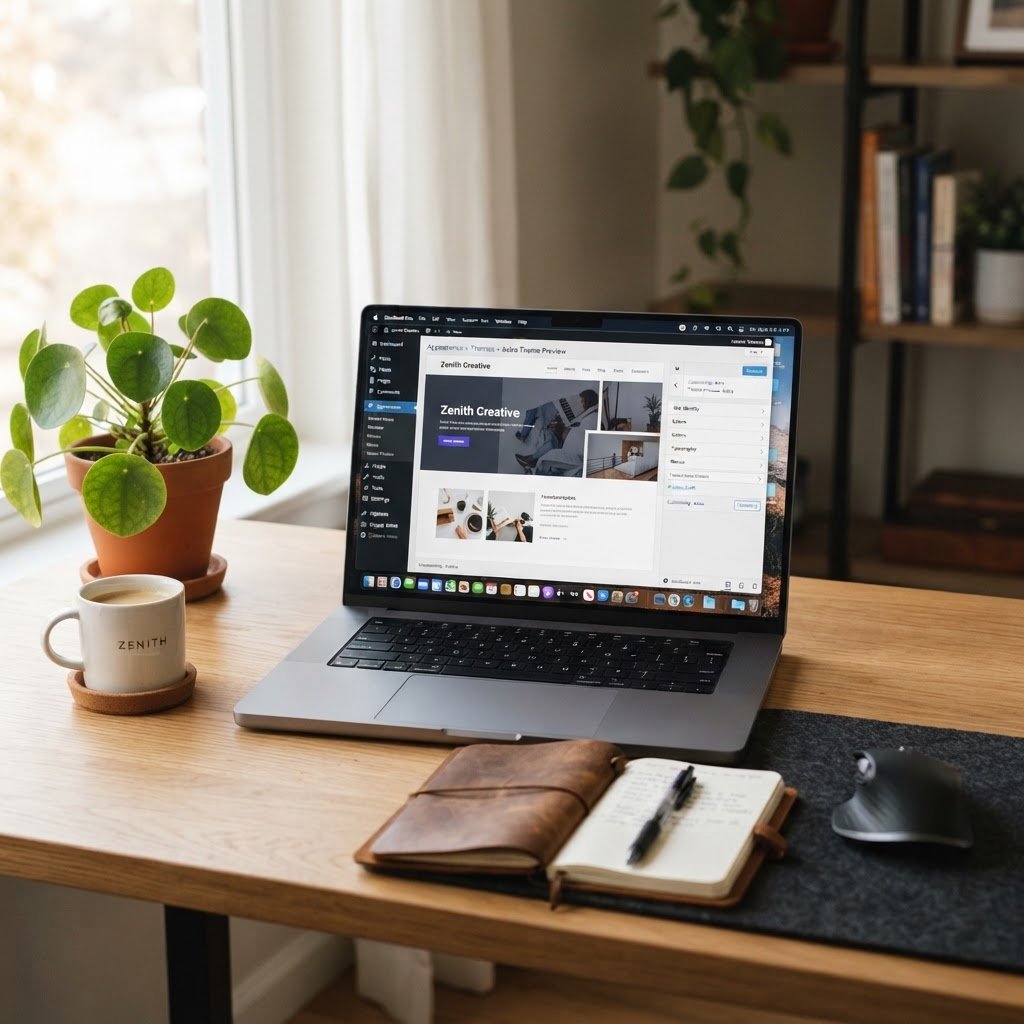
How to Change Your WordPress Theme Safely: A Step-by-Step Guide
How to Change Your WordPress Theme Safely: The Definitive Guide
It is 2 AM. Your site looks terrible. You click a single button, and suddenly the screen turns white. Panic sets in fast. I have been there more times than I can count. Dealing with a site crash when you just wanted a fresh look is a rite of passage for every site owner. WordPress powers 43.5% of all websites, so you are definitely not alone in this fight.
The Golden Rule: Why a Full Backup is Non-Negotiable
Talking Points:
* The reality of data safety during theme swaps.
* Why backups save your site from permanent loss.
* Tools for handling database and file snapshots.
Before you touch a single setting, stop. You need a full, verified backup of your site. Never assume things will go perfectly. I once skipped this step and lost three months of blog posts. It was a miserable night I never want to repeat.
Your site content lives in the database, but your look and feel depend on the theme files. Always use a reliable plugin or your hosting panel to export a full copy. Store this copy off-site. If something breaks, you can restore your site to its previous state in minutes.
Auditing Your Current Site Before Moving On
Talking Points:
* Identifying widget placements and menu structures.
* Extracting custom code snippets from your current theme.
* Recording existing customizer settings for reference.
Look at your site right now. Take screenshots of every page. You need to know exactly how your widgets, menus, and sidebars are arranged. When you move to a new layout, things rarely land in the exact same spot.
Check your active theme folder for a functions.php file. If you see custom snippets there, copy them now. These bits of code might define your site behavior. If you lose them, your site will feel broken or incomplete.
Building a Staging Environment for Testing
Talking Points:
* Why testing in private prevents public downtime.
* Using staging sites to experiment without risk.
* How to sync staging changes to your live site.
Never change your theme directly on your live site. A staging environment is your best friend. It is a private, identical copy of your site where you can experiment.
Most quality hosts offer a one-click staging setup. If yours does not, use a staging plugin. Install your new theme there first. This keeps your actual visitors away from your messy setup process.
Choosing and Installing Your New Theme
Talking Points:
* Selecting themes with high compatibility ratings.
* Uploading files via the dashboard or FTP access.
* Why you must use a child theme for edits.
Browse for your new theme carefully. Check the latest update date. If the author has not updated it in two years, run away. Plugins and themes are the source of 96% of new security vulnerabilities.
Upload the zip file through your dashboard. Never edit the main theme files directly. If you need to tweak the design later, build a child theme. This ensures your changes survive future updates.
The Testing Phase: Checking Functionality
Talking Points:
* Verifying responsiveness on mobile devices.
* Running speed tests to check for bloat.
* Confirming your site editor functionality.
Once active, look at your site on a phone and a desktop. Does the menu work? Are images showing up? Some themes change how the media library handles thumbnails.
Check your loading speed. Some themes come bloated with features you do not need. If your staging site slows to a crawl, look for a lighter option. A fast site keeps your visitors happy.
Executing the Big Switch Safely
Talking Points:
* Using maintenance mode to hide construction.
* Pushing staging data to the live environment.
* Verifying all assets transferred correctly.
When you are ready, put your site in maintenance mode. This tells search engines you are working. Move your theme from staging to live using your host’s sync tool.
Once live, clear your site cache. Check every single page. If you see a 404 error, regenerate your permalinks by saving your permalink settings again.
Post-Activation Cleanup and Reassignment
Talking Points:
* Aligning widgets with your new sidebar slots.
* Ensuring menu locations are correct.
* Re-configuring your customizer settings.
Your menus often vanish or reset during a switch. Go to your dashboard and re-assign them to the new theme’s menu areas. Do the same for your widgets.
Look at your color schemes and fonts in the customizer. The new theme might not read your old settings. Spend time making it look sharp before letting the public see it.
Migrating Custom Code and Snippets
Talking Points:
* Moving CSS snippets to the new customizer.
* Safely transferring custom functions.php logic.
* Testing code to prevent critical errors.
Take those code snippets you saved earlier. Add them to your new theme via a site-specific plugin or the customizer CSS box. Do not paste them into the core theme file.
Test every piece of code one by one. If you add all ten at once and the site dies, you will not know which one caused the crash. Go slow and be methodical.
Quality Assurance and User Feedback
Talking Points:
* Testing across different web browsers.
* Asking a friend to click through pages.
* Monitoring for broken links or media.
Open your site in Chrome, Firefox, and Safari. Does it look the same? Sometimes a specific browser handles fonts or CSS differently.
Ask a friend to browse the site. We often miss our own mistakes because we know how to navigate our site by heart. A fresh pair of eyes will find the broken link you missed.
Troubleshooting Common Migration Errors
Talking Points:
* Fixing white screen issues with debug logs.
* Resolving database paths for missing images.
* Handling PHP version conflicts with themes.
If you see a white screen, your new theme might conflict with an old plugin. Deactivate your plugins to find the culprit. It happens to the best of us.
Sometimes media files look broken. Check your file paths. If the site still feels weird, check your PHP version. Older themes hate newer PHP, and that is a common cause of unexpected bugs.
Conclusion: Your Command Center for WordPress Mastery
Changing your theme does not have to be a nightmare. By using a staging site, keeping backups, and working in a child theme, you protect your hard work. You are the architect of your own online space. If you follow these steps, you will keep your site fast, safe, and looking great. Have you successfully switched themes, or did you hit a wall? Share your experience in the comments below.
Frequently Asked Questions
Will changing my theme delete my posts and pages?
No. Your content is stored in your database, not the theme files. You can swap themes as often as you like, and your text will remain safe.
Do I really need a child theme?
Yes. If you edit the main theme, your changes will be wiped out the next time the theme updates. A child theme keeps your customizations safe forever.
How long should I keep my staging site active?
Keep it until you are 100% sure the new site is stable. I usually wait a week before deleting the staging copy.
What if my site crashes after activation?
Use your FTP access to rename the theme folder to something else. This forces WordPress to revert to a default theme, giving you access to your dashboard again.
Does a new theme affect my SEO rankings?
It can. If the new theme has different structure or load speeds, your rankings might fluctuate. Use a light, fast theme to minimize any negative impact.