Mastering WordPress Theme Customization: Ultimate Guide
Mastering WordPress Theme Customization: Your Ultimate Guide
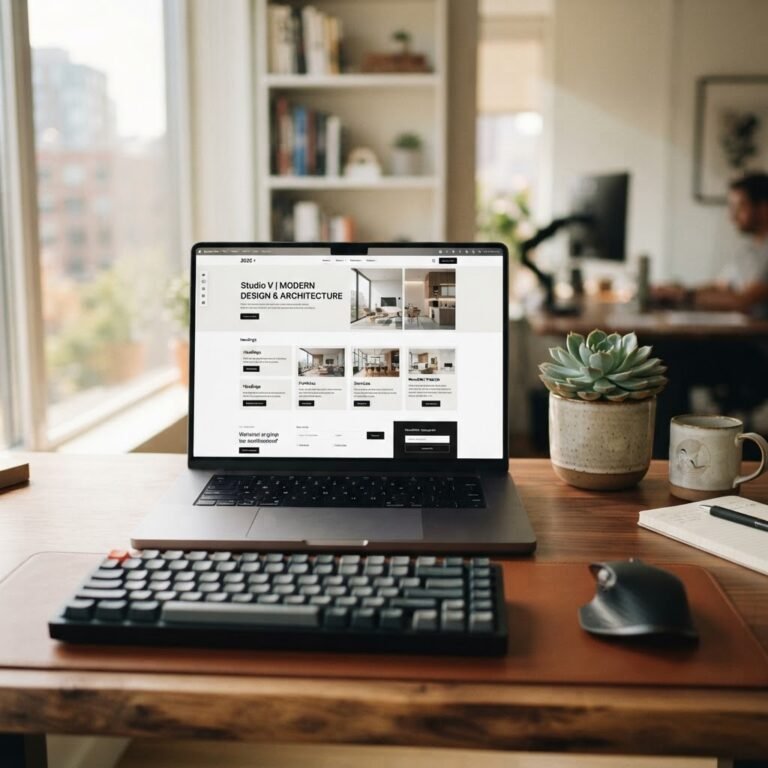
Customizing your WordPress theme is an essential step toward creating a unique, functional, and user-friendly website. In this comprehensive guide, we’ll walk you through the ins and outs of WordPress theme customization, ensuring that you feel confident and empowered in your web development journey.
Introduction: Why WordPress Theme Customization Matters
When you log into your WordPress dashboard, the options can be overwhelming. Do you want a professional portfolio? A personal blog? An online store? The beauty of WordPress lies in its flexibility, and at the heart of this is theme customization. Customizing your site allows you to express your brand’s identity, enhance user experience, and drive your site’s goals more effectively. But why does this process matter so much?
– Unique Identity: Customization helps differentiate your site from millions of others. It lets you showcase your personal or brand identity effectively.
– Functional Design: A well-customized theme not only looks good but also performs well, ensuring that visitors can navigate easily and find information quickly.
– SEO-Friendly Adjustments: Customization allows you to optimize your site for search engines, helping your site rank better in search results.
Understanding WordPress Themes: The Foundation of Your Site
Understanding the structure and components of WordPress themes is crucial for successful customization. A WordPress theme controls your site’s overall design, layout, and style, comprising a variety of files, including:
– Templates: These dictate page layouts and formats for various sections of your site.
– Stylesheets: CSS files that control the visual presentation.
– Functions.php: This file allows you to add custom functions and features.
Each theme has a parent theme and potentially a child theme. A parent theme contains all the necessary files, while a child theme inherits styles and functionality from the parent but allows for safe customizations.
Assessing Your Needs: What Do You Want to Achieve?
Before diving into customization, assess your goals:
– What is the purpose of your website?
– What functionality do you need that your chosen theme does not provide?
– How important is mobile responsiveness for your site?
These questions will guide your customization efforts and help you focus on meaningful changes.
Choosing the Right Customization Method: Tailoring to Your Skills and Goals
When it comes to customizing your theme, several methods are available, depending on your skill level and desired outcome:
1. Customizing via the WordPress Customizer: For beginners, the built-in WordPress Customizer is a user-friendly option that allows you to adjust aspects like site identity, colors, header images, and menus without any coding.
2. Page Builders: Tools like Elementor or Divi offer drag-and-drop interfaces, which can provide more extensive design options without needing to write code.
3. Coding Customizations: If you have experience with HTML, CSS, and PHP, you can edit theme files directly. However, this method requires caution!
4. Using Child Themes: This is recommended for anyone who plans to make significant code modifications. A child theme lets you customize without losing changes during theme updates.
Step-by-Step Guide to Customizing Your WordPress Theme
1. Backup Your Website
Before making any changes, back up your site. This ensures that you can restore the previous version if something goes wrong. You can use plugins like UpdraftPlus or BackupBuddy for this task.
2. Install a Child Theme (if editing code)
If you plan to make code changes, create a child theme. Here’s a quick setup:
– Create a new folder in `wp-content/themes/`
– Add a `style.css` file with the necessary header information.
– Create a `functions.php` file for additional functionalities.
3. Modify Header and Footer
Edit the `header.php` and `footer.php` files to adjust the header and footer of your site. Make sure to keep it user-friendly and consistent with your branding.
4. Customize CSS Styles
Use the child theme’s `style.css` file to overwrite specific styles. Use the browser’s inspector tool to find the correct CSS selectors to modify.
5. Adjust Layouts
Depending on your theme, you might be able to change layouts through the Customizer or page builder, but for more specific changes, you may modify template files like `page.php` or `single.php`.
6. Test Your Changes
Always preview your changes on different devices and browsers to ensure everything looks great. This step is crucial given the rise of mobile users.
7. Optimize Performance
After customization, check your site’s performance using tools like Google PageSpeed Insights. Optimize images and code where necessary to ensure minimal loading times.
Best Practices for Safe and Effective Customization
To avoid common pitfalls in theme customization, adhere to the following best practices:
– Use a Child Theme: Always customize within a child theme to protect your changes from future updates.
– Keep It Responsive: Make sure your site adapts well to mobile devices. Test on various screen sizes to catch layout issues.
– Avoid Direct Edits to Core Files: Editing core theme files can lead to headaches during updates. Always use a child theme or hooks where possible.
– Regular Backups: Regularly back up your database and files, especially before making major customizations.
– Document Your Changes: Keep track of what you modify, which helps troubleshoot any issues that arise.
Troubleshooting Common Issues: Solutions at Your Fingertips
Even the most experienced developers face issues. Here are common problems and how to address them:
– White Screen of Death: Check for errors in your PHP code, or deactivate plugins by renaming their folders to regain access to your site.
– Site is Not Responsive: Review your CSS. A common mistake is using fixed widths instead of relative units; avoid that to enhance mobile responsiveness.
– Changes Not Showing: Clear your browser cache and check if you’re viewing the correct site version. Sometimes, caching plugins need addressing, too.
Conclusion: Empowering Your WordPress Journey
WordPress theme customization doesn’t have to be daunting. By understanding your needs, choosing the right methods, and following best practices, you can create a beautiful and functional website tailored just for you. Whether you’re an absolute beginner or looking to hone your skills, this guide serves as your command center for WordPress mastery. Remember: every site you customize is a step closer to your web presence goals. Let your creativity shine!
Now go out there and make your site a reflection of your ambitions!