How to Use Block Themes in 2026: A Definitive Guide
How to Use Block Themes in 2026: The Definitive Guide
The 2:00 AM Reality Check
Talking Points: WordPress evolution, historical frustration, the shift in user experience.
It is 2:00 AM and your site just flashed a white screen. You stare at the monitor, coffee cooling on your desk, wishing you had never clicked that update button. We have all been there. You are digging through messy PHP files, praying you do not break the whole thing. It feels like ancient history now.
Why Block Themes are the New Standard
Talking Points: Statistics on theme adoption, performance benefits, modernization of the platform.
Everything changed when the community embraced a fresh design philosophy. Since 2024, 60% of new theme submissions hit the directory as block-based systems. It makes sense when you look at the speed. You get a nice 100-200ms boost in LCP compared to the old, clunky classic layouts.
The No-Jargon Breakdown
Talking Points: Defining block themes, how they differ from classic versions, component-based structure.
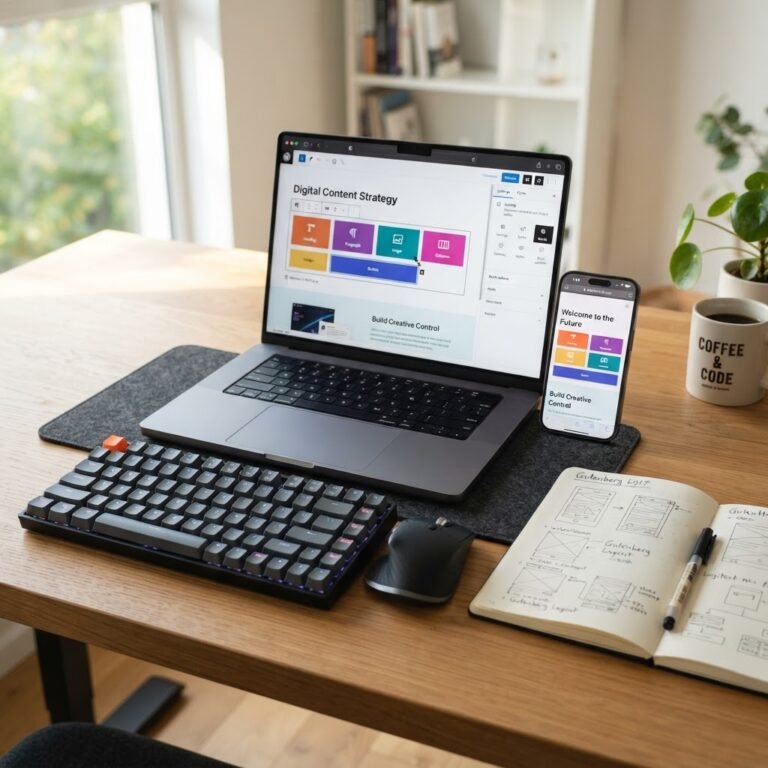
A block theme is just a collection of small, reusable parts. You build your header, footer, and sidebar using the Gutenberg editor directly. Gone are the days of jumping between customizers and code editors. It is a cleaner way to see your design come to life.
Before You Switch: Your Essential Pre-Flight Checklist
Talking Points: Backups, plugin compatibility checks, staging environments.
Before you make the jump, stop. Do not touch that live site yet. Create a backup. If you break it, you will thank your past self for that simple file. Check if your current plugins support the block editor or if they need a modern replacement.
How to Install and Activate Your First Block Theme
Talking Points: Selecting themes, installation process, theme.json configuration.
Head over to the theme directory. Pick something like Twenty Twenty-Six. Hit install and activate. WordPress handles the heavy lifting via the theme.json configuration file. It tells the site how to behave without you writing a single line of CSS.
Mastering the Site Editor: Navigating the Interface
Talking Points: Site Editor overview, template parts, intuitive editing.
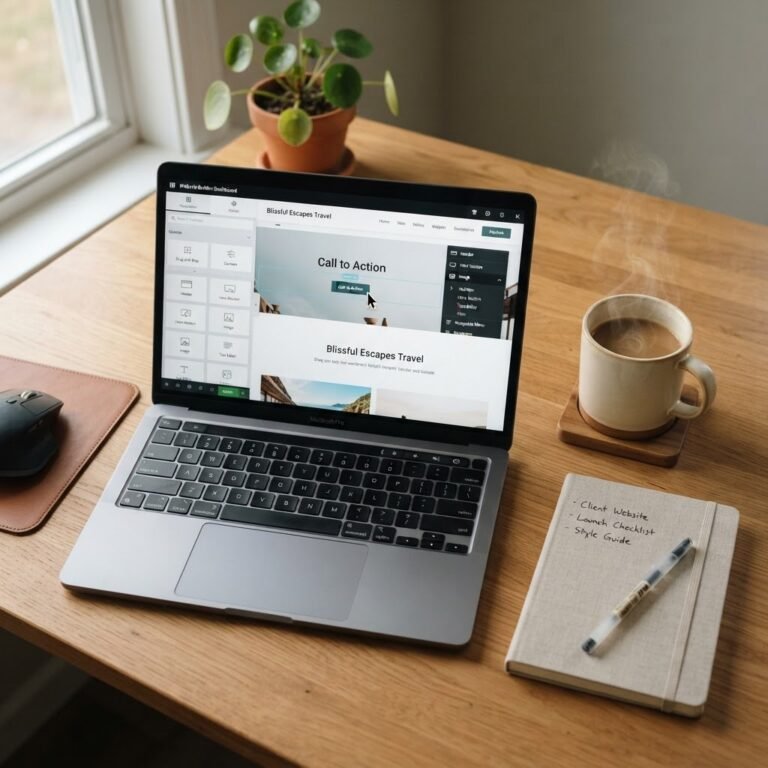
Open your dashboard and go to Appearance, then Editor. This is your new home. You can click on the header and change the logo. You can drag a button into the middle of your homepage. It feels like playing with virtual building blocks.
Customizing Your Look with Global Styles: No CSS Required
Talking Points: Changing typography, color palettes, spacing adjustments.
Global styles are a godsend. You change a color once in the panel, and it updates across every single page. You do not need to touch CSS specificity to make your links match your buttons. It stays consistent and clean.
Working with Pattern Libraries: Building Professional Layouts
Talking Points: Using pre-made patterns, layout flexibility, design consistency.
You do not need to be a designer to make a site look good. Open the pattern library. Drag a pre-built hero section or a contact block onto your page. It works perfectly on phones and desktops right out of the box.
Common Pitfalls & How to Solve Them Instantly
Talking Points: Database overrides, caching issues, theme update conflicts.
Sometimes you make a change, and it does not show up. Your customizations might be saved to the database as a wp_template post type. If an update overwrites your changes, check the template list to restore your specific layout. It happens to the best of us.
The WPSite Deck Promise: Maintaining Your Site for the Long Haul
Talking Points: Future-proofing, community standards, long-term site health.
We fix sites every day, and we see how this new way of working helps people keep their sites running smooth. You are moving with the grain of the software instead of fighting against it. Your site stays fast, secure, and ready for whatever comes next. Drop a comment below and let us know your biggest struggle with this transition.