Hosting Guide for WordPress Site Owners
Choosing WordPress hosting is not just a technical setup decision. It affects how fast your site feels, how often you need support, how easily you can recover from a mistake, and how much risk you carry when plugins, themes, traffic, or business needs change.
That is why a useful WordPress hosting guide should start with the job hosting performs, not with a list of provider names. A host is the operating environment underneath your site. It supplies the server software, database, storage, SSL support, backups, security controls, and support layer your site depends on every day.
For a small-business site, the best host is not always the most expensive plan. It is the plan that fits the role of the site. A brochure site, a lead-generation site, a content-heavy site, and an ecommerce site all carry different levels of performance, security, and recovery risk.
What WordPress hosting actually does
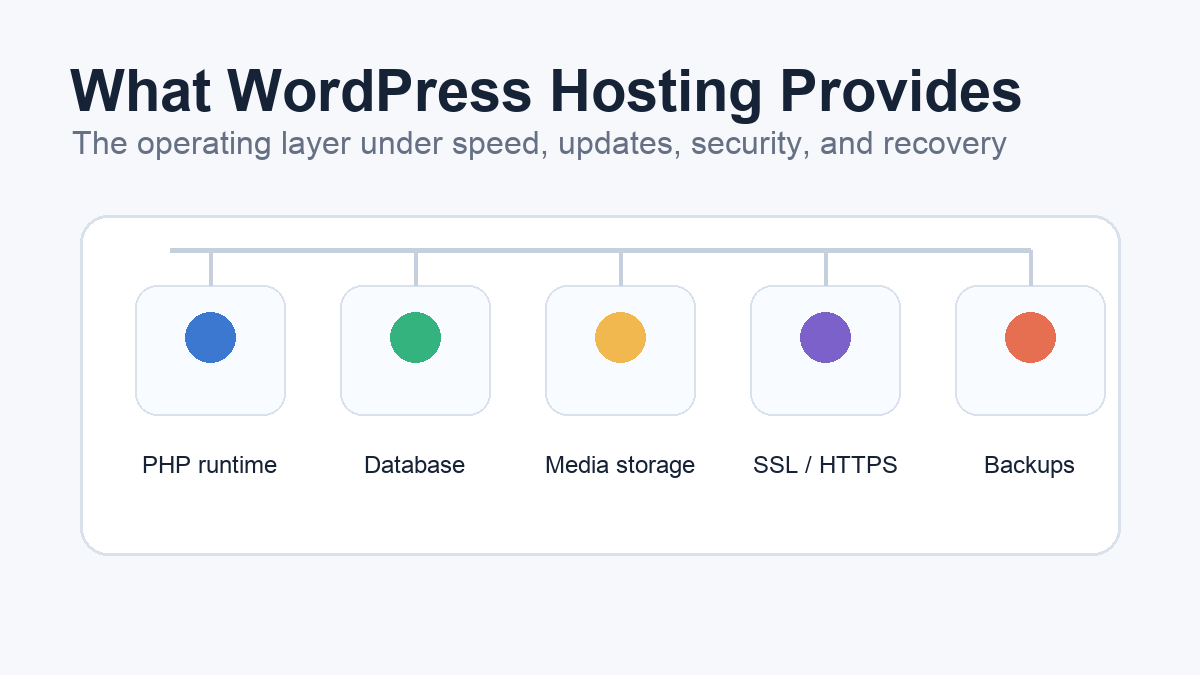
WordPress needs a place to run its PHP application, store content in a database, serve media files, and deliver pages to visitors. Your host provides that environment. When the hosting layer is reliable, WordPress feels boring in the best way: pages load, the admin area works, updates complete, backups are available, and support can help when something breaks.
When the hosting layer is weak, every other part of the site becomes harder to manage. A slow server can make a lightweight theme feel heavy. Limited resources can make normal plugin activity look like a performance problem. Poor backup and restore tooling can turn a small update mistake into a long outage.
WordPress.org publishes baseline hosting requirements for WordPress, including current PHP, database, and HTTPS expectations. Those requirements are a useful first screen because they tell you whether a host is keeping up with the platform WordPress expects to run on. They do not tell the whole story, but they separate basic compatibility from serious operational readiness.
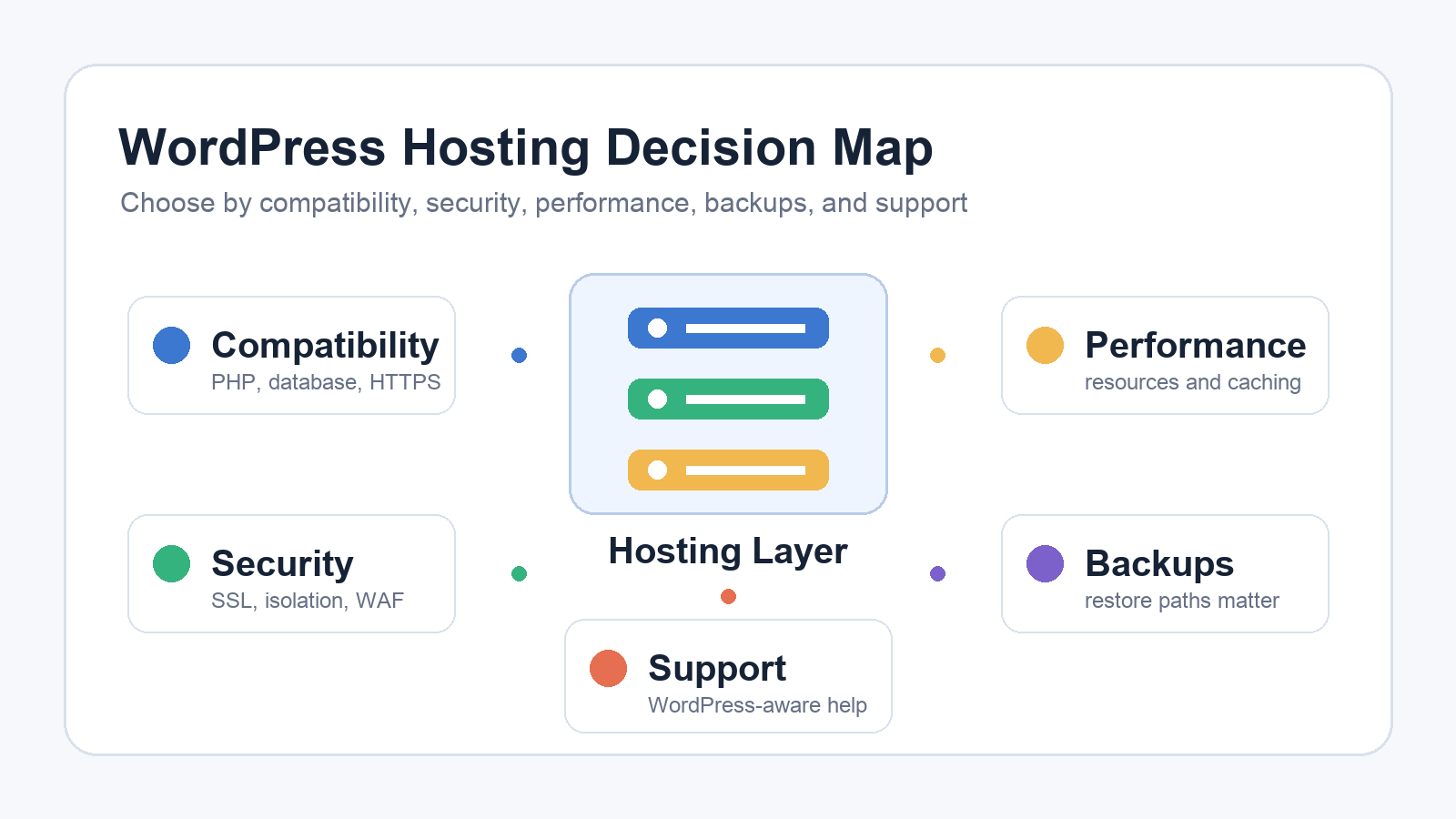
For most site owners, hosting should be judged by five practical questions: can WordPress run cleanly, can the site stay reasonably fast, can the site be secured, can it be restored, and can you get competent help when something goes wrong?
The characteristics of a good WordPress host
A good WordPress host gives your site a stable technical foundation and makes routine maintenance easier. Compatibility comes first. The host should support modern PHP and database versions, HTTPS, and common WordPress server configurations. If you have to fight the hosting account just to meet WordPress basics, the plan is already creating work.
Reliability matters next. Uptime claims are easy to advertise, but the practical question is whether the host has a track record of stable service, clear status communication, and support that understands WordPress. For a business site, a support team that can explain a PHP error, resource limit, caching issue, or restore process is more valuable than a vague promise that everything is "optimized."
Security should be visible in the hosting feature set. At minimum, look for SSL support, account isolation, maintained server software, secure file access, and a clear backup process. Some hosts add malware scanning, web application firewall options, staging environments, and managed updates. Those can be useful, but they should be understood as layers of risk reduction rather than magic protection.
Performance features also deserve attention. Server resources, caching, content delivery options, database performance, and limits on CPU or memory can all affect how WordPress behaves. A host does not need to include every premium performance feature, but it should be transparent about plan limits and give you a path to scale when traffic or plugin load grows.
The final characteristic is recovery. Backups are only as useful as the restore process behind them. Before choosing a host, find out how often backups run, how long they are retained, whether you can restore files and databases separately, and whether support can help during a failed update or compromised site cleanup.
Related: WordPress backup plugins
Security features that matter
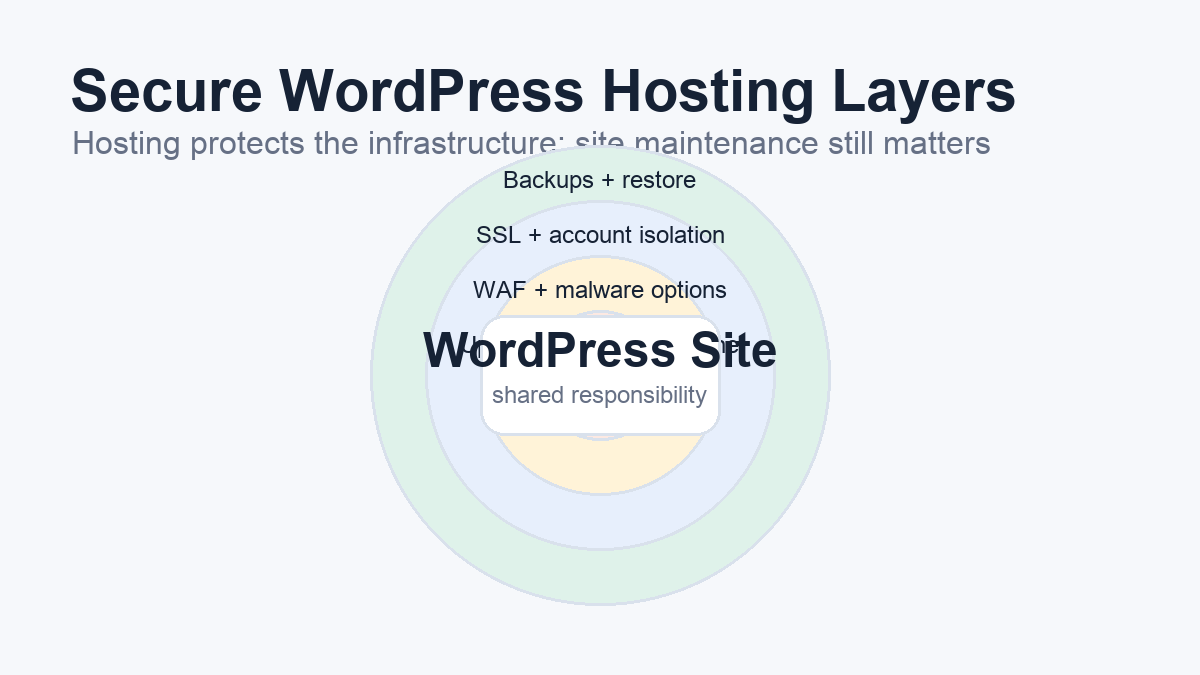
Secure WordPress hosting is one part of WordPress security, not the whole system. WordPress hardening guidance is clear about shared responsibility: hosts control infrastructure, but site owners still need to maintain WordPress core, themes, plugins, passwords, permissions, and user access.
That makes hosting security a baseline, not a substitute for maintenance. A strong host should keep server software current, provide secure access methods, isolate accounts appropriately, and offer a reasonable recovery path. If the host includes a web application firewall, malware scanning, or brute-force protection, those features can reduce exposure, but they do not remove the need to update and monitor the WordPress application itself.
Backups belong in the security conversation because recovery is part of resilience. A hacked site, broken plugin update, accidental deletion, or database problem is far less damaging when you can restore quickly. Ask whether backups are automatic, whether they include both files and database content, and whether restores are self-service or support-assisted.
SSL is also non-negotiable for a modern WordPress site. HTTPS protects the connection between visitors and the site, supports user trust, and is part of WordPress.org’s current hosting baseline. A host should make SSL certificates easy to enable and renew. If SSL setup is confusing, manual, or fragile, that friction will eventually become a maintenance problem.
The safest way to evaluate hosting security is to ask practical questions. What happens if a plugin vulnerability is exploited? What happens if malware is detected? What happens if a restore is needed tonight? A good host will not promise that nothing can go wrong. It will explain what controls exist and how recovery works when something does go wrong.
Related: WordPress security checklist
Shared hosting vs managed WordPress hosting
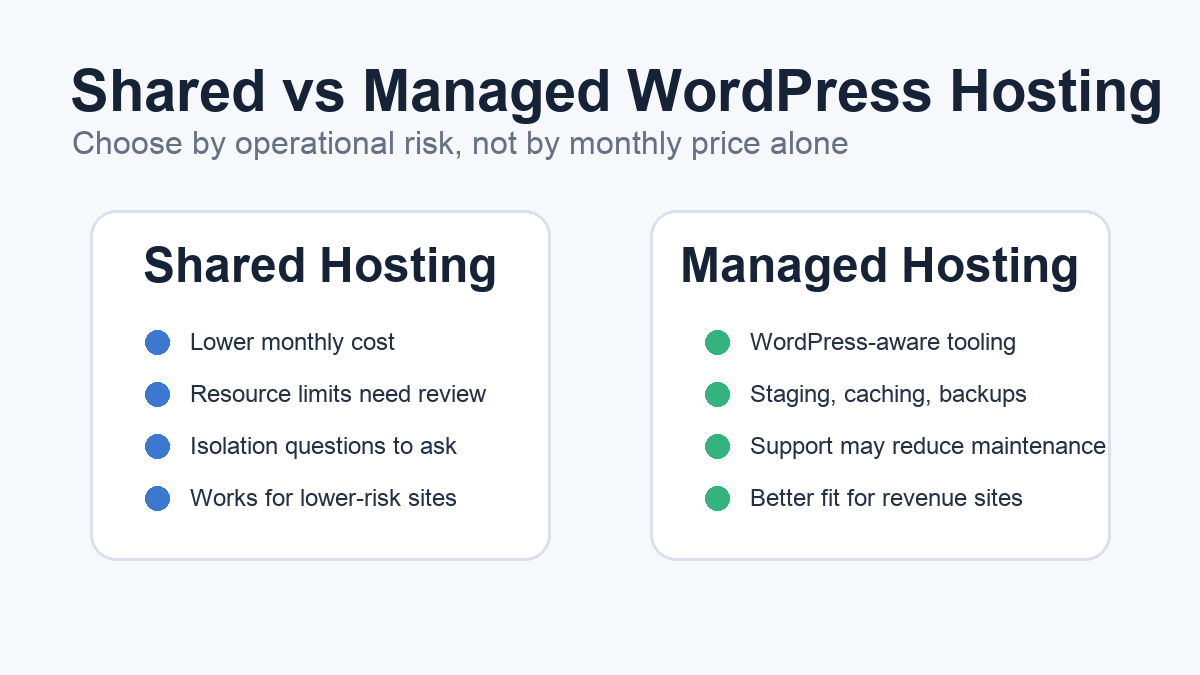
Shared hosting is popular because it is inexpensive. For a small brochure site or early-stage business site, it can be a reasonable starting point if the host meets WordPress requirements, provides SSL, has decent support, and offers a clear backup path.
The tradeoff is that shared hosting usually means multiple sites use the same underlying server resources. That can affect performance if the plan is crowded or tightly limited. It can also create security-isolation questions, which WordPress hardening guidance calls out as something to discuss with your host. Shared hosting is not automatically unsafe, but it does require more attention to plan quality and account isolation.
Managed WordPress hosting usually costs more because it packages more WordPress-specific support and operational tooling. Depending on the provider, that may include staging sites, server-level caching, automated backups, malware cleanup support, update workflows, or WordPress-trained support staff. Those features can be worth paying for when the site supports revenue, leads, ecommerce, appointments, or high-volume content.
The decision is not "cheap versus good." It is "how much operational risk can this site carry?" If your site is mostly informational and low traffic, a reputable shared host may be enough. If your site generates leads, runs WooCommerce, supports paid campaigns, or publishes frequently, managed hosting may save more time and risk than it costs.
The worst choice is a plan selected only by monthly price. A cheap plan that lacks backups, support, or performance headroom can become expensive the first time the site breaks during a launch or sales push.
How to choose the right plan for your site
Start with the role of the site. A simple service-business site needs stable uptime, SSL, backups, and support. It does not necessarily need enterprise infrastructure. A lead-generation site needs the same foundation plus enough performance headroom to keep forms, tracking scripts, and landing pages responsive.
An ecommerce site carries more risk. WooCommerce, payment flows, customer accounts, transactional emails, and product data all make recovery and support more important. For ecommerce, staging, backups, security monitoring, and knowledgeable support are not luxuries. They protect revenue and customer trust.
A content-heavy site needs a host that can handle publishing volume, search traffic, image-heavy posts, caching, and editorial workflows. Performance becomes more important because slow pages can reduce engagement and make content operations feel frustrating.
Technical comfort also matters. If you are comfortable managing caching, backups, security plugins, DNS, and troubleshooting, you may be able to use a leaner plan well. If you want to focus on content and business operations, paying for managed support can be the practical option.
Before committing, ask the host five questions. Does this plan meet WordPress.org’s current requirements? How are backups created and restored? What security features are included at the hosting level? What happens if the site exceeds resource limits? Can support help with WordPress-specific problems, or only server access problems?
Related: WordPress performance optimization
Hosting checklist before you commit
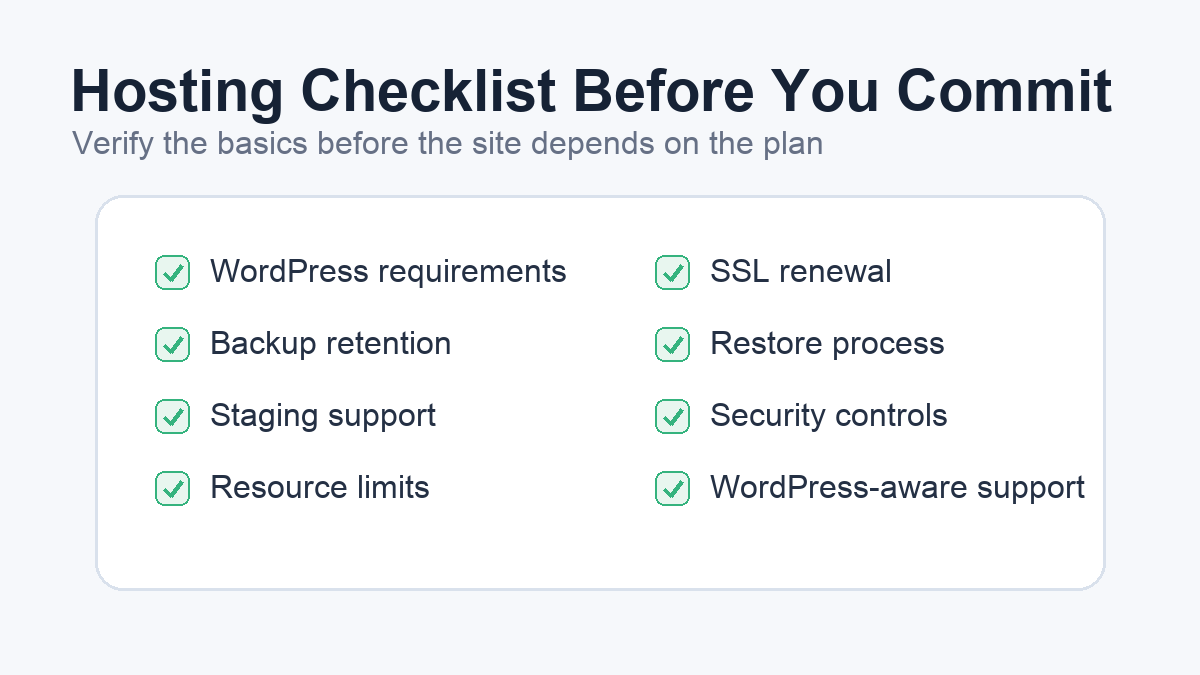
Use this checklist before choosing or renewing a WordPress hosting plan:
- Confirm the plan supports WordPress.org’s current PHP, database, and HTTPS requirements.
- Confirm SSL is included and renews automatically.
- Ask how backups work, how long they are retained, and how restores are performed.
- Check whether staging is available before major plugin, theme, or WordPress updates.
- Review security features such as account isolation, malware scanning, WAF options, and secure file access.
- Ask what support will and will not troubleshoot inside WordPress.
- Review CPU, memory, storage, traffic, and inode limits before assuming the plan can scale.
- Avoid paying for duplicate features if your host already provides reliable caching, backups, or security tooling.
Related: WordPress plugin stack
Red flags before you buy a hosting plan
Some hosting problems are visible before you sign up. If the sales page makes support, backups, resource limits, or restore options hard to understand, treat that as a signal. A business website should not depend on vague promises. You need to know what happens when the site slows down, breaks after an update, or needs to be restored quickly.
Be careful with plans that advertise unlimited everything without explaining practical limits. Most hosting accounts have some limit on CPU, memory, storage, inode usage, database size, or traffic behavior. The issue is not that limits exist. Every platform has limits. The issue is whether the host explains them clearly enough for you to choose the right plan.
Another red flag is weak WordPress-specific support. Some hosts can help with server access, DNS, billing, and account problems but will not troubleshoot WordPress errors, plugin conflicts, caching behavior, or restore questions. That may be fine if you have a developer. It is risky if you expect the host to be your first line of help during a business-critical outage.
Backups deserve special attention. A host may advertise backups, but that does not always mean you can restore the right version quickly. Ask whether backups include both files and the database, whether they are stored separately from the hosting account, how often they run, how long they are retained, and whether a restore overwrites the entire site or can be targeted.
Security language can also be misleading. A plan that mentions scanning, firewalls, or protection still needs details. Does malware scanning only detect problems, or does the host help with cleanup? Is the WAF included, optional, or part of a higher tier? Are compromised sites suspended without assistance? These details matter more than the feature label.
Finally, watch for hosting that makes SSL, staging, caching, or basic WordPress maintenance feel like add-on confusion. Some add-ons are legitimate, but the core hosting plan should make the basics clear. If you need five upsells just to get a secure, restorable, reasonably fast WordPress site, compare the total cost against a better plan from the start.
Frequently asked questions about WordPress hosting
What is the most important WordPress hosting feature?
For most site owners, the most important feature is not one feature. It is the combination of compatibility, backups, security, performance headroom, and support. A host that meets WordPress requirements but cannot help with restores still leaves you exposed. A host with strong support but poor performance limits can still hold the site back. Choose the plan that covers the operational basics first.
Is shared hosting bad for WordPress?
Shared hosting is not automatically bad. It can work for small, low-risk sites when the host maintains modern WordPress compatibility, provides SSL, isolates accounts appropriately, and offers reliable backups. The concern is that shared plans can have tighter resource limits and more dependency on the host’s isolation practices. Treat shared hosting as a budget option that needs closer review, not as an automatic failure.
When is managed WordPress hosting worth it?
Managed WordPress hosting becomes more attractive when the site supports revenue, leads, ecommerce, memberships, appointments, or frequent publishing. The value is usually in operational support: staging, backups, caching, WordPress-trained help, update workflows, or malware-response options. It is worth considering when those tools reduce business risk or save enough maintenance time to justify the higher monthly cost.
Do I still need WordPress security plugins if my host has security tools?
Usually, yes. Hosting-level tools and WordPress-level tools do different jobs. Your host can help with infrastructure controls, account isolation, SSL, server configuration, backups, and sometimes firewall or malware tooling. WordPress still needs responsible user permissions, plugin and theme updates, strong passwords, login protection, and application-level monitoring.
Should backups come from the host or a plugin?
Either can work if the backup system is reliable and the restore process is clear. Host-level backups are convenient because they may include files and database snapshots without extra plugin load. Backup plugins can give you more control over schedules, off-site storage, and restore options. The safest answer is to verify what is backed up, where it is stored, how long it is retained, and how quickly you can restore it.
Choose for risk, not just price
The right WordPress host is the one that fits your site’s role and risk level. A small informational site can start lean if the host meets modern WordPress requirements and provides reliable backups. A revenue-producing site should treat hosting as operational infrastructure, not a commodity.
Do not buy hosting only because it is popular, cheap, or bundled with a promotion. Choose based on compatibility, support, security, performance, and recovery. Those are the parts of hosting you will feel when the site gets busy, breaks, or becomes important to your business.
Next, review your WordPress security checklist, backup setup, performance optimization plan, and WordPress plugin stack. Hosting is the foundation, but the healthiest WordPress sites are built in layers.
Sources
- WordPress.org Hosting Requirements: https://wordpress.org/about/requirements/
- WordPress.org Hardening WordPress: https://developer.wordpress.org/advanced-administration/security/hardening/
- WordPress.org HTTPS for WordPress: https://wordpress.org/documentation/article/https-for-wordpress/
- WordPress.org WordPress Backups: https://wordpress.org/documentation/article/wordpress-backups/
- WordPress.org Optimization: https://developer.wordpress.org/advanced-administration/performance/optimization/