How to Fix WordPress Plugin Conflicts: A Step-by-Step Guide
How to Fix WordPress Plugin Conflicts: The Ultimate Guide
The Dreaded 2 AM Site Failure
Talking Points:
- Why the white screen is so stressful.
- The reality of site vulnerabilities today.
- Why panic is your worst enemy.
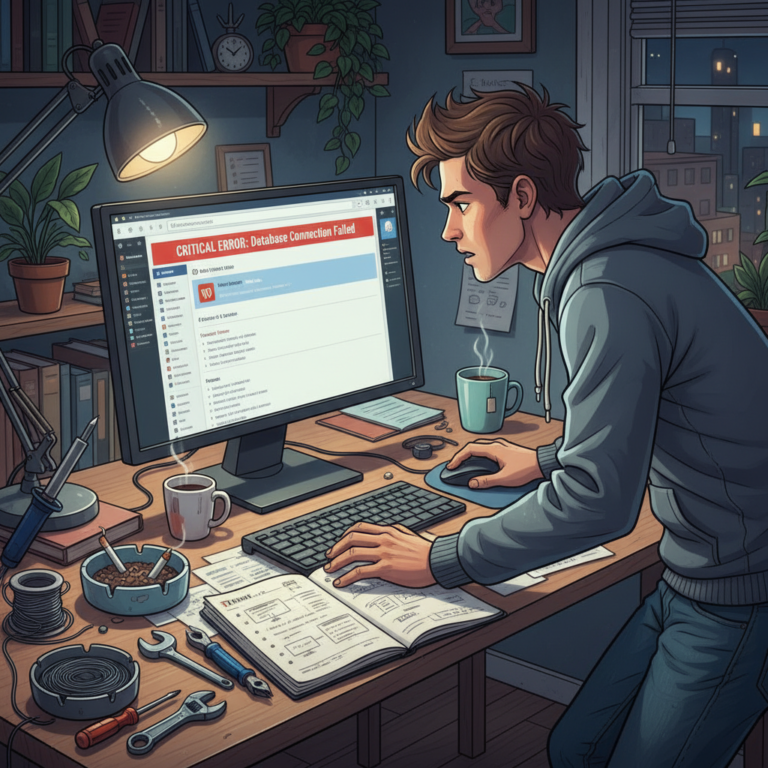
You wake up to an email. Your site is down. The dreaded white screen of death is staring back at you. It is 2 AM. You feel helpless. I have been there more times than I can count. Dealing with these errors is part of the gig. Last year alone, over 11,000 new WordPress vulnerabilities hit the web. That is a 42% jump from the year before. Most of these bugs live in plugins. When they crash, they take your site with them. Do not panic yet. You can fix this.
Why Your Plugins Fight Each Other
Talking Points:
- The nature of code compatibility.
- How updates create friction.
- The role of core updates.
Plugins are bits of code written by different people. They do not always play nice. One plugin might try to use a function another one has already changed. This creates plugin incompatibility. Sometimes a theme update changes the rules. Then your plugins get confused. The site breaks because the code is fighting itself. It is not always malicious activity. Often it is just a messy digital collision. You need to find which piece of code is the bad apple.
Step 1: The Quick Health Check
Talking Points:
- Using the built-in tools.
- Identifying the source of the crash.
- How to use the site health tool.
If you can still log in, go straight to the dashboard. Click on Tools and then Site Health. This tool is a lifesaver. It scans your site for common issues. It often points directly to a problematic plugin. If the dashboard is locked, skip to the manual steps. The tool highlights plugin conflicts early. It shows you exactly where the gears are grinding.
Step 2: The Bulk Deactivation Trick
Talking Points:
- Testing if plugins are the root cause.
- How to deactivate all plugins at once.
- Reactivating one by one.
You need to know if a plugin is the culprit. Go to your plugin list. Select all of them. Choose bulk actions to deactivate. If the site comes back, you know it was a plugin. Now turn them back on one by one. Check your site after each one. When the site breaks again, you found it.
Step 3: When You Are Locked Out
Talking Points:
- Accessing files via FTP or cPanel.
- Renaming the plugin folder.
- Avoiding the total site wipeout.
You cannot get to the dashboard. The site is a ghost town. You need to use your FTP client or cPanel file manager. Find the wp-content folder. Inside, locate the plugins folder. Rename it to something like plugins_old. This forces WordPress to ignore all plugins. Now your site should load. Refresh the page to see if you have access.
Step 4: Isolating the Culprit Manually
Talking Points:
- Renaming folders back one by one.
- Testing individual plugin functionality.
- Systematic testing procedures.
Your site is back up. But the plugins are gone. Rename the folder back to plugins. Now open that folder. Rename each plugin subdirectory one by one. Check the site after each name change. When the error returns, you found the bad plugin. Delete that specific folder and move on. This is the surest way to troubleshoot wordpress plugins.
Step 5: Is It the Theme or the Plugin?
Talking Points:
- Testing with a default theme.
- How themes and plugins clash.
- Identifying theme-specific issues.
Sometimes a plugin is fine. The theme is the problem. Switch to a default theme like Twenty Twenty-Four. Does the site work now? If yes, your old theme and the plugin were fighting. This happens when the theme tries to do what a plugin is already doing. It causes a site crash after a plugin update.
Step 6: Using the Debug Mode
Talking Points:
- Editing the wp-config.php file.
- Understanding PHP error logs.
- Why you must disable debug after use.
Sometimes you need more info. Open your wp-config.php file. Look for the line that says WP_DEBUG. Set it to true. Save and refresh your site. Now it will show you the exact error. It tells you the file name and line number. This is for advanced users only. Turn it off when you are done.
Preventing Future Nightmares
Talking Points:
- Regular backups are non-negotiable.
- Staging environments for testing updates.
- Keeping your software lean.
Do not update plugins on a live site. Use a staging environment first. Keep your backups running daily. A clean site is a safe site. Get rid of plugins you do not use. Only keep what you need. This keeps the code simple and reduces conflicts.
When to Call in the Pros
Talking Points:
- Signs of database corruption.
- When PHP memory limits are reached.
- Knowing your limits.
Sometimes the problem is deep. You might have database corruption. Or your server might just be too slow. If you tried everything and it still fails, get help. There is no shame in hiring an expert. Fixing things correctly is better than breaking them further.
Conclusion
You now have the power to fix your site. Plugin issues are part of life. You have the tools to handle them. Start small and stay calm. Always backup before you change a single file. Check your site health and keep things updated. You are the boss of your site. Do you have a story about a bad plugin update? Tell me in the comments below!
Frequently Asked Questions
1. What should I do if my site still won’t load after renaming the plugin folder? You should check your themes folder next. Try renaming the active theme folder to see if the theme itself is causing the conflict. 2. Is it safe to delete the plugin folder entirely? Never delete the folder if you can help it. Renaming it is much safer because it allows you to restore settings if you decide to keep the plugin later. 3. How often should I check my site health? I suggest checking it once a week. It takes thirty seconds and can save you from a major outage. 4. Does debug mode really show all errors? It shows most PHP errors. However, some server-level issues might hide in the raw server error logs instead of the WordPress log. 5. Can I use a plugin to fix plugin conflicts? Yes, the Health Check & Troubleshooting plugin is great for testing without affecting live visitors. Just be sure to deactivate it when you finish your testing.