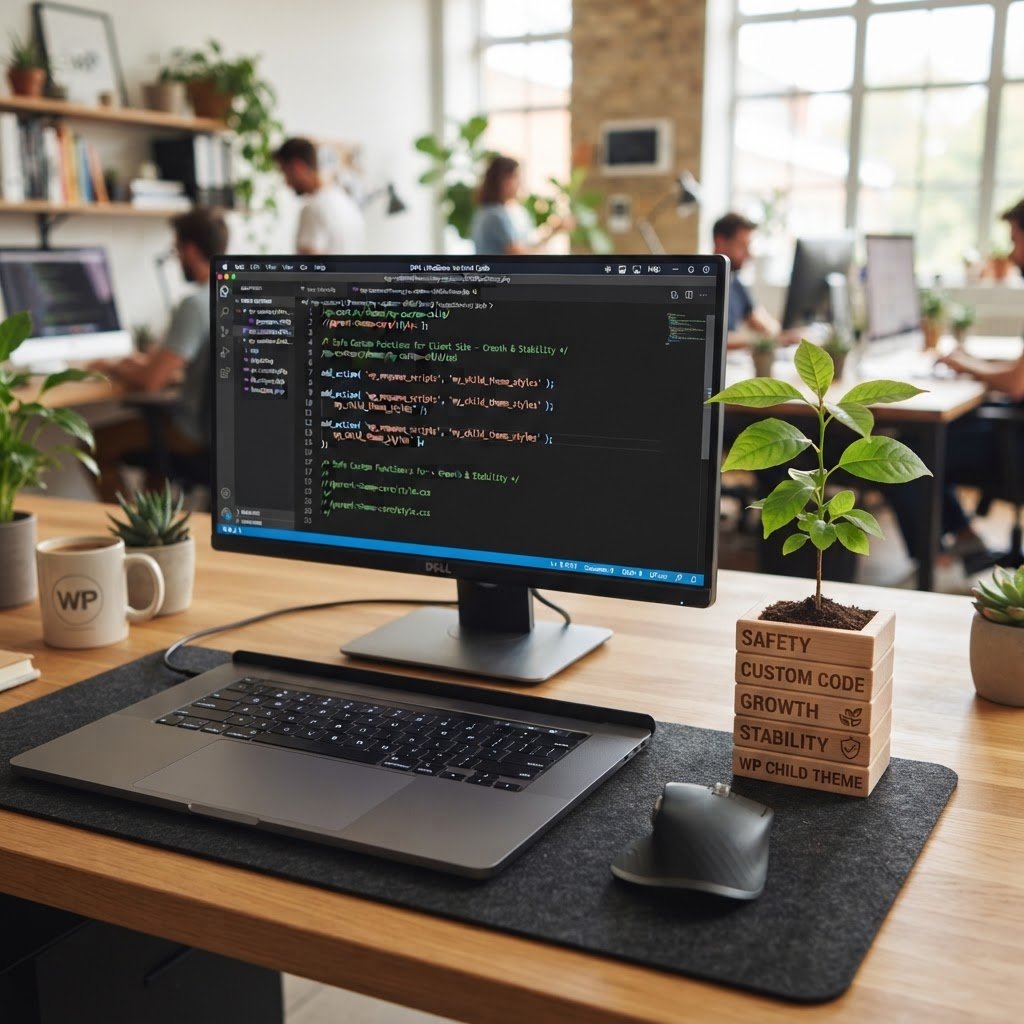
How to Add a Child Theme in WordPress (The Safe, Easy Way)
How to Add a Child Theme in WordPress (The Safe, No-Stress Way)
I remember getting that frantic call at 2 AM. A client had tried to change a few colors in their site code, hit save, and watched their entire screen turn stark white. Panic set in fast. They thought their business was gone. It was just a simple mistake in a parent theme file, but the damage felt massive. That is the nightmare scenario we avoid by using a child theme.
The 2am Wake-up Call
Talking Points:
* Why modifying parent themes causes site crashes.
* The danger of losing work during automatic updates.
* The emotional cost of unplanned site downtime.
Changing code inside your primary theme folder is like trying to fix the engine of a car while you are driving it down the highway. One wrong turn, and the whole thing stops. Most people assume that if they copy their site files, they are protected. But when the theme developer pushes an update, all your custom changes get wiped out. Poof. Gone in a second.
I have seen thousands of these disasters over the past two decades. The fix is almost always the same, but the anxiety it creates is unnecessary. You do not need to be a developer to keep your site safe from accidental wipes. You just need a better way to handle your design tweaks.
Understanding the Basics
Talking Points:
* Defining a child theme in simple terms.
* How template inheritance works behind the scenes.
* Why this setup preserves your sanity.
Think of a child theme as a transparent layer you place over your original theme. It pulls the look and feel from the parent but lets you add your own styles and functions on top. If something goes wrong in your layer, you just remove it. Your main site stays perfectly intact. It acts like a safety net for your design choices.
WordPress knows exactly how to handle this interaction through template inheritance. When a visitor lands on your page, the system checks your child theme first. If it finds a file there, it uses that. If not, it falls back to the parent. It is elegant, simple, and incredibly reliable.
Why You Need a Child Theme
Talking Points:
* Protecting customizations from theme updates.
* Maintaining clean code structures.
* Long-term site stability benefits.
When you buy a premium theme for fifty bucks, you want it to last. If you modify the core files, you become a prisoner to those outdated versions because you are scared to click the update button. That is how security holes happen. A child theme lets you update your parent safely every single time.
Keeping your custom work separate from the base theme is just good housekeeping. It makes debugging much easier when things start to act sluggish. You can always tell exactly what you changed versus what the theme author provided. That visibility is worth its weight in gold.
The Golden Rules of Customization
Talking Points:
* Keeping the folder structure organized.
* Mandatory files for a functional theme.
* Avoiding common setup pitfalls.
Before you start, make sure you have access to your site files. You will need a way to reach your wp-content/themes/ directory. Do not try to rush this part. A clean folder is the foundation of a stable site. You really only need two small files to get started.
Never edit the parent theme directly, even if you think a change is tiny. I have seen people break their entire navigation menu over a single line of CSS. Keep your hands off the parent files. Let them stay pristine for updates.
The Fast Track: Using a Plugin
Talking Points:
* When to use a plugin for setup.
* Pros of automated configuration tools.
* Speed versus manual control.
If you hate the idea of touching code files, there is an easy path. Several plugins exist just to create a child theme for you. They handle the folder creation and the files in a few clicks. It is perfect if you just want to get to work fast.
These tools follow all the best practices automatically. They generate your style.css and your base directory without you doing any heavy lifting. It is the best choice for anyone who just wants the job done without worrying about technical details.
The Pro Way: Manual Creation
Talking Points:
* Creating the directory in your theme folder.
* Crafting the style.css header information.
* Why the folder name matters for theme activation.
If you prefer to know exactly what is on your server, do it manually. Head into your site via FTP or your hosting file manager. Create a folder inside wp-content/themes/ that matches your parent folder name followed by a dash and the word child. Keep it simple and lowercase.
Inside that folder, create your style.css file. You need a header comment block to tell WordPress what this file is. Without that specific block, WordPress will not recognize your theme. It is a small detail that catches many beginners off guard.
Setting Up Your Files Correctly
Talking Points:
* The role of the functions.php file.
* Loading parent theme styles properly.
* Using the correct hook for stylesheets.
Your functions.php file is where you add your custom logic. It loads before the parent one, giving you plenty of power. You need to use the right command to tell WordPress to fetch the parent styles first. Gone are the days of using the old import method in CSS. It is slow and outdated.
We now use a specific hook called wp_enqueue_scripts to load everything cleanly. It ensures your styles load in the right order. This makes your site faster and prevents those weird flicker issues where the design looks broken for a split second.
Testing and Troubleshooting
Talking Points:
* Avoiding the white screen of death.
* Checking for syntax errors in code.
* Activating the theme and verifying results.
Before you make your site live, test the child theme in a quiet moment. If you see that dreaded blank screen, it means you have a typo in your PHP code. Take a breath. It happens to the best of us.
Simply rename your child theme folder via FTP to deactivate it. Your site will immediately revert to the parent theme. Now you can check your code, fix the typo, and try again. No harm, no foul.
Maintenance and Speed
Talking Points:
* Keeping code lean for performance.
* How frequent updates affect child themes.
* Auditing your changes periodically.
Your child theme should stay lean. Do not dump every piece of code you find online into your functions file. Every extra line adds a tiny bit of processing time. Keep it tidy and remove unused snippets when you find them.
Check for theme updates once a month. Since you are using a child theme, you can click update with total confidence. Your custom styles will stay exactly where you left them, completely untouched by the new version of the parent.
Alternatives to Child Themes
Talking Points:
* Using the WordPress Customizer for basic CSS.
* Relying on blocks for layout changes.
* Knowing when to skip the extra effort.
Sometimes, you do not even need a child theme. If you are only adding a few lines of CSS, the built-in WordPress Customizer works fine. It saves your changes in the database and they stick through updates too. It is a great way to handle minor tweaks.
If you are just changing text or adding a few images, stick to the editor. You do not need to create a whole new file structure for basic content updates. Use the right tool for the size of your project.
Your Command Center for WordPress Mastery
Keeping your site stable is about smart habits, not just luck. By using a child theme, you protect your hard work and give yourself the freedom to grow. You are no longer held back by the fear of breaking things. Take control of your site today and start customizing with peace of mind. Have you tried setting up a child theme yet, or are you still nervous about touching the code? Leave a comment and share your progress.
Frequently Asked Questions
1. Do I need to be a developer to create a child theme? No, you can follow simple steps or use a plugin to do it for you. It is a standard practice for every site owner.
2. Will my site break if the parent theme updates? Not at all. That is the whole point of a child theme. It keeps your custom changes safely separated so they survive updates.
3. Can I use a child theme for a theme I bought on a marketplace? Absolutely. Most premium themes are built to support child themes out of the box.
4. What happens if I delete my child theme? Your site will revert to the parent theme. If you deactivate the child theme, your custom changes will stop showing up on the front end.
5. Is it faster to use the WordPress Customizer instead of a child theme? For small CSS changes, yes. It is faster and easier for simple visual tweaks, while child themes are better for structural code changes.