How to Install WordPress: Step-by-Step Guide
How to Install WordPress: Your Ultimate Guide to a Smooth Setup
Introduction
If you’re like me, nothing’s more nerve-wracking than staring at a blank screen when you’re trying to launch your website. WordPress, the powerhouse behind over 40% of the web, can seem intimidating when you’re getting started. But trust me, with the right guidance, you can turn that anxiety into excitement. WordPress is not just a content management system; it’s a tool that empowers you to build and manage your online presence with ease.
Prerequisites: What You Need Before You Start
Before you hit that install button, let’s make sure you have everything lined up. First and foremost, you need a great hosting provider. Think of it as the land where your website will reside. Make sure it offers great uptime, support, and, yes, a one-click WordPress installation option can save you tons of headaches.
You’ll also want a domain name that reflects your brand. This is your online identity, so pick something catchy and memorable! Lastly, basic familiarity with FTP clients or cPanel can be a lifesaver when you need to manage files or troubleshoot issues later.
Method 1: One-Click Installation
Alright, let’s take the easy route first: the one-click installation. Quite simply, many hosting providers make this a breeze. Just log into your hosting account and look for the WordPress icon in your dashboard. With a few clicks, you can have the entire system set up in no time. It’s like getting your fast food instead of cooking dinner from scratch—easy and convenient.
Method 2: Manual Installation
If you’re feeling adventurous, here’s how to install WordPress manually:
Step 1: Download WordPress
Head over to [WordPress.org](https://wordpress.org/download/) and grab the latest version. Make sure to download it onto your computer. This is where the magic begins, so don’t skip this step!
Step 2: Create a Database
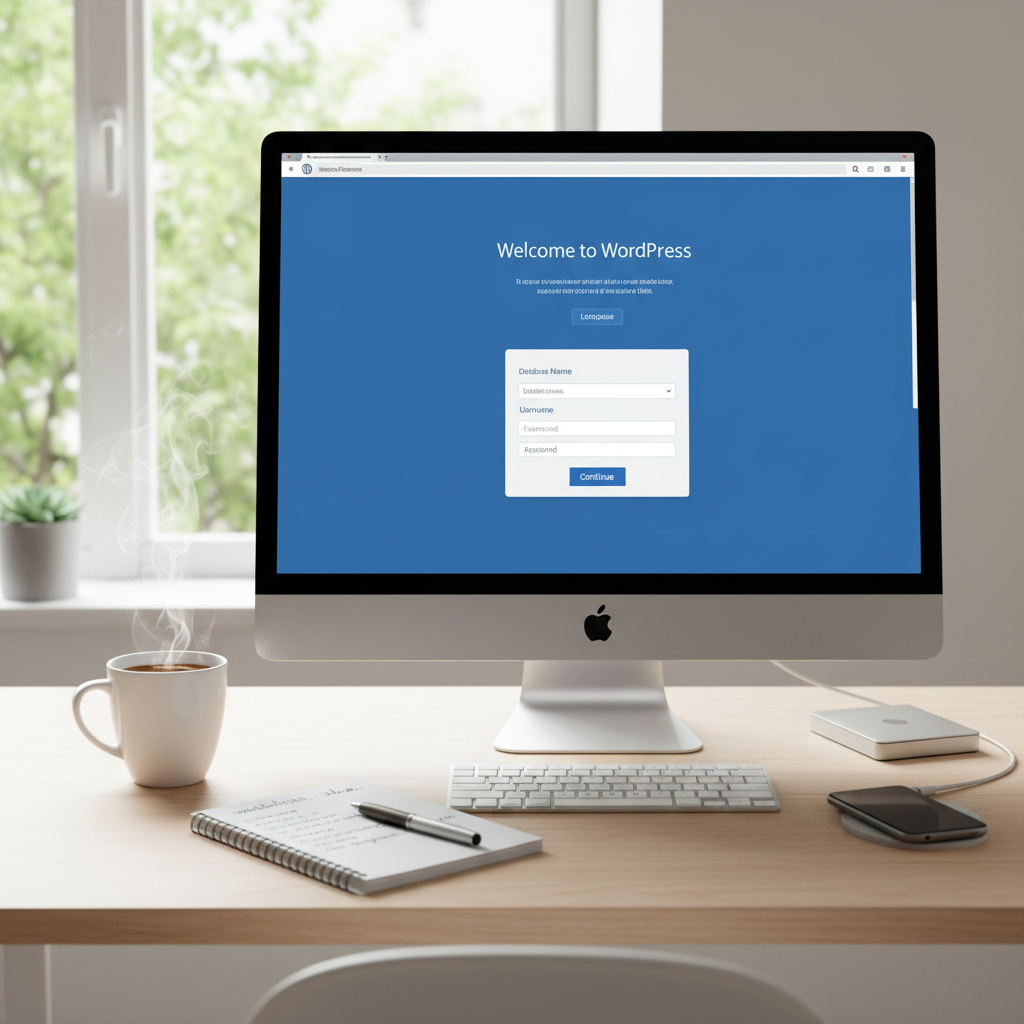
Using your hosting provider’s cPanel, find the MySQL Databases section, and create a new database. Note down the database name, username, and password. It may feel like trying to remember a combination lock, but I promise you’ll need this info later!
Step 3: Upload WordPress Files
Using an FTP client (FileZilla is a good choice), upload the WordPress files you downloaded to your new database folder. This part is like putting furniture in your new house. Make sure everything is in its right place!
Step 4: Configure wp-config.php
Find the wp-config-sample.php file in your WordPress folder and rename it to wp-config.php. Next, edit this file and fill in your database details: database name, username, and password. This step is crucial because this file tells WordPress how to connect to your database—like giving it the key to your front door.
Step 5: Run the Installation Script
Once everything is uploaded, go to your website’s URL. You should see the WordPress installation wizard. Follow the prompts: choose your language, create an admin account, and enter your site’s title. With a few clicks, you’re almost there!
Post-Installation Steps: What to Do Next
After the installation, it’s time to personalize your site. Dive into themes that appeal to you—this is your chance to express your personality or brand. Install essential plugins for added functionality, like SEO tools or security features. Don’t forget to set up permalinks for better SEO! Trust me—having searchable URLs can make a huge difference.
Common Issues and How to Resolve Them
Come across the notorious “White Screen of Death”? Don’t worry; it’s more common than you think. Usually, this happens due to plugin or theme issues. Disable them through FTP and reactivate one by one to find the culprit.
Is your site loading slower than a snail? Check for conflicts among plugins and consider a caching plugin. Speed matters, and a slow site can drive away your audience faster than you can say “bounce rate.” And always keep backups of your site. Regularly using a backup plugin can save you from significant headaches later.
Conclusion: You’re Ready to Go!
So there you have it! Whether you chose the one-click installation or manually uploaded files, you’re armed with the knowledge to set up WordPress. Embrace your newfound skills and add your unique flair—every website out there began somewhere, and yours is no exception. Don’t hold back!
By sharing your experience or tips in the comments, you can help others who might be stuck. Let’s make the WordPress community stronger together!
Frequently Asked Questions
1. What if I encounter the White Screen of Death?
This common issue often arises from a plugin or theme conflict. Use FTP to deactivate plugins one by one to identify the culprit.
2. Can I install WordPress on a local server?
Yes, tools like XAMPP or MAMP allow you to set up a local server and install WordPress for testing or development.
3. Why should I worry about website security?
Securing your website with an SSL certificate and strong plugins is crucial to protect your data and your visitors’ info.
4. How often should I back up my WordPress site?
Regularly, ideally weekly or after making significant changes. Use backup plugins for automatic solutions.
5. What themes are recommended for beginners?
Themes like Astra or GeneratePress are user-friendly and highly customizable, perfect for those just starting.