Mastering WordPress Database Cleanup: A Manual Guide
Mastering WordPress Database Cleanup: The Plugin-Free Manual Guide
Sometimes, your WordPress site feels more like a junk drawer than a sleek digital space. Those random files, ineffective plugins, and forgotten settings can accumulate, leading to sluggish performance. Ever had that moment, maybe at 2 AM, when you’re staring at the dreaded White Screen of Death? Frantic thoughts race through your mind: What’s gone wrong?
Well, you’re not alone! Efficient database management isn’t just for developers; it’s essential for anyone wanting a fast, reliable site without the extra cost of plugins. Let’s roll up our sleeves and tackle this head-on using some good ol’ manual methods. It’s all about understanding your data and applying some straightforward techniques!
The 2 AM Wake-Up Call: Signs Your Database Is Choking Your Site
Talking Points:
- Common signs of a cluttered database.
- The impact of database bloat on load times.
- Recognizing when cleanup is necessary.
If you’ve ever found yourself clicking refresh on your site multiple times without a response, your database might be out of control. When your server takes forever to respond or your site’s pages load like molasses, it’s time to investigate the health of your database.
Heavy database loads lead to bottled-up queries. You might notice the number of database queries spiking during each page load. If it’s climbing into the hundreds for a simple page, something’s amiss. Monitoring this can feel overwhelming, but tools like your browser’s Developer Tools can help identify what’s eating up your resources.
The Golden Rule: Why Manual Backups Are Non-Negotiable
Talking Points:
- Importance of backups.
- How to create a backup manually.
- Tools and methods for effective backups.
Before you panic and start deleting anything, always back up your database. I learned this lesson the hard way when deleting the wrong entries led to a site outage. A manual backup is your safety net! You can use phpMyAdmin to export your database, ensuring everything is preserved before any cleanup begins. Always start with this step for peace of mind.
Proactive Prevention: Taming Post Revisions Via wp-config.php
Talking Points:
- Understanding post revisions.
- Modifying wp-config.php to limit revisions.
- Benefits of controlling revisions.
Post revisions can be sneaky little things! Each time you save a draft, WordPress creates a new entry in your database. Over time, those piles of revisions accumulate, wasting significant space. You can adjust this in your `wp-config.php` file to limit how many revisions are saved. Simply add this line:
`define( ‘WP_POST_REVISIONS’, 5 );`
It limits revisions to five for each post, reducing clutter without losing too much history.
Step-by-Step: Cleaning Up Transients and Expired Cache
Talking Points:
- What are transients?
- Why expired transients are an issue.
- Methods for clearing expired transients manually.
Expired transients can clutter your database, remaining like stubborn guests at a party. They don’t clear out automatically, which means you’re often left with an unwanted mess. You can navigate to your database in phpMyAdmin and run SQL queries to clean these up quickly. Here’s a handy query:
`DELETE FROM wp_options WHERE option_name LIKE (‘%_transient%’);`
Just remember, be careful with manual queries!
Hunting for Junk: How to Identify and Purge Orphaned Metadata
Talking Points:
- Understanding orphaned metadata.
- Identifying this clutter in the database.
- Safe methods for removing orphaned entries.
Orphaned metadata can bloat your database without you even realizing it. If you’ve ever deleted a post or plugin and noticed remnants sticking around, that’s your cue! You can get rid of these by running a query to find and delete orphaned entries. Running `DELETE FROM wp_postmeta WHERE post_id NOT IN (SELECT id FROM wp_posts);` will clear out those stray records, giving your database a big breath of fresh air.
The Big Performance Killer: Managing Autoloaded Options in wp_options
Talking Points:
- What are autoloaded options?
- Why large autoloaded options can slow down your site.
- Strategies to identify and clean up autoloaded data.
The wp_options table is essential, but if the autoloaded options grow too large—over 1MB, in fact—you might face serious performance issues. Each request to your site pulls these options into memory, and that can lead to slower server response times. Check the size of your autoloaded options and consider trimming unnecessary entries to speed things up.
SQL Masterclass: Safely Running Delete Queries in phpMyAdmin
Talking Points:
- Executing SQL cleanup commands.
- Common queries to optimize your database.
- Tips for safe query execution.
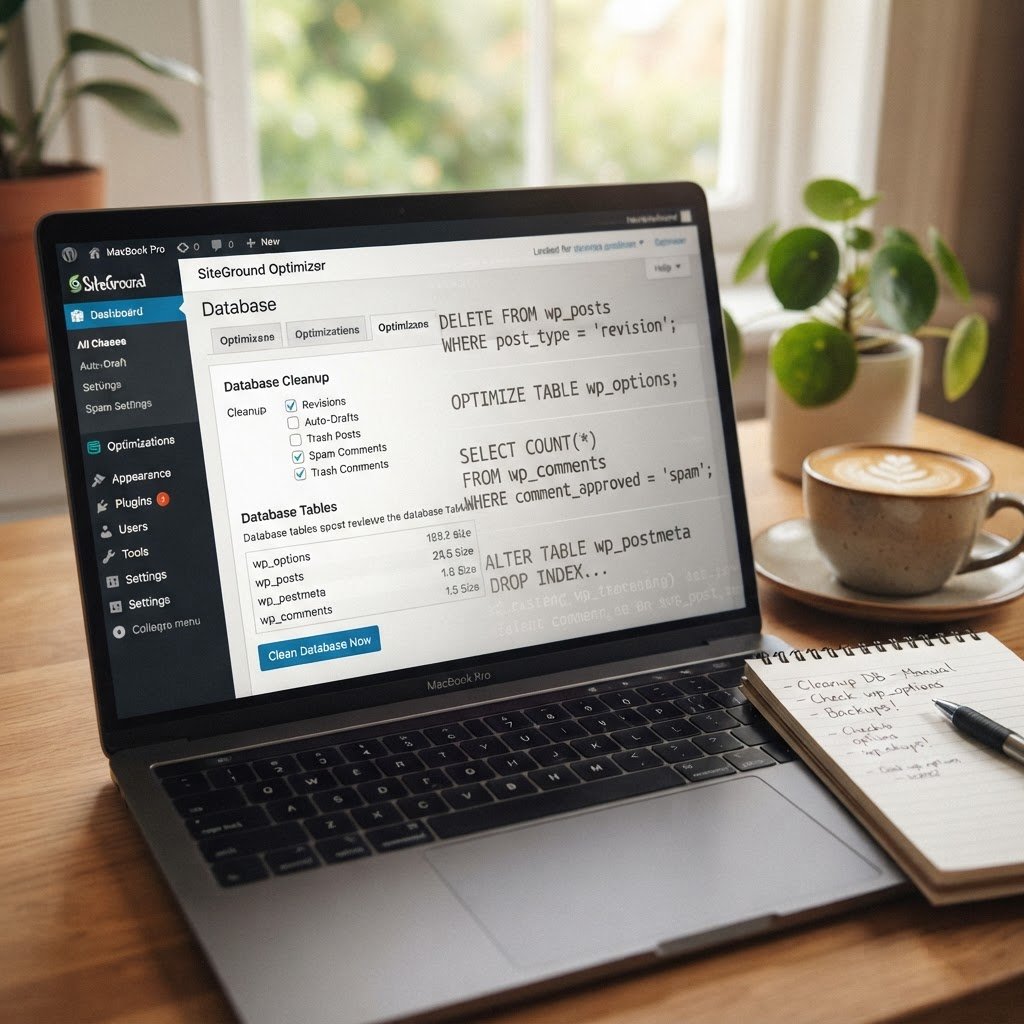
When you venture into phpMyAdmin, be cautious but confident. Running SQL queries can drastically reduce bloat. If you’ve done your homework and made backups, you’re ready to execute commands like `OPTIMIZE TABLE wp_posts;`. Regularly tuning your tables keeps the database performing slick.
Final Polish: Reclaiming Space With the OPTIMIZE TABLE Command
Talking Points:
- Understanding the function of the OPTIMIZE command.
- When to run this command.
- The impact on database performance.
Running the `OPTIMIZE TABLE` command may feel like a simple step, but it has significant benefits. This command reclaims space in your database, reducing fragmentation and ensuring your queries run smoother. Do this regularly, especially after major cleanup tasks!
Beyond the Cleanup: Building a Recurring Maintenance Strategy
Talking Points:
- Importance of ongoing database maintenance.
- Setting up a maintenance schedule.
- Tools for self-monitoring and reminders.
Just because you’ve cleaned up doesn’t mean your work is done. Think of it like cleaning your apartment; it needs regular upkeep. Establish a schedule for database maintenance, maybe once a month. Using tools like WP-CLI can automate some of this for you, making sure your database remains in tip-top shape.
Conclusion: Your Command Center for a Lean, Lightning-Fast Site
Cleaning up your WordPress database doesn’t have to be a daunting task. Become familiar with your database, understand what’s slowing it down, and take action! By doing so, you’re setting the stage for a faster, more efficient site. I encourage you to apply these practices regularly and customize them to fit your specific needs. Share your experiences or any tips you discover in the comments—let’s learn from each other!
Frequently Asked Questions
1. What are the signs my WordPress database needs cleanup?
If your site is loading slowly, showing the White Screen of Death, or requiring more database queries than usual, it may be time for cleanup.
2. How can I back up my database without plugins?
You can use phpMyAdmin to export your database as an SQL file, ensuring you have a manual backup before making changes.
3. What’s an autoloaded option, and why should I manage it?
Autoloaded options are configurations loaded on every page request. Managing them reduces server load, enhancing site speed.
4. Can I safely remove post revisions?
Yes, limiting post revisions in your `wp-config.php` file can help manage clutter and improve performance.
5. What if I accidentally delete the wrong entries?
Always back up before making changes. If something goes wrong, you can restore your database using your backup.