How to Install WordPress Plugins Safely | WP Site Deck
How to Install WordPress Plugins: The Definitive Guide to Doing It Safely
Ah, the infamous White Screen of Death! It feels like a punch in the gut, doesn’t it? You’re up late, enjoying a rare quiet moment, and out of nowhere, your WordPress site decides to throw a tantrum. If you’ve ever faced this nightmare, you know the dread of dealing with plugin issues, especially when it could all go down at 2 AM. With about 80% of WordPress websites relying on plugins, getting this right is essential. Let’s navigate the messy waters of plugin installations — safely!
Why Plugin Choice Matters
Talking Points:
- Importance of quality over quantity.
- Risks associated with poorly coded plugins.
- Impact on site performance and security.
When I first started using WordPress, I loaded up on plugins like they were candy. My reasoning? The more, the merrier, right? Spoiler alert: my site slowed to a crawl, and I learned the hard way that not all plugins are created equal. Choosing plugins wisely is crucial; poorly coded or outdated plugins can bloat your site and open it up to security vulnerabilities. According to reports, a whopping 91% of new WordPress vulnerabilities arise from plugins. That’s a staggering statistic that highlights the importance of vetting what you install!
The Golden Rule: Backing Up Your Site
Talking Points:
- Regular backups as a safeguard.
- Methods for backing up sites.
- Importance of both files and database backups.
Before even looking at how to install a WordPress plugin, remember this: always back up your site! Regularly saving both your site files and database can save you endless heartache. Seriously, if something goes haywire because of a new plugin, having a backup means you can restore your site to its former glory in no time. I can’t tell you how many times I wished I’d taken this precaution before hastily adding a new plugin.
Method 1: Installing via the WordPress Admin Search (The Beginner Way)
Talking Points:
- How to access the plugin directory.
- Steps to search for and install plugins.
- Tips on choosing trustworthy plugins.
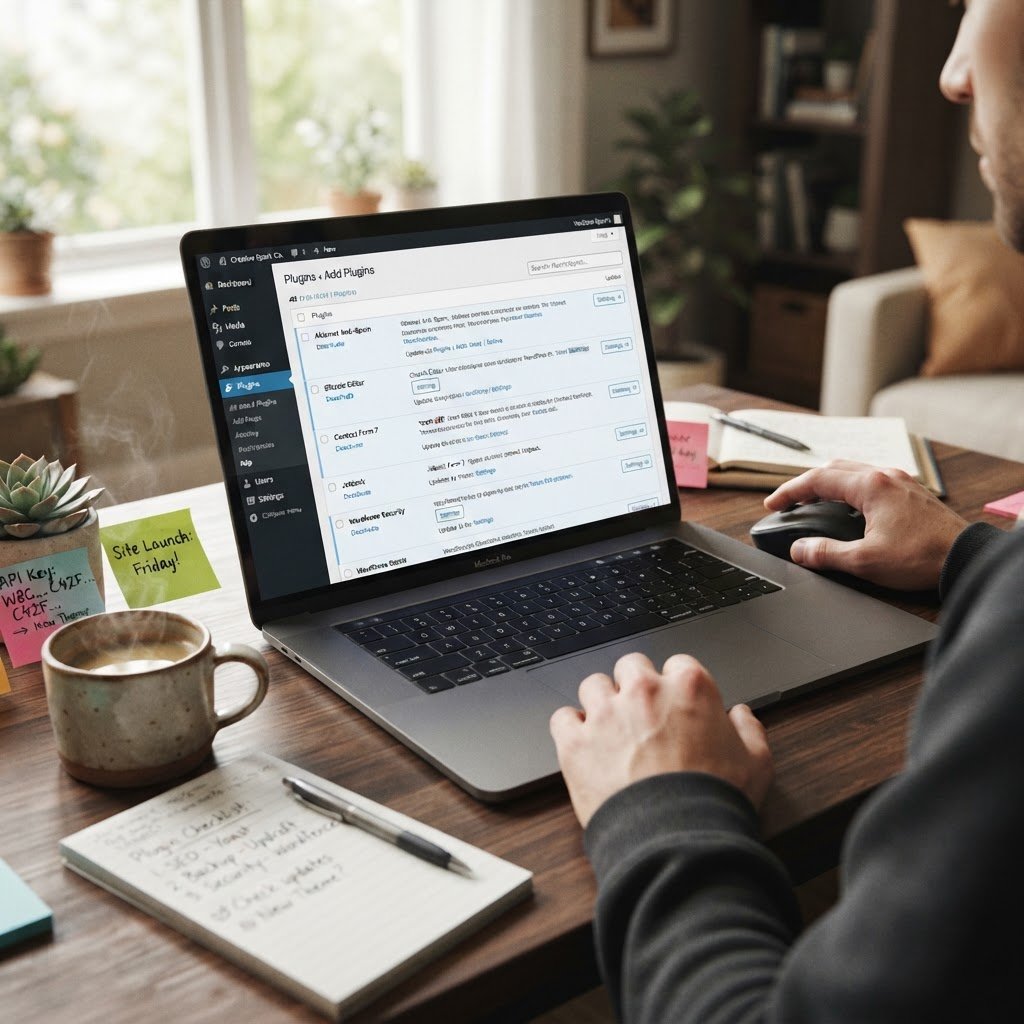
This is the easiest method, hands down. Just log into your WordPress dashboard and head over to Plugins > Add New. From there, you can search the WordPress Plugin Directory. Look at ratings and reviews to ensure you’re picking a solid plugin. Once you find one you like, hit Install Now. Final step? Activate the plugin, and you’re off to the races! This is how I install most of my plugins; it’s user-friendly and straightforward.
Method 2: Installing via ZIP File Upload (For Premium/Custom Plugins)
Talking Points:
- Why you might choose this method.
- Steps to upload a ZIP file.
- What to do after installation.
Purchasing premium plugins? You’ll usually receive a ZIP file. To install via ZIP, go to Plugins > Add New, then click Upload Plugin. Select the file and hit Install Now. After it’s done, activate it, and you’re set! I remember feeling like I’d won the lottery the first time I successfully uploaded a premium plugin. Just remember, always check compatibility with your current WordPress version and existing plugins to avoid conflicts.
Method 3: The Advanced Path: Manual Installation via FTP/SFTP
Talking Points:
- Steps to manually upload plugins using FTP.
- Advantages of manual installations.
- Tips for using FTP clients.
Now, if you’re feeling fancy or need to install a plugin that’s not on the official directory, FTP is your best buddy. Connect to your server using an FTP client like FileZilla. Upload the unzipped plugin folder to /wp-content/plugins/. Once you’re done, head back to your WordPress dashboard and activate the plugin. Updating via FTP can be a lifesaver when things go haywire, but it can be intimidating at first. I remember my nervous hands fumbling around with FileZilla. Don’t sweat it; you’ll get the hang of it.
Post-Installation: Critical Setup and Configuration Steps
Talking Points:
- Accessing plugin settings.
- Importance of configuring plugins properly.
- Common adjustments to look for.
Alright, you’ve installed your plugin. Now what? First things first, go through the plugin’s settings and configure it to fit your needs. Every plugin is different, so explore its options. Sometimes I’ve left settings at default and regretted it later because they didn’t align with my goals. Familiarize yourself with features like caching settings or API integrations that may need your input. Adjusting these can dramatically influence your site’s performance.
Safety Checklist: How to Evaluate if a Plugin is Reliable
Talking Points:
- Evaluating user ratings and feedback.
- The importance of checking update history.
- Understanding developer credibility.
Before you install anything, do a bit of digging! Check user ratings and feedback — a high rating accompanied by recent reviews typically indicates a good plugin. Look at update history; if a plugin hasn’t been updated in a while, it might be a red flag. Also, consider who the developer is; reputable developers usually provide better support and more secure coding practices. Don’t just take it on faith; do some detective work!
Troubleshooting: What to Do When a Plugin Breaks Your Site
Talking Points:
- Signs that a plugin is causing issues.
- Steps to troubleshoot effectively.
- When to seek expert help.
Ah, the dreaded moment when a plugin ruins your hard work! Common signs include a site slowdown or features not working. To troubleshoot, try deactivating the last plugin you installed. If it’s broken your site, you’ll usually know immediately. Sometimes, it might even be a conflict between two plugins. If after some detective work you can’t resolve the issue, don’t hesitate to reach out for help. Trust me; I’ve had to call in reinforcements more than once!
Maintenance: Updating, Deactivating, and Deleting Unused Plugins
Talking Points:
- Why regular updates are crucial.
- The importance of deactivating unused plugins.
- How to efficiently manage your plugins.
Keeping your plugins updated is non-negotiable. Updates often include security patches and performance improvements, so make sure you check for them regularly. If you stumble upon a plugin that you no longer use, deactivate and delete it. Unused plugins can pile up and pose a security risk. I often set aside time each month to manage my plugins — deleting what’s unnecessary and updating what’s essential.
Conclusion: Your Command Center for WordPress Mastery
Navigating the world of WordPress plugins doesn’t have to be overwhelming! Following these steps can simplify the process, make your site run smoother, and keep you out of the clutter. Whether you’re a beginner or have some experience under your belt, knowing how to install, configure, and maintain your plugins is vital for a healthy WordPress site. Have you had your own plugin horror stories or triumphs? Share your experience below in the comments!
Frequently Asked Questions
1. Can I install multiple plugins at once?
Yes! You can select multiple plugins in the WordPress dashboard and install them simultaneously. However, ensure that you check each plugin’s compatibility to avoid conflicts.
2. What do I do if my site crashes after installing a plugin?
If your site crashes, try accessing your WordPress admin area and deactivate the plugin. If you can’t access the backend, you can use FTP to rename the plugin folder in the /wp-content/plugins/ directory.
3. How often should I update my plugins?
Regular updates are crucial! Aim to check for updates once a week to ensure your site runs smoothly and securely.
4. Is it safe to use free plugins?
While many free plugins are safe, always check user ratings, reviews, and the developer’s credibility. Look for plugins from the official WordPress directory, which have undergone basic code reviews for quality and security.
5. What should I do if a plugin conflicts with my theme?
Firstly, you can deactivate the plugin to identify the conflict. If the issue persists, consult with the theme developer or the plugin’s support for possible fixes or alternative plugins.