WordPress for Beginners: Your Complete Guide
WordPress for Beginners: Your Ultimate Guide to Building a Successful Website
Talking Points:
- Importance of WordPress in web development.
- Common frustrations faced by beginners.
- Overview of the user-friendly aspects of WordPress.
Ever been stuck at 2 a.m. trying to figure out why your site gave you the dreaded white screen of death? It’s one of those moments that can leave even the best of us feeling completely helpless. WordPress is like a trusty friend in those times—available around the clock, ready to help, and surprisingly simple to get started. As someone who’s spent over 20 years guiding folks just like you through the ebbs and flows of website creation, I can assure you that with WordPress, you’re not just launching a site—you’re kickstarting a journey towards online success.
Let’s dive deeper into how this platform can transform your ideas into a vibrant website!
Getting Started: Choosing the Right Hosting and Domain Name
Talking Points:
- Importance of good hosting providers.
- Selecting a domain name that fits your brand.
- Different types of hosting options.
Choosing the right hosting provider is vital. A good host keeps your site up and running smoothly, ensuring visitors don’t face lag or downtime. My first website experience was with a host that struggled to keep up with traffic—total nightmare! Don’t fall into that trap. Look for well-rated hosts like Bluehost or SiteGround; they make WordPress installations a breeze.
Next on the list is your domain name. This is essentially your website’s address, and it’s crucial for branding. Choose something memorable and easily spellable. It helps if your domain reflects your content. For instance, if your website is about baking, consider incorporating ‘bake’ into the name. Remember, a creative domain often gives an edge!
Lastly, explore different types of hosting: shared, VPS, dedicated, or managed WordPress hosting. Each comes with its pros and cons, depending on how big you plan to grow your site. Don’t be afraid to invest a little extra for reliability—it pays off in peace of mind.
Installing WordPress: A Step-by-Step Guide
Talking Points:
- Simple installation methods for WordPress.
- Manual vs. automated setups.
- Post-installation checks.
Alright, now let’s get WordPress installed! You can use either automatic or manual methods. Most reputable hosts offer one-click installations—super easy! Just follow the prompts, and before you know it, you’ll have a fresh WordPress site.
If you’re feeling adventurous, you can manually install WordPress. Download the zip file from the official website, upload it to your server, and fill out necessary details. Be warned; this can feel a bit technical, but if you follow the steps closely, it’s doable.
After installation, log in to your admin dashboard. Take a moment to run through the settings. Poking around helps you get familiar with your new domain; you can set up your site title, tagline, and even change user permissions if needed. It’s about making the space yours!
Selecting and Installing Themes: Designing Your Site
Talking Points:
- Importance of themes in defining site aesthetics.
- How to choose themes based on your website’s purpose.
- Steps to install themes easily.
Your chosen theme speaks volumes about your site. It’s like putting on your favorite outfit! WordPress has a huge library of themes, so you can find something that perfectly reflects your brand and style. Don’t rush this part—taking your time to pick the right theme sets the tone for everything.
After choosing, installing a theme is straightforward. From your dashboard, navigate to Appearance > Themes, and click on Add New. You can either install free themes right from the library or upload a premium one that you’ve purchased from a marketplace.
And don’t forget to customize! Tweak colors, fonts, and layouts until it feels just right. Don’t worry if it doesn’t look perfect right away; this is a work in progress, and you’ll have plenty of time to adjust as you learn more.
Essential Plugins: Enhancing Functionality
Talking Points:
- Overview of what plugins do for your website.
- Recommended essential plugins for beginners.
- How to install and manage plugins effectively.
Plugins are the secret sauce that makes WordPress so versatile! They add functionality to your site without needing to code. Picture this: you want to add a contact form or improve your SEO—there’s a plugin for that! Think of plugins like your website’s toolbelt.
For starters, install a few must-haves: Yoast SEO for search optimization, WooCommerce if you’re selling products, and Akismet for spam protection are fantastic choices. Each of these can help you enhance your website’s performance and protect it from unwanted shenanigans.
To install a plugin, go to Plugins > Add New from your dashboard. Search, click install, and activate. Easy peasy! Regularly check for updates to keep everything running smoothly.
Creating Content: Adding Pages and Posts
Talking Points:
- Differences between pages and posts.
- Best practices for creating engaging content.
- Structuring content for SEO and user experience.
Now comes the fun part—creating content! This is where you get to shine and share your voice with the world. First, know the difference between pages and posts: pages are static, like your “About” or “Contact” pages, while posts are time-sensitive and appear in a blog format.
When creating content, think about your audience. Ask yourself: What problems can I solve for them? Keep your writing clear and engaging—use short paragraphs and subheadings to break things up. And always include visuals to make your posts more appealing.
Don’t forget to optimize for SEO! Use keywords naturally throughout your content, include meta descriptions, and add alt text for images. This way, you not only engage readers but also increase your visibility on search engines.
Customization: Tailoring Your Site to Your Needs
Talking Points:
- The importance of personalization for brand identity.
- Tools and widgets for customization.
- Making navigation user-friendly.
Customization is where you truly make your WordPress site your own. This step is not just about aesthetics; it’s about creating an experience that resonates with your audience.
Start with your site identity: logo, color scheme, and typography should align with your branding. Tools like Elementor can help you create page layouts visually without any coding. Think of creative navigation items and widgets that can enhance user experience, like search bars, calendars, or social media links.
A good rule of thumb is to keep your navigation simple. Users shouldn’t be confused about how to find what they’re looking for. A clean menu structure can significantly improve user experience and reduce bounce rates.
Security Measures: Protecting Your Website
Talking Points:
- Common security threats for WordPress sites.
- Essential security plugins to consider.
- Regular maintenance checks for vulnerability.
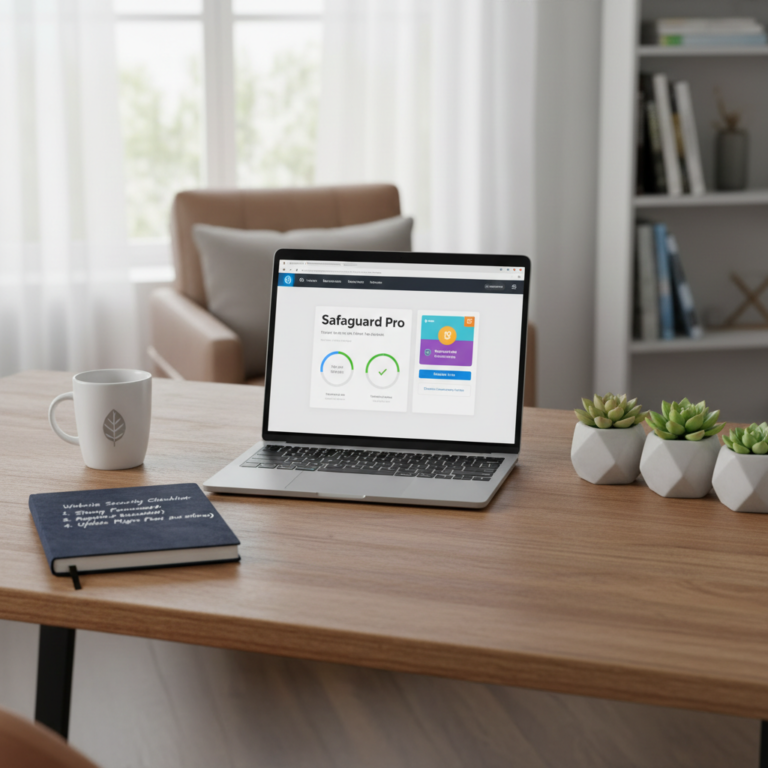
Let’s be real; the internet is like the Wild West. Your WordPress site needs protection! Hackers and bots are lurking, waiting for vulnerable spots, and you don’t want to become an easy target.
Be proactive with security plugins like Wordfence and Sucuri—they help shield your site and monitor for threats. Also, keep your WordPress version and all plugins updated. Regular maintenance is key to avoiding nasty surprises.
Consider using a reliable backup solution, like UpdraftPlus or BackupBuddy, so you can quickly restore your site if anything goes wrong. Trust me—backups are your safety net in this digital world.
SEO Best Practices: Improving Visibility
Talking Points:
- Importance of SEO for success.
- Key elements of effective SEO.
- Tools to help optimize your website.
SEO isn’t just a buzzword; it’s how your audience finds you online. Without it, you’re like a needle in a haystack. Start with the basics: keyword research, metadata, and quality content are your best friends.
Balance is crucial. Aim to target relevant keywords, but don’t overstuff. Google’s looking for natural language that flows. Use tools like Google Analytics and SEMrush to monitor your traffic and optimize your strategies.
Regularly producing high-quality, valuable content is also necessary. The more you post, the more opportunities you have to engage users. It builds your authority and helps you climb the search results.
Troubleshooting: Common Issues and Their Solutions
Talking Points:
- Frequently faced problems by WordPress users.
- Steps to troubleshoot common issues.
- Resources for finding help and solutions.
We’ve all been there—facing off against a frustrating issue. Whether it’s the infamous white screen, broken links, or plugin conflicts, troubleshooting is part of the game.
Start with the basics. Clear your browser cache and deactivate plugins one by one to pinpoint the culprit. If you’re getting a white screen, try enabling debug mode to see what’s going wrong. Sometimes, the devil is in the details!
WordPress forums and communities can be incredibly helpful. When in doubt, just search for your issue, and chances are someone else has experienced it too. You’re not alone in this!
Conclusion: Your Journey to WordPress Mastery
Building a successful WordPress website isn’t just about aesthetics or functionality; it’s about creating a platform that resonates with your audience. We covered a lot—from choosing the right host to crafting killer content and maintaining security. Remember, each piece you build contributes to your overarching goals.
So, whether you’re selling handmade jewelry or sharing baking recipes, let your website reflect your passion! Don’t hesitate to experiment, refine, and learn along the way. And please, I’d love to hear your stories! Share your experiences or any tips you’ve picked up along the way in the comments below.
Frequently Asked Questions
1. What is the best hosting provider for WordPress beginners?
A: It really depends on your needs, but Bluehost and SiteGround are highly recommended for their customer support, reliability, and easy WordPress integration.
2. How often should I update my WordPress plugins?
A: Ideally, you should check for updates weekly or at least monthly. Keeping plugins updated helps maintain security and functionality.
3. Can I use the same theme for multiple WordPress sites?
A: Yes, you can use the same theme across different sites. Just make sure you customize each one to fit its purpose!
4. What are the best practices for optimizing my content for SEO?
A: Use relevant keywords naturally, create quality content, optimize images, and leverage meta descriptions to help search engines understand your pages.
5. How do I resolve the white screen of death in WordPress?
A: You can start by deactivating all plugins and switching to the default theme. Then, reactivate them one by one to identify the problem.