Ultimate Guide to WordPress Tutorials | Master Your Site
Your Ultimate Guide to WordPress Tutorials: Master Your Site Today
Did you know that WordPress powers nearly 43% of all websites? That’s right! You’re not alone if you find yourself waking up at 2 a.m. staring at a blank screen or frantically Googling ways to fix a slow-loading site. WordPress has its quirks, but with the right tutorials, you’ll feel empowered to tackle any issue and optimize your site like a pro. Let’s be real: we’ve all had those “Oh no, what now?” moments. Whether it’s a pesky plugin conflict or figuring out how to speed up your load time, you’re in the right place.
Heading into the world of WordPress can feel overwhelming for beginners and seasoned users alike. That’s why I’m sharing my go-to WordPress tutorials to help you navigate through common hiccups and enhance your site effectively. You’ll learn how to customize with themes and plugins, resolve issues, and even secure your site. With each guide you master, you’re not just fixing problems; you’re gaining confidence and expertise to make your WordPress journey smoother.
Getting Started with WordPress: A Step-by-Step Guide
Talking Points:
- How to set up your initial WordPress site
- Choosing the right hosting and domain
- Basic layout and functionality customization
Let’s kick things off with your first steps. Setting up a WordPress site might seem daunting, but it doesn’t have to be. First, you’ll want a solid hosting provider. I can’t stress this enough—choose one that specializes in WordPress. Once you’ve got that squared away, you’ll need to pick a domain. Make it catchy but relevant to what you plan to share or sell.
With your domain in hand, it’s time to install WordPress. Many hosting services provide a one-click install feature. Seriously, it’s as easy as clicking a button! Then, you’ll access your WordPress dashboard, which might look a bit stark at first. Don’t worry. It’s a friendly place filled with options to customize.
Start by picking a theme that suits your vision. There are thousands available. Some are free; others might cost a few bucks. Take your time to experiment, because a great theme can elevate your site’s look and feel dramatically. Trust me, you’ll want to feel excited every time you load it!
Common WordPress Issues and How to Resolve Them
Talking Points:
- Fixing the White Screen of Death
- Troubleshooting plugin conflicts
- Handling slow load times effectively
Now, let’s talk about the gray clouds hovering over WordPress users—the dreaded errors. One of the scariest moments I had was when my site went completely blank, a horror known as the “White Screen of Death”. When that happens, you might feel a wave of panic. But fear not! The first step is to disable plugins and switch to a default theme. This can shed light on what’s causing the issue.
Another common nuisance is plugin conflicts. I’ve encountered this too, and it can be frustrating. If you notice unexpected behavior after adding a new plugin, try deactivating it. If the issue resolves, you’ve found your culprit. Still, don’t forget to check if your plugins are up to date. Outdated plugins can compromise your site’s performance.
Lastly, let’s discuss load times. A sluggish website is like wading through molasses. To speed things up, consider using caching plugins, optimizing images, and minimizing the use of heavy scripts. Monitoring your website’s speed regularly requires attention but saves you from losing visitors.
Optimizing Your WordPress Site for Speed and Performance
Talking Points:
- Importance of website speed
- Tools to measure performance
- Tips for optimization
You might wonder: Why is speed such a big deal? Think about it—if your site takes ages to load, visitors will bounce. This isn’t just about user experience; Google loves speedy sites, and you’ll want those rankings! Tools like Google PageSpeed Insights can help you measure your speed and suggest improvements. I bet you didn’t know that something as simple as optimizing your images can have a massive impact!
Another fantastic way to enhance your performance is by using a Content Delivery Network (CDN). By distributing your content across various servers worldwide, you ensure faster loading times for users, no matter where they are. Remember, even small tweaks, like limiting the number of posts displayed on a page, can help improve load time.
Enhancing WordPress Security: Best Practices
Talking Points:
- Importance of website security
- Common security threats
- Simple security measures to implement
Security should be a top priority for everyone running a WordPress site. I know, it feels like a daunting task, but it’s all about adopting the right practices from the start. A common threat is hacking, which can happen more easily than you think. Just the other day, I read about how a simple vulnerability allowed hackers to take control of a site. Scary, right?
To keep your site safe, begin by using strong passwords and enabling two-factor authentication. You can also consider security plugins like Wordfence or Sucuri, which monitor your site and protect against malware.
Regular backups are crucial as well. Trust me, nothing is worse than spending hours on a site, only to lose it due to a hack. Have a backup solution in place—plugins like UpdraftPlus can automate this for you, making the process a set-it-and-forget-it deal.
Customizing Your WordPress Site: Themes and Plugins
Talking Points:
- Exploring themes for look and feel
- Plugins to enhance functionality
- Best practices for customization
Customizing your site is where the magic happens! Choosing the right themes can totally transform your site’s appearance—like a fresh coat of paint. But with so many themes out there, how do you choose? Look for those that are responsive and SEO-friendly; that’s the best combo for design and functionality.
Then comes plugins. These tiny tools pack a significant punch concerning what your site can do. Whether you’re adding a contact form or optimizing for SEO, the right plugin choices elevate your site to the next level. Just be mindful—not every plugin is secure. It helps to read reviews and check for regular updates from the developers.
Customization doesn’t stop there. Always maintain a child theme when making modifications to your theme—this way, if an update occurs, your changes won’t vanish into the ether.
Maintaining Your WordPress Site: Regular Updates and Backups
Talking Points:
- Importance of regular updates
- Scheduling backups
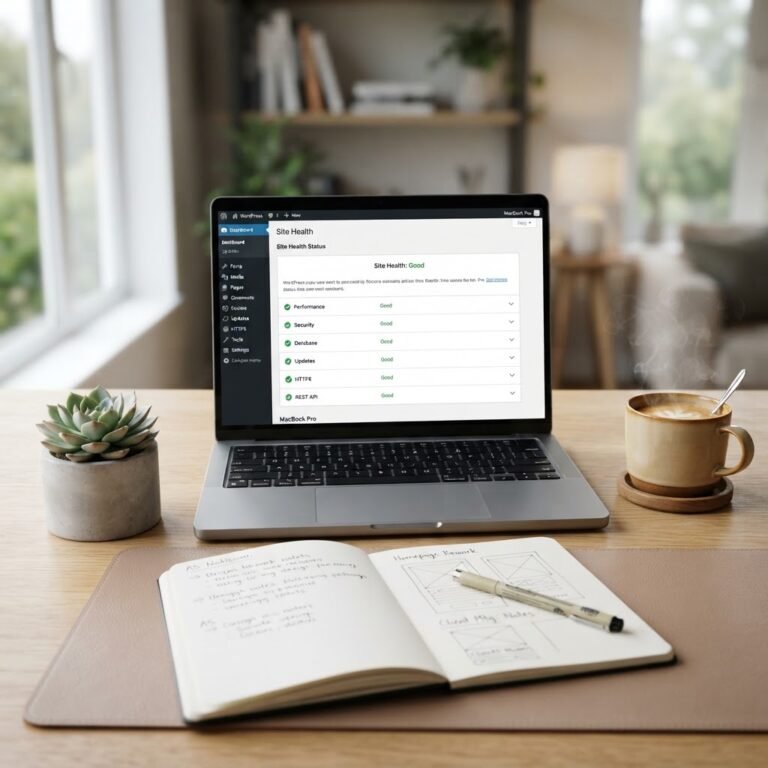
- Monitoring overall site health
Once your site is live, the work doesn’t stop! Regular maintenance is crucial to keeping your site healthy. Think of it as a car needing servicing; without it, you risk breakdowns. Check for updates for your themes and plugins every couple of weeks. Missing an update might expose vulnerabilities.
Don’t overlook backups! If something catastrophic happens, you’ll want peace of mind knowing you can restore your site quickly. Set up automated backups, and schedule them to occur during off-peak hours. Trust me, maintaining a routine can save a lot of heartache.
Advanced WordPress Techniques: Multisite Networks and Custom Post Types
Talking Points:
- What is a multisite network?
- Benefits of custom post types
- When to implement these techniques
For those looking to push boundaries, advanced techniques like multisite networks can be intriguing. A multisite setup is perfect if you manage multiple sites under one roof. Just be cautious—this can get complex quickly. Easy to navigate, but it requires some understanding of network administrative responsibilities.
Then we have custom post types. If you require content that doesn’t fit the traditional blog post, creating custom post types can help. For instance, if you’re running an e-commerce site, you might want to customize how your products are displayed or what information users see.
Dive into the documentation WordPress provides; understanding how to implement these techniques can set your site apart.
Conclusion: Empowering Your WordPress Journey
Taking control of your WordPress site is a journey, one filled with learning and discovery. Every tutorial you follow adds another tool to your toolbox, empowering you to address issues with confidence and skill. Remember, mistakes will happen—that’s how we learn!
So, whether you’re troubleshooting your site or adding new features, stay curious and keep exploring. I’d love to hear your own experiences or tips. What have you learned on your WordPress adventure? Share your stories in the comments!
Frequently Asked Questions
1. What is the White Screen of Death in WordPress?
The White Screen of Death is when your WordPress site turns entirely blank, often due to plugin conflicts or theme issues. To resolve it, deactivate all plugins and switch to a default theme.
2. How often should I update my WordPress site?
You should check for updates at least every two weeks. Keeping your themes and plugins up to date helps prevent security vulnerabilities.
3. What are some essential plugins every WordPress site should have?
Key plugins include an SEO plugin like Yoast, a security plugin like Wordfence, a caching plugin for speed, and a backup solution like UpdraftPlus.
4. Can I customize my WordPress theme?
Yes, WordPress allows customization of themes through its built-in editor or by creating a child theme, ensuring your changes are safe from updates.
5. How can I enhance my site’s speed?
To improve site speed, optimize images, use a caching plugin, limit the number of external scripts, and choose a high-quality hosting provider.