Essential WordPress Backup Solutions for Security
WordPress Backup Solutions: Your Ultimate Guide to Site Security
Introduction: The Importance of WordPress Backups
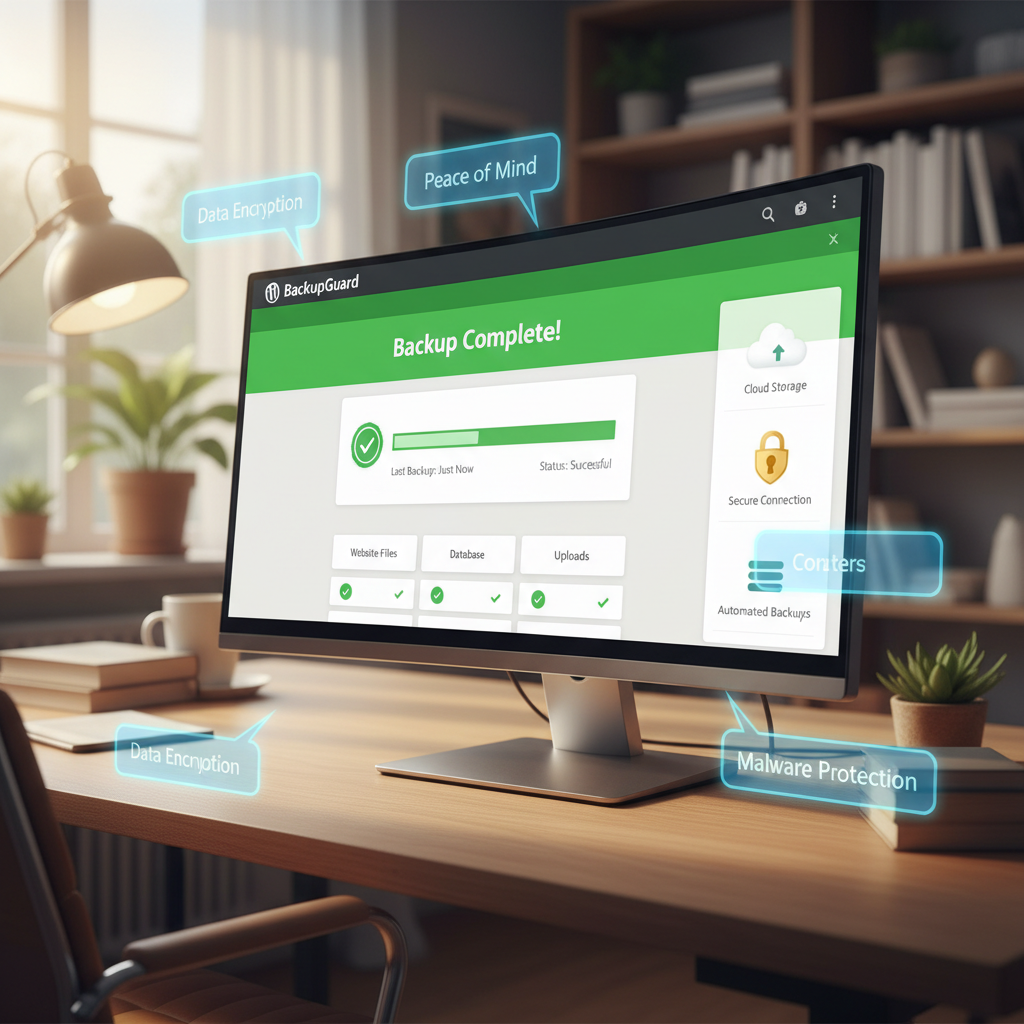
If you’ve ever stared at a blank screen late at night, wondering where your beautiful WordPress site went, you’re not alone. That dreaded “White Screen of Death” can strike at the worst possible moment, leaving site owners in a panic. Backing up your WordPress site is not just a good practice; it’s an absolute necessity for maintaining your peace of mind and ensuring your site’s security. Whether you’re a casual blogger, an online store owner, or a developer managing multiple websites, backups will save you from losing your hard work. In this comprehensive guide, we will dive into WordPress backup solutions, helping you understand their importance, the common issues that necessitate them, and how to choose the best option for your needs.
Common WordPress Issues That Make Backups Essential
1. Plugin and Theme Failures
One of the most common issues users face is plugins or themes that don’t play well together. Often, an update might introduce compatibility issues that can break your site. When this happens, having a recent backup is crucial. It allows you to revert to a stable version without losing your content.
2. Malware and Hacking Threats
WordPress is a popular target for hackers, and if they gain access to your site, the consequences can be dire. Backups protect you from loss in the event of a security breach. Regularly backing up your site means you can restore to a clean version quickly.
3. User Errors
Accidentally deleting a crucial post or page can happen to anyone. One moment of carelessness can lead to lost time and frustration. With an up-to-date backup, you can recover lost data without stress.
4. Server Failures
Web hosting providers can experience hardware failures or other issues that may take your site offline. While many hosts offer some level of backup service, it’s best to always have your backups in place to ensure your data survives any technical mishaps.
Top WordPress Backup Solutions
There are numerous WordPress backup solutions available, but we’ve narrowed it down to some of the most reliable ones that cater to different needs and budgets.
1. UpdraftPlus
With over 3 million active installations, UpdraftPlus is the most popular backup plugin for WordPress. It offers a comprehensive free version that allows you to schedule backups and choose cloud storage options such as Google Drive, Amazon S3, and others. If you’re looking for advanced features like incremental backups and priority support, the premium version is a great choice.
2. BlogVault
Trusted by over 4 million websites, BlogVault stands out for its reliability and efficient restoration process. It’s a premium backup solution that offers features like real-time backups, testing environments, and one-click restores. BlogVault also provides a robust security solution to boost your site’s defenses.
3. Jetpack VaultPress Backup
Jetpack’s VaultPress offers real-time incremental backups, capturing every change as it happens. This means you never miss any updates or modifications on your site. With one-click full site restores and decent customer support, it’s an excellent choice for those who want peace of mind.
4. BackupBuddy
BackupBuddy is a premium plugin that allows you to easily schedule and restore backups. It comes with features like database and file backups, and you can store your backups in various locations. It’s a flexible option for those who want to manually control their backup process.
5. WPvivid Backup & Migration
Although it has faced scrutiny due to critical security flaws, WPvivid still boasts over 900,000 active installations. It allows for migration and scheduled backups, catering to users looking for basic features. However, caution is warranted, and users should keep an eye on security updates before relying solely on this plugin.
How to Choose the Right Backup Solution for Your Site
Choosing the right WordPress backup solution depends on your site’s specific needs and your technical expertise. Here are factors to consider:
1. Budget
Assess whether you prefer a free or premium solution. Free plugins typically offer basic features, while premium options come with advanced capabilities that may be necessary for larger sites or e-commerce platforms.
2. User Friendly
Look for a backup solution that is easy to set up and manage. Some plugins provide guided setup processes while others may require more technical knowledge.
3. Storage Options
Check if the backup solution offers various storage options, like Dropbox, Google Drive, or Amazon S3. Multiple location backups provide an extra layer of security, ensuring that your data is not all in one place.
4. Restore Options
Consider how easy it is to restore backups from the plugin. A quick and straightforward restore process can save you significant time and frustration in emergencies.
5. Customer Support
Look for plugins that offer good customer support. The more support you have, the smoother your experience will be, especially when you need to resolve unexpected issues.
Setting Up and Managing Backups: A Step-by-Step Guide
Let’s walk through the steps of setting up and managing backups using a popular choice, UpdraftPlus.
Step 1: Install UpdraftPlus
– Go to your WordPress dashboard, navigate to Plugins > Add New.
– Search for “UpdraftPlus” and click “Install Now.”
– Activate the plugin after installation.
Step 2: Configure Backup Settings
– Navigate to Settings > UpdraftPlus Backups.
– Click the “Settings” tab.
– Choose your remote storage option (e.g., Google Drive).
– Set your backup schedule for both files and database as per your preference.
Step 3: Initiate Your First Backup
– Once your settings are saved, return to the UpdraftPlus dashboard.
– Click on the “Backup Now” button to initiate your first manual backup.
Step 4: Restoring Backups
– To restore a backup, go to the UpdraftPlus dashboard.
– Look for existing backups listed there and click on “Restore” next to the desired backup you want to recover from.
– Follow the prompts to complete the restoration process.
Step 5: Monitor Your Backups
– Regularly check your UpdraftPlus settings to ensure your backups are running smoothly.
– Make changes as needed, especially if you notice any issues.
Best Practices for WordPress Backup and Restoration
To maximize your site’s security and minimize potential downtime, consider implementing the following best practices:
1. Back Up Regularly
Set automatic backups to ensure you always have the latest data stored safely. Frequency may depend on how often you update your site; daily backups may be necessary for active sites.
2. Test Your Backups
Periodically, make sure to test your backups by restoring them to ensure they work as intended. This cannot be overstated, as a backup is only as good as its ability to restore data accurately.
3. Keep Multiple Backup Versions
Storing multiple versions of your backups can be beneficial, allowing you to go back to different points in time based on your site’s requirements.
4. Implement Security Measures
Consider additional security measures, like using a security plugin, to further protect your site and backups from potential threats.
5. Stay Updated
Ensure both your WordPress and plugins are up to date. Keeping your site up to date decreases the chances of encountering issues that can lead to data loss.
Conclusion: Safeguarding Your WordPress Site with Reliable Backups
In conclusion, regular backups are a necessary part of managing a WordPress site. Whether you’re dealing with plugin conflicts, security threats, or simple user errors, a solid backup solution means you can handle these challenges with confidence. By knowing the top WordPress backup solutions available, practicing good backup management, and implementing the best practices outlined in this guide, you will not only secure your site but also ensure that your stress level stays low even in the face of adversity. Don’t wait for an emergency to take action – start backing up your site today, and enjoy peace of mind knowing that you are prepared for anything.
—
Meta Title:
WordPress Backup Solutions: Complete Your Site’s Security with Our Guide
Meta Description:
Discover the essential guide to WordPress backup solutions. Learn about the importance of backups, top tools, how to choose the right one, and best practices. Don’t let data loss affect you – safeguard your site today!