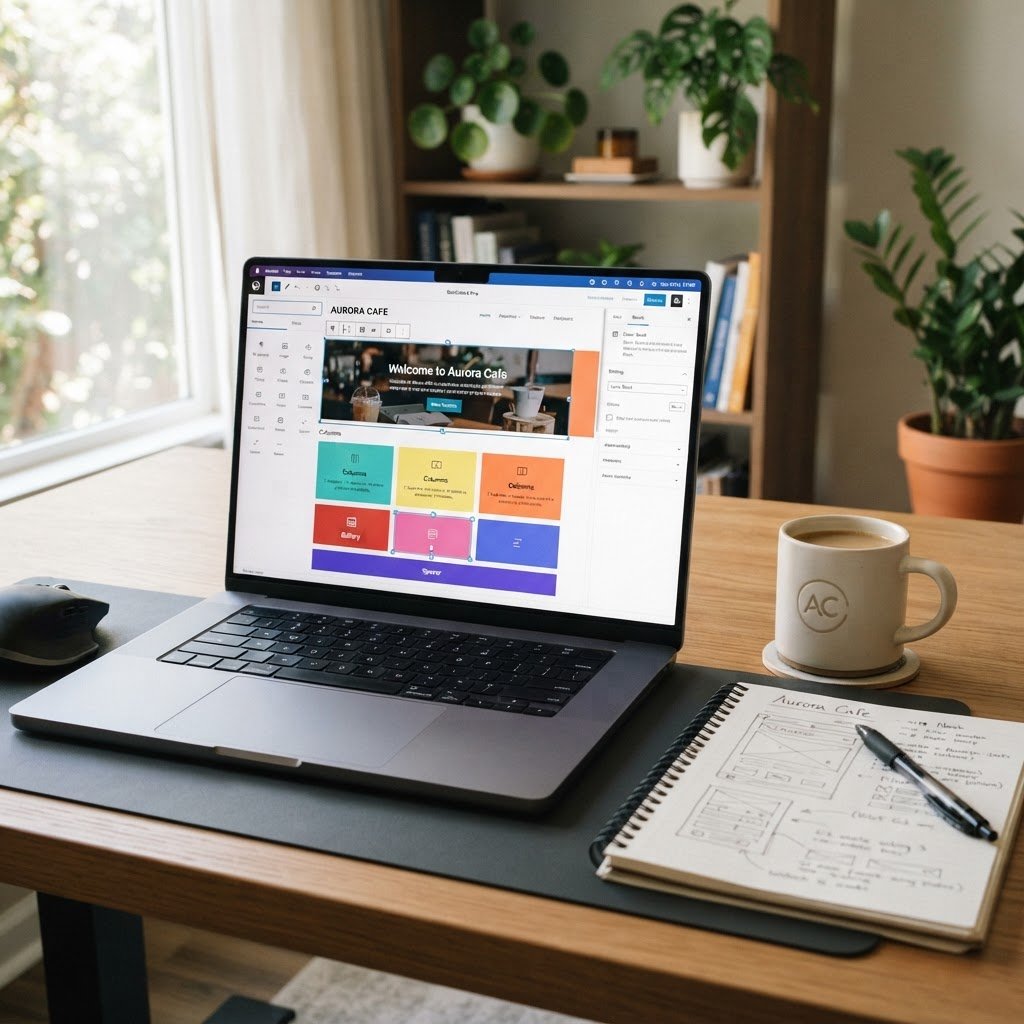
WordPress Block Themes Tutorial: Master Full Site Editing
WordPress Block Themes Tutorial: Master Full Site Editing Without the Code
Talking Points:
* The evolution of WordPress design paradigms.
* Why old methods fail under modern pressure.
* The shift toward block-centric architectures.
I remember staring at my screen at 3 AM, sweat beading on my forehead. My site was blank, just a white void staring back at me. That was the classic WordPress experience. You spent hours hunting through PHP files, hoping you wouldn’t break the entire layout. Everything changed when the Gutenberg editor arrived. Now, we use a block-based interface to build sites that actually behave.
WordPress powers 41.9% of all websites globally, yet most users still treat it like a static document editor. That is a mistake. The modern web demands speed and fluidity. When you shift your mindset from writing pages to building components, you stop fighting the software. It feels good to finally have control over your own headers and footers.
What Exactly is a Block Theme?
Talking Points:
* Defining block themes via component architecture.
* Eliminating the dependency on external page builders.
* Understanding the move away from rigid PHP templates.
A block theme is a collection of templates made entirely of blocks. No more messy theme options panels that clutter your dashboard. Instead, you use the Site Editor to drag, drop, and style your entire layout. It is pure visual freedom.
These themes rely on a central configuration file known as theme.json. This single file controls your global design settings like colors, typography, and spacing. Think of it as the brain of your site. It keeps everything consistent across every single page.
Most legacy themes used custom PHP files to dictate how a site looked. If you wanted to change the sidebar, you had to hire a developer or pray you didn’t break the CSS. Block themes remove that barrier entirely. You own your design now.
Block Themes vs. Classic Themes: Key Architectural Differences
Talking Points:
* Comparing structural requirements for theme files.
* How widget zones changed into template parts.
* Why dynamic content rendering is faster now.
Classic themes are like old houses with fixed walls. You can paint the walls, but you cannot move the kitchen without serious renovation. You rely on widgets and sidebar areas that the developer predetermined for you. It is a rigid, often frustrating experience.
Full Site Editing (FSE) changes the blueprint. A block theme uses HTML templates that contain blocks. You can swap headers, footers, and content areas with a few clicks. It is flexible architecture that lets you rearrange your house without a sledgehammer.
This shift simplifies the WordPress site architecture. You no longer need a dozen plugins to manage your site layout. The core software handles the heavy lifting, which makes your site lighter and more responsive. It is a smarter way to build.
Why Your Site Needs the Speed and Flexibility of Block Themes
Talking Points:
* Reducing bloat by avoiding page builder overhead.
* Improved rendering times via block-specific loading.
* Keeping site maintenance simple and effective.
Bloat kills performance. Every extra line of unnecessary code slows down your page load, and visitors hate waiting. Many classic themes carry thousands of lines of unused code. It is digital dead weight that keeps you off the first page of search results.
Block themes offer improved performance potential because they load styles only for the specific blocks rendered on a page. If a page does not need a specific script, the site does not load it. Your server works less, and your users get a lightning-fast experience.
Flexibility is the other big win here. You can adjust your layout in seconds. Need a new call-to-action block on your blog footer? Drag it in and save. You never touch a line of code, and the design remains clean and professional.
Getting Started: Finding and Installing Your First Block Theme
Talking Points:
* Locating themes in the official repository.
* Understanding the preview process for block layouts.
* Testing theme compatibility with existing plugins.
Installing a block theme feels just like installing any other theme. You go to your dashboard, select Appearance, and hit Add New. The difference is what happens next. You get access to the Site Editor, which unlocks total control over your theme’s appearance.
Look for themes that clearly state they support full site editing. You will see more of these every day. In 2026, 44.2% of new theme submissions are block-based. It is a massive shift that is making the ecosystem much more standardized and reliable.
Before you hit activate, check your current site plugins. Some older page builders might conflict with the new editor. Set up a staging site first. It saves you from that 3 AM panic attack I mentioned earlier.
The Command Center: Navigating the Site Editor
Talking Points:
* Accessing the visual interface for templates.
* Managing global settings versus page-specific content.
* Training your eye to see blocks, not pages.
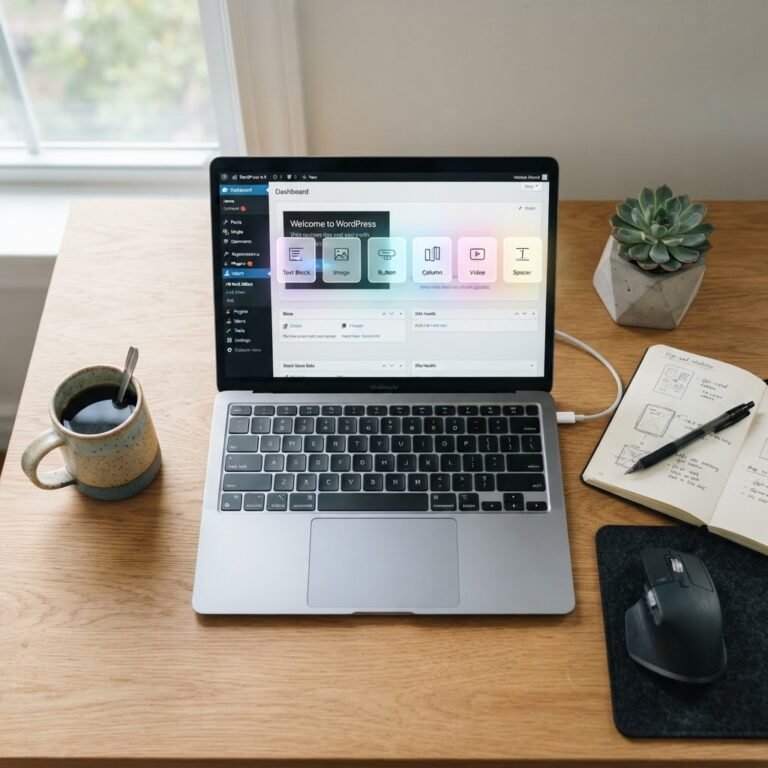
The Site Editor is your new workspace. It is where you design the skeleton of your site. You can edit the header, the footer, and the layout of your archive pages in one place. It is a unified experience.
When you open the editor, pay attention to the list view. It helps you see the nested structure of your blocks. This makes it easy to select the right group or column without clicking the wrong item. It is a small feature that saves massive amounts of time.
Practice changing a single element, like your site logo size. See how it updates across the whole site instantly? That is the power of a cohesive system. You are no longer editing page by page. You are managing the site design as one complete unit.
Customizing Your Look: Using Global Styles and Design Tokens
Talking Points:
* Editing colors and typography globally.
* Using design tokens for consistent spacing.
* Avoiding site-wide design inconsistencies.
Global styles are the hidden gem of block themes. You can change your brand color once, and it updates every button and link on your site. This is how pros maintain a polished look. No more hunting for hex codes on individual pages.
Design tokens act as the rules for your site. They define your spacing, font sizes, and border widths. If you want a consistent “airy” feel, you set those tokens in the Site Editor once. Everything stays aligned automatically.
I used to spend hours fixing mismatched font sizes. Now, I set my global typography settings and forget about it. It keeps the design clean and intentional. Your visitors will notice the difference, even if they cannot explain why.
Mastering Layouts: Working with Templates and Template Parts
Talking Points:
* Breaking down pages into reusable components.
* Organizing template parts for efficient updates.
* The role of HTML templates in site architecture.
Think of your site as a collection of parts. Your header is one part. Your footer is another. When you define these as template parts, you gain incredible efficiency. You update the header in one place, and your entire site reflects that change.
Templates dictate how specific pages look. You might have one template for blog posts and another for static pages. By using these distinct templates, you keep your site organized and easy to scale. You never have to manually update your sidebar on fifty different pages again.
This structure helps when you need to change your design. Want to try a new sidebar layout? Create a new template and apply it. It is safer, faster, and much cleaner than modifying individual PHP files. Your site becomes a machine built to handle change.
Speeding Up Your Workflow with Block Patterns
Talking Points:
* Leveraging pre-made collections of blocks.
* Customizing patterns to fit your branding.
* The speed advantage of using library components.
Why build from scratch every time? Block patterns are pre-designed collections of blocks that you can drop into any template. Need a contact section or a pricing table? Grab a pattern. It is like having a professional designer building your page in real-time.
You can even create your own custom patterns. Build a section you love, save it, and reuse it across your site. It keeps your design language consistent without repetitive labor. I have a library of patterns for my most common layout needs.
Patterns are the secret to moving fast. You spend less time moving blocks around and more time refining the actual content. It is the most practical way to professionalize your workflow without hiring a team.
Troubleshooting Common Block Theme Hiccups
Talking Points:
* Handling issues with plugin compatibility.
* Addressing CSS conflicts during the switch.
* Solving rendering issues with template parts.
Things go wrong. That is life in web development. When you start with a block theme, your biggest hurdle will likely be conflicting plugin styles. Some plugins try to force their own CSS, which can clash with your theme.json settings.
If something looks weird, check the block settings in the inspector. Often, a margin or padding value was overridden by a plugin. You can usually fix this by resetting the block’s alignment. Keep your plugin list lean to avoid these issues.
If you get stuck, the community support forums are your best friend. Most block theme errors are common. Someone else has likely fixed it already. Do not hesitate to search for your specific issue if you feel overwhelmed.
Moving from Classic to Block: A Strategy for a Smooth Transition
Talking Points:
* Assessing the risks of a theme switch.
* Gradual migration plans for large sites.
* Preserving content and design integrity.
Switching from a classic theme to a block theme is not a trivial task. Do not try to rush it. If you have a massive site, start with a sub-page. Test how your content renders in the new block-based system before you commit.
Watch out for custom CSS that you added to your old theme. It will not automatically move over. You need to identify those custom adjustments and move them into your new theme.json settings or global styles. It takes time, but it results in a cleaner, faster site.
Remember, classic themes are still supported. You do not have to jump immediately. Make the switch when your site is ready for a refresh. Take your time, test everything, and enjoy the new flexibility.