WordPress Multisite Network Management: Expert Guide
Mastering WordPress Multisite Network Management: Your Ultimate Guide to Seamless Operations
Talking Points:
- Centralized management of multiple sites
- Sharing themes and plugins effectively
- Importance of user roles and permissions
I remember the first time I attempted to set up a WordPress Multisite network. Late at night, staring at the screen, I could practically hear the digital crickets chirping. I thought, “This is going to be a piece of cake.” Spoiler alert: it wasn’t! Between the plugin conflicts and the infamous white screen of death, I quickly realized how vital it is to get this right. Something as simple as a misconfigured user role could send my entire network spiraling. Managing a WordPress Multisite isn’t just about juggling multiple sites—it’s a dance of coordination, performance optimization, and ensuring no site gets left behind. Let’s get into it!
Understanding WordPress Multisite: A Unified Approach to Multiple Sites
Talking Points:
- What is WordPress Multisite?
- Benefits of a Multisite network
- Key configurations for setup
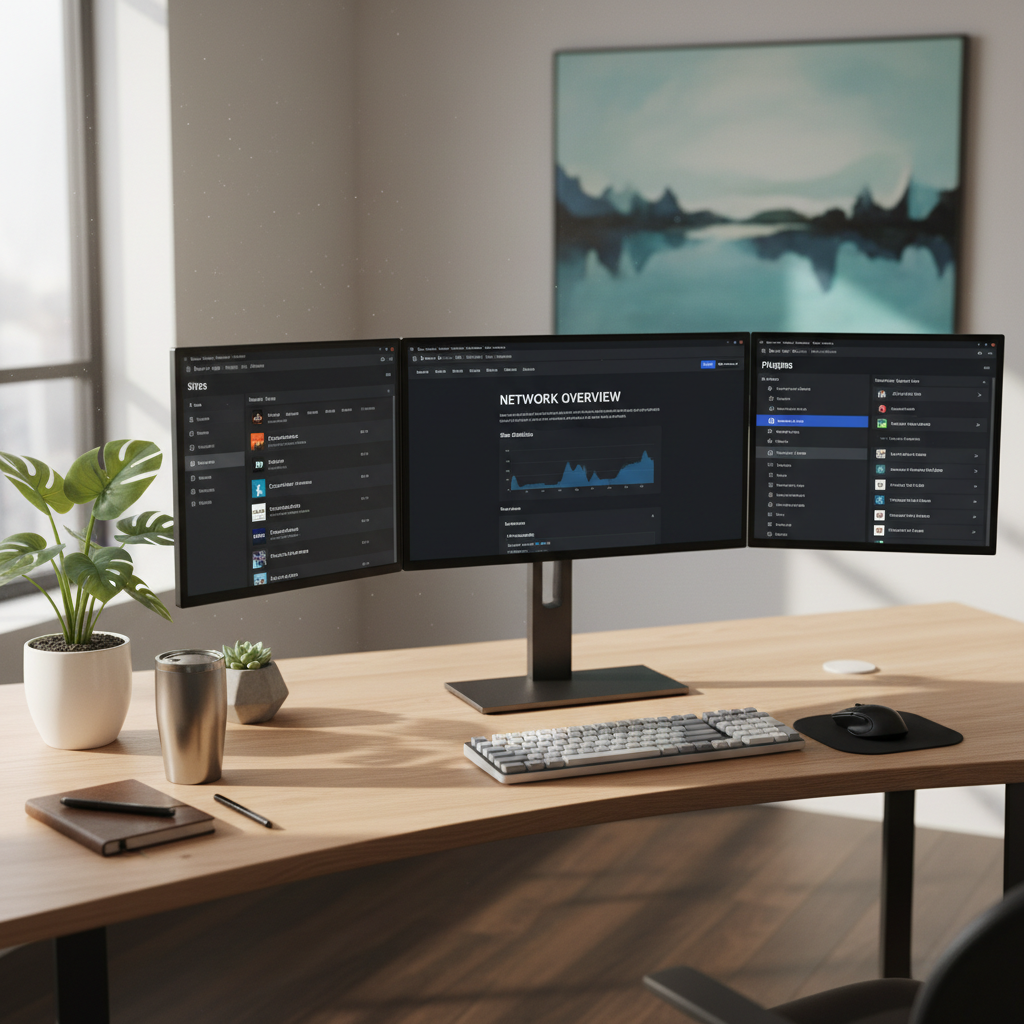
So, what exactly is a WordPress Multisite? For the uninitiated, it’s like having a command center from which you can manage multiple websites under one WordPress installation. Imagine streamlining your updates, plugin installations, and even user management—all from a single dashboard. It’s not just about convenience; it’s about efficiency and centralizing resources. You can share themes and plugins across sites instead of installing them individually, saving time and reducing possible plugin conflicts.
Implementing a WordPress Multisite setup has many benefits. It’s particularly beneficial for businesses with multiple brands or for educational institutions managing multiple student sites. But beware! Mismanagement can lead to nightmares that keep you up at night.
Setting Up Your Multisite Network: Step-by-Step Guide
Talking Points:
- Preparing your server and prerequisites
- Enabling Multisite in WordPress
- Creating your first site
Setting up your WordPress Multisite network is straightforward if you follow the steps carefully. First, ensure your hosting supports Multisite (some shared hosts might not be up for the task). You’ll want to start off by enabling the network feature within your WordPress installation by modifying your `wp-config.php` file. It might feel overwhelming at first, but it’s genuinely just a few lines of code.
Once you’re all set with the configuration, creating your first site can feel like a triumph. But remember, user roles play a critical role here. Assign them wisely! You wouldn’t want someone with edit rights messing up your hard work.
Best Practices for Managing Your Multisite Network Effectively
Talking Points:
- User roles and permissions management
- Regular maintenance routines
- Keeping plugins and themes updated
When managing a Multisite network, adopting best practices is crucial for smooth sailing. Focus on user roles first. It’s tempting to give everyone admin access, but the principle of least privilege is your best ally here. Just because someone can doesn’t mean they should.
Implement routine maintenance checks—think backups, updates, and performance reviews. It’s better to spend a little time proactively rather than dealing with a catastrophe later. I speak from experience! Keeping plugins and themes updated can save you from numerous headaches down the line.
Common Pitfalls in Multisite Management and How to Avoid Them
Talking Points:
- Ignoring backups can be disastrous
- Overlooking plugin compatibility
- Neglecting performance checks
Mistakes are a part of learning. But there are some blunders you can avoid. The biggest pitfall? Ignoring backups. Yes, backing up every site might seem tedious, but it’s crucial. Think of it this way: if one site crashes, do you really want to risk losing everything else?
Another common mistake is overlooking plugin compatibility. Not all plugins work seamlessly within a Multisite. Do your homework and test them thoroughly before deployment. It’s frustrating when a plugin update causes chaos across your sites.
Optimizing Performance: Ensuring Speed and Reliability Across All Sites
Talking Points:
- Importance of caching solutions
- Evaluating server resources
- Monitoring site performance
In the world of WordPress Multisite management, performance is king. Users expect quick loading times and seamless navigation. Insert caching solutions like Redis or Memcached into the equation, and you’re golden. They can significantly reduce server load, especially during peak times.
Another factor to consider is your server resources. As your network grows, so do your hosting needs. Monitor performance metrics regularly to identify any bottlenecks early. I once waited way too long to upgrade a server, thinking, “It’s just a few extra sites to manage.” That was a mistake!
Securing Your Multisite Network: Protecting Every Site Under Your Management
Talking Points:
- Setting up SSL certificates
- Regular security audits
- User role management
Security in a Multisite network is non-negotiable. Each site could be a potential entry point for attackers. Setting up SSL certificates is a must to ensure secure data transmission. Also, performing regular security audits will allow you to catch vulnerabilities before they become real issues.
And don’t forget about user role management again! The more eyes have access, the more likely something could go wrong. Balance accessibility with security to keep your network safe.
Troubleshooting Common Issues: Quick Fixes for Persistent Problems
Talking Points:
- Dealing with the White Screen of Death
- Fixing plugin conflicts
- Restoring from backups
Let’s talk troubleshooting. The dreaded White Screen of Death (WSoD) might haunt your dreams. A simple way to tackle this is to disable all plugins and reactivate them one by one to identify the culprit. Sound tedious? Sometimes it is. But it’s how you quickly get back in the game.
Plugin conflicts are another common hiccup. If a new plugin pushes you into a corner, you need to manage it gracefully. Restoring from backups is your safety net here. A single click can save you hours of headache!
Scaling Your Multisite Network: Preparing for Growth and Increased Traffic
Talking Points:
- Planning for future growth
- Adjusting server resources accordingly
- Utilizing CDN for better performance
Scaling your Multisite network is an exciting venture! But like any growth, it comes with its challenges. Prepare for increased traffic by reevaluating your hosting plan. In some cases, you might need to switch to a dedicated server. Don’t get caught off guard!
Another great tip is to utilize a Content Delivery Network (CDN). They help distribute the load during traffic spikes, making your sites load faster around the globe. A win-win for user experience!
Conclusion: Empowering Your WordPress Multisite Network for Success
Talking Points:
- Recap on key management techniques
- Encourage personal best practices
- Invite community sharing and experiences
Managing a WordPress Multisite network doesn’t have to be a complicated mess! With a little preparation—think backups, active performance monitoring, and smart user role management—you can keep everything running smoothly. Don’t hesitate to customize these tips to suit your unique setup.
I invite you to share your own experiences! What hurdles have you faced while managing a Multisite network? Let’s help each other grow!
Frequently Asked Questions
Q1: What are the primary advantages of using WordPress Multisite?
A1: WordPress Multisite allows centralized management of multiple sites, sharing resources like themes and plugins, saving time and effort in managing updates.
Q2: How can I improve the performance of my Multisite network?
A2: Employ caching solutions, monitor server resources, and regularly check for performance bottlenecks to ensure fast loading times across sites.
Q3: How often should I back up my Multisite sites?
A3: It’s advisable to implement per-site backups regularly to restore individual sites without affecting the entire network, especially before major updates.
Q4: Can I use any plugin with WordPress Multisite?
A4: Not all plugins are compatible with Multisite. It’s important to check compatibility before installation to avoid conflicts that can disrupt your network.
Q5: What should I do if I encounter the White Screen of Death?
A5: Disable all plugins and switch to a default theme to identify the cause. You can reactivate plugins one by one to troubleshoot the issue.