Build Custom WordPress Themes from Scratch: Complete Guide
Building Custom WordPress Themes from Scratch: Your Ultimate Guide
Creating a custom WordPress theme isn’t just a technical task; it’s a chance to express your creativity and build something uniquely yours. Believe me, the satisfaction of launching a site that doesn’t look like a cookie-cutter template can’t be matched! One night, I stayed up at 2 AM battling the infamous White Screen of Death. Frustrating? You bet. But that experience set me on the path to understanding what makes a WordPress theme work, and I’ve never looked back since.
In this guide, I’ll walk you through the nitty-gritty of building your custom theme from scratch, so whether you’re a budding coder or just fed up with existing themes, you’ll find this helpful.
Setting Up Your Development Environment
Talking Points:
- Choose the right tools for development.
- Set up a local WordPress installation.
- Understand tools to simplify your coding process.
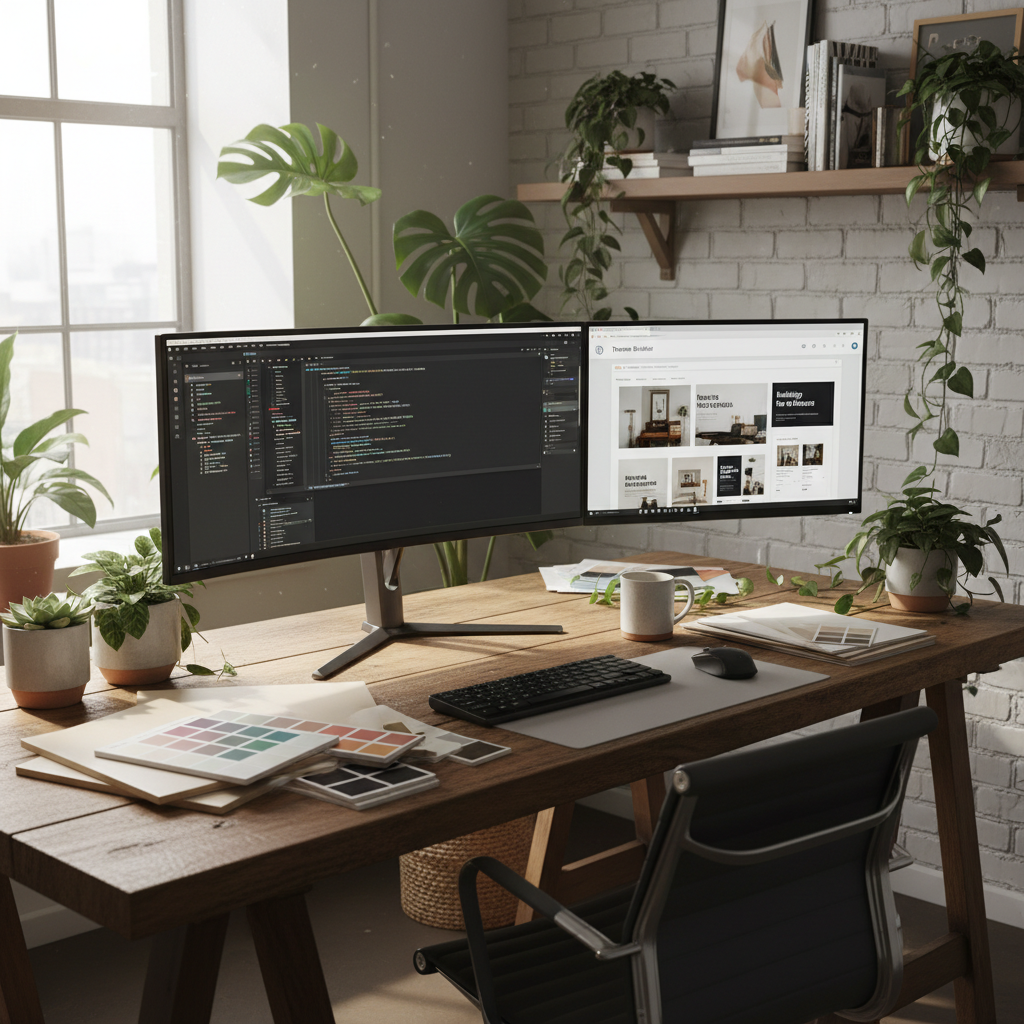
Before you even start with coding, let’s get your development environment set up. You can’t build a house without a solid foundation, right? First thing’s first, you’ll need a local server setup. I recommend using tools like XAMPP or Local by Flywheel to create a local WordPress installation. This way, you can code and test without affecting a live site.
Next, grab an excellent code editor. I’m partial to Visual Studio Code. It’s got plugins that make working with WordPress a breeze, like Emmet for faster HTML coding. And trust me, you’ll want all the speed you can get when fixing bugs at midnight!
Understanding WordPress Theme Structure
Talking Points:
- Familiarize yourself with essential theme files.
- Discover the role of template hierarchy.
- Learn about the style.css file and its importance.
Alright, now let’s break down the WordPress theme structure. A WordPress theme is essentially a collection of files working together. The main ones include `style.css` (which holds your theme metadata) and `index.php` (your main template file). Familiarity with the WordPress template hierarchy will help you understand how different templates are loaded depending on the content.
Make sure you have your `functions.php` file set up next. This file is where you’ll add functionality to your theme. But let’s not get ahead of ourselves, we’ll get there soon!
Creating Essential Theme Files
Talking Points:
- The minimal files needed for a theme.
- How to set up your first `header.php` and `footer.php`.
- The importance of keeping your theme organized.
To kick off, you’ll want at least these files: `index.php`, `style.css`, `header.php`, and `footer.php`. Keeping your theme organized with the right file structure is key.
Think of `header.php` as your site’s opening act! It typically contains the `
` section and the opening HTML body tag. Meanwhile, `footer.php` brings the curtain down on your page. By dividing sections into different files, it keeps your code clean and manageable. Trust me, when you want to update a part of your site, you’ll thank yourself for laying it out this way!Implementing the WordPress Loop
Talking Points:
- Understand what the WordPress Loop is.
- How to display posts and pages dynamically.
- Customizing the Loop to fit your needs.
Now, let’s tackle one of the most crucial components of WordPress: the WordPress Loop. This piece of code lets you display posts and pages dynamically. In my early days, grappling with the Loop felt like trying to solve a Rubik’s Cube blindfolded!
Here’s a simple version of the Loop you can implement:
“`php
“`
You’ll notice this code structure is powerful. It allows you to pull in and display content straight from your database.
Adding Theme Functionality with functions.php
Talking Points:
- What goes into the functions.php file.
- Easy ways to add custom functionality.
- Examples of functions you might want to include.
Next up, let’s dive into `functions.php`. This is where your theme starts to gain some personality. From adding support for custom logo uploads to registering sidebars, this file is the heart of your theme’s functionality.
A practical starter code might look like this:
“`php
function wp_theme_setup() {
add_theme_support(‘custom-logo’);
}
add_action(‘after_setup_theme’, ‘wp_theme_setup’);
“`
This adds a custom logo feature; simple, right? As you play around more, you’ll find endless possibilities of what you can add here.
Ensuring Responsive Design and Mobile Compatibility
Talking Points:
- Importance of responsive design.
- CSS techniques to ensure mobile-friendliness.
- Tools for testing responsiveness.
With more folks browsing on mobile than ever, responsive design isn’t optional. You want to ensure your theme automatically adapts to different screen sizes.
Utilizing CSS media queries is key. Here’s a quick example to make your images responsive:
“`css
img {
max-width: 100%;
height: auto;
}
“`
Make sure to test your theme on various devices. Tools like BrowserStack offer fantastic insight into how your site looks on different screens. Trust me; it saves you from surprised reactions from your visitors!
Testing and Debugging Your Custom Theme
Talking Points:
- Techniques for effective testing.
- Common issues to look for.
- Debugging tools and plugins.
Before launching, rigorous testing is non-negotiable. Since I’ve had my fair share of embarrassing bugs, I can’t stress this enough!
Use the WordPress debugger in your `wp-config.php` file:
“`php
define(‘WP_DEBUG’, true);
“`
This will help reveal warnings and errors you may have missed. Also, tools like Query Monitor can be useful for tracking down performance issues.
Deploying Your Custom Theme
Talking Points:
- Steps for deploying your custom theme.
- Hosting considerations.
- Final checks before going live.
Alright, you’ve built your masterpiece. Now, it’s time to go live! Before hitting that publish button, ensure everything is ready to roll.
Export your theme and zip it up, or if you’re using FTP, upload your folder directly. Then check your hosting environment. I recommend monthly backups just in case something goes awry—and yes, it often does!
Best Practices for Custom WordPress Theme Development
Talking Points:
- Keeping your code clean and organized.
- Regularly updating your theme and WordPress.
- Resources for continuing education.
As you create more themes, keeping your code organized will save headaches later. Commenting is your friend! And remember to keep everything updated—there are security risks in outdated code that can haunt your site.
To keep learning, I recommend checking out WP Beginer and CSS-Tricks—they’re rich with resources that will keep you sharp in your skills.
Conclusion: Empowering Your WordPress Journey
Building a custom WordPress theme is not just a task; it’s a rewarding experience that allows you to connect with your site like never before. Each line of code you write reflects your personality and creativity.
So, roll up your sleeves and get started! I invite you to share your experiences or any tips you’ve learned in the comments. Let’s build a thriving community of WordPress lovers—after all, we’re all in this together!
Frequently Asked Questions
1. What are the minimum files needed to create a custom WordPress theme?
Answer: The essential files required are `style.css` for theme metadata and `index.php` as your primary template file. You should also include `header.php` and `footer.php` to structure your pages.
2. How do I ensure my custom theme is responsive?
Answer: Use CSS media queries to adapt your layouts for various screen sizes. Additionally, apply a maximum width of 100% for images and check responsiveness using tools like BrowserStack or responsive design testing browsers.
3. What is the WordPress Loop?
Answer: The WordPress Loop is a PHP code structure used to display posts and pages dynamically within your theme. It checks if there are posts available in the database and outputs them according to your specified layout.
4. How can I customize my theme’s functionality?
Answer: The `functions.php` file allows you to add various functionalities to your theme, such as custom post types, widgets, and theme support features like custom logos and post thumbnails.
5. What are some debugging tools I can use during theme development?
Answer: You can enable debug mode in WordPress via `wp-config.php` or use plugins like Debug Bar and Query Monitor. They will help you identify errors and performance issues that need addressing.