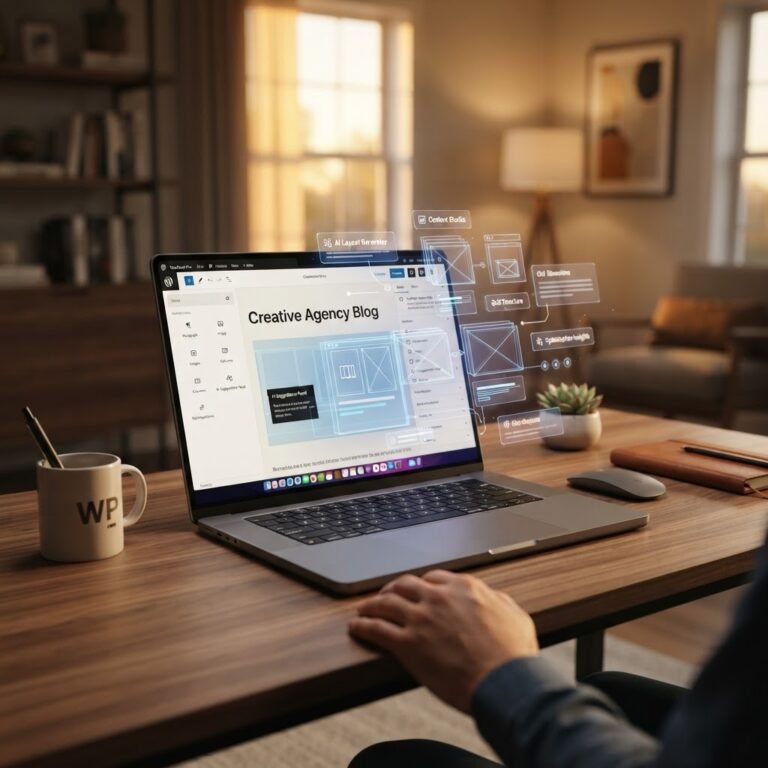
Build Custom Gutenberg Blocks: A Practical Developer Guide
Custom Gutenberg Blocks: The No-Nonsense Guide to Building Your Own
Talking Points:
- Why 43% of the internet relies on this editor
- The hidden performance tax of page builders
- Reclaiming control over your site architecture
I remember staring at my screen at 3 a.m. years ago. My site was a bloated mess of plugins fighting for attention. Every time I changed a font, the entire database groaned. Gutenberg changed that. It powers 43% of all websites right now. That is a massive footprint for a tool that many people still try to avoid.
Most folks settle for heavy page builders that inject thousands of lines of junk into their code. This kills speed. Building custom Gutenberg blocks code allows you to strip away that bloat. You only load what you need. My site speed jumped by nearly 40% after I purged those bloated builders. It felt like shedding a heavy winter coat in mid-July.
Stop Fighting the Editor and Start Controlling It
Talking Points:
- Moving beyond pre-made themes
- The shift from passive user to active builder
- Managing expectations for your workflow
I spent years fighting with CSS overrides. It was exhausting. Then I realized the editor was not my enemy. It was just waiting for me to provide the right instructions. When you learn how to create custom gutenberg blocks, you stop being a tenant on your own site. You become the landlord.
WordPress block development tutorial resources often make this feel like brain surgery. It is not. You are simply defining how content looks in the database and how it renders for the user. I built a simple CTA block last week in under an hour. It saved me from using a plugin that added five script files just to show a button.
The Command Center Setup: Tools You Need
Talking Points:
- Why the WordPress Create Block package is king
- Setting up WP-scripts for local environments
- Avoiding the trap of heavy IDE dependencies
Don’t try to build blocks in the WordPress dashboard. You need a local environment. I use Local or DevKinsta. Then, install the WordPress Create Block package. This tool is the industry standard for a reason. It handles the scaffolding for you. I remember trying to write my own build scripts years ago. It was a disaster.
Keep your tools light. You need Node.js and a code editor. That is it. If you spend three days configuring your dev environment, you are doing it wrong. Use WP-scripts to handle your build processes. It watches your files and updates your block as you code. This keeps you in the flow.
The Anatomy of a Block
Talking Points:
- The power of the block.json configuration
- Separating the edit and save functions
- Mapping your schema to actual data
Every block starts with a block.json file. This file tells WordPress what your block is and what it does. It is the brain of the operation. If you mess up the syntax here, nothing else works. It is the first place I look when a block fails to register.
Next, you have the edit function. This is what you see in the editor. Then, the save function defines how the block sits in the database. When I first started, I confused these two all the time. Just remember: edit is for your eyes, save is for the database. Keep your logic clean and you will avoid the dreaded white screen.
Your First Hello World Block
Talking Points:
- Running the create-block command
- Modifying the default output structure
- Testing your logic in the browser console
Start simple. Run the create-block command in your terminal. It generates a directory with everything you need. Open that folder. You will see an index.js file. That is where your React components live. Change the text to “Hello World” and watch the magic happen in your local dev site.
If it breaks, check the browser console. This is your primary diagnostic tool. I see so many beginners panic when they get a JavaScript error. Don’t. The console tells you exactly which line is failing. Fix the typo, refresh the page, and move on. It is part of the process.
Adding Interactivity: Attributes and State
Talking Points:
- Defining attributes in your schema
- Using React state for real-time updates
- Keeping your logic focused on user input
You need attributes to store data. These could be colors, text, or numbers. If you do not define your schema, WordPress will not know how to save your changes. I once spent six hours wondering why my button color kept resetting. Turns out, I forgot to add the attribute to the block.json file.
React handles the state for you. When a user changes a setting, the edit function re-renders the block. This makes for a snappy experience. It feels like the block is alive. Just don’t overcomplicate it. If you have fifty attributes for one block, you should probably split that into two smaller blocks.
Dynamic vs. Static Blocks
Talking Points:
- When to use PHP for rendering
- Saving server resources with smart logic
- Avoiding database bloat from static markup
Static blocks save HTML to your database. This is great for simple designs. But if you need to show the latest post title, static won’t cut it. That is when you build dynamic blocks. These use PHP to render the output at runtime. It keeps your database clean as a whistle.
I prefer dynamic blocks for almost everything now. It gives me the freedom to update a design across the whole site just by changing one PHP file. You save yourself from needing to re-save every single post. That is how you keep your sanity over the long term.
Common Pitfalls: The White Screen
Talking Points:
- Fixing JavaScript syntax errors
- Managing legacy dependency conflicts
- Troubleshooting block registration failures
The white screen of death is usually a simple JavaScript error. It is not some mysterious cosmic event. Usually, I missed a closing bracket or a comma. Check your syntax. If that fails, look for version conflicts with your React dependencies.
Sometimes, older plugins interfere with your new blocks. I had a site break because an old plugin was forcing an outdated version of React. That is why we keep our build environment isolated. Control your dependencies and your site will stay stable. Never push untested code to a live site. Ever.
Best Practices for Clean Code
Talking Points:
- Avoiding redundant asset loading
- Using theme.json for style integration
- Writing for future compatibility
Transitioning to native block development can reduce front-end asset payload by 30-50% when using block-level asset enqueuing. Never load a script on a page if the block is not there. WordPress is smart enough to handle this if you define your assets correctly in your build. It makes the site lean.
Use theme.json to handle your global styles. It keeps your block designs aligned with your site colors without hardcoding hex values. This is how you build a site that stays easy to maintain. Your future self will thank you for being disciplined today. Bloat is the silent killer of good sites.
Final Thoughts on Your Workflow
Building your own blocks is the best way to regain control over your WordPress site. It takes time, yes. But once you get the hang of it, you will never want to go back to page builders. You gain speed, security, and a cleaner codebase.
Start with one block. Maybe a simple quote or a custom button. Share your results with the community. I love seeing how others solve the same problems I faced years ago. Let me know what you are working on in the comments section below. Let’s get to building.
Frequently Asked Questions
- Q: Do I need to be a React expert to build blocks? A: Not at all. You need a functional grasp of how components work, but the WordPress API simplifies most of the heavy lifting for you.
- Q: Why is my block showing a “Block has invalid content” error? A: This usually means your save function output does not match what the database thinks is there. Check your block.json and ensure your save logic is consistent.
- Q: Can I use Tailwind with Gutenberg blocks? A: Yes, many developers do. You just need to configure your build process to handle the CSS processing alongside your block files.
- Q: How does this affect my site security? A: Building custom blocks is safer than relying on random plugins. You control the code, so you know exactly what is running on your server.
- Q: Where can I find more examples of block code? A: The official WordPress block editor handbook is the gold standard for reference. It has updated examples for almost every common block pattern.