WordPress Multisite Setup Guide: Build Your Network Easily
WordPress Multisite Setup Guide: Build Your Network Without the Headaches
Ever been staring at a blank screen, the dreaded “White Screen of Death” at 2 AM, wondering if your entire WordPress site is about to spontaneously combust? Yeah, me too. It’s a special kind of panic, right? And if you’ve ever wrestled with multiple WordPress sites, maybe for different clients, or different branches of your business, you know the pain of managing them all. Updating plugins on each one, keeping track of themes, ensuring security across the board – it’s a grind. What if I told you there’s a way to streamline all of that, to manage a whole network of sites from one central hub? That’s where WordPress Multisite comes in. It’s not some mythical beast; it’s a powerful feature built right into WordPress that can seriously change how you manage your web presence. I’ve personally fixed thousands of WordPress sites, and let me tell you, a well-configured Multisite network is a thing of beauty. But getting there? That can feel like climbing Everest in flip-flops. This guide is your Sherpa.
What Exactly Is WordPress Multisite?
Talking Points:
* Define WordPress Multisite as a single WordPress installation managing multiple sites.
* Explain the core concept of shared files, database, and plugins.
* Discuss when it’s a good fit versus when it’s overkill.
So, what is this WordPress Multisite thing, anyway? Think of it like having one main WordPress installation, but instead of just one website, you can run a whole network of them. Each site in the network can have its own unique domain or subdomain, its own set of posts, pages, and users, but they all share the same core WordPress files, the same database tables (with a clever prefix system), and the same plugins and themes. This is huge for efficiency. If you manage sites for clients and they all use the same essential plugins, you only need to update that plugin once for the entire network. It’s like having a central command center for all your WordPress operations. Now, the big question: do you actually need it? If you’re running, say, a single blog or a small business website, probably not. It adds a layer of administration you don’t need. But if you’re managing multiple client sites, or if your organization has many departments or branches that need their own distinct web presences but share some common functionality, or if you’re building a platform where users can create their own sites (think blogs, forums, or internal company sites), then Multisite might just be the golden ticket. It’s particularly potent for universities or large companies with many sub-entities. We’re talking about potentially over 1.8 million websites already using this setup, so it’s not exactly new, but it’s powerful when used correctly.
Before You Flip the Switch: The Pre-Installation Checklist
Talking Points:
* Emphasize the critical need for automated backups.
* Discuss checking server requirements (PHP version, memory limit).
* Advise on selecting a reliable hosting provider that supports Multisite.
Okay, before we dive headfirst into enabling Multisite, we have to talk safety. This is not the time to be winging it. I’ve seen too many sites go sideways because someone skipped the prep work. First and foremost: Backups. Make sure you have a reliable, automated backup system in place for your entire WordPress installation. Seriously. If anything goes wrong, and believe me, things can go wrong, a solid backup is your lifeline. I once helped a client who enabled Multisite without a proper backup, and let’s just say the recovery process was… stressful. Ensure you can restore your entire site to its previous state. Second, check your server. Multisite can be more resource-intensive than a standard WordPress site. You’ll want to make sure your hosting plan meets or exceeds the recommended PHP version and has a sufficient server memory limit. Many shared hosting plans might struggle, especially as your network grows. If you’re on a budget shared host, do your homework. Look for managed WordPress hosting solutions; they often handle Multisite configurations and resource management like champs. This groundwork might seem tedious, but it saves massive headaches down the line. Trust me on this. It’s about building a solid foundation for your network.
Let’s Get This Party Started: Enabling Multisite in `wp-config.php`
Talking Points:
* Explain the specific code snippet to add to `wp-config.php`.
* Detail the process of accessing and editing the `wp-config.php` file.
* Describe the next step: activating the network via the WordPress admin.
Alright, the moment of truth. Enabling the core Multisite functionality is surprisingly simple, but you need to be precise. You’ll be editing your `wp-config.php` file. This is one of the most critical files in your WordPress installation, sitting right in the root directory of your site. Before you touch it, back it up separately! Open it up in a plain text editor – not a word processor like Microsoft Word. You’re looking for the line that says `/ That’s all, stop editing! Happy publishing. /`. Just above that line, you need to add two lines of code. First, define Multisite: `define( ‘WP_ALLOW_MULTISITE’, true );`. This tells WordPress, “Hey, I want to enable the Multisite feature.” Save that file. Now, log into your WordPress admin dashboard. You’ll see a new option under the “Tools” menu called “Network Setup.” Click on that. WordPress will do a quick check to ensure your server environment is ready. If everything looks good, you’ll see options to configure your network settings. This is where you’ll set the title for your network and decide on your URL structure – more on that in a sec. Follow the on-screen prompts, which will ask you to add more code to your `wp-config.php` file and also to your `.htaccess` file. Yes, we’re editing those files again. It’s a bit of a dance between these two files during setup.
Subdomains vs. Subdirectories: Choosing Your Network Structure
Talking Points:
* Explain the difference between subdomain (`site.yourdomain.com`) and subdirectory (`yourdomain.com/site`) structures.
* Discuss the pros and cons of each, including SEO implications and technical setup.
* Highlight that this choice is usually permanent and why.
This is a big decision, and you usually can’t change it later without a major headache. We’re talking about how the URLs for your individual sites within the network will look. You have two main options: subdomains or subdirectories. Subdirectories are like `yourdomain.com/site1`, `yourdomain.com/site2`, and so on. They keep all your sites under one main domain. This can feel simpler initially, and for some SEO strategies, it might be preferable as all the link equity flows directly to your main domain. However, setting up subdomains requires a bit more server configuration. You’ll often need to set up wildcard subdomains on your hosting account. A wildcard subdomain means `*.yourdomain.com` will all point to your WordPress installation. This allows you to create sites like `site1.yourdomain.com`, `site2.yourdomain.com`, etc. The benefit here is that each site feels more distinct, almost like its own separate entity. This can be great for branding or if you want to allow users to create sites that look completely separate. Here’s the kicker: you have to choose this during the initial setup. Switching later is technically difficult and often problematic, potentially breaking existing URLs and causing SEO issues. WordPress also restricts subdirectory-based Multisite installation on sites older than 30 days to prevent URL collisions with existing content. So, pick wisely! Think about how you want your network to look and function long-term.
Configuring Your `.htaccess` and `wp-config.php` for Network Power
Talking Points:
* Detail the `.htaccess` rules needed for Multisite.
* Explain the additional `wp-config.php` constants for Multisite configuration.
* Discuss troubleshooting common `.htaccess` or `wp-config.php` errors.
Remember those extra lines of code WordPress prompted you to add? This is where they go. For Multisite to work correctly, especially with subdomains, your server’s configuration files need to understand that multiple sites are being handled by a single WordPress installation. If you chose subdirectories, WordPress will modify your `.htaccess` file to handle the routing. If you opted for subdomains, you’ll likely need to ensure your server is set up for wildcard subdomains (ask your host if you’re unsure) and then add specific rules to your `.htaccess` file, provided by WordPress during setup. These rules tell the server to direct all requests for `yourdomain.com/anything` or `anything.yourdomain.com` to your main WordPress index file, which then figures out which site the request belongs to. You’ll also be adding more constants to your `wp-config.php` file, like `SUBDOMAIN_INSTALL` or `PATH_CURRENT_SITE`. These constants fine-tune how Multisite operates. Getting these files wrong is a super common reason for setup failures. Double-check every character. A misplaced comma or an incorrect rule can bring your whole network down. If you run into a 500 Internal Server Error, your `.htaccess` file is often the culprit. Make sure you have a backup before editing, and carefully compare the WordPress-provided code with your existing file. It’s a bit of technical wizardry, but crucial for a functional network.
Welcome to the Command Center: The Network Admin Dashboard
Talking Points:
* Introduce the Network Admin dashboard and its purpose.
* Explain the role of the Super Admin.
* Describe key initial settings within the Network Admin.
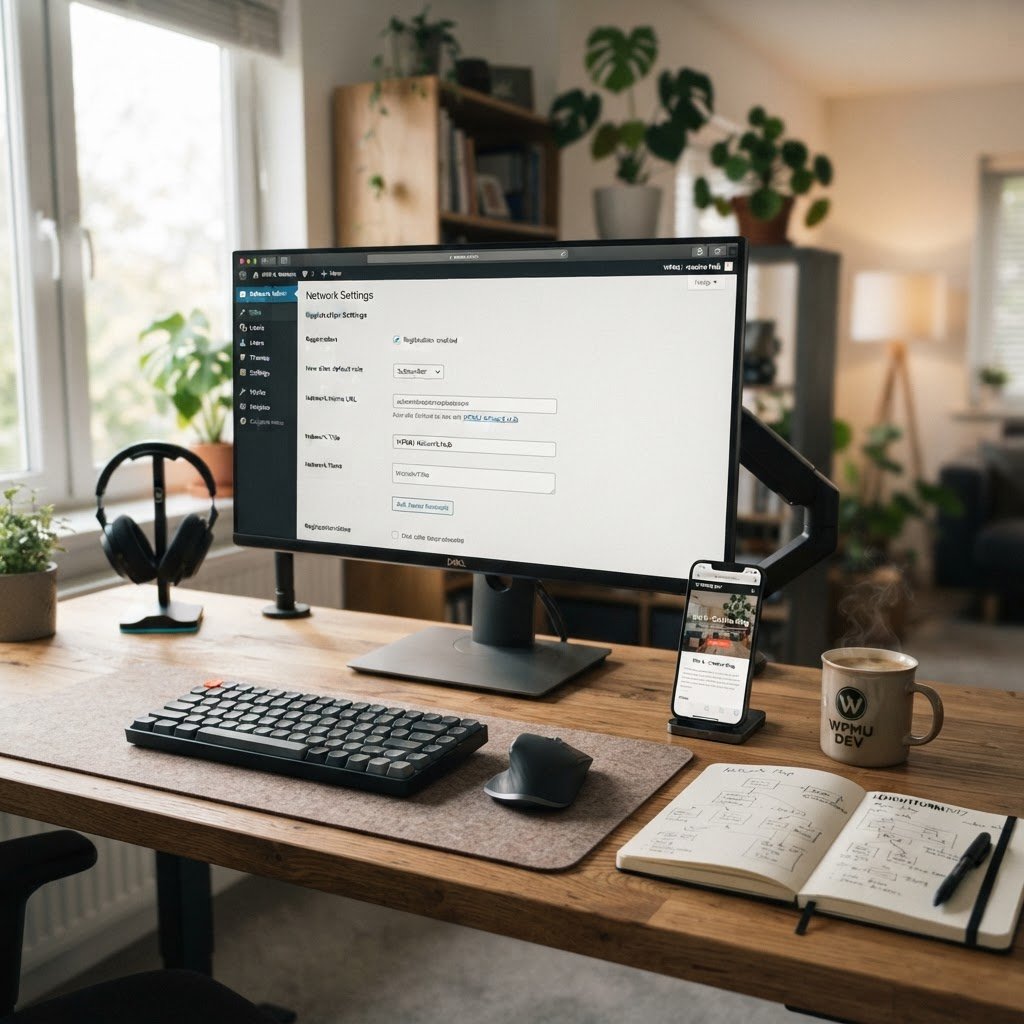
Once everything is set up, you’ll notice a few changes in your WordPress admin area. Most importantly, you’ll gain access to the Network Admin Dashboard. This is your new command center. Instead of just managing one site, you’re now a Super Admin for the entire network. The Super Admin role is powerful; you have privileges that regular site admins don’t, like the ability to install and activate themes and plugins for all sites in the network, manage users across the entire network, and control network-wide settings. You’ll find the Network Admin menu at the top left of your dashboard. From here, you can add new sites to your network, manage existing ones, update core WordPress files, and configure network settings. You’ll also see options for managing plugins and themes network-wide. This centralized control is the core benefit of Multisite. Think of it as the cockpit of your network airplane. You can see all the gauges, control all the systems, and ensure everything is running smoothly across all your digital properties. It’s where you’ll spend a lot of your time managing your WordPress multisite network installation.
Dodging the Pitfalls: Common Setup Problems and Quick Fixes
Talking Points:
* Address issues with `.htaccess` and `wp-config.php` file permissions.
* Explain how to troubleshoot plugin compatibility issues.
* Discuss handling issues with existing permalinks or URL structures.
We’ve already touched on the file editing issues, but let’s get specific. One of the most common frustrations when setting up WordPress Multisite is incorrect file permissions. If your `wp-config.php` or `.htaccess` files aren’t writable by the server when WordPress tries to update them, the setup will fail. You might need to use an FTP client or your hosting control panel’s file manager to adjust permissions (often to 644 for files). Another biggie is plugin compatibility. Not all plugins are built with Multisite in mind. Some might try to load code or settings that only work on a single site, causing errors on other sites in the network. Always check if a plugin is Multisite-compatible before activating it network-wide. If a plugin causes issues, you’ll need to deactivate it network-wide immediately. Troubleshooting involves disabling all plugins and then reactivating them one by one to pinpoint the offender. If you’re migrating an existing single site to Multisite, you might run into issues with permalinks or existing URL structures if you weren’t careful during the initial setup phase. Ensure your permalink structure is set to