WordPress Plugin vs Theme Difference: A Complete Guide
WordPress Plugin vs Theme: The Definitive Guide to Fixing Your Site’s Foundation
The Midnight Wake-up Call
Talking Points:
* The sudden panic of the White Screen of Death.
* Misidentifying the root cause of site crashes.
* Why confusion between themes and plugins ruins your sleep.
I remember staring at my monitor at 2 AM with a cold cup of coffee. My main site, which had worked perfectly for weeks, was staring back at me with a terrifying blank white page. The White Screen of Death. I started clicking buttons frantically, convinced the world was ending. We have all been there at least once.
Many users blame their host or the CMS itself during these moments. They start deleting files or restoring backups without checking the basics. The real culprit is usually a conflict between a theme and a plugin. Understanding the wordpress plugin vs theme difference is the only thing that keeps you sane when everything breaks.
Your Site’s Visual DNA
Talking Points:
* Defining what a wordpress theme does for your site.
* The distinction between site aesthetics and raw data.
* Why the theme framework dictates your frontend display.
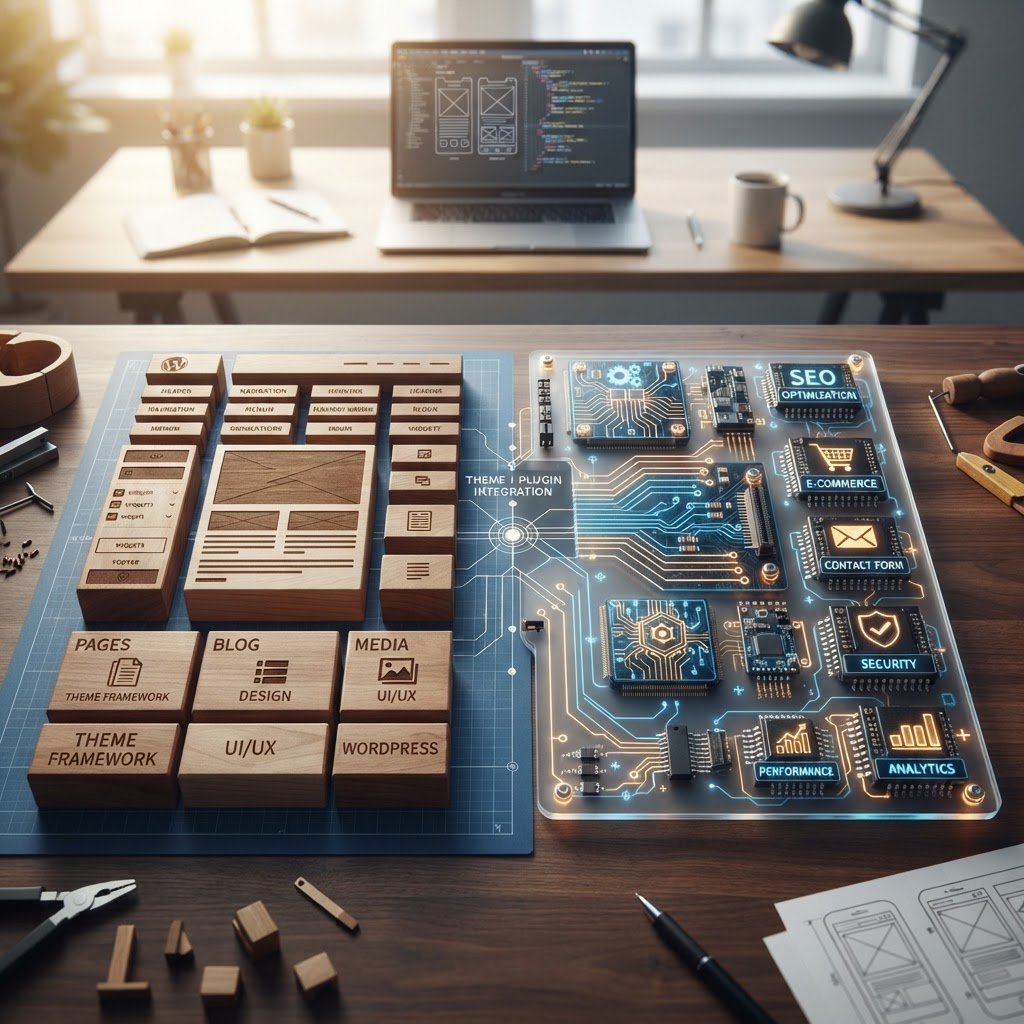
Think of your theme as the outfit your website wears. It handles everything the visitor sees, from the layout and font choices to your custom color schemes. It dictates the frontend display for every single page you publish. Without a theme, your site would look like a giant block of plain text.
People often ask what does a wordpress theme do exactly? It creates the visual framework. It maps where your sidebars sit and how your headers appear on mobile devices. If you want a fresh look, you swap the theme. Your actual content, like blog posts or images, stays locked in the database regardless of the visual coat of paint you choose.
The Engine Under the Hood
Talking Points:
* Defining what is a wordpress plugin.
* Extending backend functionality versus visual changes.
* How plugins serve as modular software add-ons.
If the theme is the outfit, the plugin is the muscle. Plugins are bits of code that add features the core software does not include out of the box. You use these to turn a basic blog into a full-scale ecommerce shop or a booking platform. They modify backend functionality without changing your visual style.
There are over 60,000 plugins sitting in the repository right now. That is a massive amount of power available for your site. You need a contact form? There is a plugin for that. You need an automated backup system? Another plugin. They act as separate tools that plug into your site framework.
Where Appearance Meets Capability
Talking Points:
* The core difference between presentation and function.
* Managing wordpress extensions for maximum efficiency.
* Why you cannot simply swap one for the other.
Mixing these two categories is where most beginners go wrong. A theme should not be doing the job of a plugin. If your theme includes a heavy contact form builder or a complex slider, you are asking for trouble. That is called theme lock-in. If you switch your design, you lose that functionality.
Keep your features separate from your looks. If a feature needs to stay around even if you change the site design, it belongs in a plugin. This separation keeps your site architecture clean. It also makes your life much easier when you want to update your look later on without breaking your contact forms.
When Themes and Plugins Clash
Talking Points:
* How themes and plugins work together.
* Identifying common wordpress site conflicts.
* The dangers of plugin compatibility issues.
Code bloat is a real thing. When you run twenty different plugins, you add extra requests for your server to handle. Sometimes, a theme and a plugin try to change the same piece of code at the exact same time. This is where site performance optimization falls apart.
Maybe your theme has a built-in gallery, but you installed a plugin to manage your photos. They fight over the same file paths. Your site slows down, or it crashes. You have to monitor how these two parts talk to each other to keep things running smoothly.
Performance and Security Realities
Talking Points:
* Plugins are involved in 98% of vulnerabilities.
* Why outdated software threatens your site health.
* The cost of keeping too many active extensions.
Security is not a joke. Plugins are the primary vector for hackers, being involved in 98% of identified vulnerabilities. If you keep 50 plugins installed but only use 10, you are leaving 40 open doors for trouble. You must prune your site regularly.
Look for quality over quantity. One bad plugin can drag down your site speed and create a security hole. Delete anything you do not actually use today. A lean, fast site is much harder to break than one stuffed with useless code.
Diagnosing Your Site Errors
Talking Points:
* Troubleshooting wordpress site errors systematically.
* How to test for conflicts safely.
* Using the default theme to isolate issues.
When your site goes down, do not panic. First, switch to a default theme like Twenty Twenty-Four. If the site comes back, your original theme had the conflict. It is a simple trick that fixes half the issues I see.
Next, deactivate all plugins. Turn them back on one by one. Refresh your site after each one. When it breaks again, you found the villain. This method works every time. It is the gold standard for fixing site crashes without needing a developer.
Maintaining a Clean Foundation
Talking Points:
* Deleting versus deactivating plugins correctly.
* Avoiding database clutter with proper cleanup.
* Best practices for long-term site stability.
Deactivating a plugin is not the same as deleting it. The settings and data often stay buried in your database. These leftovers can slow your site down over time. Always delete plugins you no longer need, do not just click the off switch.
Also, use child themes if you are making code changes. Never edit your main theme files directly. If the theme updates, you will lose your hard work. Keep your custom changes in a child theme to protect your site health.
Customization and Future Growth
Talking Points:
* Choosing between premium plugins and custom code.
* When to upgrade your theme framework.
* Planning for growth without adding unnecessary bloat.
As your business grows, your needs will change. Sometimes, you need a custom theme instead of a free one to handle your specific layout needs. Other times, a premium plugin is worth the price for the support and updates alone. It is about investing in quality code.
Do not chase the newest plugin trend every week. Stick to tools that provide long-term value. If you keep your site lean and secure, you will spend less time fixing it and more time building your business.
Your Command Center for Stability
Talking Points:
* Recapping why structure matters for success.
* Encouraging active site management habits.
* Inviting community feedback and personal tips.
Running a site takes work, but it gets easier once you know the basics. You are the architect of your digital space. Treat it with care by keeping your plugins updated and your theme clean. You have all the tools you need to stay online.
Have you ever faced a site crash that stumped you for hours? Tell me about your fix in the comments below. We are all learning this together, and your experience might just save someone else a late-night headache.
Frequently Asked Questions
Can I have a WordPress site without any plugins?
Yes, you can. A fresh install of WordPress runs without any plugins. However, you will miss out on features like advanced contact forms, SEO tools, and performance caches that most sites require to be effective.
Is it dangerous to use free themes from the repository?
Not at all. The main concern is code quality, not the price. Look for themes with recent updates and active support forums. A well-maintained free theme is often faster and safer than a poorly written paid one.
How many plugins is too many for a site?
There is no magic number. It depends on what the plugins do. Five poorly coded plugins can slow your site more than fifty lightweight, efficient ones. Focus on site speed scores rather than a total plugin count.
Does switching my theme delete my blog posts?
No. Your posts, pages, and media are stored in your database. Switching your theme only changes how those items are displayed on your visitors’ screens. You may need to re-configure your menus or widgets, but your content remains safe.
Why does my site still act buggy after I deactivate a plugin?
Sometimes, a plugin leaves behind cached files or specific database entries that stay active. If you still see issues, try clearing your browser cache and your site’s caching plugin to ensure the old settings are fully gone.