WordPress Admin Dashboard Tutorial: A Beginner’s Guide
WordPress Admin Dashboard Tutorial: Your Complete Command Center Guide
I still remember the first time I faced the White Screen of Death at 2am. My heart hammered against my ribs while I stared at a blank browser window, panic setting in. I had no idea why my site crashed or how to fix it. Over two decades of fixing thousands of WordPress sites later, I know exactly what that feels like. You need a reliable map of your backend to stop the stress. This WordPress admin dashboard tutorial acts as your personal survival guide.
The WordPress Dashboard Layout
Talking Points:
* The structure of the primary navigation menu
* Identifying your primary workspace
* Moving beyond the default view with Screen Options
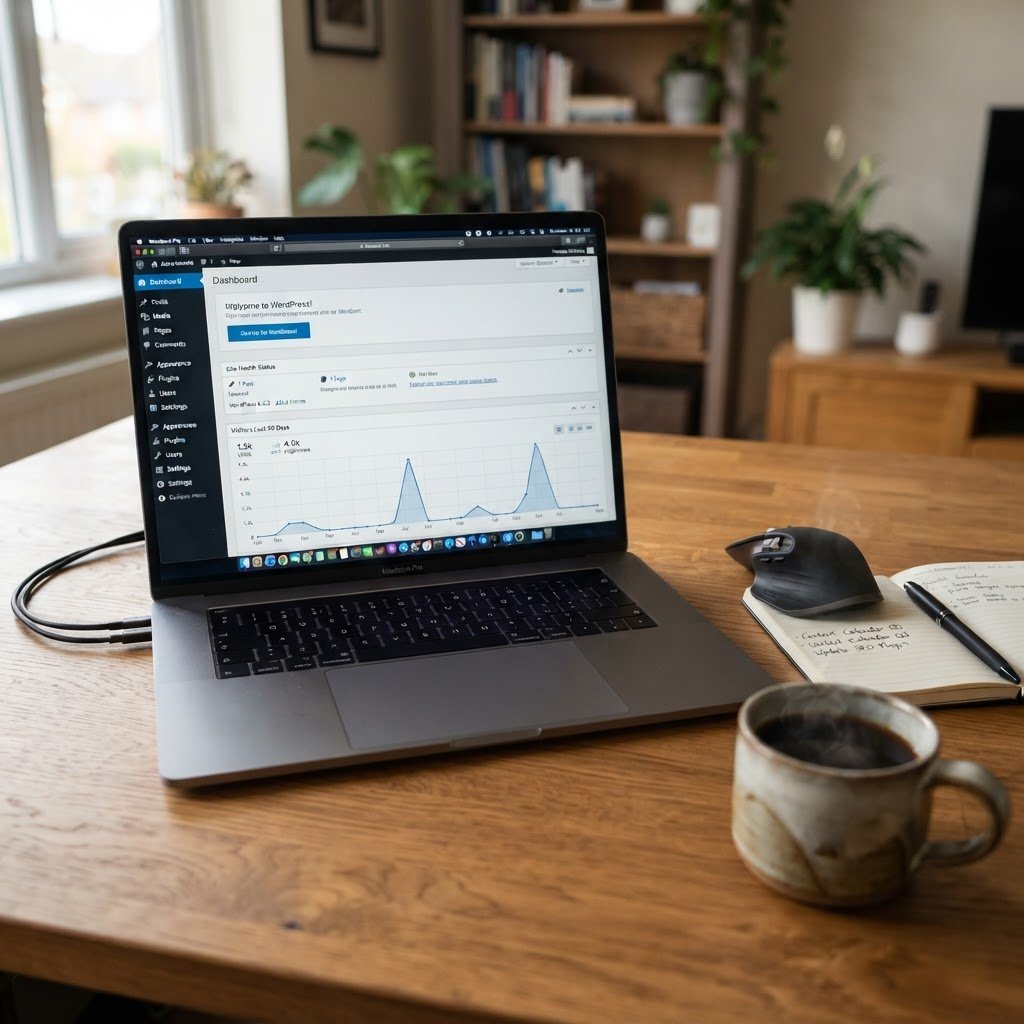
That screen you see right after login is where the magic happens. It feels like a lot at first. Don’t worry. Most of the screen is just noise you can ignore. The left-hand sidebar serves as your control panel for everything from posts to site settings. If things feel cluttered, look for the Screen Options tab at the top right of your page. You can toggle off the widgets you never use to keep your workspace clean. I always strip mine down to just the site health summary and quick draft panel.
Securing Your Access Points
Talking Points:
* Why you should move your login URL
* Using strong credentials for every user
* Avoiding the common admin username trap
Your login portal is the front door of your digital house. Most people leave the door unlocked with the default /wp-admin address exposed. I suggest changing your login URL to something unique that only you know. It stops automated bots dead in their tracks before they even try to guess your password. Never, ever use ‘admin’ as a username. If you currently do, create a new administrator account and delete the old one today. Your site security depends on these small, boring habits.
The Admin Bar: Your Secret Shortcut
Talking Points:
* Accessing the front end and back end simultaneously
* Creating new content from any page
* Managing comments without entering the dashboard
The thin black strip at the top of your screen is a lifesaver. Once you log in, this bar follows you to every page of your live site. It lets you jump straight into editing a post you are currently viewing. You can also approve comments or check for updates without bouncing back to the main menu. I use it constantly to make tiny CSS tweaks while looking at the actual page layout. It saves me dozens of clicks every single hour.
Core Dashboard Widgets: What Stays
Talking Points:
* Why the At a Glance widget matters
* Keeping an eye on your site health
* Clearing out junk that slows your focus
When you first arrive, your dashboard is full of boxes called widgets. Some provide real value like the Site Health tool which flags configuration errors. Others are just marketing clutter from your hosting provider or theme developers. Grab the handle at the top of these boxes and drag them into the trash if they don’t help you. A clean workspace leads to a clear mind. Keep your focus on the metrics that actually show your site performance.
Posts vs. Pages: Content Management
Talking Points:
* Understanding the chronology of blog posts
* When to use static pages for content
* Organizing content with categories and tags
New users often mix up posts and pages. Think of posts as entries in a journal. They have dates, authors, and show up in your blog feed. Pages are for static, timeless information like your contact details or privacy policy. If you want your content to move through time, create a post. If you want it to live in a specific spot forever, make a page. Use categories to group related posts and tags for specific details to keep your content structure tidy.
Managing Appearance: Themes and Customizer
Talking Points:
* Accessing the Customizer for real-time changes
* Installing new themes from the repository
* Why simplicity beats fancy layout options
Your theme dictates how your site looks to the public. Head over to Appearance and then Themes to see your current setup. Most modern themes allow you to edit colors, logos, and fonts in the Customizer. I tell people to avoid themes that require heavy page builders if they want speed. Pick something clean and simple. You can always add the features you need later without bogging down your load times.
Plugins: Extending Without Breaking
Talking Points:
* Finding reliable tools in the official repository
* The danger of installing too many plugins
* Regularly auditing your active software list
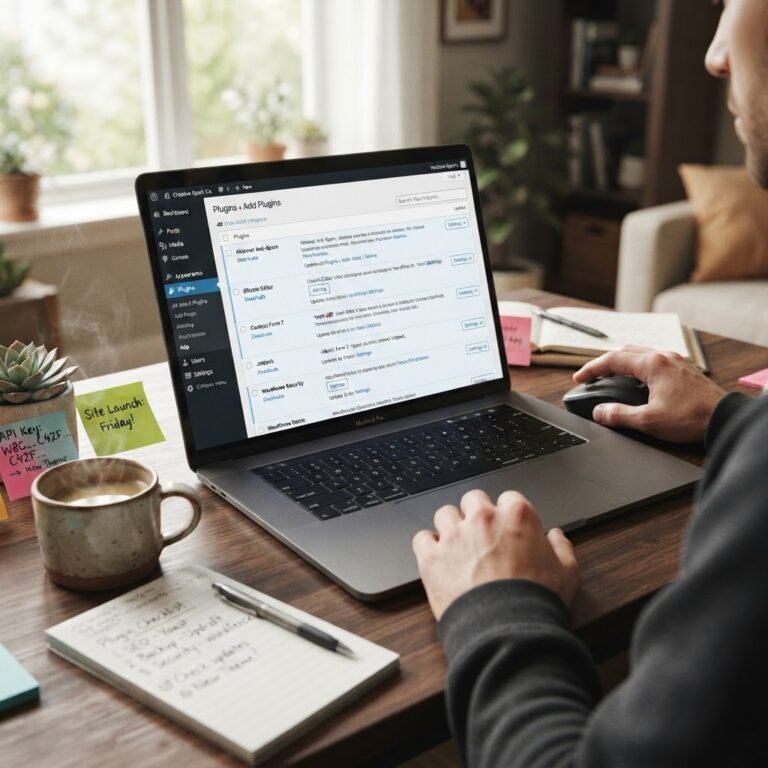
Plugins let you add contact forms or security features without writing code. With over 60,000 free options, it is tempting to go wild. Stop. Every plugin consumes a bit of your server resources. Only install what you need to run your business. Before clicking install, check the date of the last update to make sure the developer is still active. If you find a plugin that you stopped using, delete it completely.
User Management and Permissions
Talking Points:
* Understanding the different user roles
* Why you should grant the lowest required access
* Cleaning out inactive user accounts
Not everyone needs full control over your backend. WordPress provides roles like Subscriber, Editor, and Administrator. If you hire a writer, give them the Editor role so they cannot change your site theme or settings. Granting too many people Administrator access is a recipe for a broken site. Review your user list once a month to remove accounts for people who no longer work with you. It is a quick win for your security posture.
Essential Settings: Permalinks and Reading
Talking Points:
* Fixing your URL structure for search engines
* Setting your homepage to a static page
* Managing how many posts show on your blog feed
Most people ignore the Settings tab, which is a mistake. Check your Permalinks immediately. You want them set to Post Name format for the cleanest URLs. Under the Reading settings, you decide if your homepage shows your latest posts or a static page. These small changes impact how people find your content and how they read your site. Get these right early so you never have to worry about them again.
Maintenance: Using Site Health
Talking Points:
* Interpreting the Site Health feedback
* Why core updates are non-negotiable
* Staying ahead of potential downtime
You are the guardian of your site. The Site Health tool inside your dashboard will tell you exactly what is wrong. It flags outdated PHP versions and missing security headers. Do not ignore these warnings. Run your updates regularly for plugins, themes, and the WordPress core. I block out thirty minutes every Friday morning to do this routine maintenance. It prevents that 2am crash better than any backup plugin ever could.
Taking Control of Your Site
Your site is a reflection of your hard work. You now possess the keys to manage it with confidence. Stop letting the dashboard intimidate you and start making it work for your specific goals. If you hit a roadblock, take a breath and check the settings we discussed. You know more than you think. Have you found a particular dashboard tip that changed your workflow? Leave a comment below and share what works for your site.
Frequently Asked Questions
Where can I find the official WordPress login page?
By default, you can reach your dashboard by typing yourdomain.com/wp-admin into your browser address bar.
Can I change my WordPress username after creating it?
You cannot rename an existing username, but you can create a new user with administrative rights and delete the old account.
What happens if I delete an inactive plugin?
Removing a plugin usually deletes its files and database settings, which helps reduce clutter and potential security vulnerabilities on your site.
How often should I check the Site Health tool?
I recommend checking your site health at least once a month or whenever you run your routine software updates.
Is it safe to use free plugins from the repository?
Yes, as long as you verify the plugin is regularly updated, has good reviews, and originates from the official WordPress repository.