WordPress Database Optimization: The Ultimate Guide for Speed
WordPress Database Optimization: The Ultimate Guide to a Faster, Leaner Site
I once had a client call me at 2 AM, frantic because their site had ground to a halt. Their conversion rates were tanking, and mobile visitors were bouncing before the first image even loaded. We checked the server, and it turns out their database was bloated with years of junk, dragging the entire system down.
Talking Points:
* Database health dictates site speed.
* Common signs of a sluggish site.
* Why performance matters for your bottom line.
Your WordPress site runs on a heartbeat provided by your database. If that heart is struggling to pump, your visitors feel it immediately. When a database becomes cluttered, every request takes longer to process, which adds up to those dreaded seconds that drive people away. A 100-millisecond delay can slash your conversions by 7%, which is a hard hit for any business owner. You want a lean, fast-responding engine, not a rusted-out machine from the nineties.
The Golden Rule: Safety First
Talking Points:
* Never skip a backup.
* Tools for secure exports.
* Why backups are your only safety net.
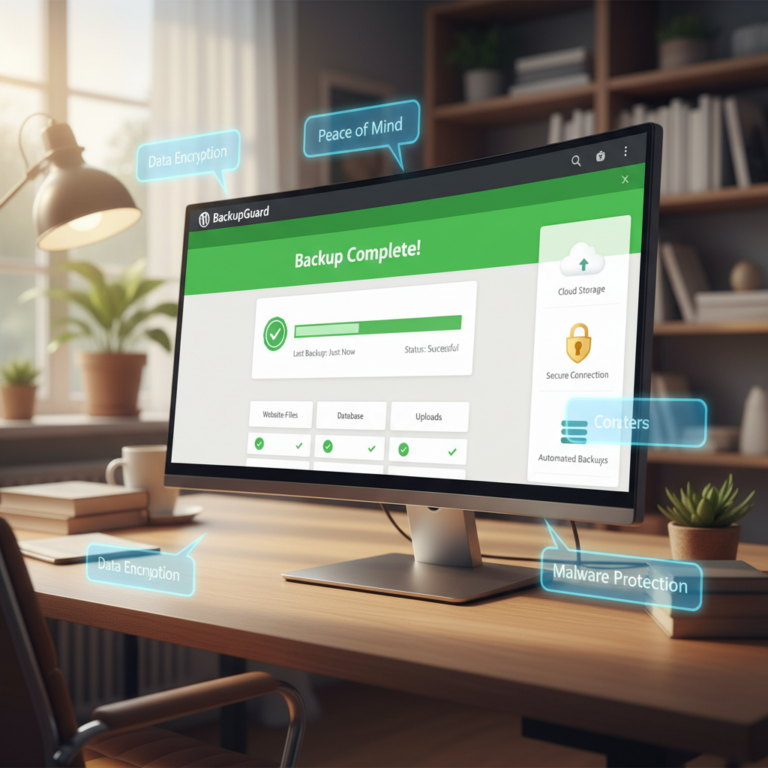
Before you touch a single line of data, you need a backup. I have learned this the hard way after accidentally wiping a table that held critical user settings. Always use a plugin or your hosting panel to export a fresh copy of your database before starting any WordPress database maintenance tutorial. Think of this as your “undo” button. If something goes wrong, you simply restore the file and breathe a sigh of relief.
Understanding Database Bloat
Talking Points:
* What causes table clutter.
* Identifying MySQL overhead.
* Why size matters for server resources.
Database bloat happens when your site grows, but the old, irrelevant data sticks around. Think of it like a garage filled with old boxes you never open. Each time your site requests info, it has to scan through all that junk to find what it actually needs. This leads to MySQL overhead that wastes server power and slows down page loads.
Cleaning Up Post Revisions
Talking Points:
* How revisions pile up.
* Manual deletion vs. automation.
* Keeping your post tables trim.
WordPress loves to save drafts of everything you write, which creates thousands of rows in your `wp_posts` table. Over time, these revisions create massive clutter that serves no purpose once the final article is live. You should periodically remove these to keep your tables light. It is one of the quickest ways to see a measurable improvement in query speeds.
Managing Transients Effectively
Talking Points:
* Identifying expired transients.
* How to safely remove them.
* Preventing transient buildup.
Transients are temporary bits of data that WordPress stores to speed things up, but they often leave messes behind when they expire. When you remove transients in WordPress, you clear out data that is just taking up space. It is a simple housekeeping task that keeps your options table clean. Most users don’t realize these items are even there until they check their database health.
Optimizing the wp_options Table
Talking Points:
* Identifying autoloaded data.
* Why 800 KB is the magic limit.
* Cleaning options from deleted plugins.
This is where many sites hit a performance wall. WordPress loads every entry marked as “autoloaded” on every single page request, regardless of whether that specific page needs the data. Keeping your total autoloaded data under 800 KB is a primary goal for any fast site. If you find a plugin that has been uninstalled but left its settings behind, delete those rows immediately.
Beyond the Basics: Metadata and Orphaned Data
Talking Points:
* Finding orphaned metadata.
* Cleaning up leftover plugin tables.
* Improving database query efficiency.
Sometimes plugins leave behind entire tables or rows in `wp_postmeta` that no longer map to any actual content. These are like ghosts haunting your database. Cleaning them out requires a bit of care, but it prevents your site from searching through useless data. Use a reliable tool to scan for these orphans and safely prune them.
Automating Maintenance for Long-Term Speed
Talking Points:
* Benefits of scheduled cleanup.
* Choosing the right maintenance tools.
* Avoiding over-optimization.
I prefer setting up automated tasks to handle the routine stuff. Plugins that offer scheduled database optimization can keep your site running smoothly without manual input every week. Just be sure to test these tools on a staging site first, as you want to avoid anything that aggressively targets critical data.
Manual Optimization with phpMyAdmin
Talking Points:
* Using the OPTIMIZE TABLE command.
* Navigating server resource management.
* Direct database control for power users.
If you are comfortable with technical tools, phpMyAdmin is your best friend. You can run an `OPTIMIZE TABLE` command to defragment your database files and reclaim unused space. This acts like a disk defragmenter for your server. It is a great way to clean a WordPress database when you want total control over the process.
Proactive Habits: wp-config.php Tweaks
Talking Points:
* Setting revision limits via config.
* Preventing future bloat.
* Creating a maintenance mindset.
One of the best proactive moves is adding `define(‘WP_POST_REVISIONS’, 5);` to your `wp-config.php` file. This forces WordPress to limit how many old versions it saves. By setting a hard cap, you prevent the database from ballooning in the first place. Small changes like this save you from hours of cleanup down the road.
Conclusion
Your database is the foundation of your online presence, and keeping it lean is a core part of site management. By applying these steps, you prevent the performance issues that frustrate visitors and cost you money. Don’t wait for your site to slow down to a crawl before taking action. Start with a backup, clear out the junk, and maintain those small habits that keep your site fast. If you have questions or your own tips for keeping a site speedy, drop them in the comments below!
Frequently Asked Questions
How often should I perform database maintenance?
Once a month is usually plenty for most sites, though high-traffic sites might benefit from a bi-weekly check to keep overhead low.
Can I break my site by optimizing the database?
Yes, if you delete the wrong table or rows. That is why creating a full backup is the most important step before you change anything.
Does caching replace the need for database optimization?
No. Caching serves up static files, but if your database is bloated, your backend processes will still struggle to generate those files.
Why does my wp_options table grow so large?
It usually grows because plugins leave settings behind when deleted, or because many plugins autoload too much data by default.
Is it safe to use plugins for database cleaning?
It is safe, provided you use reputable plugins that allow you to review what will be deleted. Always keep a backup just in case.